

Many Runway users expect smooth camera movement, but the final clip looks stuck — like a still image. You can usually fix it in a few settings checks.
Quick Checklist
| Check | Action |
|---|---|
| Static Camera | Turn off |
| Advanced camera sliders | Set non-zero pan / tilt / zoom |
| Prompt language | Add words like pan, track, crane, orbit |
| Still stuck | Retry in Van Gogh Studio |
How to Solve Runway No Camera Movement Issue
Disable Static Camera Setting
If the video looks completely still, check Static Camera first — it is the most common cause.
- Open your video project.
- Click Camera Control on the left.
- Find the Static Camera checkbox.
- Turn it off, then regenerate.
After this process, regenerate your video to see if the camera movement is now working.
Adjust Advanced Camera Controls
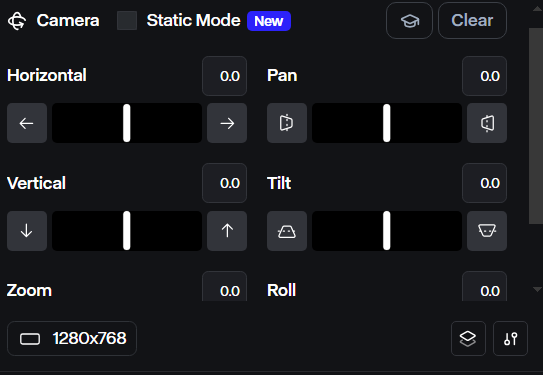
If Static Camera is off but nothing moves, set Advanced Camera Controls (Horizontal, Vertical, Zoom, Pan, Tilt, Roll). Defaults of 0 mean no movement — raise the values that match the shot you want.
Check Your Prompt
Runway generates videos based on the text prompts you give it. If your text prompt is unclear, Runway may not create any camera movement in your final outputs.
Runway's models respond well to explicit camera instructions, so including dynamic camera terms like "panning," "tracking," "crane shot," or "sweeping" in your text prompt will ensure camera movement.
Contact Runway Official Support
If none of the above solutions work, the issue might be on Runway's side. Contacting their support team can help determine if there's an internal issue with this platform.
Visit Runway's help docs and submit your requirements. Then, wait for a response—support typically replies within 24-48 hours.
Use Runway in Van Gogh Studio for Cleaner Camera Motion
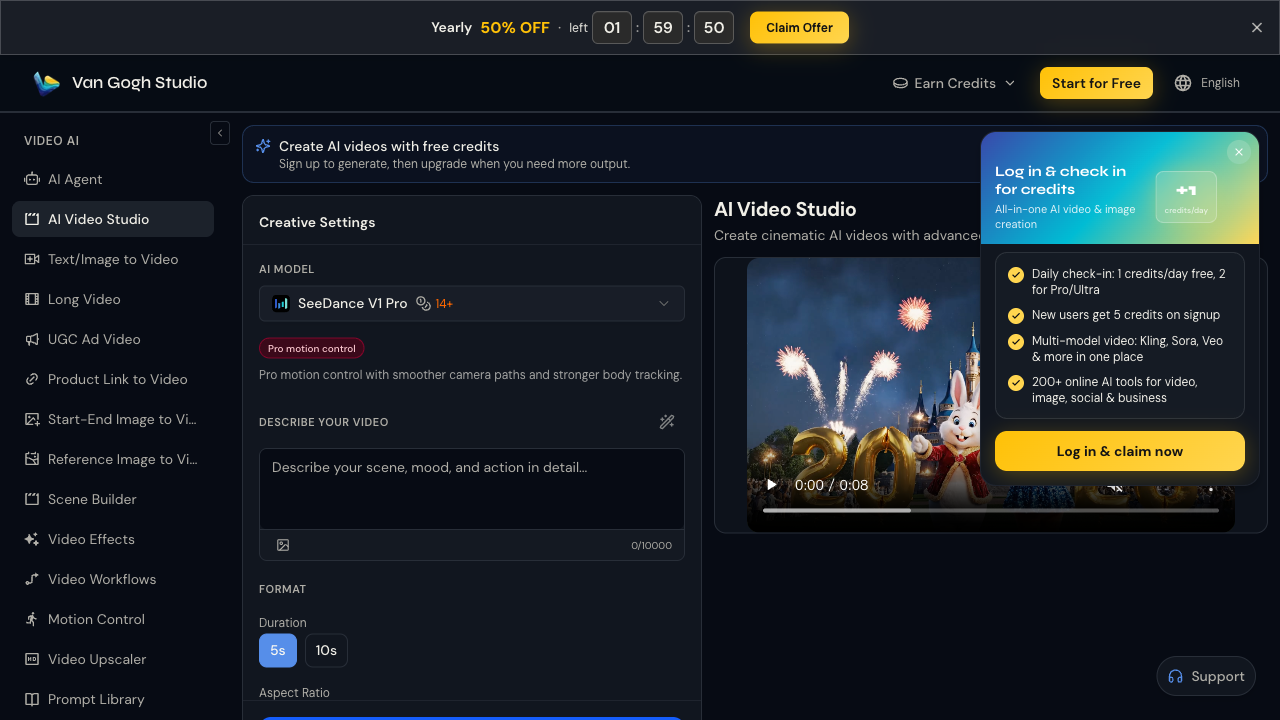
Tired of static outputs on Runway's site? Open the AI Video Studio and run Runway (or Kling / Hailuo) with clearer camera language in the prompt. You also get text to video, image to video, and video effects in the same workspace.
Conclusion
If Runway clips look locked-off, work through the checklist above. For a more reliable workflow, generate with Runway models in Van Gogh Studio — free credits on signup.
You might also like
How to Use Google Gemini Omni (Veo 4): Everything You Need to Know
Learn how to use Gemini Omni (Veo 4) like a pro on Van Gogh Studio. Explore Gemini Omni's powerful features, step-by-step workflow, and expert tips for cinematic video creation.
How to Use Runway Gen-3 Video to Video
Want to use Runway Gen-3 video to video feature? Learn how to transform existing videos into different visual styles with Runway Gen-3 by reading this detailed guide now!
How To Clone High-Performing Video Ads using AI (Step-by-Step)
Want to clone high-performing video ads? Read our Van Gogh Studio tutorial for a detailed step-by-step guide on how to win fast by cloning proven video ads in minutes!
How to Remove Sora Watermark: Free Tools & 3-Step Guide
Want to remove Sora watermark from your videos? This free guide shows you 3 easy steps to remove Sora watermark — plus a smarter way to skip it entirely!
Create AI videos free
Try Van Gogh Studio free — text-to-video, image-to-video, and 300+ models in one place. Free credits on signup, no credit card required.
Try Free Video Generator


