

Google Gemini Omni brings a major shift to AI video generation. Often discussed alongside the Veo 4 name, it is Google’s native multimodal model for creating, editing, and remixing video with stronger creative control.
This guide covers key features, a practical prompting workflow, and how to prepare on Van Gogh Studio—including what to use today while Gemini Omni finishes rolling out.
Key Features of Gemini Omni (Veo 4)
Gemini Omni is built for longer, more controllable clips—not one-shot lottery generations. Read the full overview for deeper context. Highlights:
- Native multimodal generation — prompts, images, clips, audio, or templates in one workflow
- Natural-language editing — refine motion, style, and details with plain instructions
- Video remixing — rework existing footage without starting from scratch
- Targeted scene edits — fix parts of a shot while preserving motion and style
- Consistent narratives — keep characters, environments, and written details stable over longer sequences
- Knowledge-aware scenes — stronger internal logic from context and subject matter
- Precise audio control — scene-matched sound, mood, and tone
- Diverse camera angles — cinematic multi-perspective framing
- Tailored avatars — expressive digital presenters when the workflow supports them
How to Use Gemini Omni (Veo 4) on Van Gogh Studio
Gemini Omni is coming to Van Gogh Studio. Learn the workflow now so you can create on day one—and practice the same habits today with Veo 3.1 in Text/Image to Video.
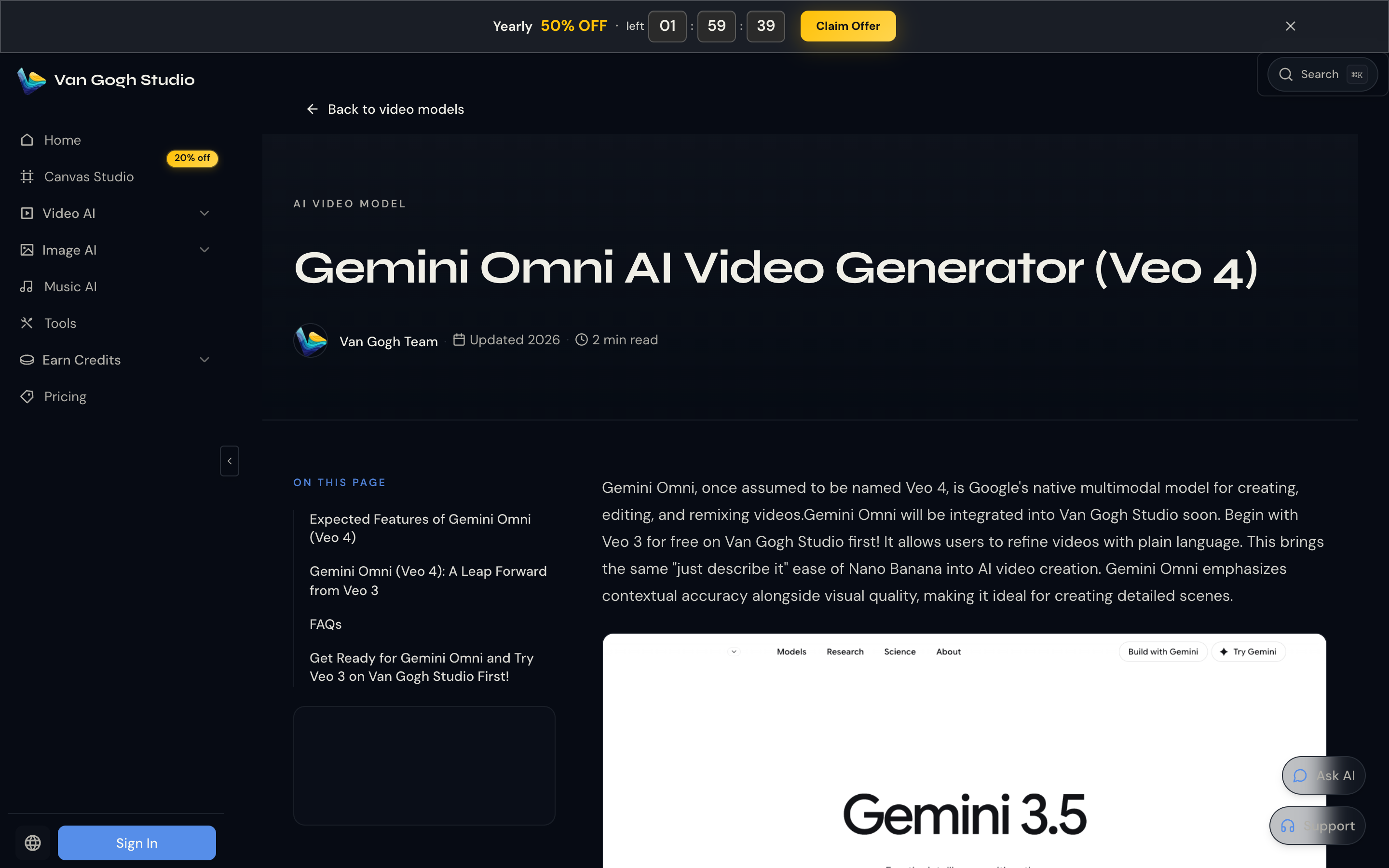
Step 1: Open Video Generation and Pick the Model
When Omni is live, open Text/Image to Video (or the home Video tab) and select Gemini Omni in the model picker. Until then, select a current Veo option (for example Veo 3.1) to rehearse prompts and settings.
Step 2: Craft a Structured Prompt
Treat the prompt like a mini screenplay: subject, action, setting, style, and camera.
Weak: a cat
Stronger: A fluffy orange cat rising over a sun-drenched fence in a cottage garden, smooth cinematic tracking shot, shallow depth of field, warm golden-hour light.
Useful techniques:
- Layered prompting — character → environment → action
- Negative constraints — exclude blur, shaky cam, warped faces, watermarks, cartoon look
- See the Gemini Omni prompt guide for pro patterns
Set aspect ratio for your platform (9:16 social vs 16:9 YouTube). Small wording changes can shift the whole shot.
Step 3: Generate and Review
Run generation, then review motion, identity, lighting, and audio. Note what worked before you change anything.
Step 4: Iterate
First passes are drafts. Adjust verbs, lighting cues, or camera language; regenerate short clips until the beat matches your brief.
Example progression:
- A busy city street at night
- Low angle on a busy city street at night, glowing neon signs
- Low angle on a wet city street at night; a yellow taxi hits a puddle; neon reflections; cinematic color grade
Step 5: Export
Download when satisfied and drop the clip into your editor, ads manager, or social scheduler.
Insider Tips for Better Quality
- Start simple, then add motion, lighting, and sound cues
- Use pacing words (slow, gradual, fast push-in)
- Match aspect ratio to the destination platform early
- Plan the soundscape (Foley, music, dialogue) in the prompt when the model supports audio
- For talking presenters today, pair video models with AI Avatar
Real-World Applications
- Film / animation prototyping and effect previews
- Brand ads and product demos at scale
- YouTube intros, B-roll, and short narratives
- Training and explainers with clearer scene logic
- Agency pipelines that need repeatable creative control
Deeper industry workflows: expert use cases for Gemini Omni.
Create on Van Gogh Studio While Omni Rolls Out
Van Gogh Studio already runs top video models in one workspace—including Veo 3.1, Seedance 2.0, Kling, and Runway. When Gemini Omni launches here, you will find it in the same model picker—no separate account hop.
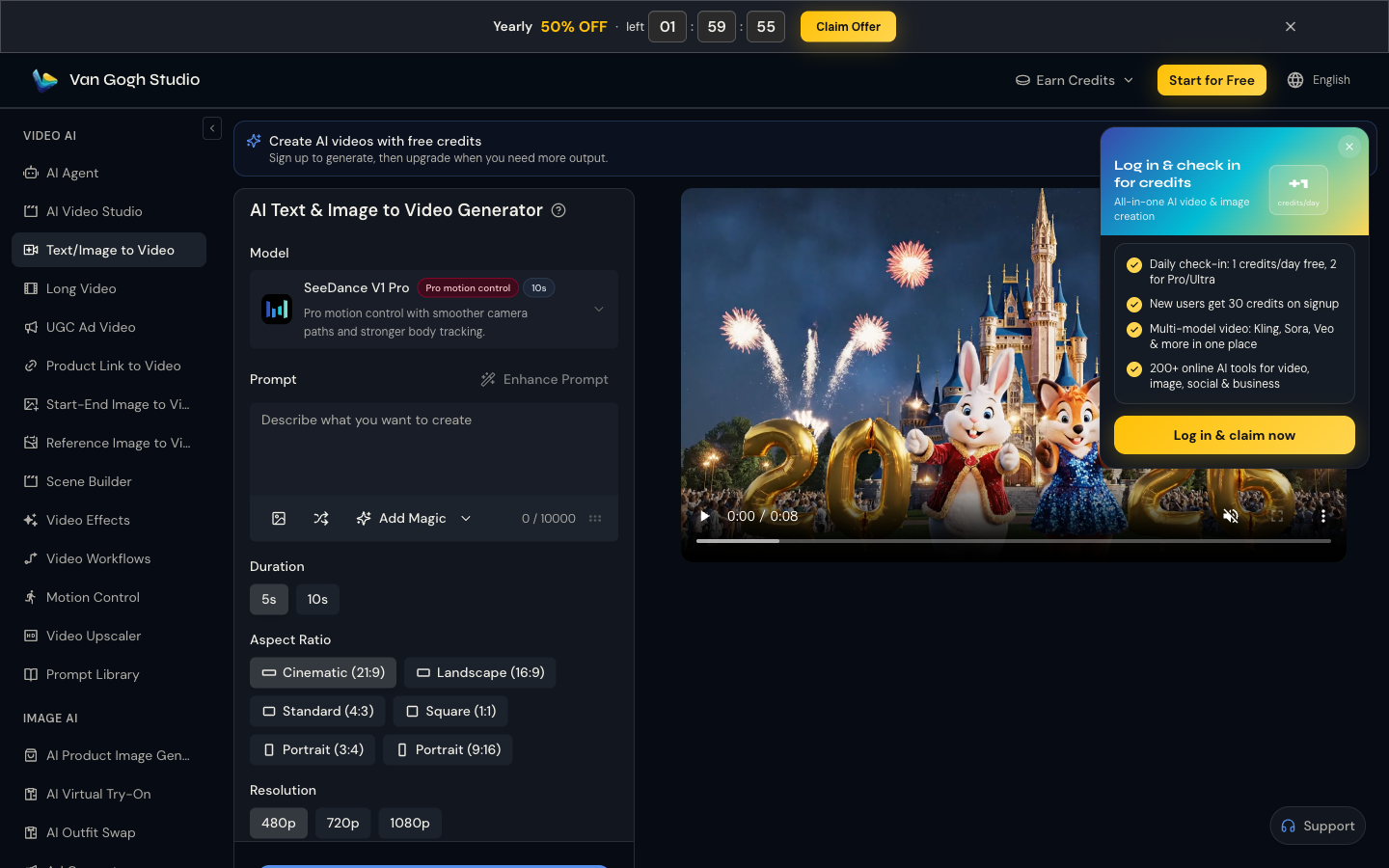
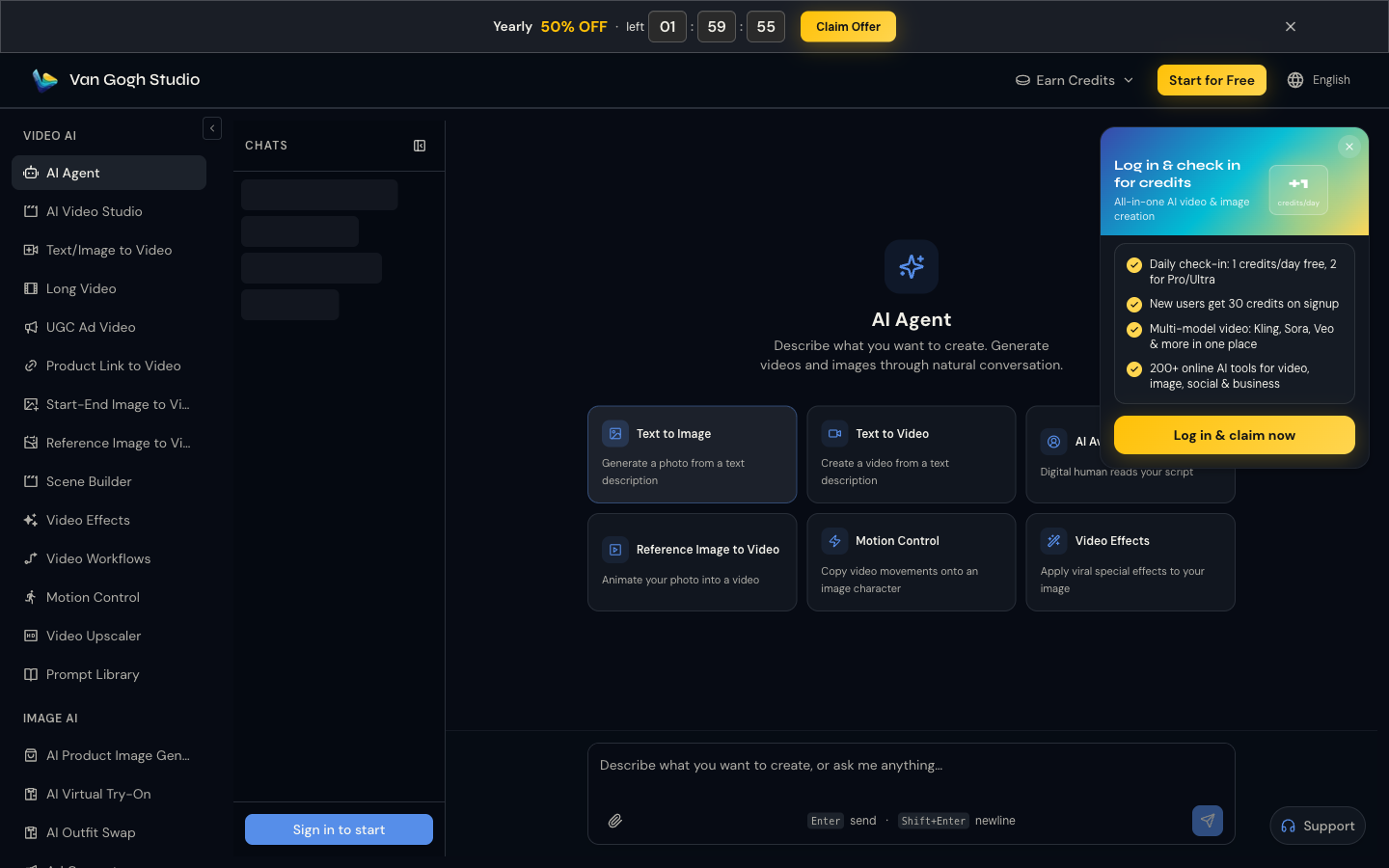
For guided, chat-driven production (idea → publish-ready cut), use AI Agent. After Omni lands, expect the same Agent path to drive multimodal Omni workflows alongside today’s models.
Get ready now: practice prompts on Veo 3.1, follow what Gemini Omni could mean for creators, and create on Van Gogh Studio so you are ready the day Omni goes live.
Create AI videos free
Try Van Gogh Studio free — text-to-video, image-to-video, and 300+ models in one place. Free credits on signup, no credit card required.
Try Free Video Generator


