Van Gogh Studio logo
Van Gogh Studio
20%

Continue your creative workflow

Recommended next steps based on what you're working on — pick up where this tool leaves off.

  • AI Image Generator

    Describe your vision and get sharp art, thumbnails & social visuals.

    Generate AI videos from text or images

    Open

    AI Image Generator

  • Image → Video

    Upload a still and watch AI bring it to life with natural motion.

    Turn still images into cinematic video

    Open

    Image → Video

  • Image Upscaler

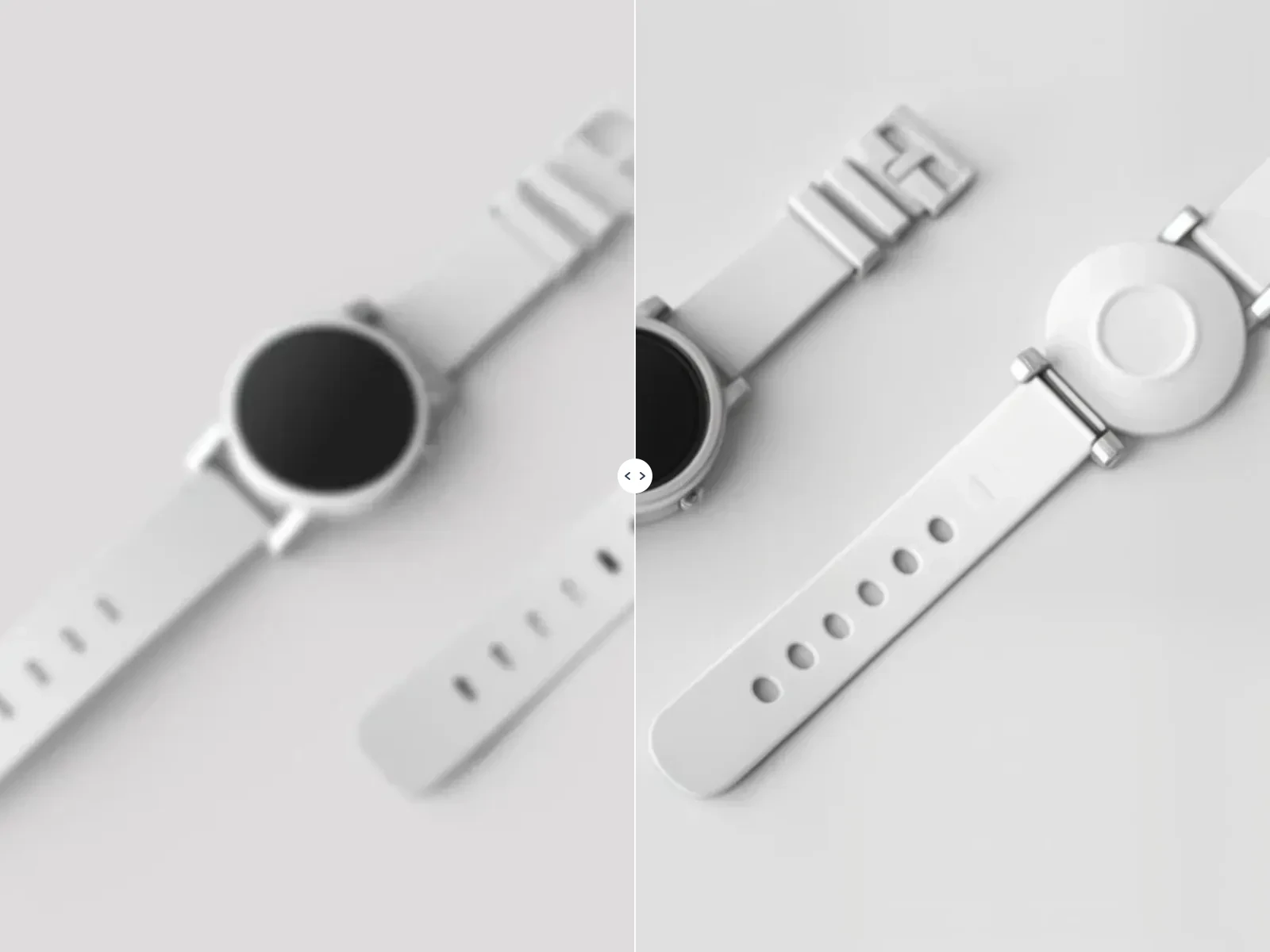
    Upscale for HD display or print

    Open

    Image Upscaler

  • AI Product Images

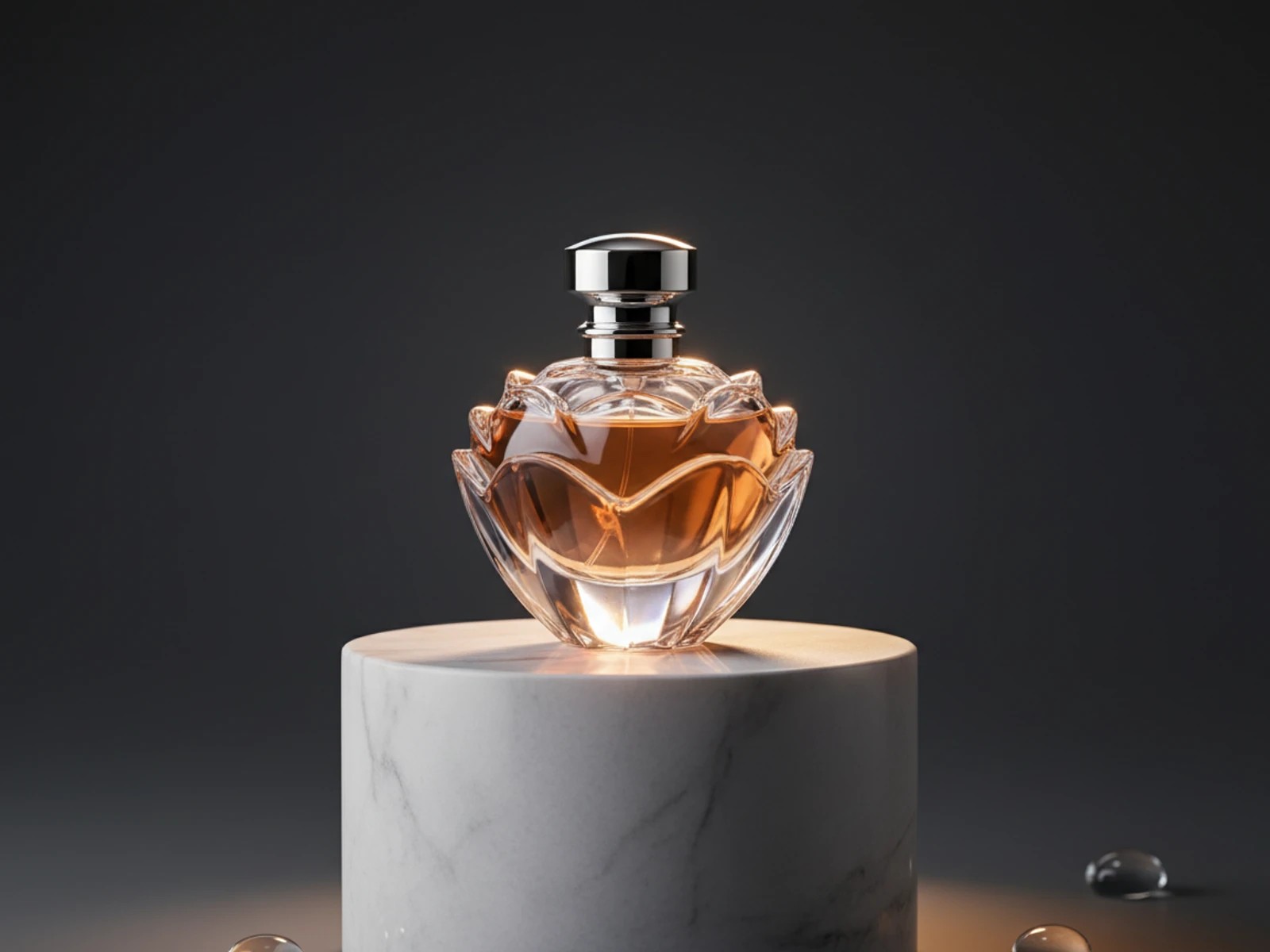
    Create product shots for e-commerce

    Open

    AI Product Images

Browse all free tools

Want an ad-free experience? Upgrade your plan.

Van Gogh Studio
Van Gogh Studio

AI Image Editor

Edit your images with AI using simple text instructions

0/5000
Image Size
Format

Edited Images

Edited images will appear here

Edit Templates

Pick a style, upload your photo, and start editing

Beach Shoot

Birthday Glam

Character Transformations

City siren

Clumsy Sketch

Comic

Create Avatars

Digicam

Dream Birthday

Dream Destinations

Dream Wedding

Fitness

Holiday Magic

Instagram Style

LA Life

Magic Edits

Model shots

Party Photobooth

Passport Photos

Photo Styles

Pinterest Board

Professional Headshots

Retro 2000's

Skincare Shoot

Sport campaign

Spring Bloom

Stadium Moment

Stadium portraits

Summer Festival

Summer Wanderlust

Timeless Monochrome

Transform Style

Vintage Lifestyle

Winter Aesthetic

How to Edit Images with AI

1

Pick an Edit Template

Browse 340+ ready-made styles across 34 categories — Beach Shoot, Dream Birthday, Magic Edits, Professional Headshots, and more. Click a template to apply its prompt, then upload your photo.

2

Upload Your Images

Drag and drop or select up to 10 images in JPG, PNG, or WebP format (max 10MB each). Preview thumbnails and remove any image before you generate.

3

Describe Your Edit

Refine the auto-filled prompt or write your own — swap backgrounds, apply anime or cinematic styles, remove objects, adjust lighting, or combine multiple references.

4

Set Size & Format

Choose an output aspect ratio (Auto, 1:1, 16:9, 9:16, 21:9, and more) and export format (PNG or JPEG) to match social, web, or print needs.

5

Generate & Download

Click Edit Images (6 credits per run). Review results in the preview panel, then download full-resolution files through our secure proxy.

Why Use Our AI Image Editor?

Edit with Plain Language

No layers, masks, or professional software required. Tell the AI what to change and it follows your instructions.

Up to 10 Reference Images

Upload multiple images in one session for richer context, batch-style workflows, or multi-reference edits.

Flexible Aspect Ratios

From square Instagram posts to cinematic 21:9 banners — pick the output size that fits your channel.

Nano Banana Edit Model

Powered by google/nano-banana-edit for high-quality, instruction-following image transformations.

Transparent Credit Pricing

Each edit costs 6 credits. If generation fails, credits are automatically refunded.

340+ Edit Templates

One-click style presets across portraits, birthdays, travel, fashion, avatars, and creative effects — each with a tuned prompt ready to use.

Popular Use Cases

E-commerce Background Swap

Replace cluttered backgrounds with clean studio, lifestyle, or seasonal scenes for marketplace listings.

Social Media Style Transfer

Turn photos into anime, watercolor, vintage film, or bold campaign looks for Instagram, TikTok, and ads.

Product Photo Cleanup

Remove distractions, fix lighting, or add props while keeping product shape and branding intact.

Portrait & Headshot Retouching

Adjust backgrounds, soften lighting, or apply professional studio aesthetics without manual retouching.

Marketing Asset Variations

Generate multiple creative directions from one hero image for A/B testing banners and ad creatives.

Refine AI-Generated Art

Take outputs from AI Image Generator or LoRA tools and polish composition, style, or details with text edits.

Common questions

What is an AI image editor?
An AI image editor lets you modify photos using text instructions instead of manual tools. You upload an image, describe the change you want, and the model generates an edited version — ideal for background swaps, style changes, object edits, and creative variations.
How much does each edit cost?
Each edit costs 6 credits regardless of how many images you upload (up to 10). If the AI fails to produce a result, your credits are refunded automatically.
Do I need to sign in?
You can upload images and configure settings without logging in. Sign in is required when you click Edit Images so we can verify your credit balance and save your task securely.
What image formats are supported?
JPG, PNG, and WebP uploads are supported, up to 10MB per file. You can export results as PNG or JPEG.
How many images can I upload at once?
You can upload up to 10 images per edit session. This is useful for multi-reference edits or when you want the model to understand several visual inputs.
Can I use edited images commercially?
Yes — images you edit on Van Gogh Studio are yours to use for personal or commercial projects, subject to our Terms of Service and applicable content policies.
What are edit templates?
Edit templates are pre-built style presets with optimized prompts. Pick a template, upload your photo, and the prompt fills in automatically — great for portraits, birthdays, travel scenes, avatars, and creative effects without writing prompts from scratch.
What if my prompt is blocked?
Prompts that violate AI safety or content policies may be rejected. If that happens, revise your prompt and try again. Blocked prompts do not consume credits when generation fails before completion.