Continue your creative workflow
Recommended next steps based on what you're working on — pick up where this tool leaves off.


Want an ad-free experience? Upgrade your plan.
Recommended next steps based on what you're working on — pick up where this tool leaves off.
Want an ad-free experience? Upgrade your plan.
No image? Try a sample:
Uploaded images are processed temporarily and not stored permanently.
Be specific about what should appear inside the masked area.


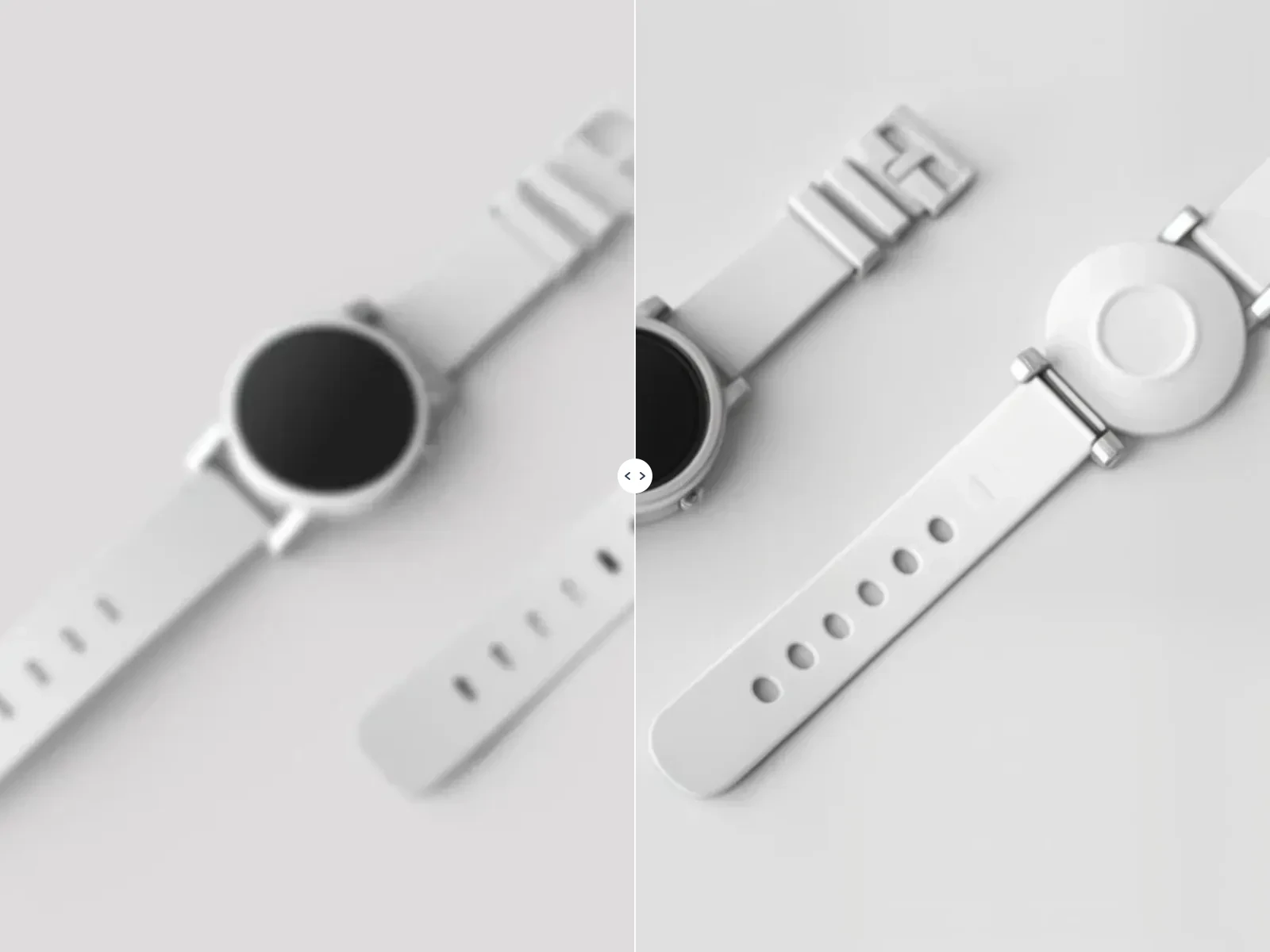
Drag slider to compare before & after
Upload any photo, paint a mask over the area you want to change, describe your edit in plain English, and let AI regenerate just that region while keeping the rest of the image untouched.
Brush over exactly the pixels you want to change. AI inpainting only affects the masked region — backgrounds, faces, and details outside the mask stay identical.
Replace a sky, add accessories, remove objects, or change colors with a short prompt. No Photoshop layers or professional skills required.
Compare your original and inpainted result with an interactive slider. Download the final image or send it straight to our AI video generator.
Local image edits powered by mask + prompt — ideal for quick creative fixes in your browser
Mask logos, passersby, wires, or clutter and describe what should fill the area. AI rebuilds the background naturally.
Add sunglasses, hats, signage, or props. Change clothing colors, swap skies, or refresh small regions without re-shooting.
Touch up product photos, social portraits, and marketing visuals — edit only the problem area while preserving lighting and composition.
Three steps from upload to download — mask, prompt, and generate
Drag and drop a JPG, PNG, or WebP up to 20MB, or try one of our sample photos to get started instantly.
Use the brush to mark the region to change (rose overlay is preview only). Type what you want — e.g. “replace the sky with a sunset” or “add black sunglasses”.
Generate for 6 credits, compare before and after, then download your result or continue editing with a new mask.
“I needed to remove a logo from a product shot without reshooting. The mask tool plus a one-line prompt fixed just that corner — everything else stayed pixel-perfect.”
Emily Chen
E-commerce Manager
“Way faster than opening Photoshop for small fixes. I mask the face, prompt for sunglasses, and get a usable ad creative in under a minute.”
James Rivera
Social Media Designer
This example used our portrait sample, a mask over the face area, and the prompt below. Drag the slider to compare the inpainted result.
Edit prompt used:
Drag slider to compare before & after
Original
Inpainted
Captured from a real generation on this site. Upload your image, draw a mask, and describe your edit to get similar results.
Upload a photo, mask the area, describe your edit — precise AI changes in minutes