

With video-to-video generation, it becomes possible to convert videos into a wide range of visual styles in just a matter of clicks. Available on Runway’s Gen-3 Alpha and Alpha Turbo models, you can transform your videos using simple text prompts.
Want to learn how to instantly modify existing videos?In this comprehensive guide, we will explore everything you want to know roughly Runway’s Gen 3 video-to-video. This means exploring its features, step-by-step usage, and extra. Then keep on reading!
What is Runway Gen-3 Video-to-Video?
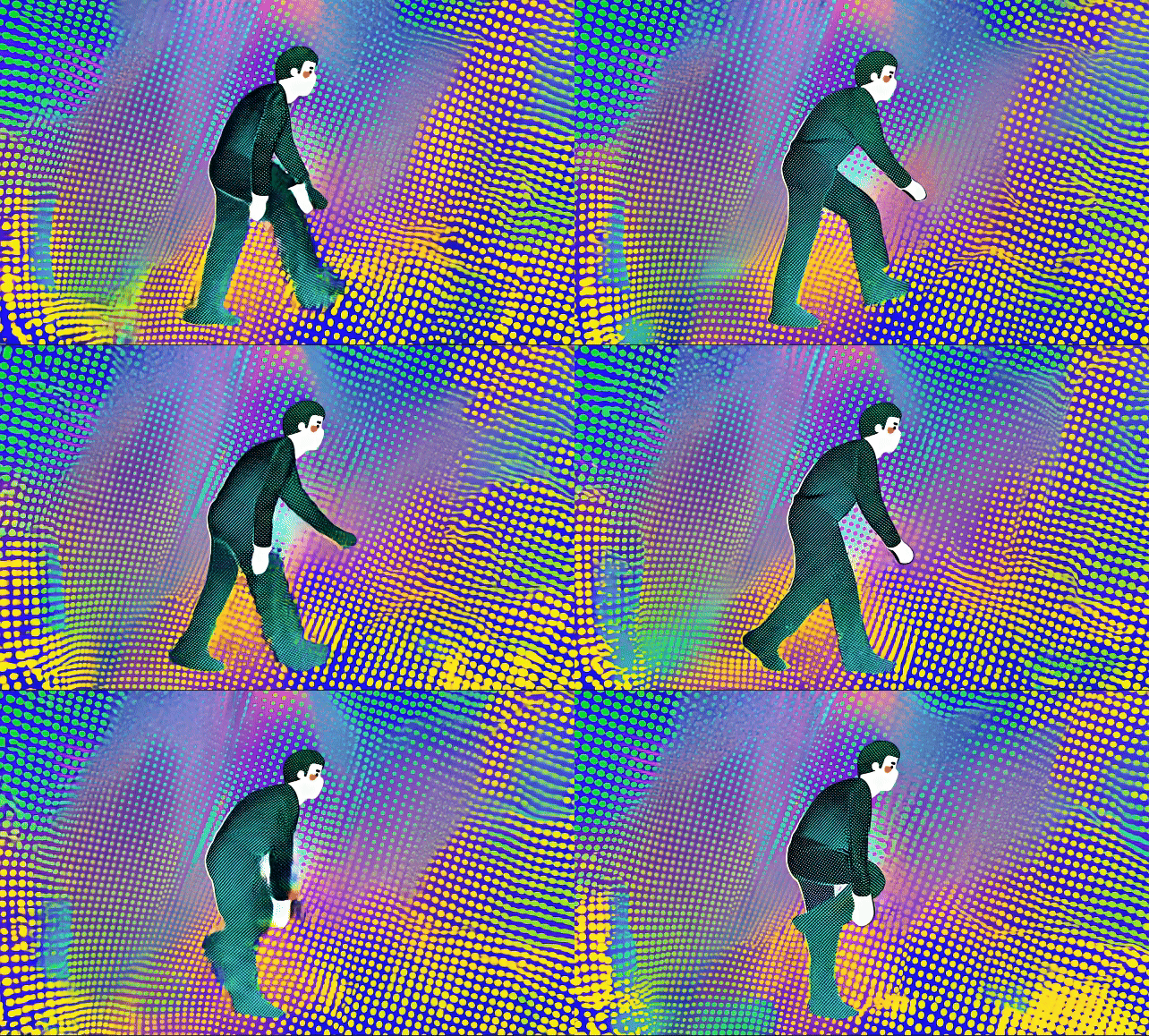
Runway allows for video-to-video generation that lets you create alterations to existing videos using customized text prompts or by choosing among various preset styles. You can use this feature to transform the aesthetics or mood of a visual sequence, as well as alter various aspects like character movement, design, among others.
Input video
Prompt
Output video
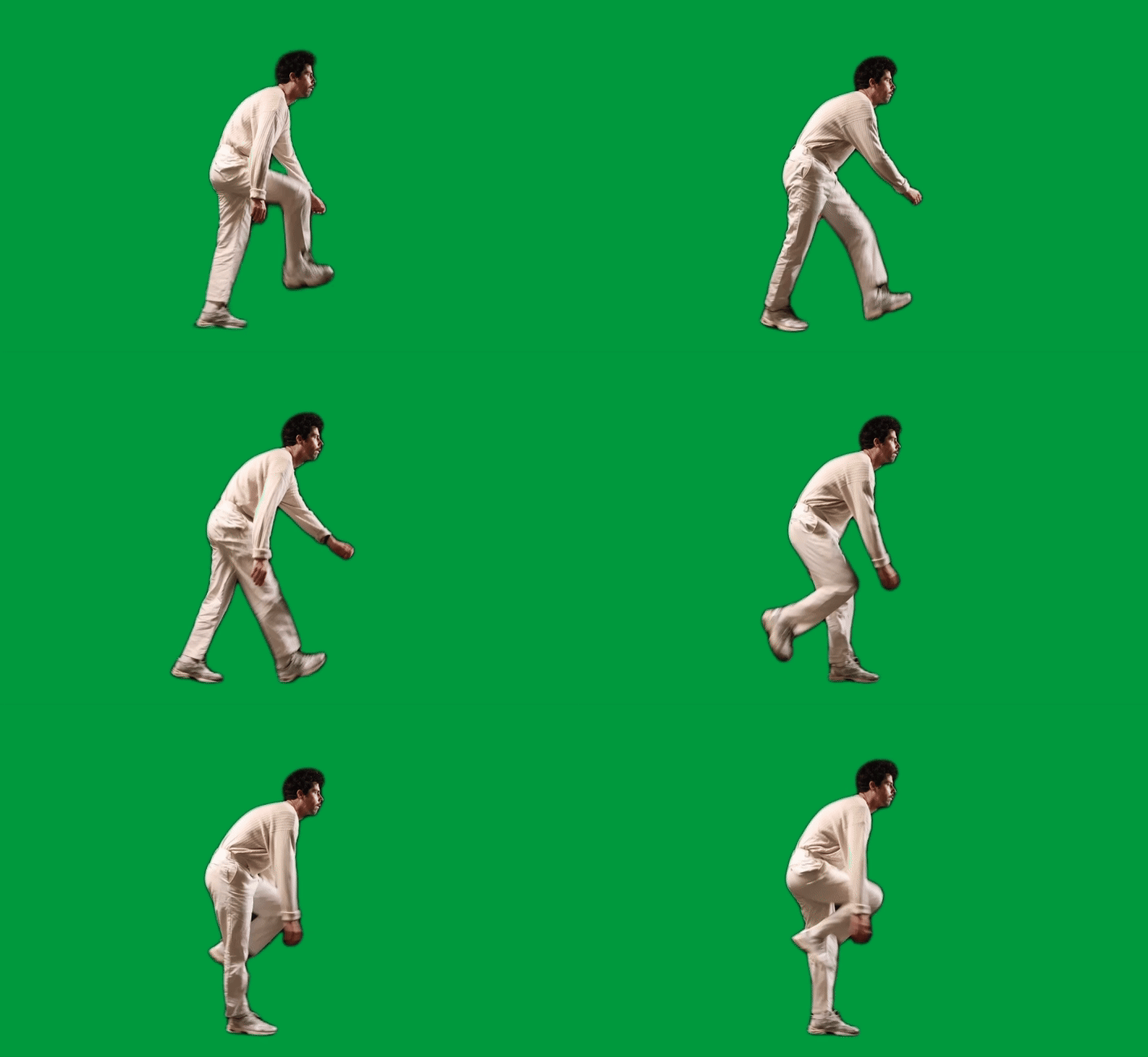
3D halftone CMYK design. halftone printed dots. comic book style. bright hues in layers of cyan blue, yellow, magenta purple, and black circular spots.
You can do video-to-video generation via Runway’s Gen-3 Alpha or Turbo models at a cost of 10 credits per second and 5 credits per second, respectively. Each model supports conversions up to 20 seconds in duration with supported aspect ratios of (1280x768) on Gen-3 Alpha and(1280x768 or 768x1280) on Turbo.
What Can Runway Gen-3 Models Offer for Your Video-to-Video Generation?
Runway’s Gen-3 video-to-video process comes with several features that allow you to transform your existing videos into all sorts of unique videos. Let’s quickly break down some of the platform’s key aspects below.
-
Text Prompt Guidance: You can input detailed text descriptions that will allow you to guide the AI model on how to modify your uploaded video. For instance, you can choose to alter video backgrounds or objects whereas preserving certain aspects like its characters.
-
Visual Style Adjustments: Users can experiment with a wide range of visual styles making it painless to explore new aesthetic ideas. From vintage film styles to pixar-style animations, you can test out new creative ways to build your videos greater appealing to viewers.
-
Environmental & Lighting Changes: You can apply the video-to-video tool to modify various conditions such as weather, time of day, lighting, etc. This creates new opportunities for you to experiment with unique storytelling and visual design.
-
Object Alterations: With Runway video-to-video, it becomes possible to add, erase or alter objects within frames. This makes it an ideal solution for making corrections, adding special effects, and much greater.
How To Use Runway Gen-3 Video-to-Video Feature?
Now that we know what Runway’s Gen-3 models offer for your video-to-video generation, let’s examine how you can apply it to create unique videos from existing content.
com/) and click on ‘Get Started. Head to the website. Before you can begin, you will want to sign up for a Runway account.’
However, this plan offers limited access. To keep using the tool, you will demand to sign up for a premium plan, so keep that in mind. You can register for a free account and you will be able to open generating on the ‘Free’ plan.
Step 1: Head to the Generation Page
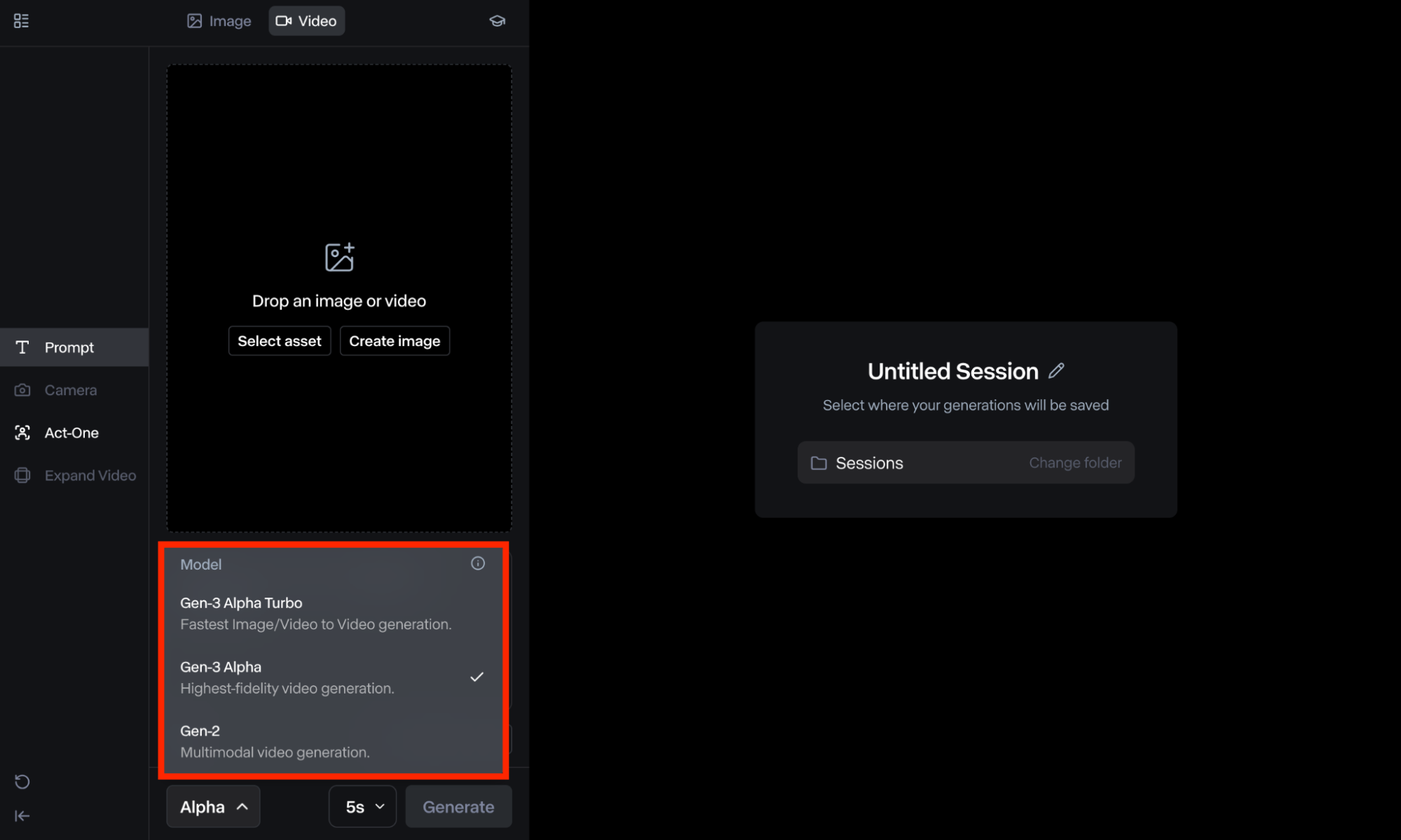
Once signed in, you can scroll down to ‘Generative Session’ in your user dashboard. From there, you will require to scroll down the bottom left corner of the page and select Gen-3 Alpha or Turbo model.
Step 2: Upload Video File
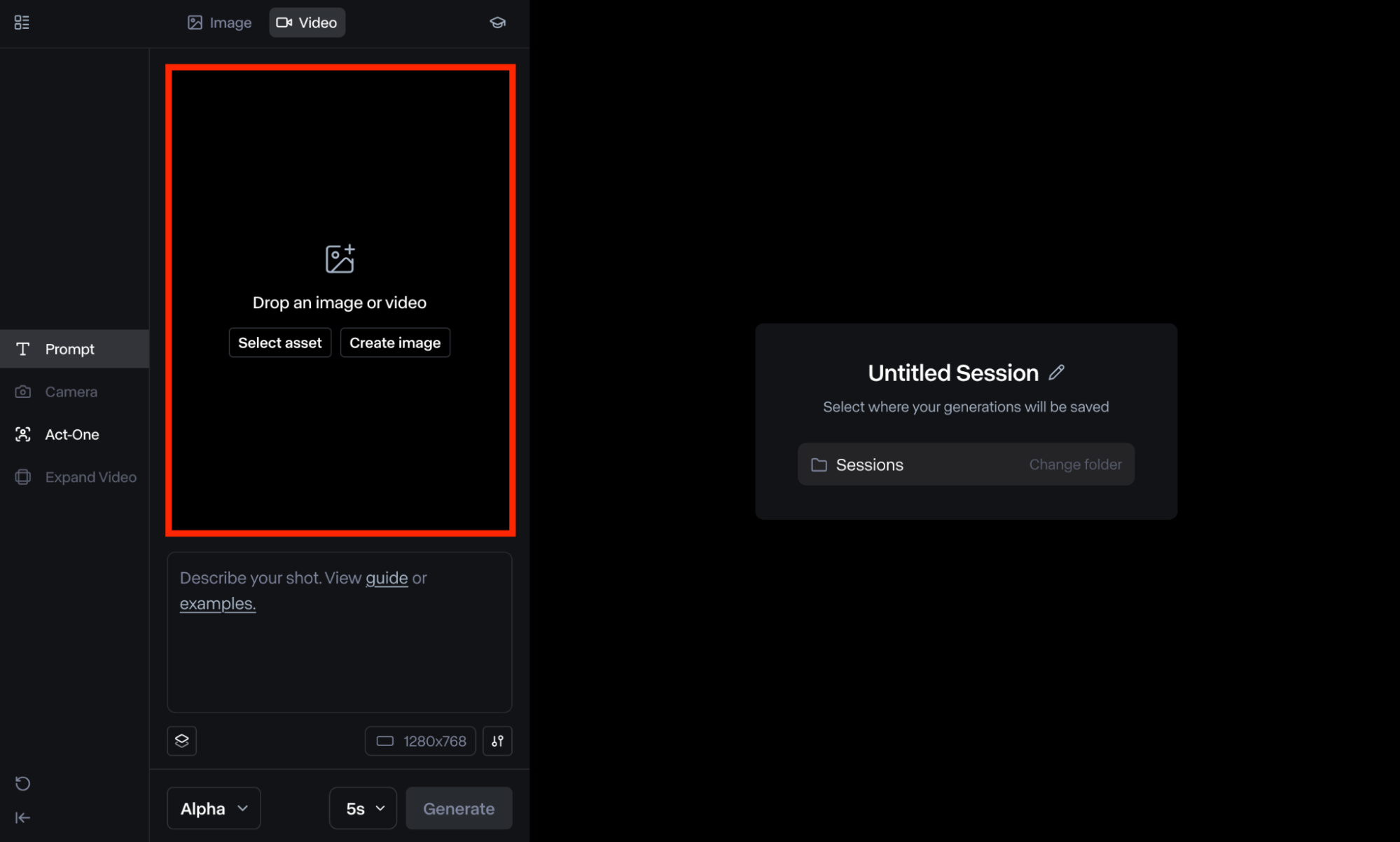
The available options are: Landscape (1280 x 768) or Portrait (768 x 1280).The next step is to drag/upload the existing video file or select it from your ‘Assets’ folder. Keep in mind that if the video is not in a supported resolution, the tool will likely prompt you to crop it.
Step 3: Input Detailed Text Prompt
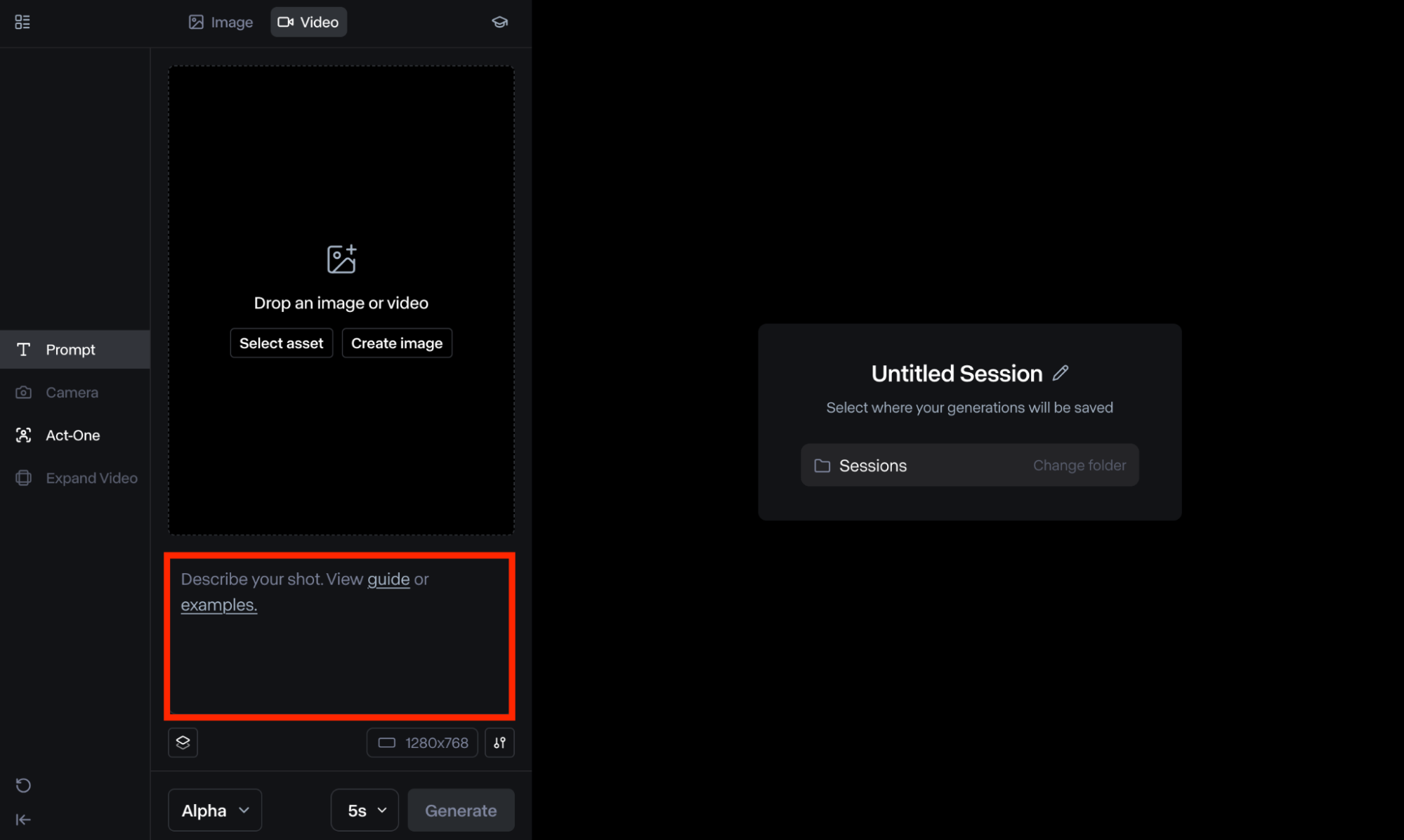
You will then require to input a descriptive text prompt explaining the video style that you want to customize it to. A general rule to remember is that simple prompts are reliable but detailed ones can aid you achieve results that better fit within your envisioned concept.
If you require support, you can click the ‘Examples’ button under the text prompt box to see what different inputs you can apply. There are a multitude of starter options to choose from such as 3D Cartoon, Claymation, Line Art, Monochrome, and much extra.
Step 4: Adjust Settings
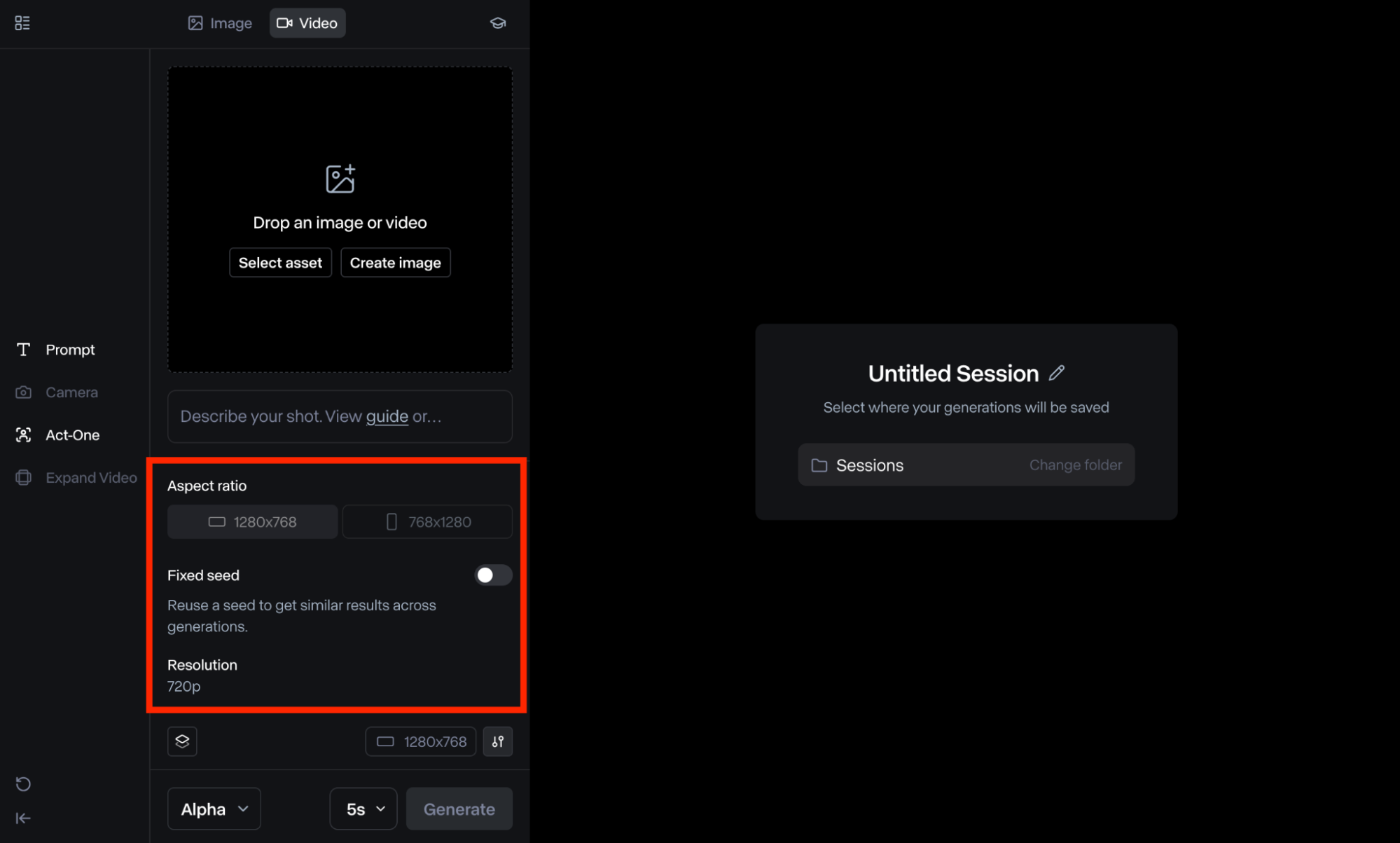
The lower values mean the structure of the uploaded video will be maintained, whereas higher values mean greater abstract results. You can click on the ‘Settings’ icon to build some additional adjustments to the video output. To kick off, you can adjust the ‘Structure Transformation’ controls.
Another option is ‘Fixed Seed’, which you can select to reuse the inputs you’ve made and get similar results throughout multiple video generations. On the ‘Turbo’ model, you will also be able to alter the ‘Aspect Ratio’ between landscape and vertical.
Step 5: Generate Video
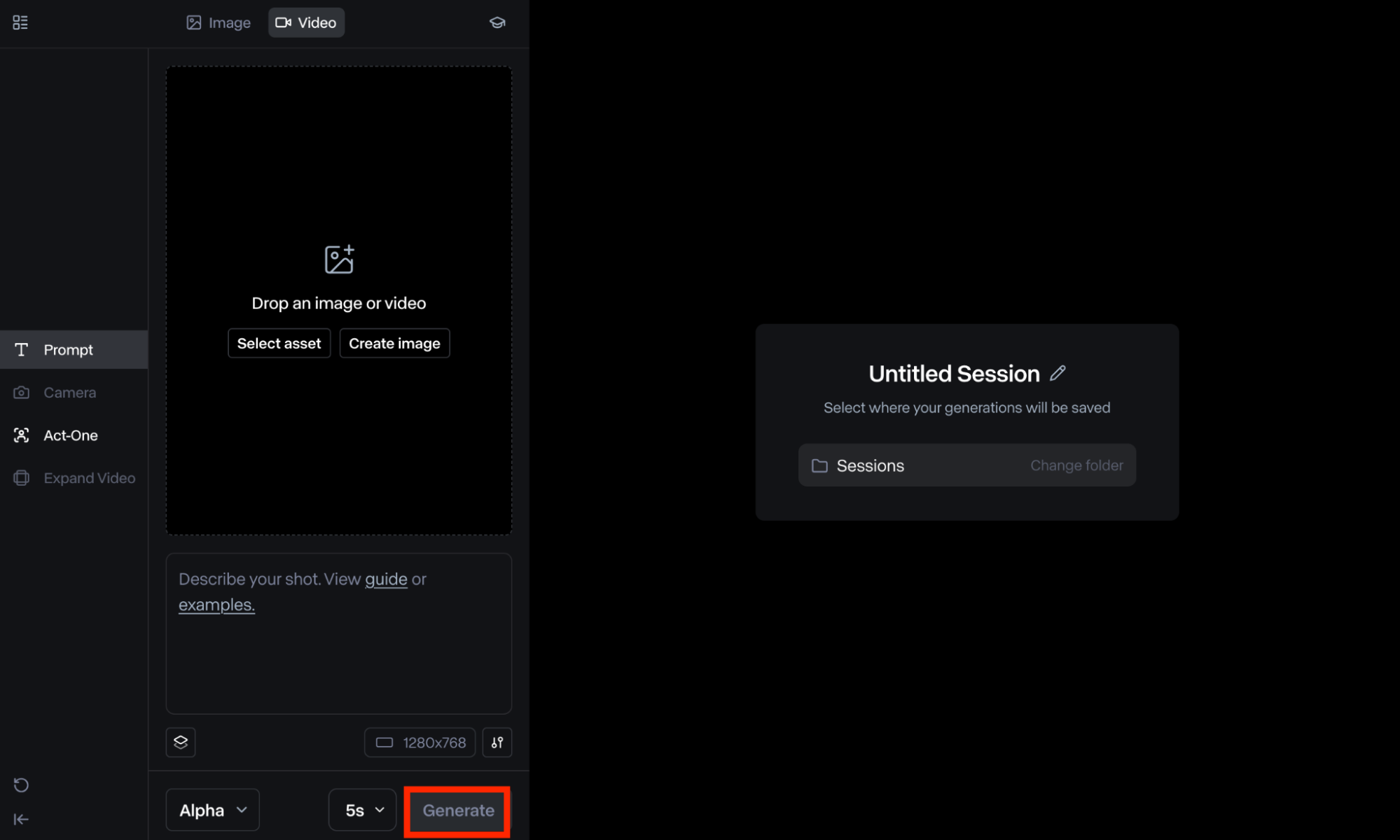
The tool will typically process your request within a matter of minutes but it can sometimes take longer. You can take your time to review the output and decide if you want to download it or edit it further. Once ready, you can click ‘Generate’.
Step 6: Customize the Output
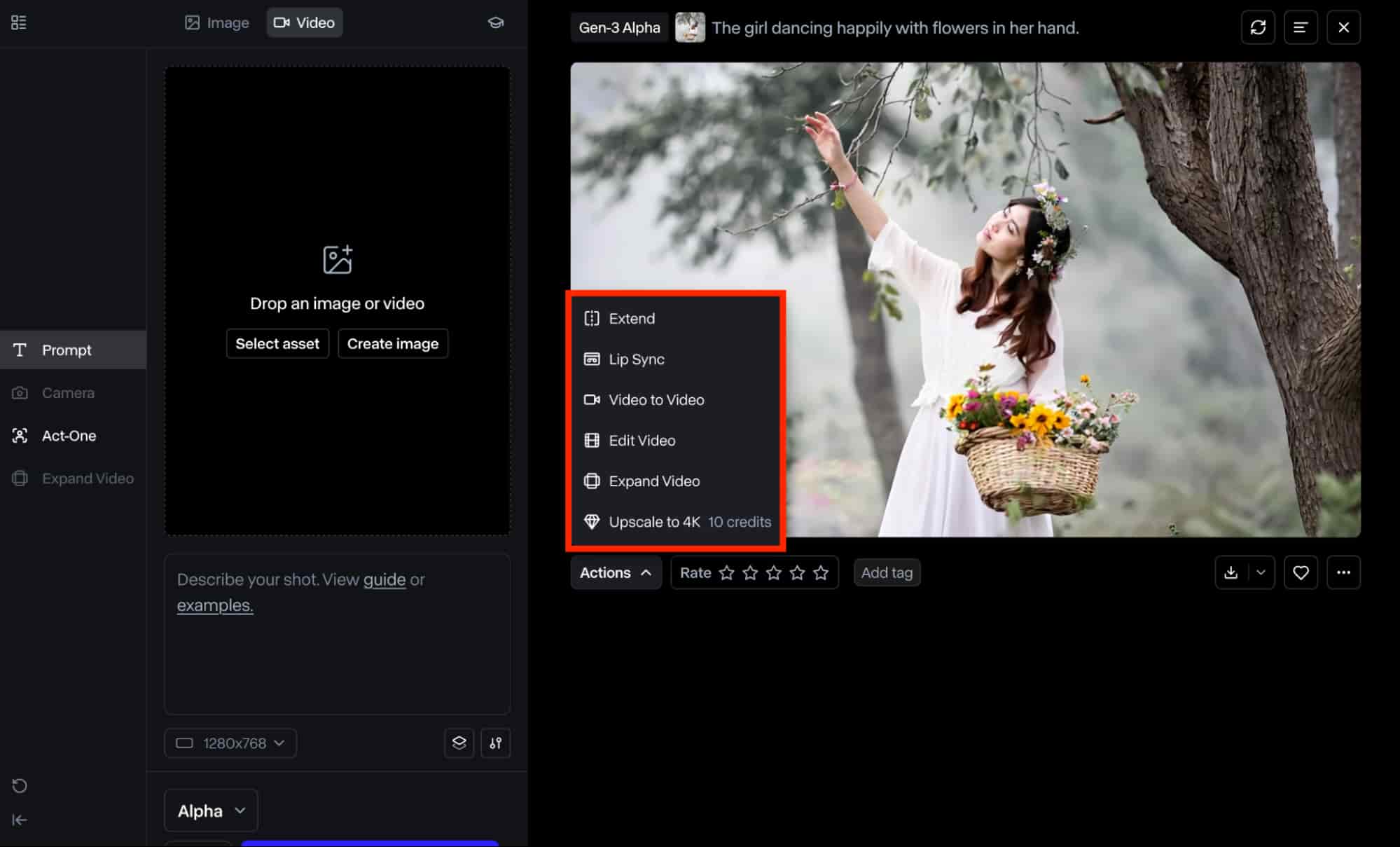
If the video is even so not to your liking, Runway lets you customize the generated output by clicking on the ‘Actions’ button. This will provide you with access to multiple video editing options that you can choose from such as:
- Extend: You can apply this to extend the video duration up to a maximum of three times by stitching an additional generation that continues the motion in the original video.
- Lip Sync: This lets you synchronise the character’s facial expressions and mouth movements to match your uploaded audio clip or speech script.
- Edit Video: You can choose this option to edit the video further by customizing aspects like playback speed, trim, handheld camera shake, etc.
- Expand Video: This lets you adjust the video’s aspect ratio. You can choose between 1280x768 and 768x1280.
Step 7: Download Final Video
When you're prepared, simply click the download button located at the bottom right of the clip to export the video file in either MP4 or GIF formats.
How Can You Use Runway Gen-3 Video-to-Video?
Runway’s Gen-3 video-to-video capabilities can be applied in a wide variety of ways across various use cases. Some of the top common applications can typically include:
Advertising & Marketing Content
Using Runway Gen-3 video-to-video, it becomes simple to convert all kinds of promotional videos into different visual styles making them additional appealing to audiences. It also allows you to create multiple variations of the same content that fit the demands of different platforms much better, be it TikTok, Instagram, Facebook, etc.
Entertaining Visual Content
With Runway Gen-3 video-to-video, you can freely experiment with an extensive range of visual concepts such as 3D animations, claymation, retro, and others. This allows you to explore new visual ideas that can keep viewers engaged and entertained greater effectively than simple live-action videos.
Creative Arts & Graphic Design
This makes it a especially convenient solution that lets you test and re-generate experimental concepts in a flash. Using video-to-video generation, it is possible to initiate unique visual and character customizations using simple text descriptions. You can essentially create all sorts of imaginative and surreal visuals in comic book style, 3D style, etc.
Best Runway Alternative For Video-to-Video?
This is an advanced all-in-one AI video generation tool that can be used for video to video generation.It can seamlessly convert your existing videos into 30+ creative styles. Aside from using Runway, you can even so access its Gen-3 video-to-video capabilities by using Van Gogh Studio.
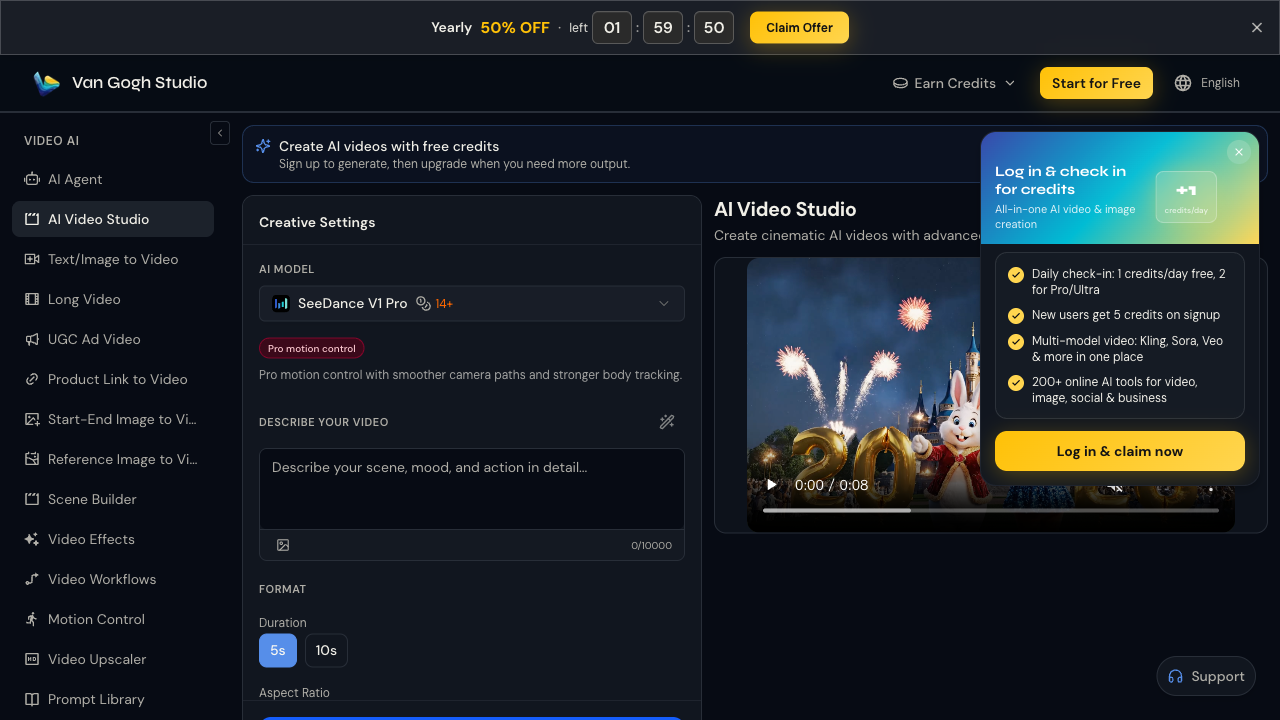
You can watch this YouTube video to learn additional about video-to-video feature in Van Gogh Studio:
On top of that, you can create realistic videos using text prompts or images on Van Gogh Studio. It also has several AI video effects that let you produce unique and stunning visual content.videos:
However, the biggest highlight of using Van Gogh Studio is the fact that it is integrated with numerous AI video generation models. Some of these include Runway, Hailuo AI, Kling AI, Luma AI, and several others. This means you can produce a wide range of visual content using various AI models in one convenient place.
Conclusion
Simply upload the video, input a detailed prompt, select your preferred settings, and voila! However, if you want access to a better video to video alternative with greater features, then Van Gogh Studio is the best AI video platform to consider now!Runway Gen-3 video-to-video tool is a powerful AI solution that can produce it straightforward to create all kinds of unique visuals from existing video content.
Create AI videos free
Try Van Gogh Studio free — text-to-video, image-to-video, and 300+ models in one place. Free credits on signup, no credit card required.
Try Free Video Generator


