

In its new Gen-3 Alpha Turbo model, as well as the older Gen-2 model, Runway offers advanced AI camera movement tools. You get precise control over how the camera moves frame to frame—ideal for cinematic shots once you know how to use it.
This guide walks through every control, with examples and a step-by-step workflow.
What Is Runway AI Camera Movement?
Before the step-by-step, here is what these features actually do.
Camera Control gives you sliders for horizontal and vertical movement, plus pan, zoom, tilt, and roll. Drag a slider or type a value to steer the camera as if you were operating it yourself.
This feature is available in Runway’s Gen-3 Alpha Turbo and Gen-2—not Gen-3 Alpha—at the time of writing.
Runway AI Camera Movement Options
Key controls in the Runway camera movement settings:
| Direction | What it does | Example prompt |
|---|---|---|
| Horizontal | Move the camera left or right along a flat axis (panoramic-style shots) | Camera glides right |
| Vertical | Move the camera up and down along the Y-axis | Camera slightly glides up |
| Pan | Rotate the camera horizontally while staying in place | Camera pans to position directly in front of the woman |
| Tilt | Rotate the camera up or down (look at the sky or the floor) | Camera tilts to an upwards angle |
| Zoom | Push into one part of a scene or pull back for a wider view | Camera zooms out |
| Roll | Rotate the camera around its own axis for a twisting effect | Camera rotates to the right while maintaining focus on the subject |
Horizontal
Prompt: Camera glides right
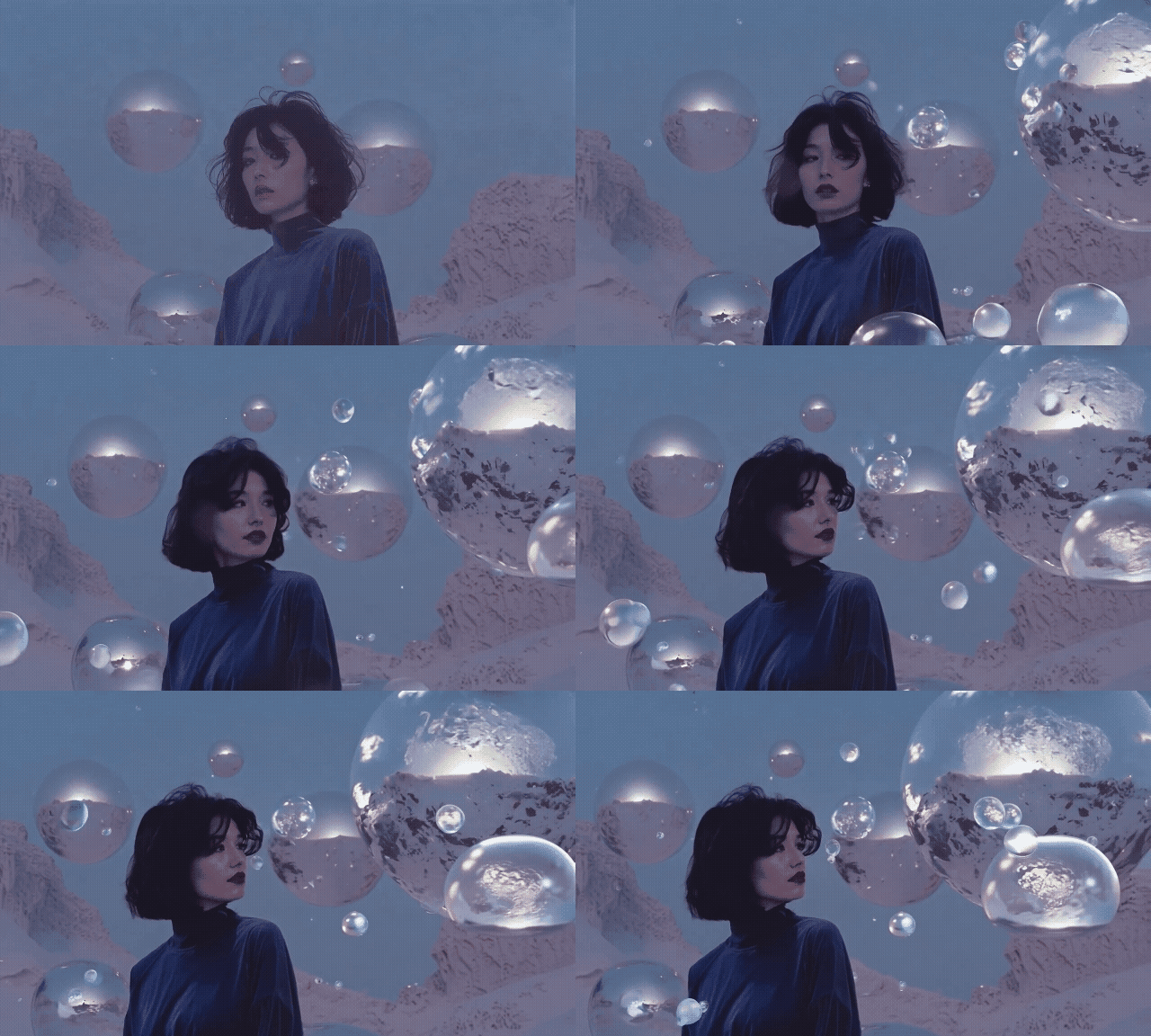
Vertical
Prompt: Camera slightly glides up
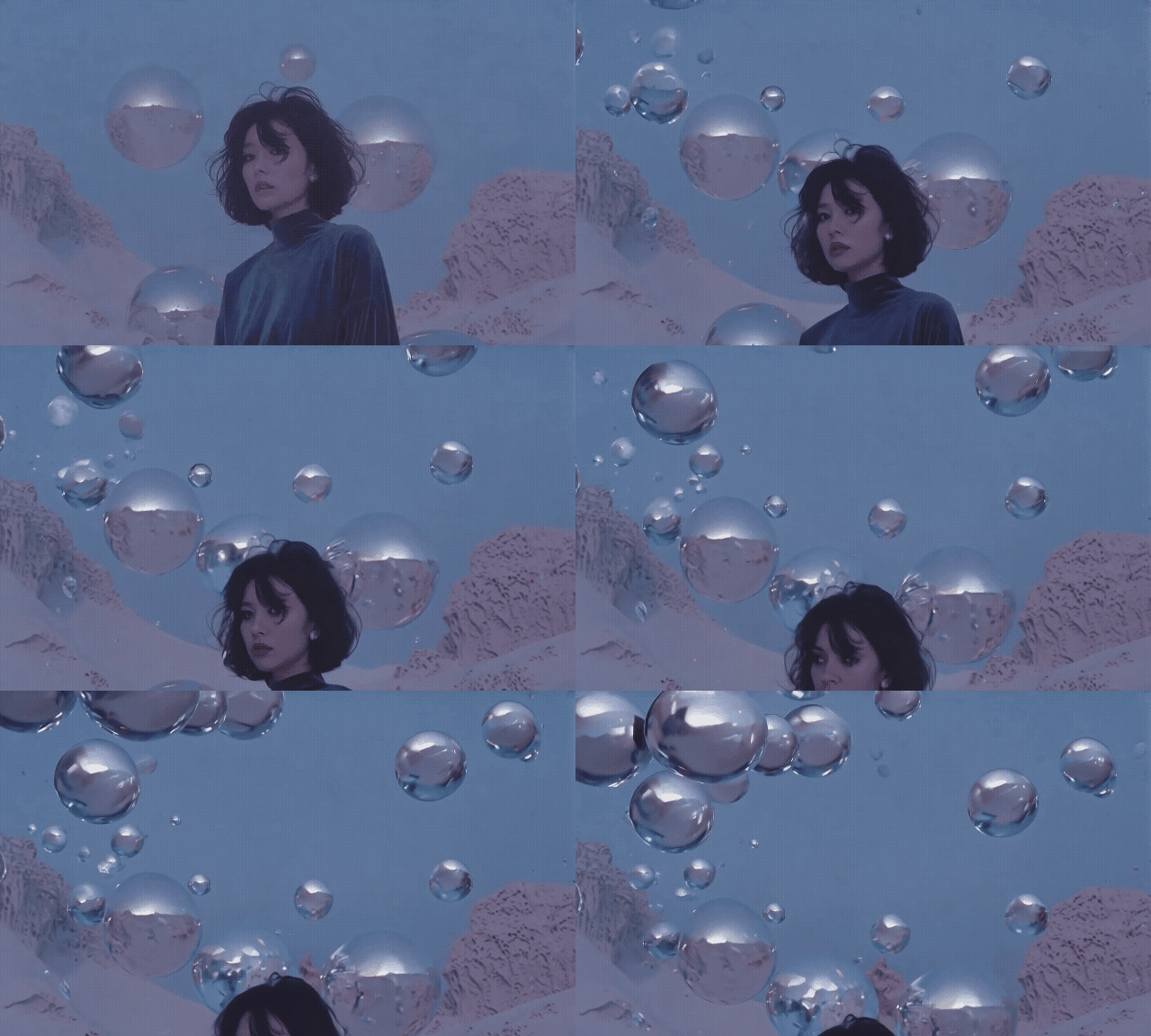
Pan
Prompt: Camera pans to position directly in front of the woman
Tilt
Prompt: Camera tilts to an upwards angle
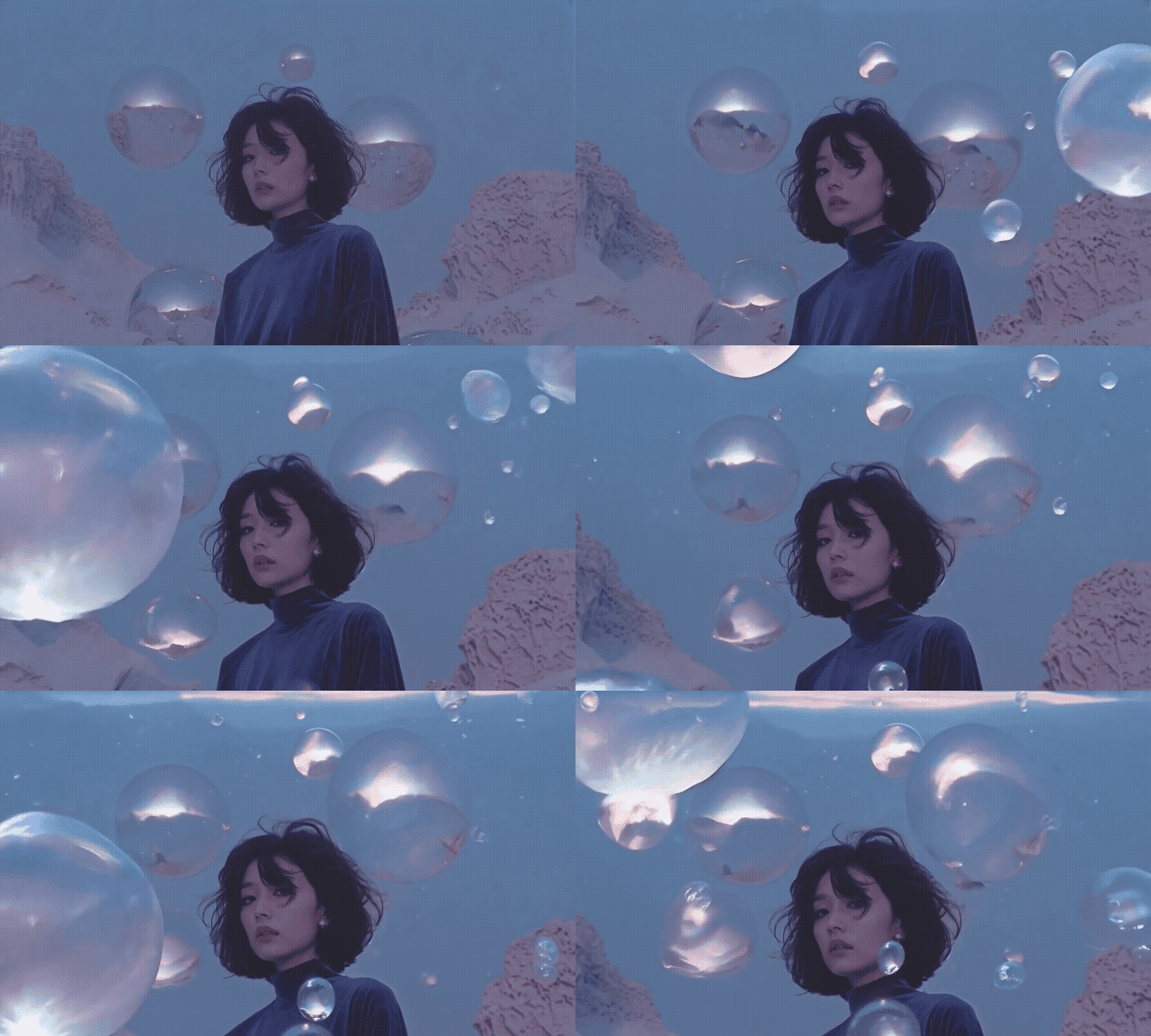
Zoom
Prompt: Camera zooms out
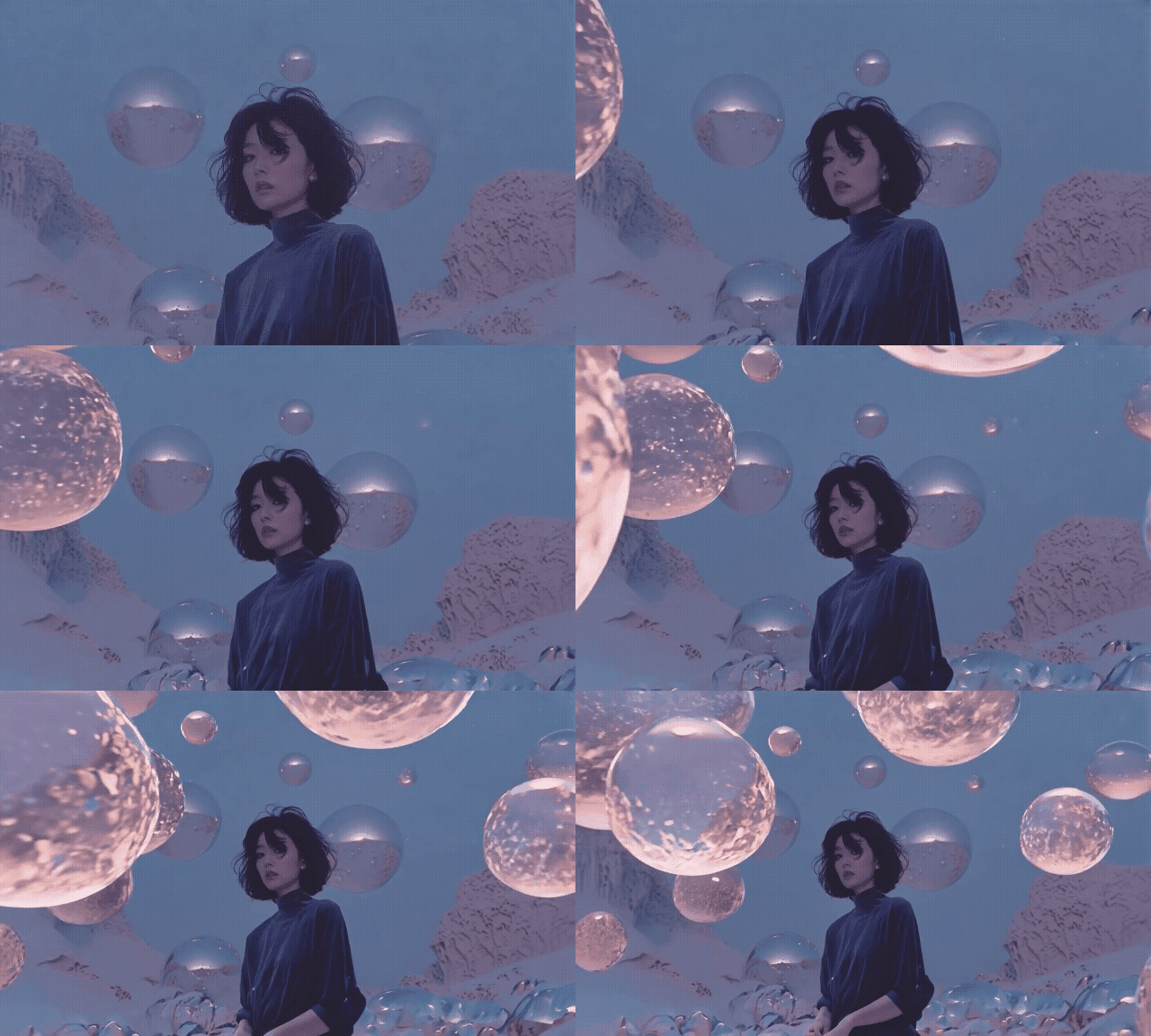
Roll
Prompt: Camera rotates to the right while maintaining focus on the subject
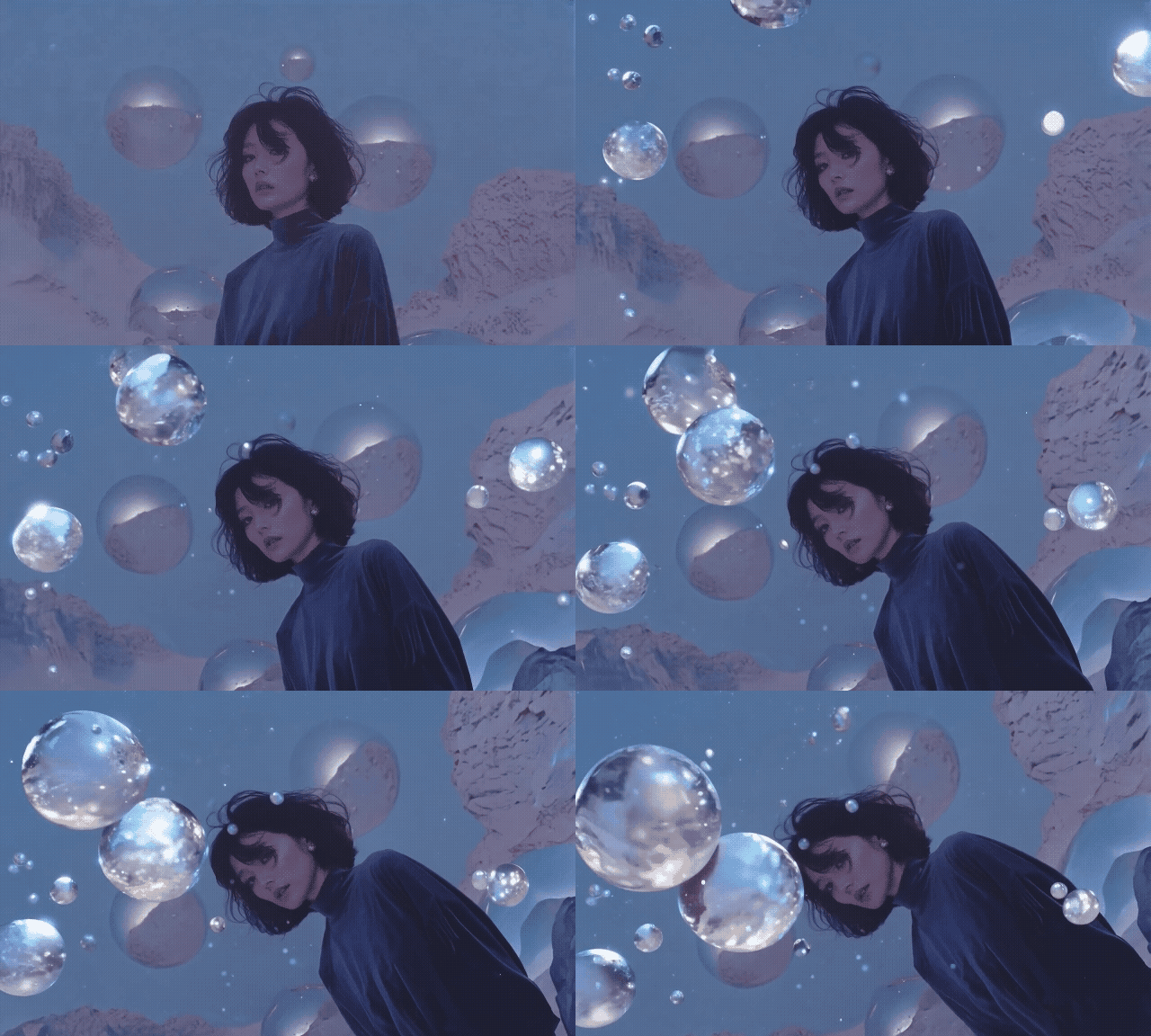
Static Mode
There is also a Static Mode toggle that keeps the camera as steady as possible while the scene unfolds.
No camera prompt
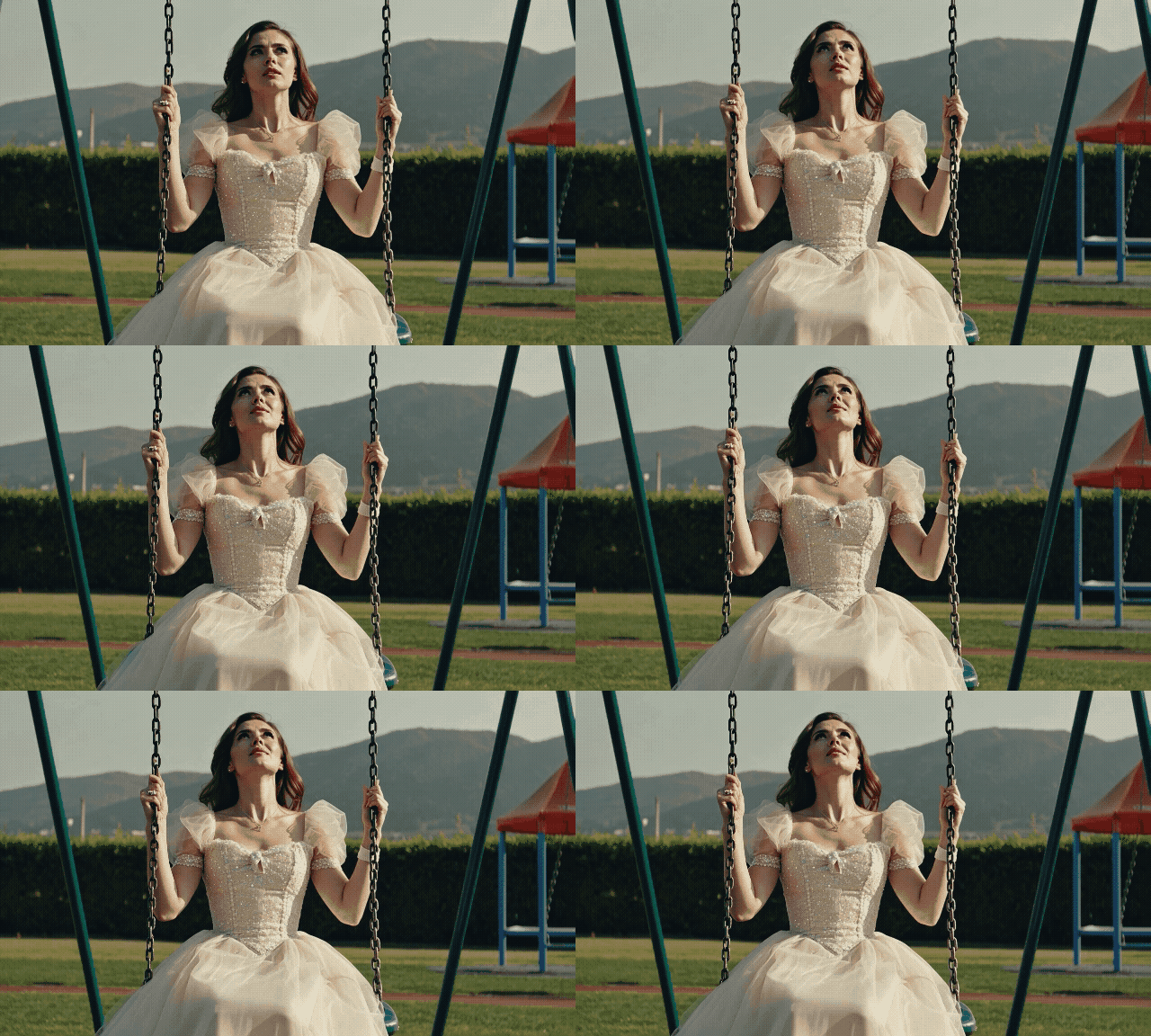
With a motion prompt: The woman dynamically swings back and forth. She gently kicks out her legs and swings towards and away from the camera. Dynamic motion.
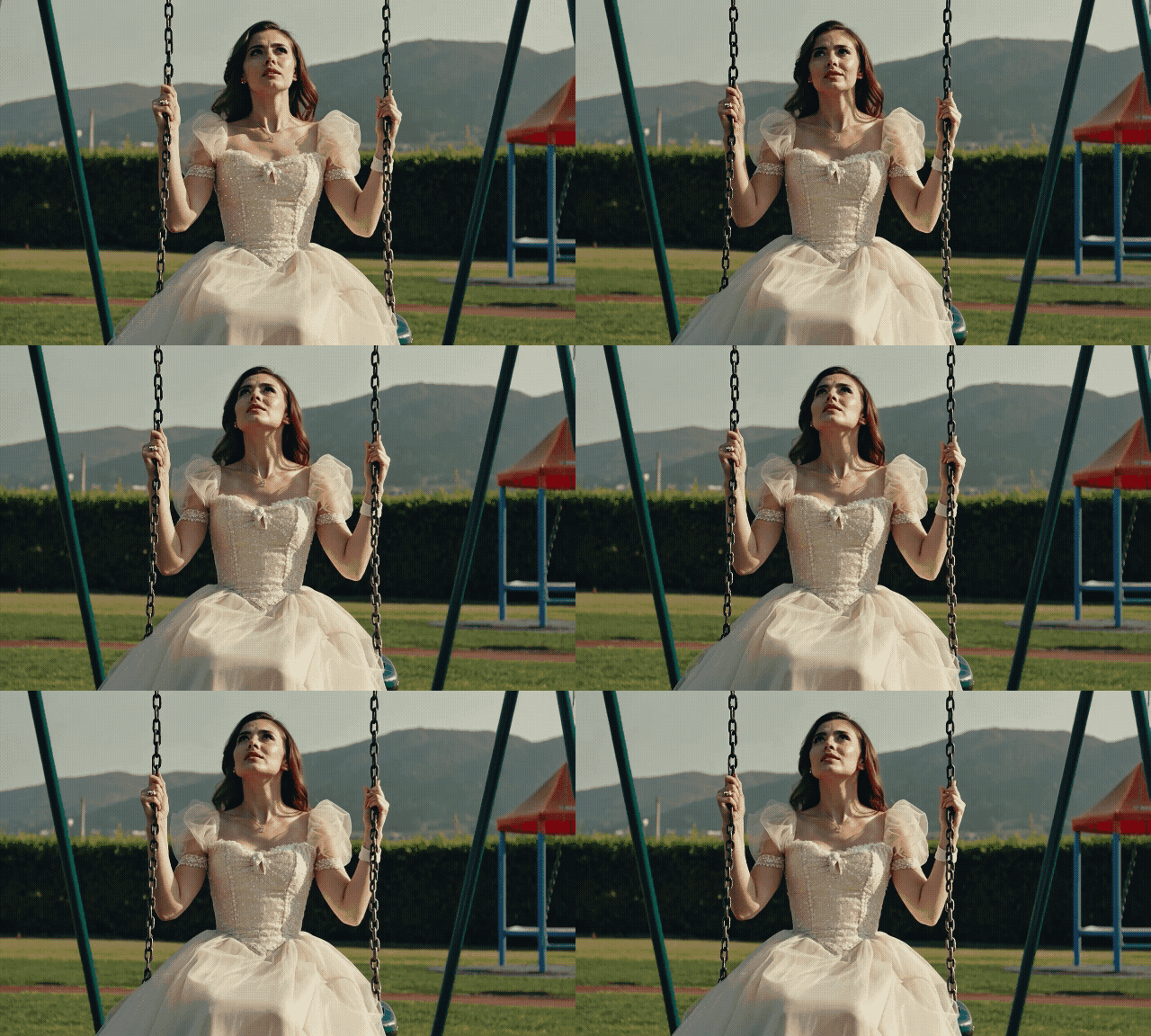
How to Use AI Camera Control in Runway
Now that you know what Camera Control can do in Gen-2 and Gen-3 Alpha Turbo, here is how to use it. Follow the steps below with the screenshots.
Step 1. Start a New Session
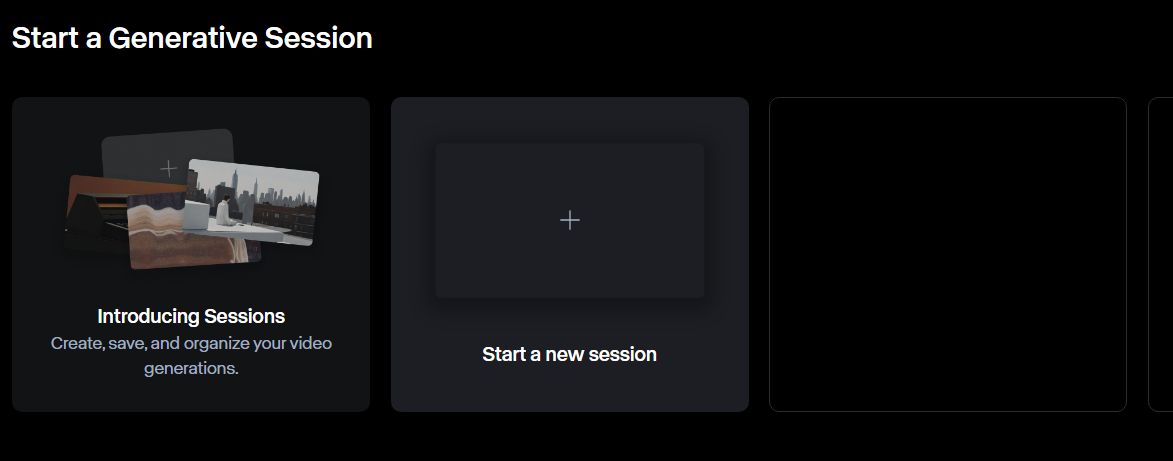
Log into the official Runway website and click Start a new session on the dashboard.
Step 2. Select the Right Model
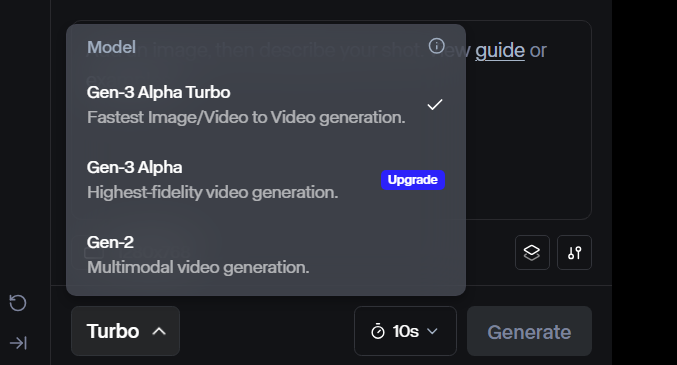
AI camera movement is only available in Gen-2 and Gen-3 Alpha Turbo right now. Open the model menu and choose one of those models.
Step 3. Add Your Image
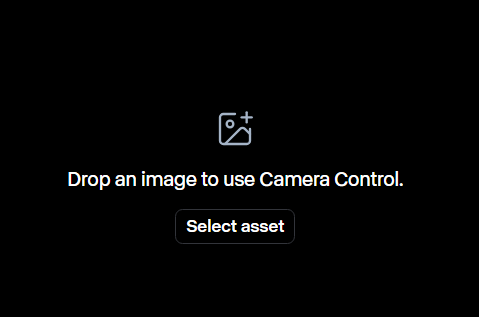
You need an image as the foundation for the video. Drag and drop a file, upload from your device, or pick an existing asset with Select asset.
Step 4. Adjust the Camera Movement
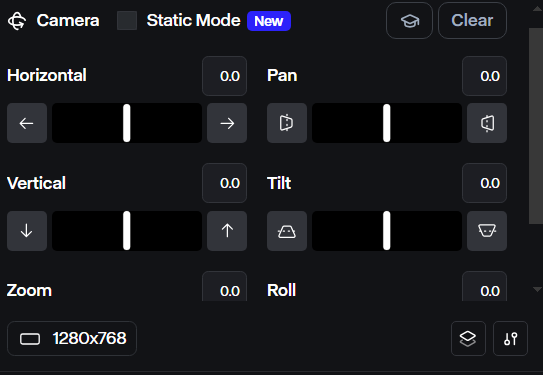
Click Camera Control in the left sidebar to open the movement options. Each slider is labeled (pan, tilt, roll, and so on).
- Move a slider farther for faster movement.
- Right / clockwise / up depends on the control; left / counter-clockwise / down for the opposite.
- You can type exact values in the boxes instead of dragging.
- Use Static mode to keep the camera as still as possible (Gen-3 Alpha Turbo only—not Gen-2).
Step 5. Input a Prompt

Add a prompt before generating. Mention the camera move you want so the model knows when and how fast to move.
Example: The camera zooms slowly in on a [subject] in a [scene].
Step 6. Generate Your Video
When settings look right, click Generate and preview the result.
Combining Runway Motion Brush and Camera Control
Camera Control plus Motion Brush (motion pathways for subjects and objects) is especially powerful:
- Build more authentically cinematic clips in film and TV styles.
- Keep tighter control over every element instead of leaving everything to the model.
- Spend less time rewriting prompts and regenerating the same shot.
Learn more: How to use Runway Motion Brush
Camera Control Values
Slider values run from 0 to 10. Higher values mean stronger movement.
| Value | Camera speed | Example value | Example prompt |
|---|---|---|---|
| 0.1–1 | Minimal | Zoom: 0.1 | Camera slightly zooms. Natural motion. |
| 2–3 | Subtle | — | Soft pan or gentle tilt |
| 4–6 | Moderate | — | Clear, noticeable camera travel |
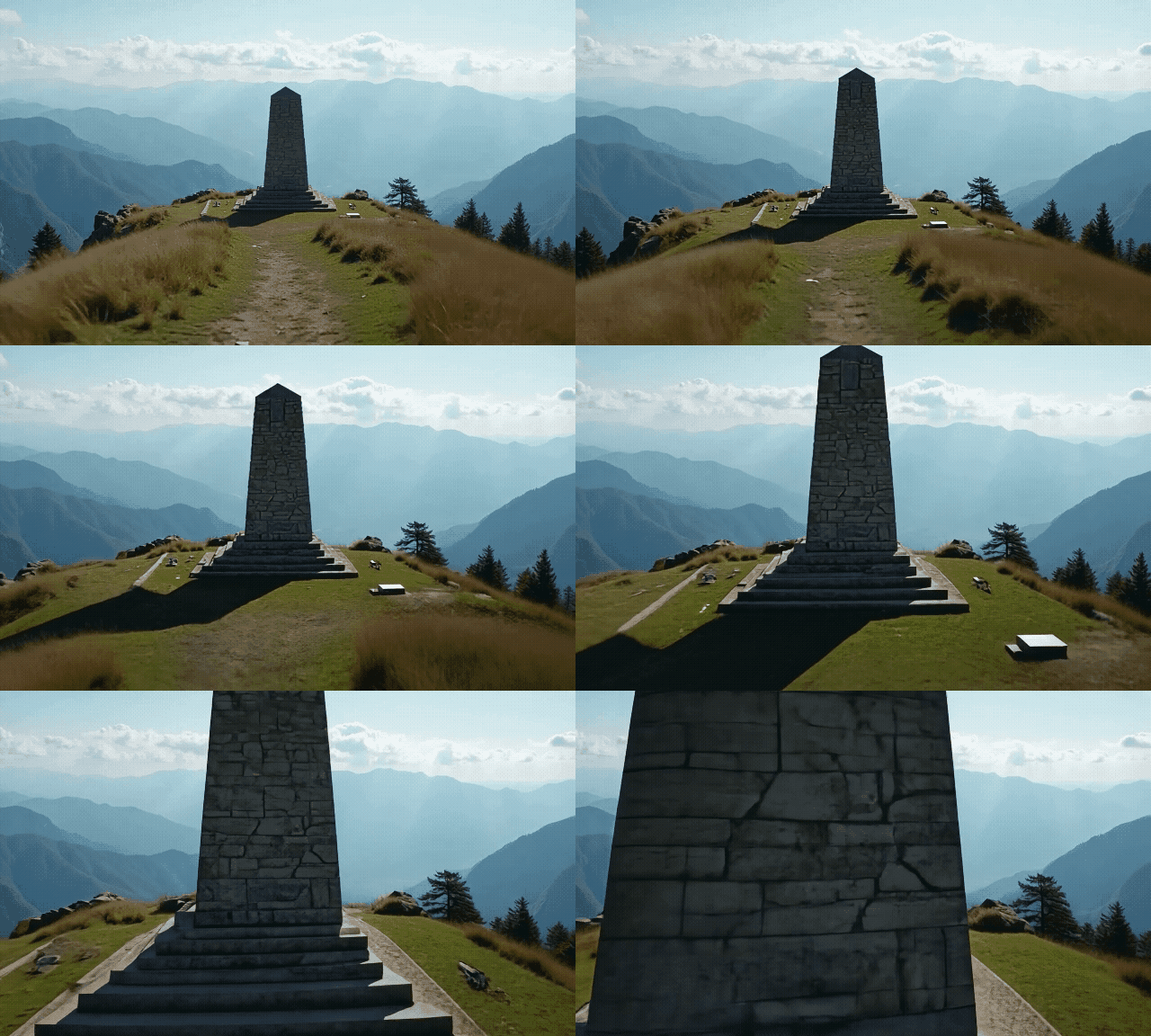
| 7–10 | Intense | Zoom: 10.0 | Camera soars at hyperspeed as it zooms into the monument. |
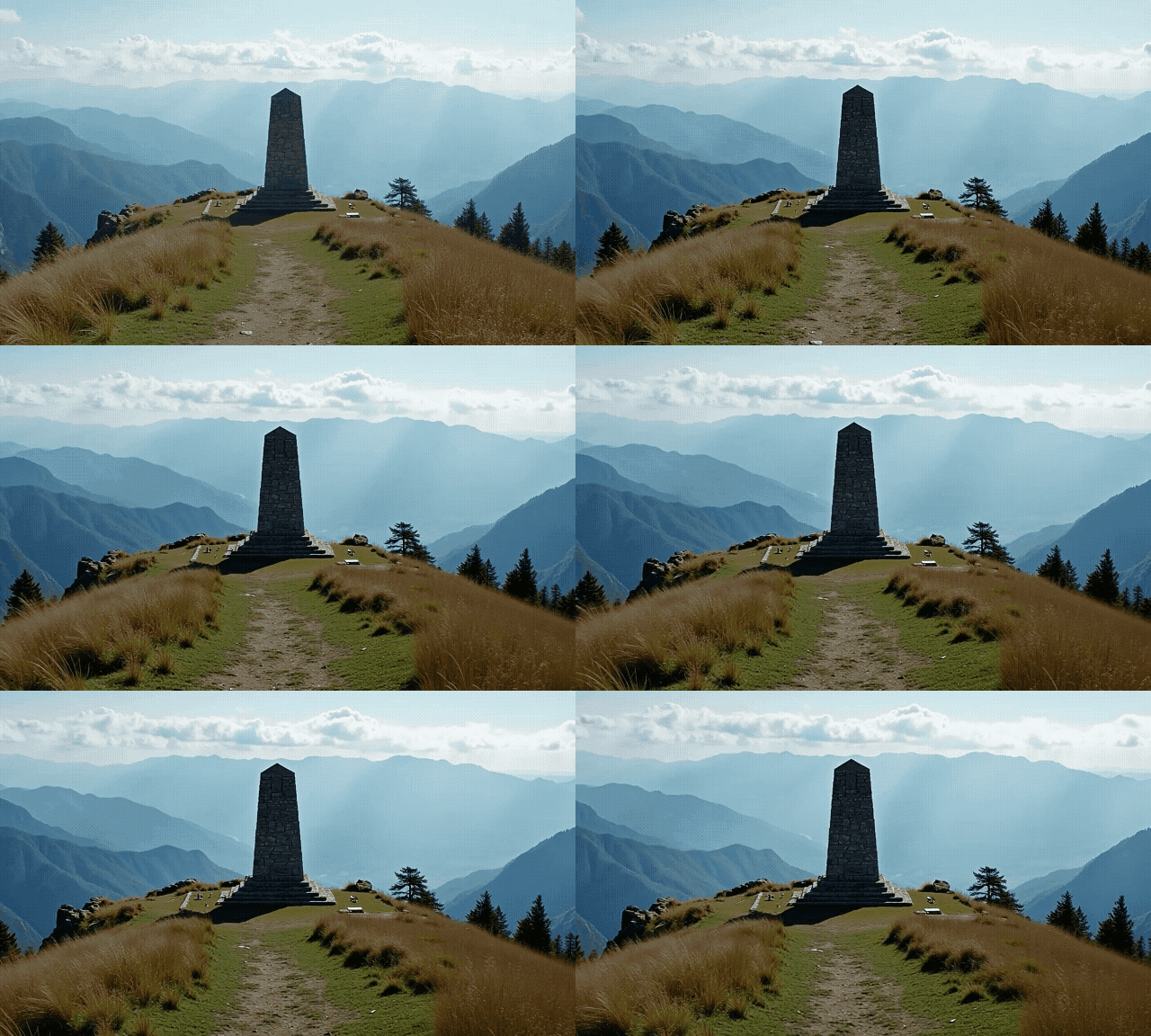
Minimal movement (Zoom: 0.1)
Prompt: Camera slightly zooms. Natural motion.
Intense movement (Zoom: 10.0)
Prompt: Camera soars at hyperspeed as it zooms into the monument.
How Camera Controls Interact with Your Input Image
Camera controls behave differently depending on your image. If the subject is close to the camera, the same slider value feels milder than on a wide shot. As a rule: the closer the subject, the less severe the movement—so raise values when you want stronger motion on close subjects.
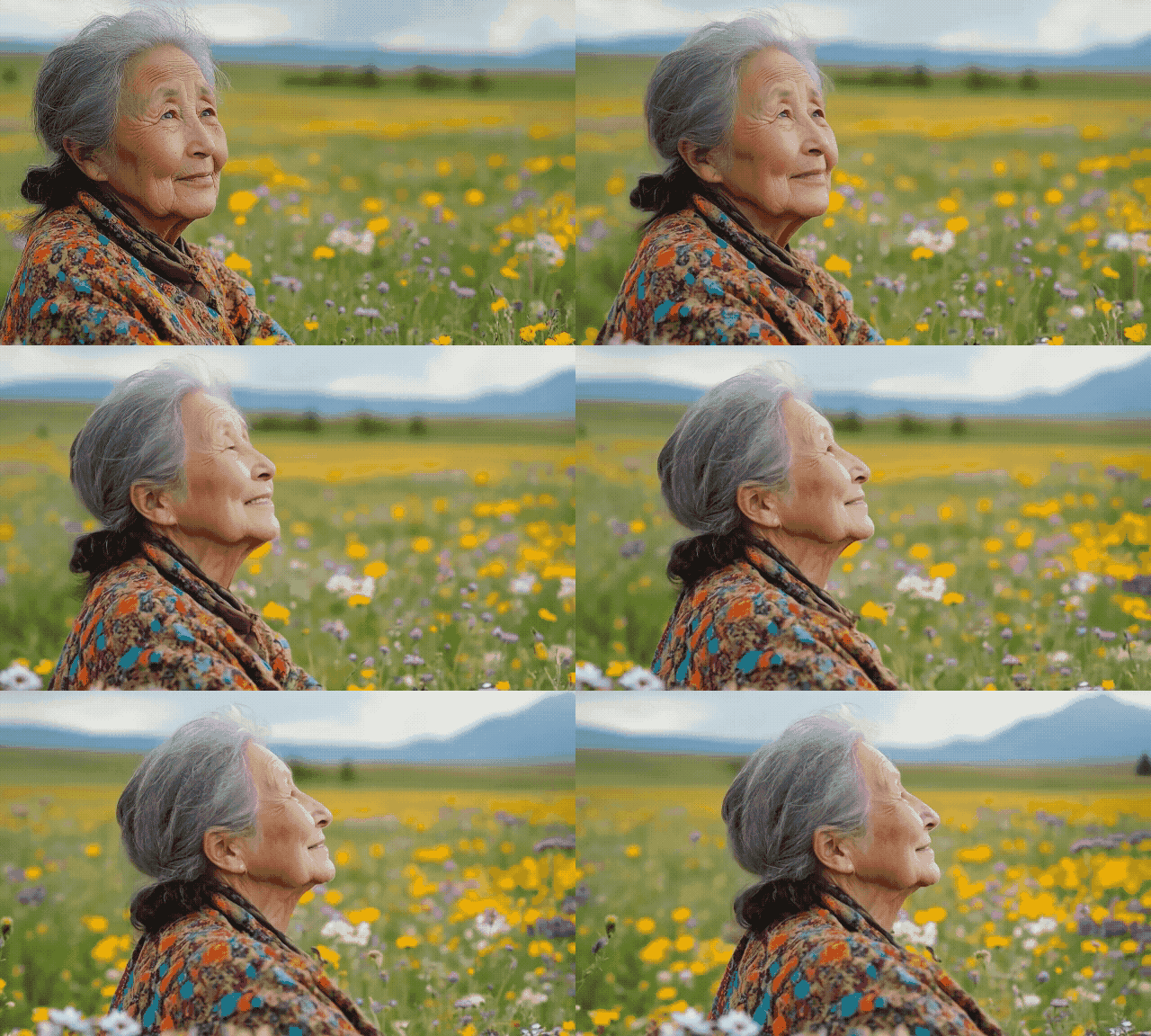
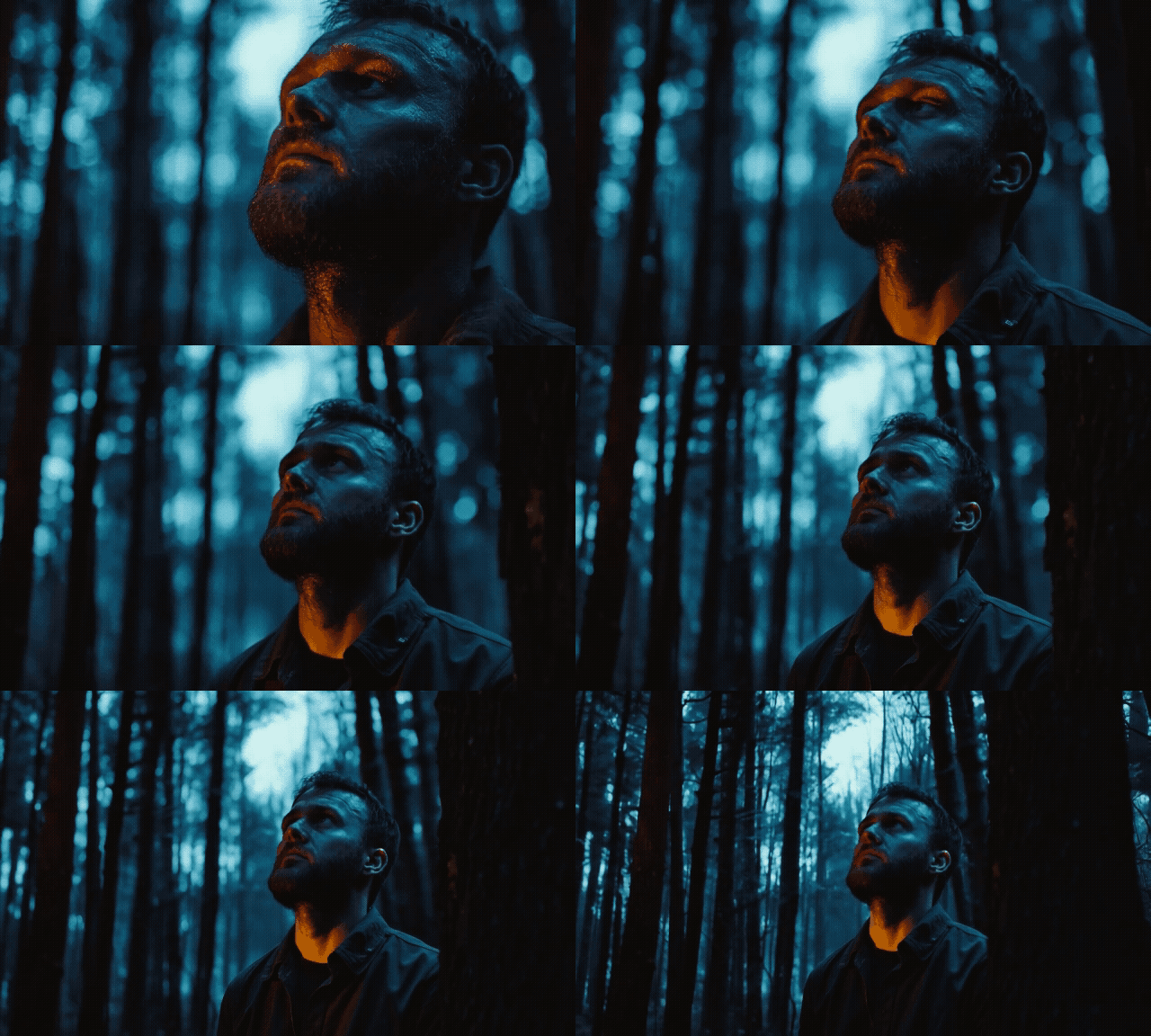
Portrait — Horizontal (-5.0)
Prompt: camera glides to the left
Portrait — Zoom (-5.0)
Prompt: camera zooms out
The Benefits of Using Text Prompts
You can set Camera Control alone and use the prompt only to describe the scene. Still, Runway recommends pairing prompts with camera controls so you can aim at a specific face, prop, or background detail—and control when the move starts.
Example: The woman walks along the hall, the camera pans to follow her path and finally zooms in for a closeup of her facial expression.
Zoom: -10 without a guiding prompt
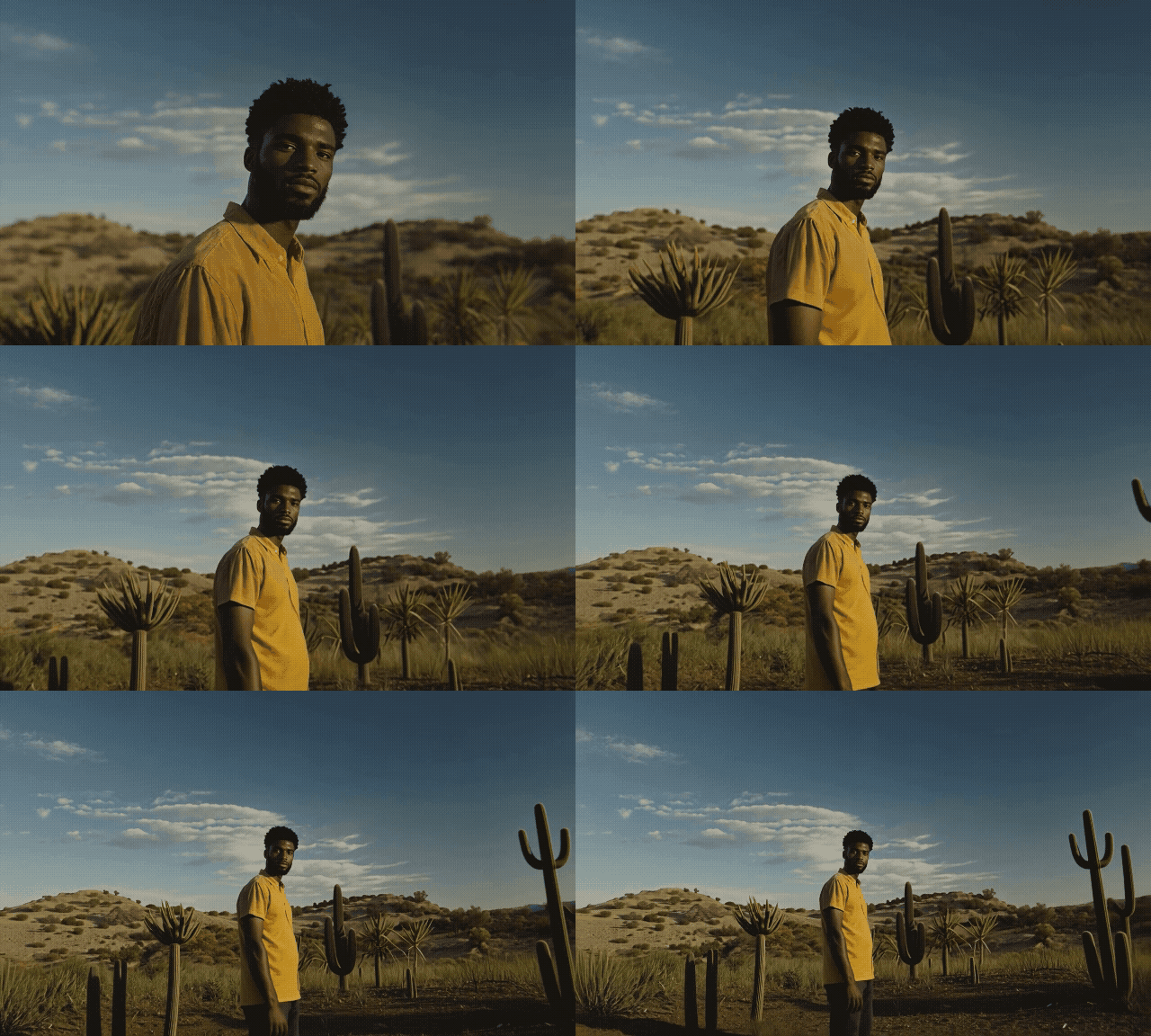
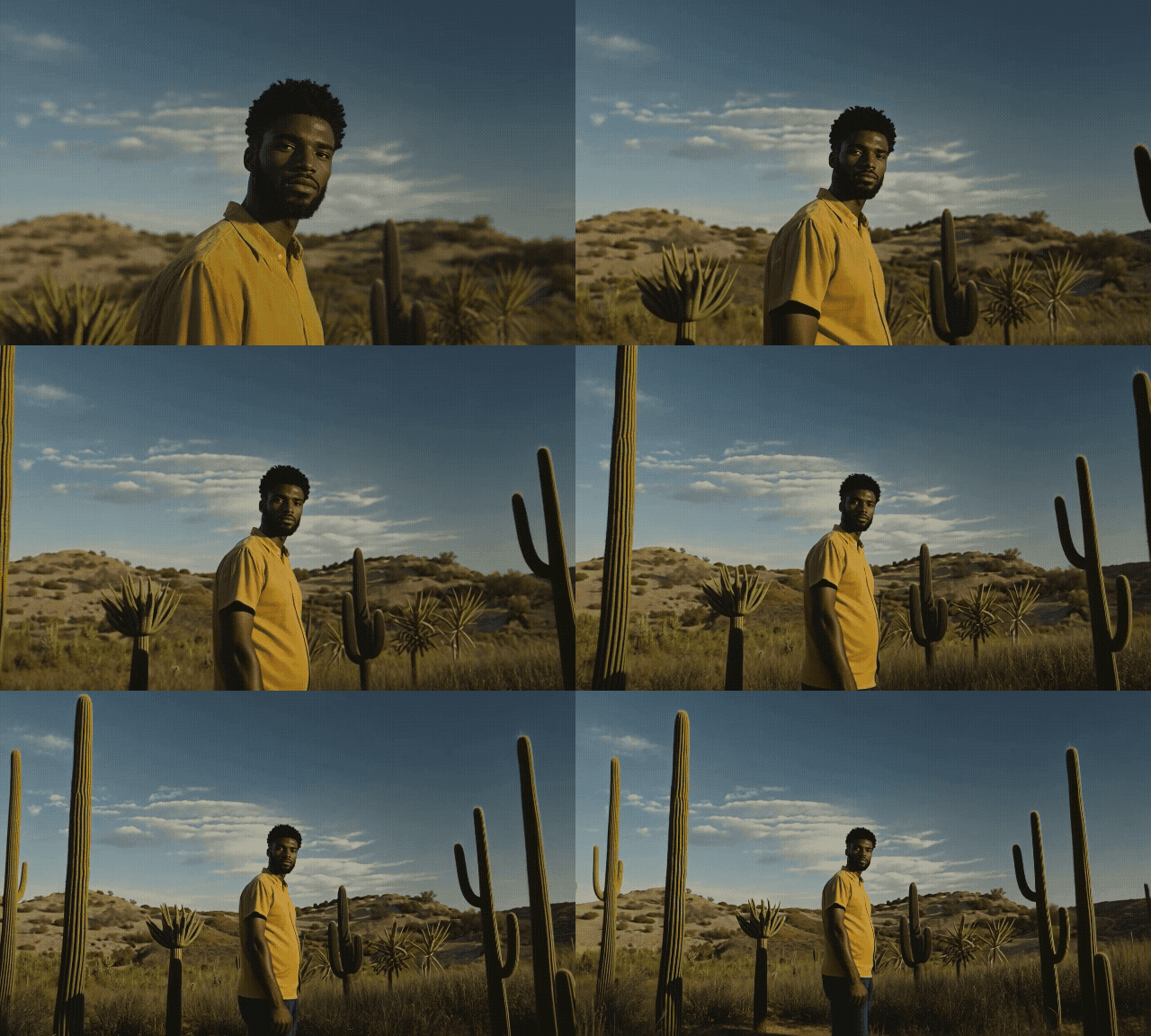
Zoom: -10 with a guiding prompt
Prompt: The camera zooms out. The subject stands in a clearing surrounded by a tall population of matured cacti.
Best Practices for Using Camera Control in Runway AI
- Describe the scene in as much detail as you can.
- Include subject actions (movement, expression) in the prompt.
- Add sensory details: lighting, time of day, weather, atmosphere.
- Use directional words (left, right, away, downward) to steer the camera. Learn more about prompting Runway.
- Experiment with slider values until you get a feel for the range.
- Combine moves (for example pan + zoom) for more cinematic results.
Try AI Camera Movement in Runway AI via Van Gogh Studio
You can use Runway’s AI camera controls for rich, detailed scenes—and Runway is available to try through Van Gogh Studio.
Van Gogh Studio also gives you other popular models in one place, including Runway Gen-2, Gen-3 Alpha, Turbo, Kling AI, Luma AI, and Hailuo AI.
Try Runway on Van Gogh Studio and see how Camera Control helps you build cinematic, engaging videos with less trial and error.
Create AI videos free
Try Van Gogh Studio free — text-to-video, image-to-video, and 300+ models in one place. Free credits on signup, no credit card required.
Try Free Video Generator


