

Wondering how you can better control how things move in your AI-generated video? The Motion Brush feature of Runway can support you.
It’s designed to let users specify the movements of certain elements of their Runway-generated videos. It can produce stunning results designers or creative Video makers generally require. Motion Brush is one of the many advanced features available in Runway.
Image with Runway's Motion Brush applied
Output video
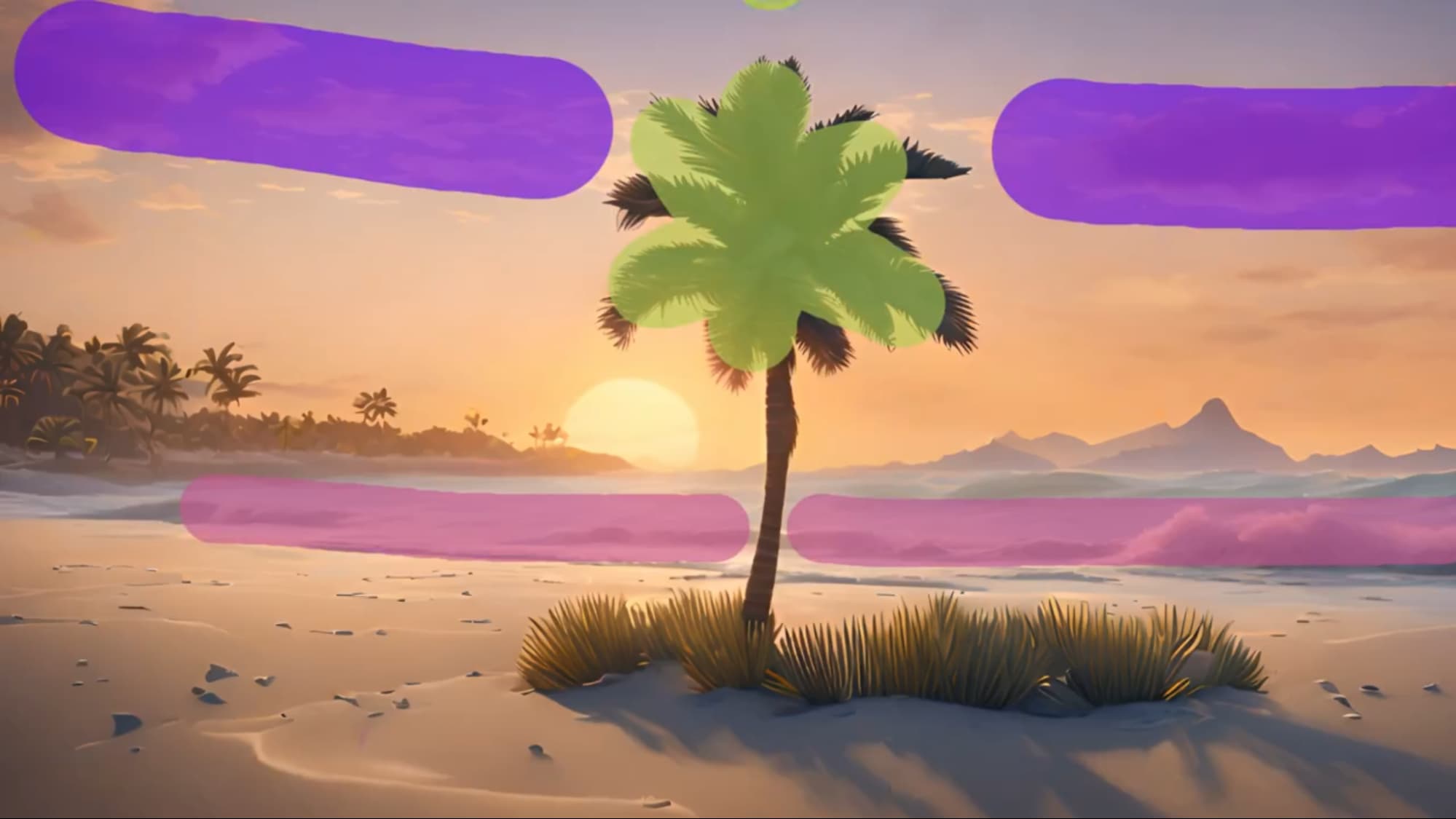
This guide provides simple-to-follow instructions on how to use Runway Motion Brush. If you're also one of the Runway users who are struggling to use Motion Brush, then this guide is what you need. But due to its complexity, new users may not fully know how to use it. Read on to notice them out!
How to Use Motion Brush in Runway
The Motion Brush has a lot to offer, but if you’ve not used it before, you may be cautious or confused about how to produce the primary of this tool. With that in mind, here’s a complete step-by-step guide of how to use Motion Brush in Runway, with painless to follow instructions, perfect for beginners.
Step 1: Go to the Runway Dashboard and Find Motion Brush
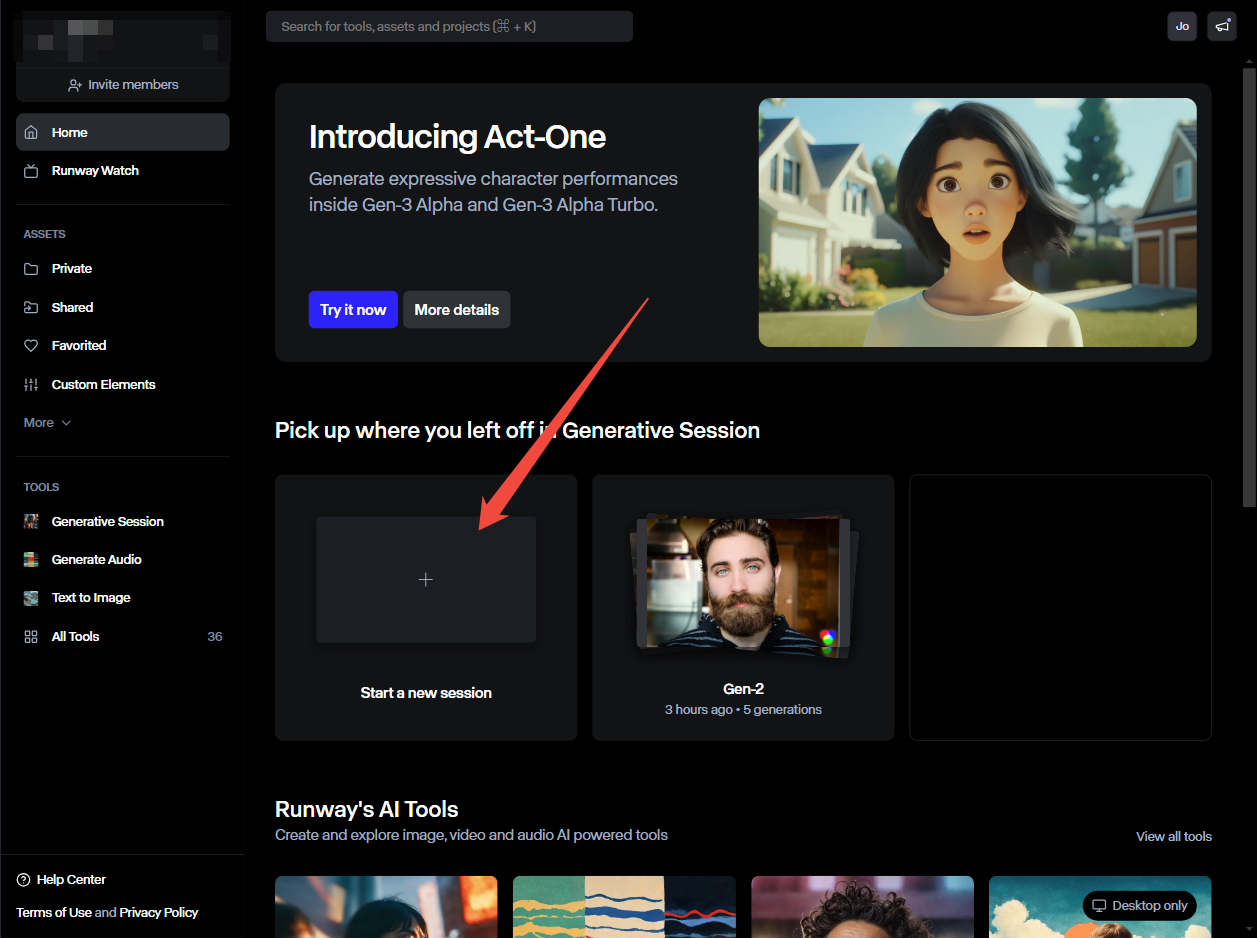
First you require to log into Runway and go to its dashboard, and click begin a new session.
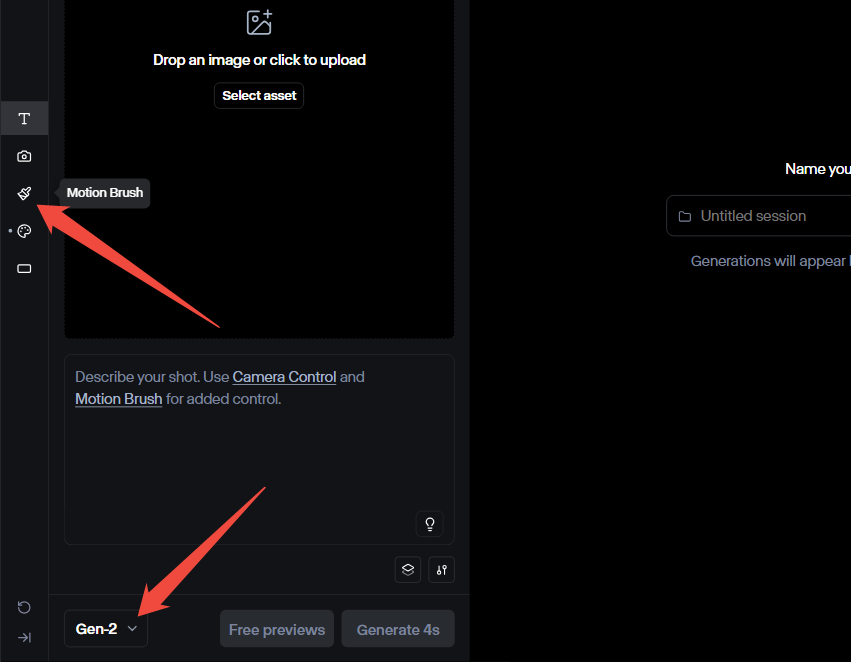
Then choose Gen-2 as the working model and then select Motion Brush.
Step 2: Upload Your Image
You can either upload one of your own, by either clicking the “Upload a file” button or dragging and dropping your image onto the window, or you can use the text-to-image capacities of Runway to produce your own image from a prompt. The choice is yours.
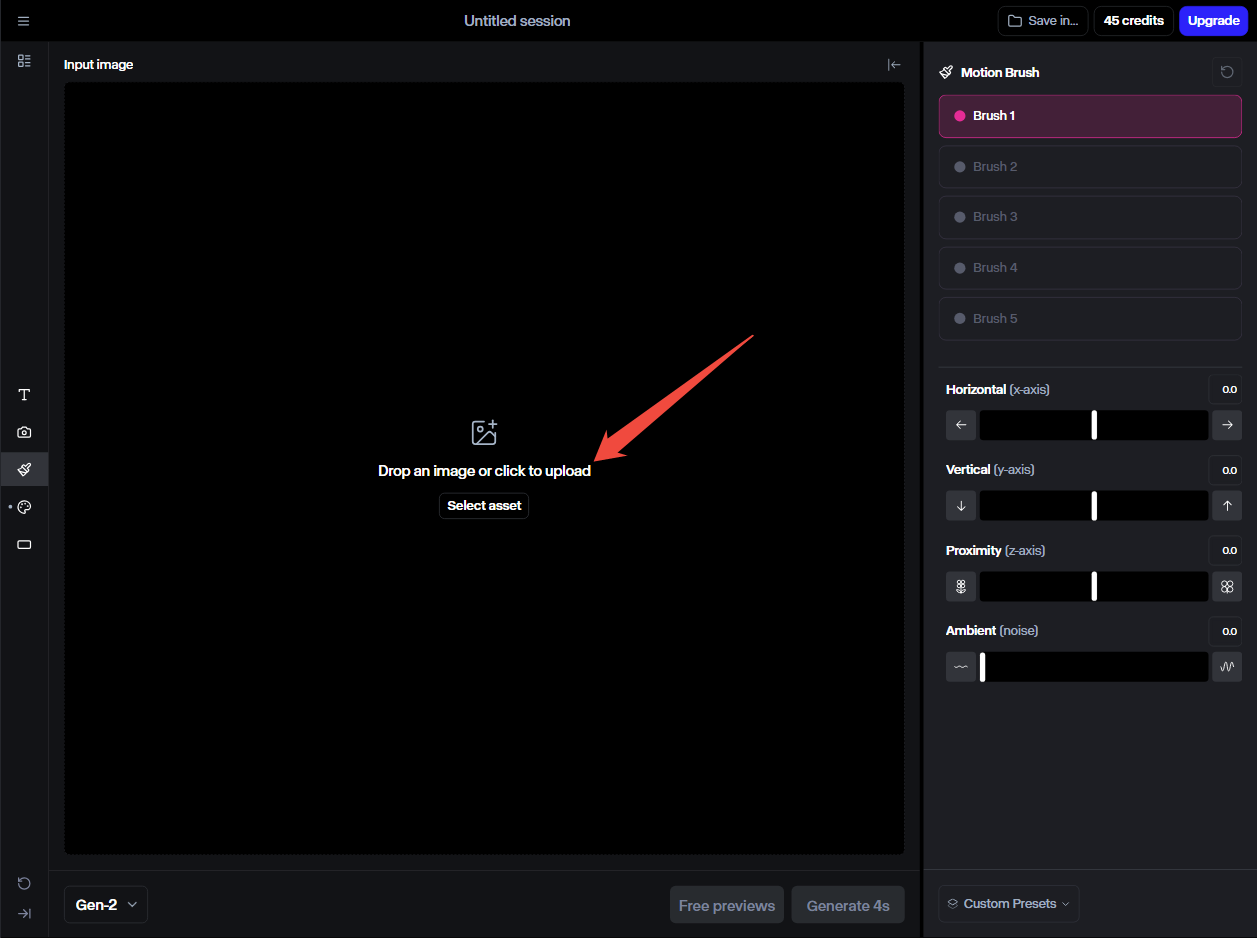
Step 3: Use the Brushes to Select Elements to Move
Once your image is loaded in, leverage the brush draw onto the image to select the elements or subjects you want to see moving.
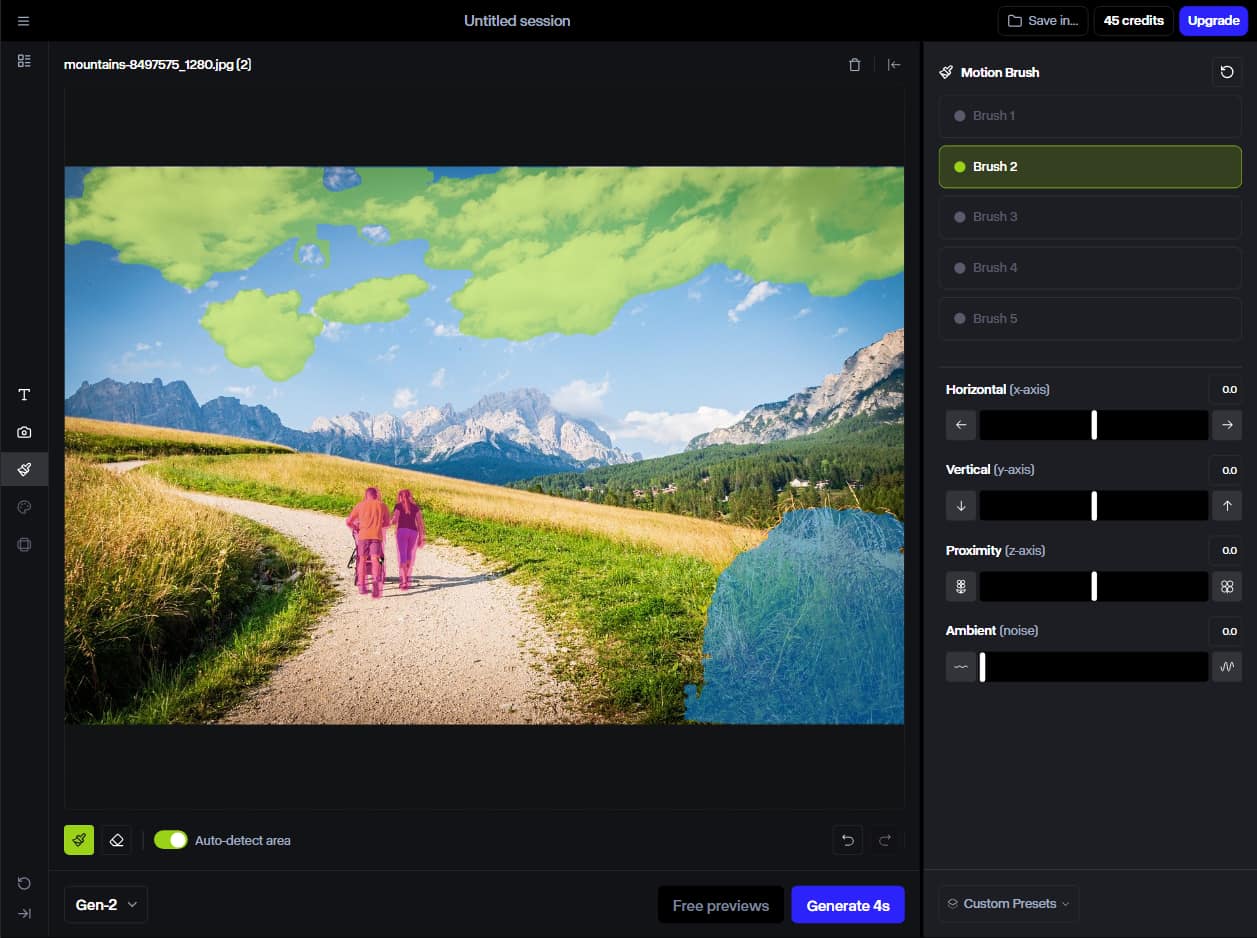
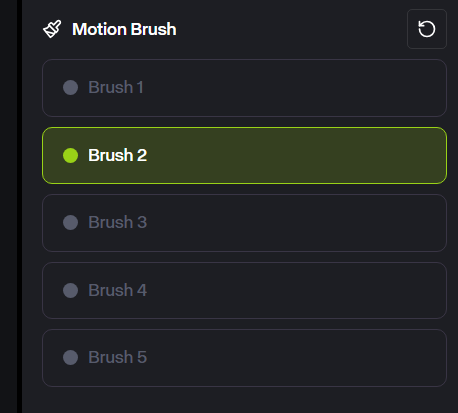
Runway offers five motion brushes, allowing you to select five different areas to apply different motions.
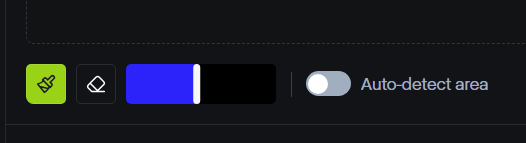
Each brush has an adjustable size. And the Auto-detect area option can assist you instantly select an element without spending time drawing the area manually.
Step 4: Set the Movement Direction and Speed
Once you’ve selected the part of the picture you want to see moving with the Motion Brush, you can apply the three sliders at the bottom right of the screen to set the style of movement.
There’s a Horizontal slider for side-to-side movement, a Vertical slider for up and down movement, and a Proximity slider for movement towards or away from the camera. There's also an Ambient (noise) slider, which allows you to add randomness to above motions to simulate natural movements. Adjust each slider as desired.
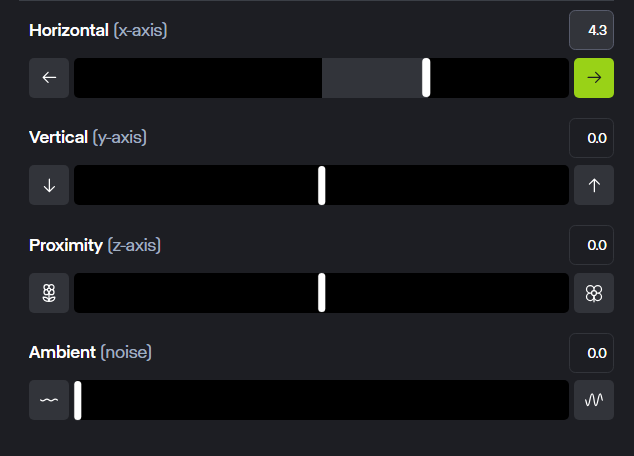
Note that the further you extend each slider, the faster the movement will be. So, if you want to see something move to the right really quickly, shift the horizontal slider to the right as far as it will go.
And if you have used multiple brushes in the previous step, you'll demand to set these movement settings for each brush.
Step 5: Generate and Watch/Share the Video
When you’ve locked in the areas you want to see move and set the desired movement speed and direction, simply click the “Generate” button to confirm your changes and generate the videos exactly as you intended. You can then watch, download or share the animated images as you like.
How Can Motion Brush in Runway Help You
Motion Brush is a useful tool for a lot of different users, including those who intend to leverage it both casually and professionally. Here are some examples of use cases for this intuitive AI video generation tool.
Artists and Creators
Those of an artistic or creative mindset can spot plenty of uses for the Runway Motion Brush. You can use it, for example, to bring your own graphic design, photographs, or even your illustrations to life, adding motion and energy to whatever elements or segments you desire.
Business Users
Or you could leverage it to create lively promo videos. There are plenty of possible business applications for the Motion Brush. Brands might like to leverage it to create product demonstrations, for example, like showing a new car design driving down the road or a product in motion.
Casual Use
The casual user, too, can have fun playing around with the Runway Motion Brush and using it to bring their own personal photos and images to life, such as animating old travel photos or family pictures, for example, to share online or with their friends and other loved ones.
Try Runway's Model on Van Gogh Studio
You can utilize the Runway AI video generator on its specific platform, but that's not your sole choice. Runway can also be found as one of the available AI models on the Van Gogh Studio video generation platform.
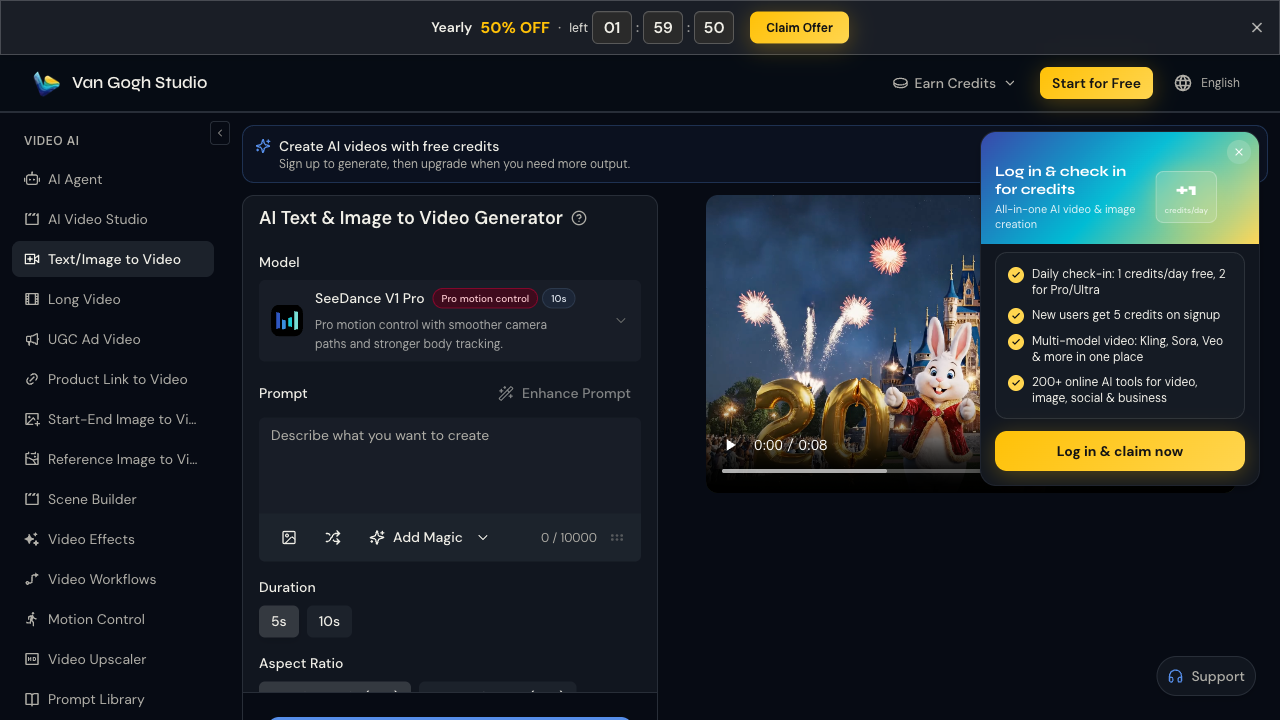
It also offers video effects, and various AI tools.For the uninitiated, Van Gogh Studio is a leading all-in-one AI video generator. With this platform, you can create realistic, detailed, and high quality AI videos with features such as text to video AI generator, image to video AI and video to video AI.videos:
To add to its creative freedom, Van Gogh Studio offers multiple models to choose from when you are trying to leverage these tools. The models you can choose include Runway, and other well-known ones like Kling, Hailuo, Vidu, Luma, PixVerse and additional.
Try it out today and experience easy access to Runway via Van Gogh Studio.
Outro
Overall, with the power of the Runway Motion Brush, you can bring yet images to life, as if by magic. It’s a helpful tool for the likes of artists and designers, and don’t forget that you can easily access and apply the Runway model in Van Gogh Studio, as well as harnessing the power of Van Gogh Studio’s many other tools, templates, and AI video generation capabilities.
FAQs
What does Motion Brush do in Runway?
The Motion Brush is basically a tool that allows you to create static images move. You can draw over the parts of the image that you want to customize their movements, and the generative AI model that powers Runway will animate them as you expected for you.
Can I use RunwayML for free?
Yes, there is a free version of Runway available, so you can test out this platform and experiment with some of its different generative tools and features without having to spend any money for the privilege.
Does Runway Gen 3 have Motion Brush?
No, the Gen-3 version of Runway does not offer access to the Motion Brush tool. It's currently only available with the Gen-2 model.
Are there other AI video generation tools that offer Motion Brush?
Yes, the popular AI video generator Kling AI offers a Motion Brush tool, and we have a guide on how to leverage Kling AI's Motion Brush.
In addition, Van Gogh Studio also has a animation control feature, allowing you to transfer real video motion to animate static characters into dynamic, lifelike performances.
How do you control specific areas with Motion Brush?
You can simply brush over the areas of your picture that you want to see moving your way with the Runway Motion Brush, and it offers extra precise controls that let you set which direction the elements move and how quickly, horizontally, vertically, and proximity to the screen.
Create AI videos free
Try Van Gogh Studio free — text-to-video, image-to-video, and 300+ models in one place. Free credits on signup, no credit card required.
Try Free Video Generator


