

One you on the street with a basketball. Then three of you, walking in sync, each dribbling — same outfit, same golden-hour light, same BMW in the background. Multiple Me duplicates your photo subject into several clones sharing one cinematic scene.
What Is the Multiple Me Template?
The template analyzes a single-person photo and generates additional identical copies positioned across the frame. Each clone can move independently (walking, dribbling, gesturing) while sharing consistent lighting, shadows, and background perspective — the "one-person army" effect popular in dance and sports edits.
| Single subject | Three clones in one shot |
|---|---|
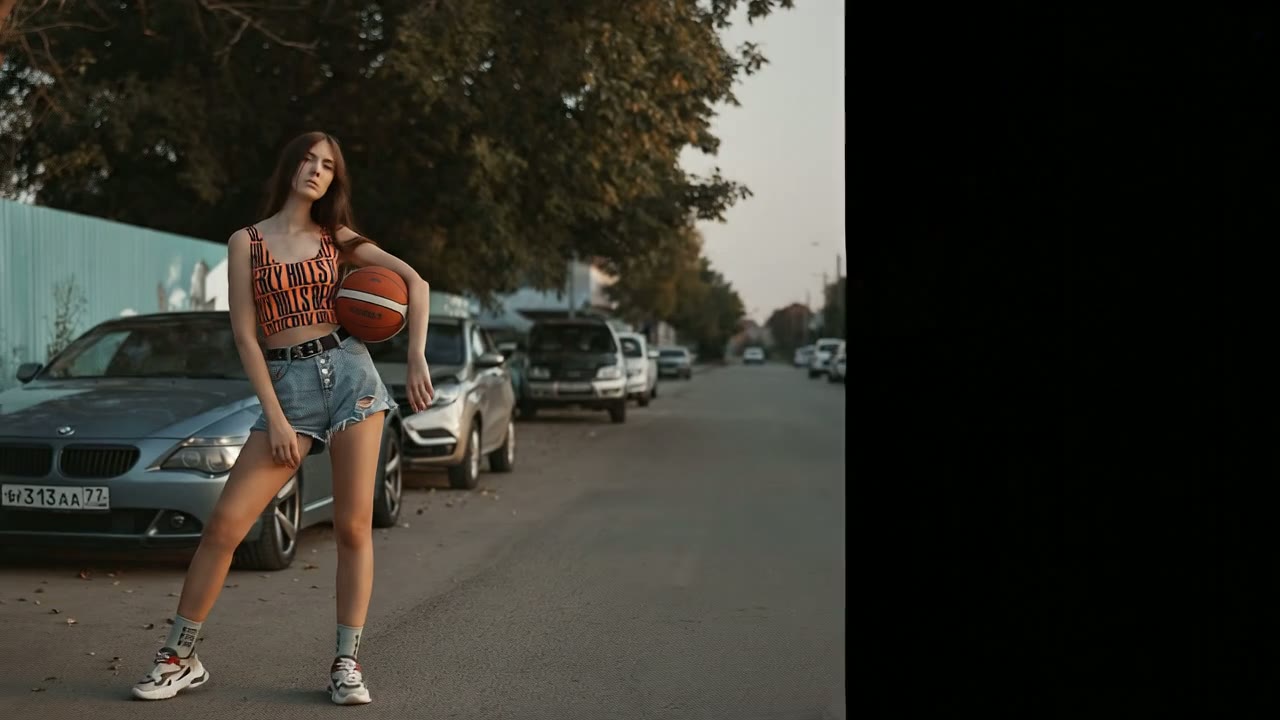 | 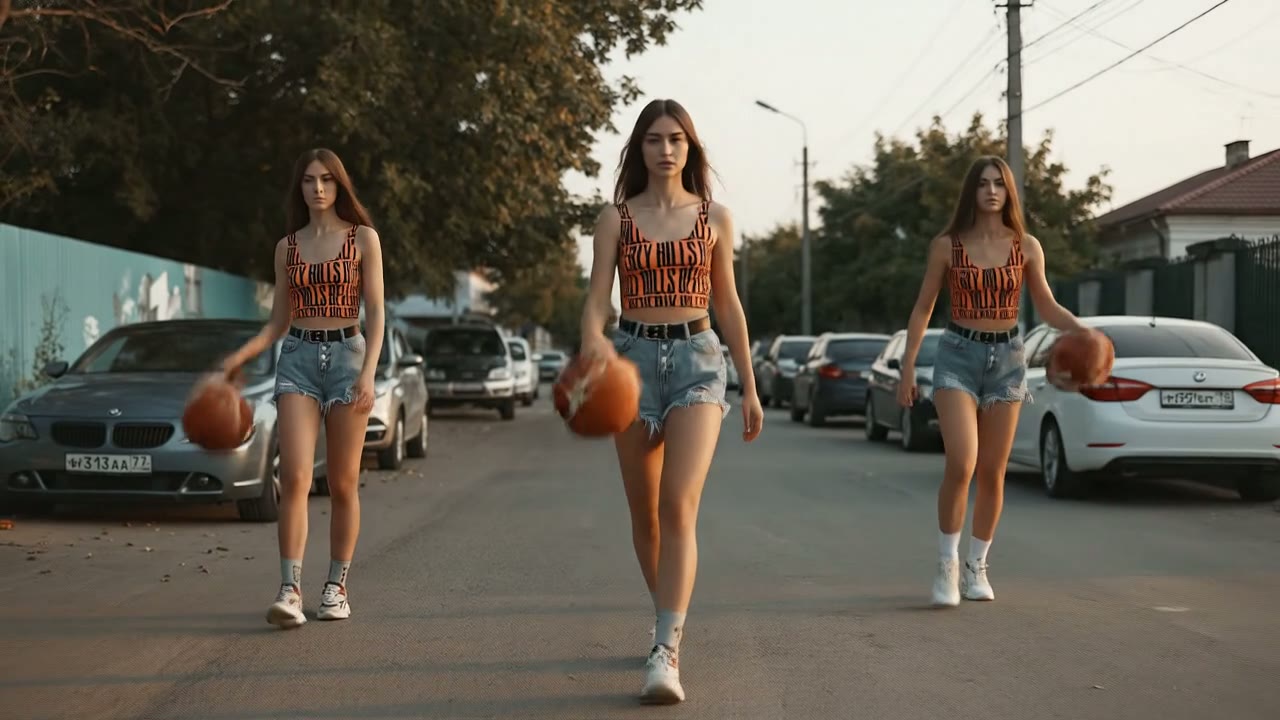 |
Template description: "See yourself multiply — one becomes many."
How to Create a Multiple Me Video
Step 1: Open the Multiple Me Template
Visit Multiple Me on Van Gogh Studio. The left panel shows an example video at the top so you know exactly what motion to expect, followed by the upload area and generate button.
Step 2: Upload a Photo That Matches the Template
Click Upload Image or drag a file into the dashed box. Supported formats: JPG, PNG, WebP (max 10MB). If your photo's aspect ratio doesn't match the template default (usually 9:16), a crop dialog will appear — adjust the frame so the subject stays centered.
Use a full-body or three-quarter photo with empty space left and right in the frame — the AI needs room to place additional clones. Outdoor street shots with depth (cars, trees, pavement lines) help sell the shared environment. The sample used a basketball; any prop works.
Step 3: Configure Video Settings
16:9 landscape shows the widest clone spread; 9:16 stacks clones vertically for TikTok. The system prompt preserves outfit, lighting, and background from your source image automatically — no manual clone masking.
Step 4: Generate & Download
Click Generate Video (credit cost shown on the button). The right panel tracks progress; when finished, play the clip and use Download to save it. Generation typically takes two to five minutes.
Who Should Use Multiple Me?
- Dancers & athletes faking a squad routine solo
- Musicians appearing as their own backup band in promo clips
- Comedy creators arguing with themselves or high-fiving their clone
Tips for Believable Clones
- Wide-angle street photos beat tight indoor crops — more floor space for spaced-out clones
- Consistent outfit colors (like the orange crop top in the sample) make duplicates instantly readable
- Mid-action props (ball, coffee cup, phone) give each clone something to do
- Avoid photos where arms extend past the frame edge — clones need complete limbs
Conclusion
Multiple Me is the easiest clone effect on Van Gogh Studio: one portrait in, several synchronized yous out. Perfect for viral "which one is real?" posts.
You might also like
How to Create Animated Kiss Videos
Step-by-step guide for the Animated Kiss effect on Van Gogh Studio.
How to Create Muscle Surge Videos
Step-by-step guide for the Muscle Surge effect on Van Gogh Studio.
How to Create Huge Cutie Videos
Step-by-step guide for the Huge Cutie effect on Van Gogh Studio.
Create AI videos free
Try Van Gogh Studio free — text-to-video, image-to-video, and 300+ models in one place. Free credits on signup, no credit card required.
Try Free Video Generator


