

Kling AI is a generative AI video (and image) platform from Kuaishou. Creators use it to turn text prompts or still images into short video clips — often with stronger photoreal detail and motion control than earlier consumer tools.
If you have seen cinematic AI ads, talking-head clips, or character shorts online, there is a good chance Kling was in the stack. This guide explains what Kling is, which features matter, how the main workflows work, and when to use Kling on its own versus inside Van Gogh Studio.
What Is Kling AI?
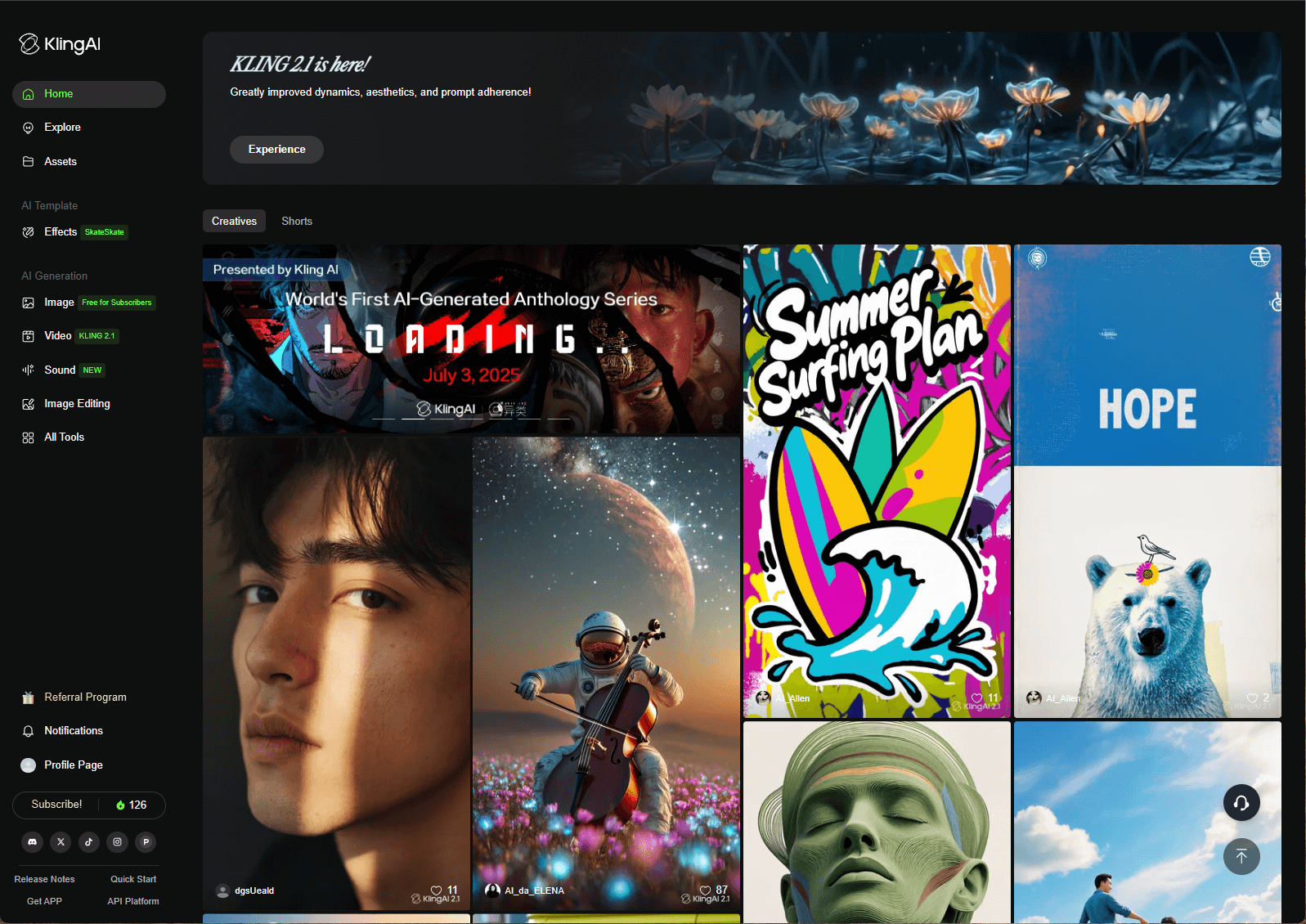
Kling AI is best understood as a model family + creative studio:
- Models: Kling versions (for example 1.x, 2.x, and newer 3.x lines) improve quality, speed, and prompt following over time.
- Modes: Core paths are text-to-video and image-to-video, with extras like extend, lip sync, and face tools.
- Controls: Motion brush, camera movement, and start/end frames let you direct how the scene moves — not only what appears.
Kling is widely available through Kling’s own product and through multi-model platforms such as Van Gogh Studio, where you can compare Kling against Runway, Luma, Hailuo, and others on the same brief.
Key Kling AI Features
Text-to-video
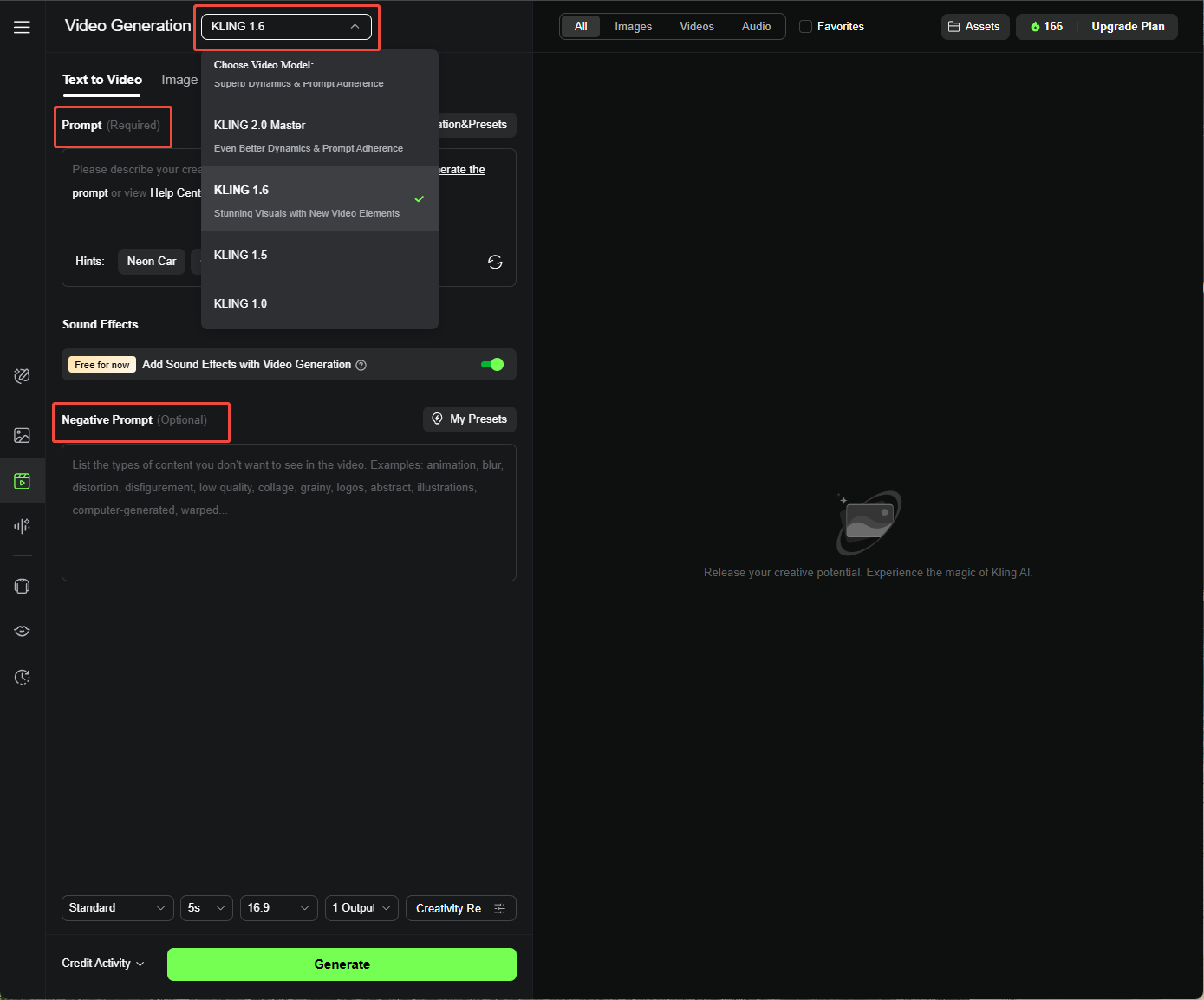
Describe a scene in natural language — subject, action, camera, lighting, style — and Kling generates a short clip. Stronger prompts (clear subject + motion + camera language) usually beat vague one-liners.
Image-to-video
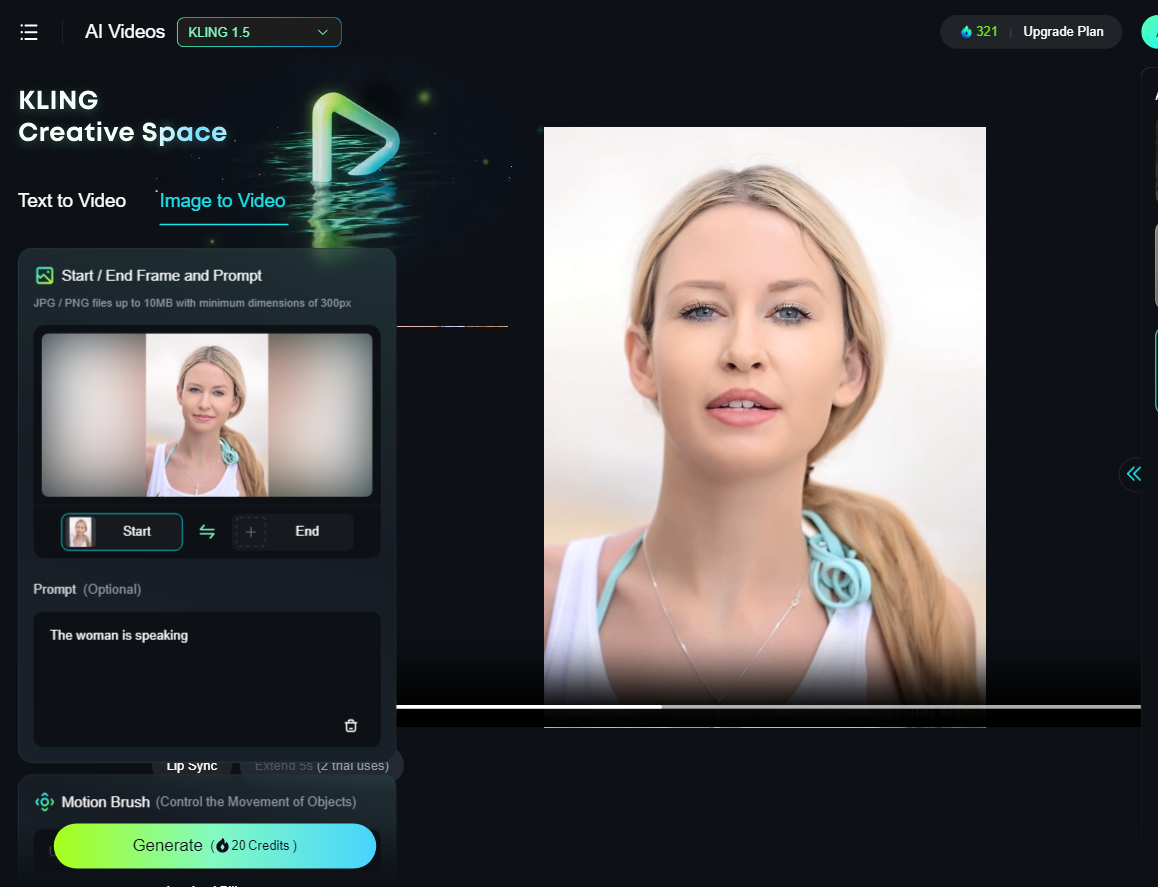
Upload a still (product shot, character render, photo) and animate it. Pair the image with a prompt that explains motion and camera so Kling does not invent random movement.
Extend video

Continue a clip forward when you need more duration for storytelling or social formats. Best results come from extending a stable shot rather than a chaotic multi-subject mess.
Motion brush
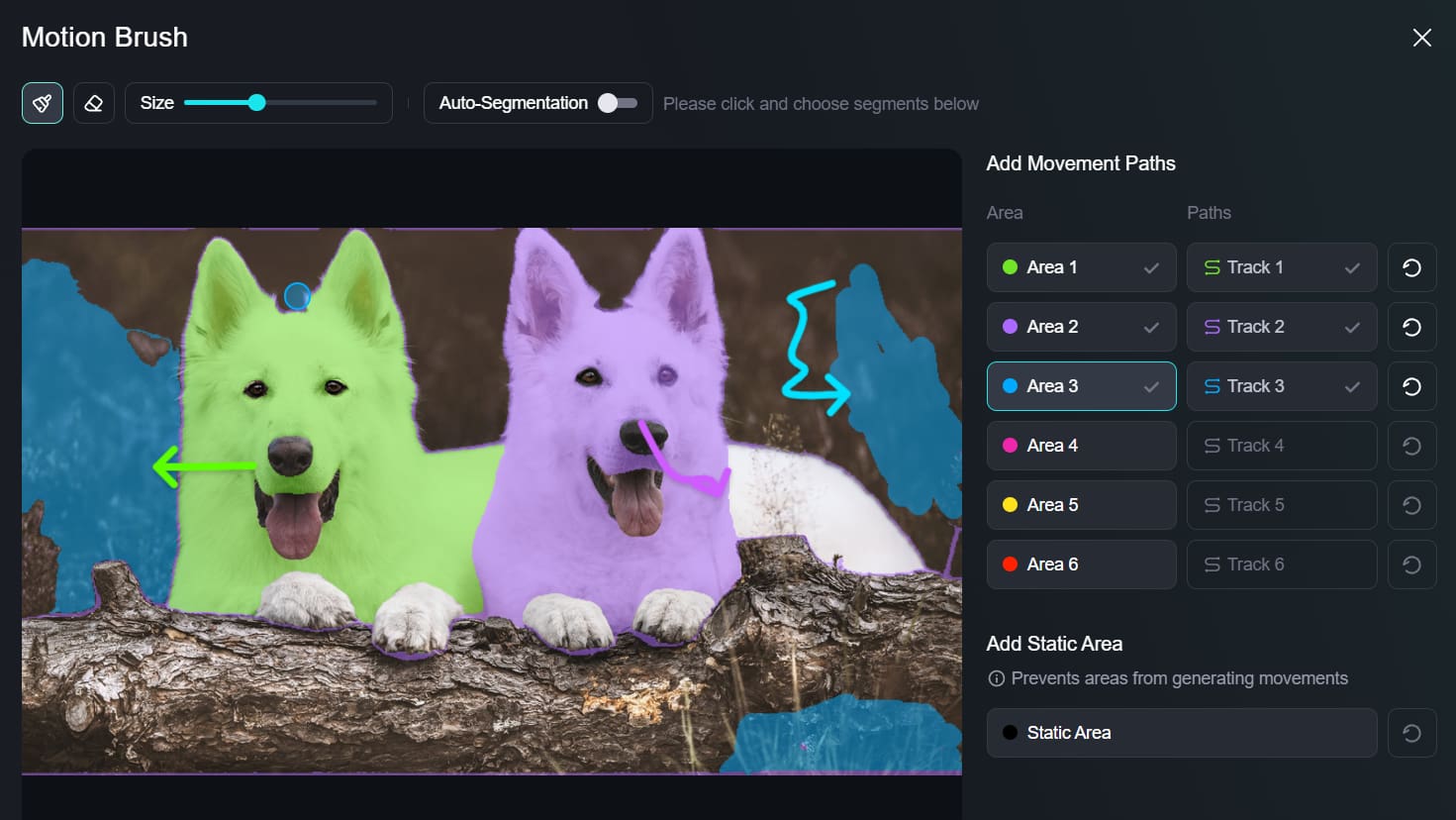
Paint movement paths on subjects or regions so different elements can move in different directions. This is one of Kling’s biggest differentiators versus “prompt-only” generators.
Camera movement
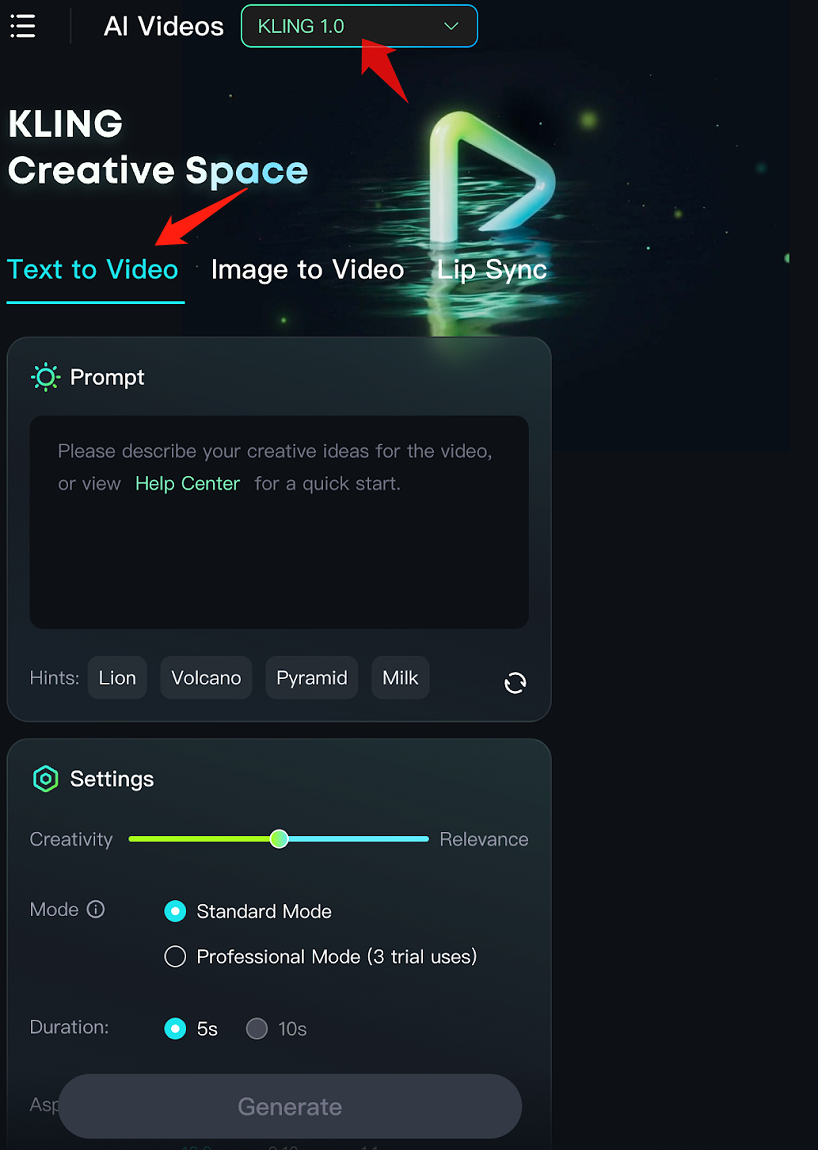
Specify pans, tilts, zooms, or orbits (depending on the model UI) to get more cinematic framing instead of a locked, static shot.
Start / end frames
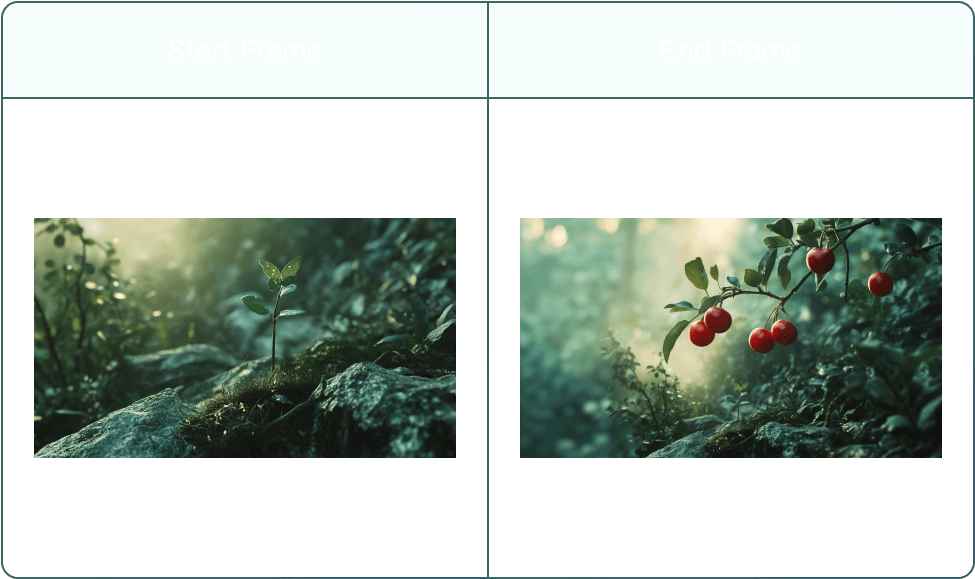
Set the opening and closing images and let Kling interpolate the motion between them — useful for product reveals and controlled transitions.
Lip sync
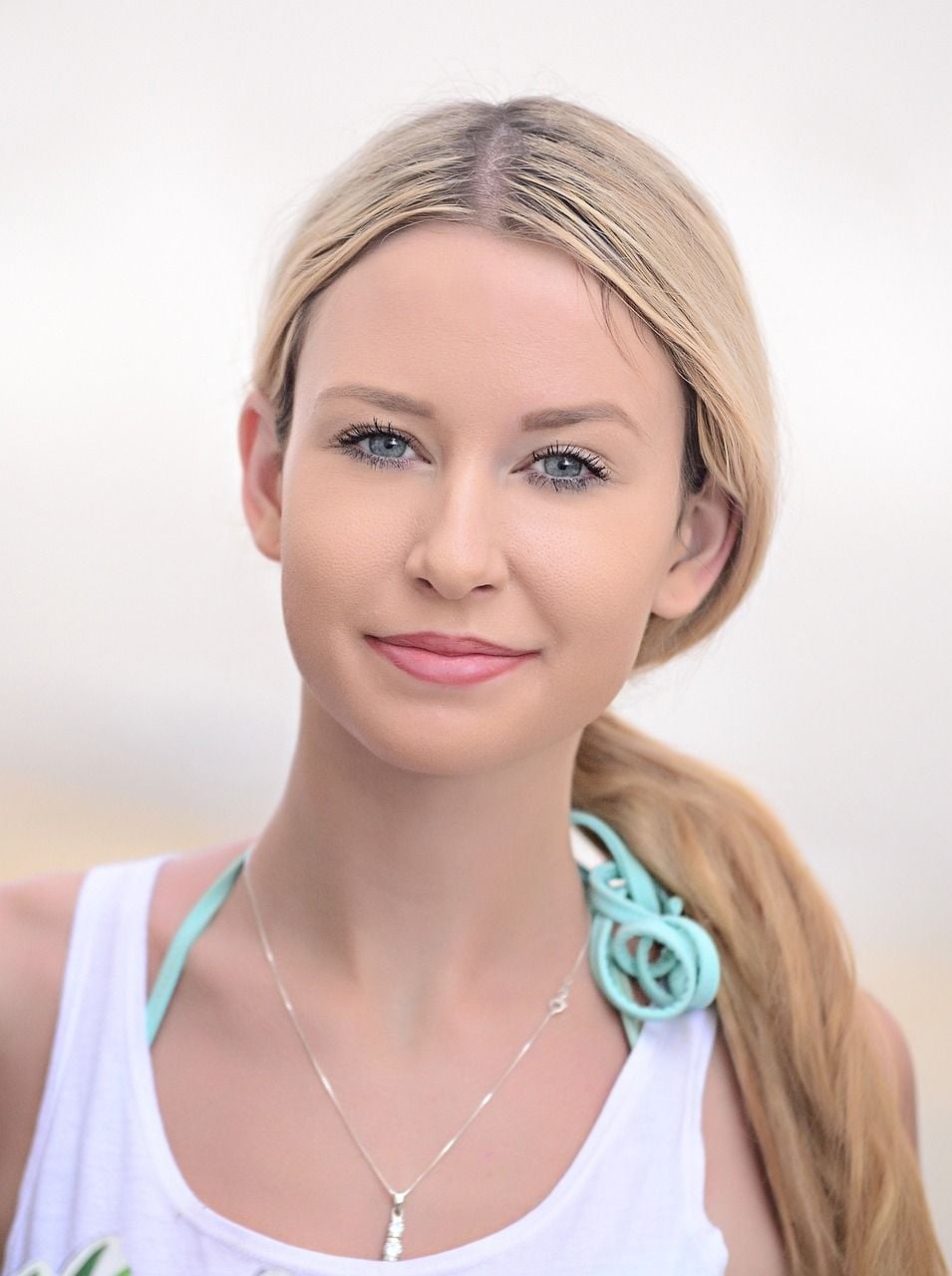
Drive mouth movement from audio or text-to-speech so characters look like they are speaking. Handy for explainers, avatar lines, and short dialogue beats.
Face model
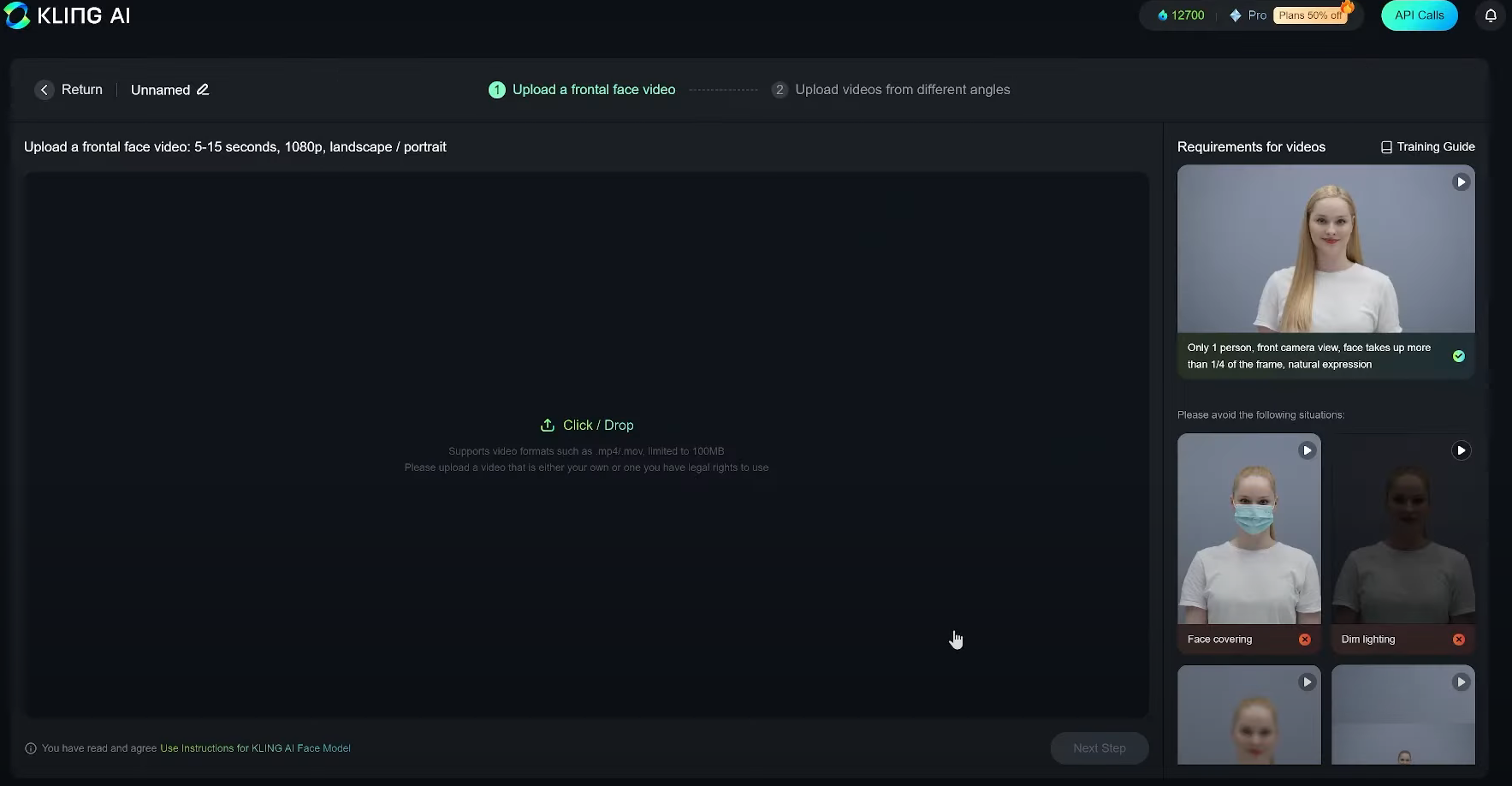
Train or lock a face from reference photos so the same person stays recognizable across generations — important for brand spokespeople and series content.
Virtual try-on & Elements
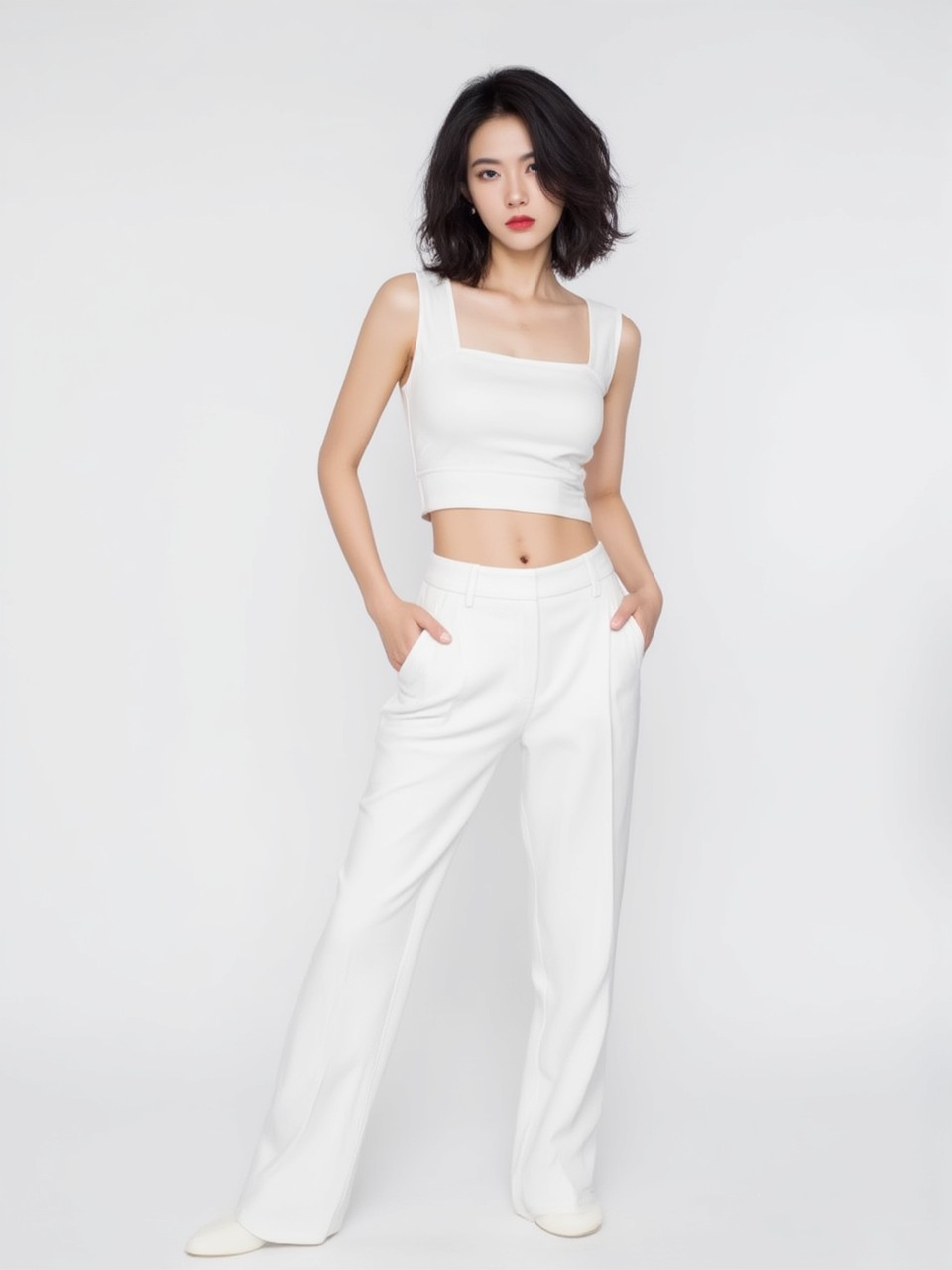
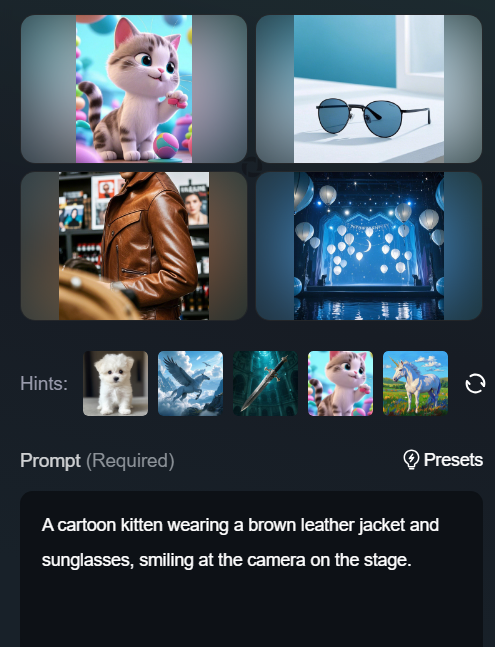
Virtual try-on style tools overlay clothing or products on people. Elements-style workflows help keep objects or characters consistent when you reuse them across clips.
How to Use Kling Text-to-Video
- Pick a Kling model that matches your goal (speed vs maximum quality).
- Write a structured prompt: subject → action → environment → camera → lighting / style.
- Set duration, aspect ratio, and mode (for example 16:9 YouTube vs 9:16 Shorts).
- Add a negative prompt if the UI supports it (blur, watermark, extra limbs, etc.).
- Generate, review, then refine — change one variable at a time (camera or wardrobe or motion).
Tip: Put the most important subject and action in the first sentence. Kling follows early instructions more reliably than buried details.
How to Use Kling Image-to-Video
- Upload a clean source image (sharp subject, decent resolution, minimal clutter).
- Describe the motion you want — “slow push-in,” “hair in wind,” “product rotates on turntable.”
- Use motion brush (when available) to mark what should move vs stay still.
- Optionally set start/end frames for controlled transitions.
- Generate and compare a couple of seeds / takes before you upscale or publish.
Tip: If the face drifts, simplify the motion and lock identity with face / reference tools before adding big camera moves.
Why Creators Use Kling
| Strength | Why it matters |
|---|---|
| Photoreal detail | Better for ads, product, and lifestyle content |
| Motion controls | Less “random animation,” more directed action |
| Character tools | Face + lip sync support series and spokesperson clips |
| Availability | Easier to productionize than waitlisted models |
Kling is not magic: messy prompts still produce messy clips. But with decent direction, it is one of the most practical photoreal video models for weekly content.
Kling AI Alternatives (and When to Switch)
| Alternative | Choose it when… |
|---|---|
| Runway | You need a deep edit suite (inpaint, extend, camera) after generation |
| Luma AI | You want the fastest cinematic drafts |
| Hailuo / Minimax | You optimize for short cinematic social hooks |
| Pika | You want playful effects more than photorealism |
| Van Gogh Studio | You want Kling plus other models, templates, and upscalers in one UI |
Use Kling on Van Gogh Studio
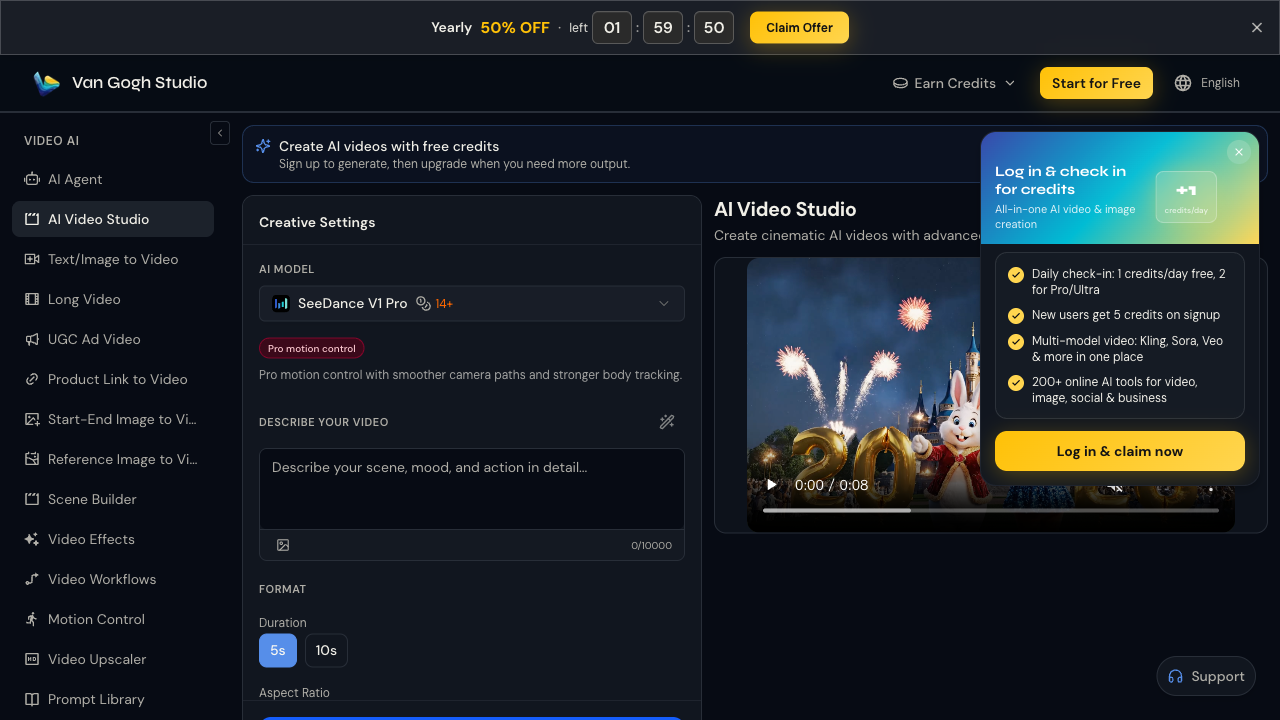
You do not have to live only inside Kling’s native app. On Van Gogh Studio, you can:
- Run Kling beside Runway, Luma, Hailuo, and other models on the same prompt
- Switch between text to video and image to video
- Keep character looks steadier with reference image to video
- Finish with effects templates and the AI video upscaler
That workflow is ideal when some briefs need Kling realism and others need a different model’s look — without managing three subscriptions.
Pricing (Approximate)
Kling typically offers a free or low-credit trial tier plus Standard / Pro / Premier-style monthly credit plans. Entry paid plans often start in the single-digit to low double-digit USD range per month; heavy production needs higher credit packs.
On Van Gogh Studio, you pay one credit pool across models — see live pricing for Lite / Pro amounts.
Final Take
Kling AI is a photoreal-first AI video platform with practical motion and character controls. Use it when you need directed movement, talking heads, or product/lifestyle realism. Use a multi-model hub like Van Gogh Studio when you also need alternatives, templates, and finishing tools in the same day.
Ready to try? Generate with Kling on Van Gogh Studio and keep the take that actually matches your brief.
You might also like
How to Use Kling AI
Step-by-step Kling workflows for cleaner first takes.
How to Use Kling AI Motion Brush
Direct subject movement with motion brush instead of hoping the prompt guesses right.
Kling AI vs Runway vs Van Gogh Studio
See how Kling compares with Runway’s pro suite and a multi-model workspace.
Kling AI vs Sora vs Van Gogh Studio
Compare Kling with OpenAI Sora on access, quality, and production readiness.
Create AI videos free
Try Van Gogh Studio free — text-to-video, image-to-video, and 300+ models in one place. Free credits on signup, no credit card required.
Try Free Video Generator


