

Kling AI is a powerful AI video generator, but it can sometimes be difficult to notice the right prompt to generate satisfactory results. Struggling with writing prompts to create videos you demand with Kling AI?Don't know what you should include in your prompt to get the best output?
So in this guide, we'll explore the formulas of Kling AI Video prompts, demonstrate some decent examples, and offer several essential tips to maximize its potential. In the end, you can create the best apply of Kling AI Video Generator and create impactful video content on your own.
Kling AI Video Prompts Formulas
To better transfer static content into dynamic videos, we'll take a closer look at our compiled Kling AI Video prompts formulas. These formulas mainly cover three key features of Kling AI: text to video, image to video, and video extension. Following these formulas, you can create impressive videos in an instant.
Prompt Formula for Kling AI Text to Video
To generate videos from text, you should describe the subject, its movement, and the scene. Here is the Text to Video prompt formula and its further explanation.
Prompt = Subject (Subject Description) + Subject Movement + Scene (Scene Description) + (Camera Language + Lighting + Atmosphere)
- Subject: The main object of the video, which can be a person, animal, object, or concept. You should also provide descriptions in detail.
- Subject Movement: Specify actions or movements of the subject to add dynamism.
- Scene: Describe the settings, including details to enhance the visual context.
- Camera Language optional - Describe camera techniques such as angle, shot, and movement.
- Lighting (optional): Indicate the type of lighting for setting the mood. The lighting types involve ambient, soft, or harsh lighting.
- Atmosphere (optional): Describe the emotional tone or ambiance to further enhance the video's come across.
Prompt Formula for Kling AI Image to Video
You provide an image and describe the subject, motion, and settings. The Image to Video model helps you create videos from a picture. Here is the image to video prompt formula and its further explanation. Then you'll get a 5-second or 10-second animation.
Prompt = Subject + Motion + Background
- Subject: This is the subject of your uploaded image. It might be people, animals, plants, or some other thing.
- Motion: Describe the motion of the subject.
- Background: Describe the settings or environment in which the action occurs.
Prompts for Video Extension
Prompts for video extension means that you can extend the AI video by 4-5 seconds, reaching up to a maximum of 3 minutes in total.
Here is the prompt formula and its further explanation. This feature has two modes: Auto-Extend and Customized Extend. For Auto-Extend mode, it will automatically extend it according to the video you've created without inputting other prompts; for Customized Extend mode, you want to specify the subject and motion from the first footage to continue.
Prompt = Subject + Movement
- Subject: The main subject you want to animate in the uploaded image. You're suggested to select a single primary subject.
- Movement: Describe the subject's movement status.
Best Kling AI Video Prompts
In this part, we'll further look at some of the best prompt examples of videos created from text, and images, and video extensions. With these Kling AI Video prompts, you can build the best apply of Kling AI and bring innovative ideas to life.
Text to Video Prompt Examples
- Prompt: High-speed camera tracking a man dodging explosions and sprinting through crumbling structures, Explosions burst behind, with fiery and dusty lighting, Thrilling, cinematic, photorealistic
5 prompt: > > High-speed camera tracking a man dodging explosions and sprinting through crumbling structures, Explosions burst behind, with fiery and dusty lighting, Thrilling, cinematic, photorealistic pic. > The dynamism and VFX of Kling are wild🔥 > > Kling AI 1.twitter.com/lRB9pDjk1u > > — MayorkingAI (@MayorKingAI) November 6, 2024
- Prompt: Wide push in from a colossal robot emerging from the ocean, waves crashing against its metallic frame. The scene reveals terrified beachgoers fleeing as the robot's glowing eyes scan the horizon
The scene reveals terrified beachgoers fleeing as the robot's glowing eyes scan the horizon.> 2⃣ Wide push in from a colossal robot emerging from the ocean, waves crashing against its metallic frame. pic.twitter.com/fDJzRwIZmq > > — Pierrick Chevallier | IA (@CharaspowerAI) December 4, 2024
Image to Video Prompt Examples
- Prompt: Girl uses her hand to place sunglasses on her face.
All these AI video models have different strengths. But I'm SUPER impressed with #Kling's image to video prompt describe capabilities. > > “Girl uses her hand to place sunglasses on her face.” > > What?! 🤯 pic.twitter.com/pkkICpbFTp > > — Blaine Brown (@blizaine) June 23, 2024
- Prompt: A stealthy rogue cloaked in shifting shadows that seem to cling to their body like smoke. Their face is partially covered by a dark mask, with glowing, piercing green eyes
Cinematic Action Prompts for Characters are so sick in @Kling_ai 1.6. Check out this thread. Their face is partially covered by a dark mask, with glowing, piercing green eyes… pic. > > Image Prompt > A stealthy rogue cloaked in shifting shadows that seem to cling to their body like smoke.twitter.com/NrLzddFM3X > > — AiTechRealm (@AiTechRealm) December 19, 2024
Prompts for Video Extension Examples
- Prompt: Traveling by train, viewing all sorts of landscapes through the window.
Chinese new DiT Video AI Generation model 【KLING】 > Open access! > Generate 120s Video with FPS30 1080P, Understand Physics Better, Model Complex Motion Accurately > prompt: > Traveling by train, viewing all sorts of landscapes through the window.https://t.co/hTwIEHRza2 pic.twitter.com/nBvnAsqd1O > > — 青龍聖者 (@bdsqlsz) June 6, 2024
Tips for Writing Effective Kling AI Video Prompts
With the right prompts, you can produce high-quality videos in seconds. To harness the full potential of Kling AI technology, we collect several useful tips for writing Kling AI video prompts.
Whether you're using text-to-video or image-to-vide prompts, or seeking to enhance your video with additional prompts, you can use these tricks to enhance the quality of your generated videos.
Text to Video Prompt Tips
- leverage straightforward words and sentences to describe your prompt. Avoid using complex words and expressions.
- leverage terms like “China” or “Asia” to better generate a style of Chinese culture.
- The current video models have difficulty in counting numbers so you are not suggested to write prompts like “10 puppies on the beach”.
- To create a split-screen scene, you can write like “4 camera angles, representing spring, summer, autumn, and winter”.
- Avoid generating complicated movements like “a bouncing ball”.
Image to Video Prompt Tips
- leverage straightforward words and avoid complex sentence structures.
- The movements you describe should be in line with the laws of physics and the image.
- Avoid making significant deviations in descriptions from your image as this will result in a camera cut or transition.
- Avoid generating complex movements like “a bouncing ball” or “high throws”.
Prompts for Video Extension Tips
- Ensure the extended prompts align with the main subject in the original video, since unrelated descriptions may lead to a camera cut or transition.
- To get satisfactory video content with video extension prompts, you may demand to attempt several attempts.
Moreover, Kling AI also allows you to input negative prompts so you can choose what to avoid or rule out in your generated videos. Check out our guide on writing best negative prompts on Kling AI.
Van Gogh Studio - A Better Place to Try Kling AI
Van Gogh Studio is theultimate all-in-one AI video generator as it integrates multiple advanced AI video models on the same platform. You can choose from a bunch of the latest advanced AI models such as Kling AI (Kling 1.0, 1.5, and 1.6), Runway (Gen-2, Gen-3 Alpha, Gen-3 Alpha Turbo), Luma AI, Hailuo AI (I2V-01-Live, I2V-01), and Vidu (Vidu 1.0, Vidu 1.5).
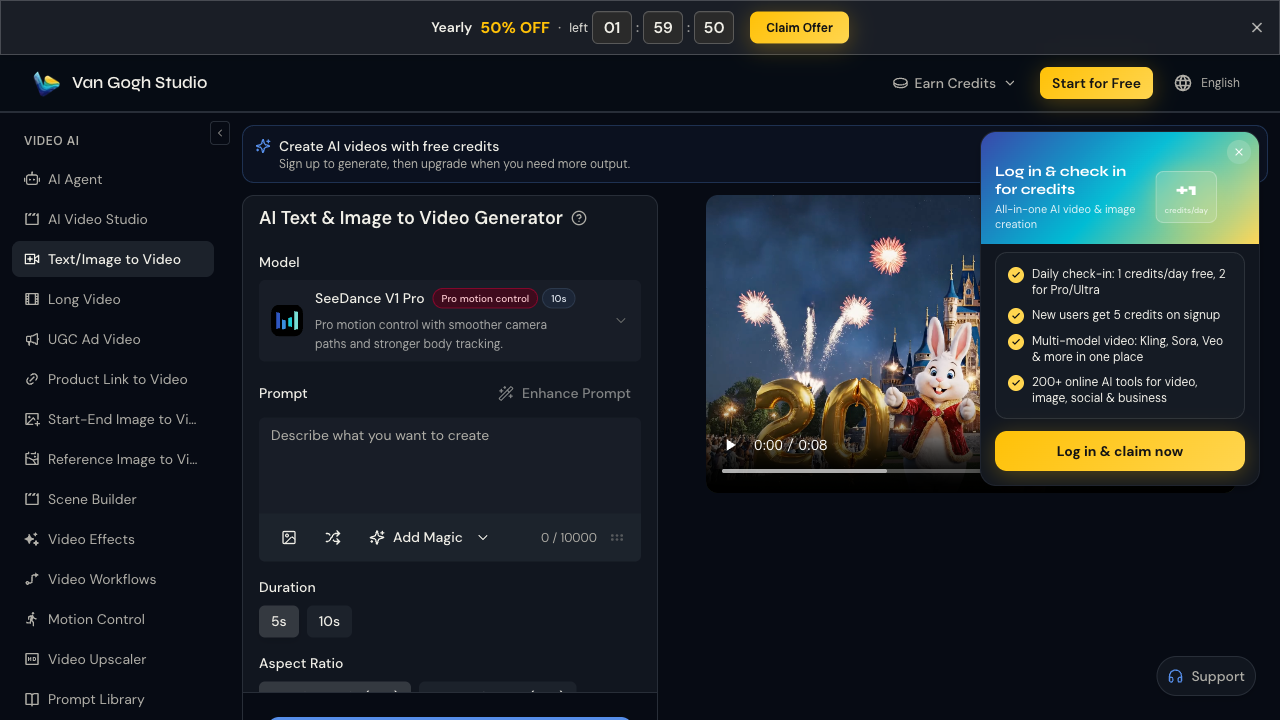
Plus, you have total control over the length, style, aspect ratio, and camera movement in your clips. Van Gogh Studio also has AI special effects and time-saving templates for making AI hug, kiss, handshake videos, and others. Van Gogh Studio comes with text-to-video, image-to-video, video-to-video, consistent character video and many other features, so you can create videos in various ways.
Here are two tutorial videos that you can learn from, teaching how to convert text to video and create AI kissing and hug videos:
At the same time, you can watch other content creators' works and generate similar content with one click. By getting interaction with other video makers, you'll receive feedback, gain insights, and collaborate on projects. Besides, Van Gogh Studio creates a community, where you're able to showcase your excellent videos created with Van Gogh Studio and share your ideas and inspiration with others.
Conclusion
It's time to begin your video creation journey with Kling AI video generator. Simply entering the video prompts, you can easily transfer text or images to engaging and dynamic videos.
If you want to experiment with on other advanced AI video models, you can also give Van Gogh Studio a shot. As this tool integrates various of the latest AI video models including the Kling AI model, it's additional accessible and efficient for anyone who wants to perform on video production. Regardless of your technical expertise, you can notice new possibilities in creating videos with Kling AI and Van Gogh Studio.
Create AI videos free
Try Van Gogh Studio free — text-to-video, image-to-video, and 300+ models in one place. Free credits on signup, no credit card required.
Try Free Video Generator


