

Runway is one of the most capable AI video tools available — so when it stops loading, generating, or accepting credits, projects stall fast.
Most “Runway not working” cases have a simple cause: an outage, a browser/extension conflict, a blocked network path, empty credits, or a billing glitch. Below are the fixes I use first, then a backup workspace if you need to keep shipping while Runway recovers.
How to Solve Runway Not Working Issues
1. Check the Official Status Page
Start with Runway’s status page and look under the App / generation services section.
If there is an active outage or degraded performance, wait it out — clearing cache or changing browsers will not help until the service recovers.
2. Switch to a Chromium-Based Browser
Runway is most reliable on Chromium browsers such as Google Chrome, Microsoft Edge, or Brave.
If you are on Safari or Firefox and the UI hangs, white-screens, or fails mid-generate, open the same account in Chrome and retry before assuming a deeper account issue.
3. Disable Ad Blockers, Firewalls & VPNs
Extensions and network tools often break WebSocket or API calls Runway needs.
Temporarily turn off:
- Ad blockers / privacy filters
- Aggressive firewall rules
- Corporate or consumer VPNs
Refresh Runway. If it works again, allowlist Runway domains in that tool instead of leaving protection off permanently.
4. Allowlist Runway on Your Network
On locked-down Wi‑Fi or office networks, add these patterns to the allowlist:
*.runwayml.com*.runwayml.cloud*.*.runwayml.cloud
Then retry generation from a clean tab.
5. Clear Browser Cache
Stale cache and cookies can leave Runway stuck on old sessions.
In Chrome:
- Open Settings → Privacy and security → Delete browsing data
- Choose a time range (try Last 24 hours first)
- Include Cached images and files (and cookies if login itself is broken)
- Clear data, restart the browser, and sign back into Runway
6. Check Credit Balance & Usage
Runway generation fails quietly when credits are empty or plan limits are hit.
Log in → open plan / billing → check remaining credits and any usage caps. If the balance is zero, top up or wait for plan refresh before retrying Gen-3 / Gen-4 jobs.
7. Verify Subscription & Payment Status
Failed renewals or the wrong account email look like “the product is broken.”
Confirm:
- You are signed in with the email that owns the paid plan
- The latest invoice/payment succeeded
- The workspace you are generating in is the one tied to that plan
If billing looks wrong, use Runway support docs or contact support with the account email and invoice ID.
When Fixes Are Not Enough: Use Van Gogh Studio
If Runway is still down — or you simply need a smoother multi-model path — use Van Gogh Studio as the backup (or primary) workspace.
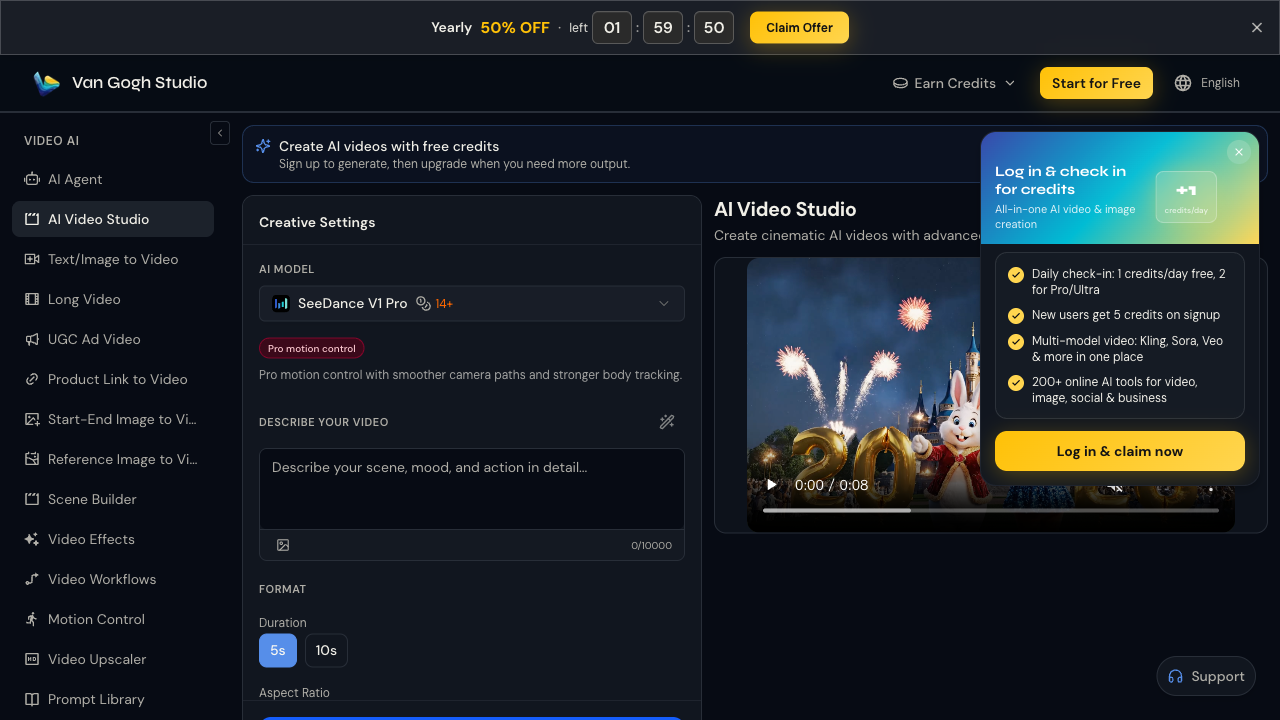
On Van Gogh Studio you can:
- Run Runway alongside Kling AI, Luma AI, Hailuo AI, Pika AI, and more
- Keep working from Text to Video or Image to Video while comparing models on the same brief
- Finish with video effects, AI avatar, or the video upscaler without opening another product
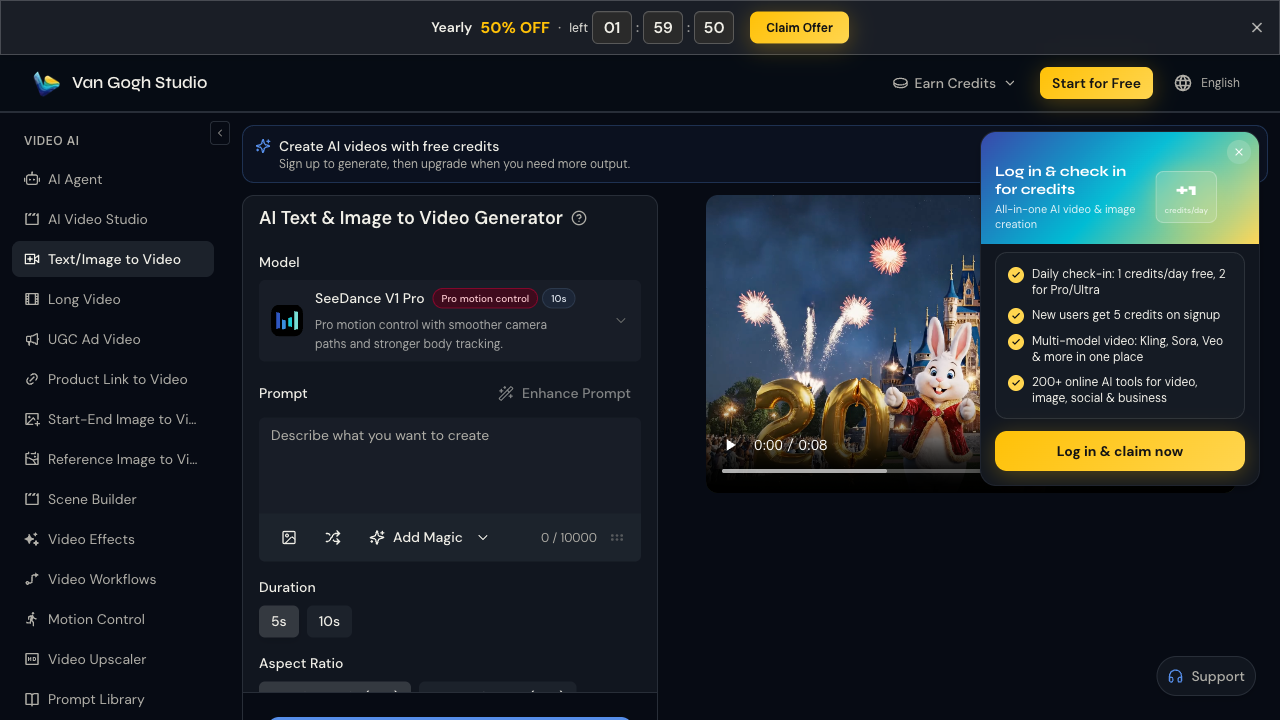
Quick path when Runway is blocked
- Open AI Video Studio or Image to Video
- Pick Runway if available — or switch to Kling / Luma for the same prompt
- Set duration, aspect ratio, and resolution, then generate
- Iterate once; if motion is still wrong, change models instead of waiting on a single vendor outage
Free credits on signup make this easy to test without a separate emergency subscription.
Conclusion
When Runway is not working, check status first, then browser, blockers, network allowlists, cache, credits, and billing. Those steps fix most day-to-day failures.
If you need generation to keep moving — or you want Runway plus other models and finishing tools in one UI — try Van Gogh Studio. Free credits on signup, no credit card required.
Create AI videos free
Try Van Gogh Studio free — text-to-video, image-to-video, and 300+ models in one place. Free credits on signup, no credit card required.
Try Free Video Generator


