

PixVerse, from AISphere. Its reputation for smooth, dynamic effects, like flowing water or lifelike character movements, had me eager to experiment with it out.io/), is an AI tool that turns text and image prompts into stunning videos.
What can PixVerse do? How does it hold up? Is it worth the buzz? I’ve explored its features and shared my honest experience below. Let’s dive in to see if it’s for you!
Introducing PixVerse AI Video Generator
Its official website (pixverse.ai) sees 500,000 to 1 million monthly visits, reflecting its popularity as the quality levels of this tool are awe-inspiring. Created by Chinese generative AI startup AISphere, PixVerse is backed by over $55.2 million from Series A funding rounds, with the latest Series A5 round exclusively led by Eminence Ventures.
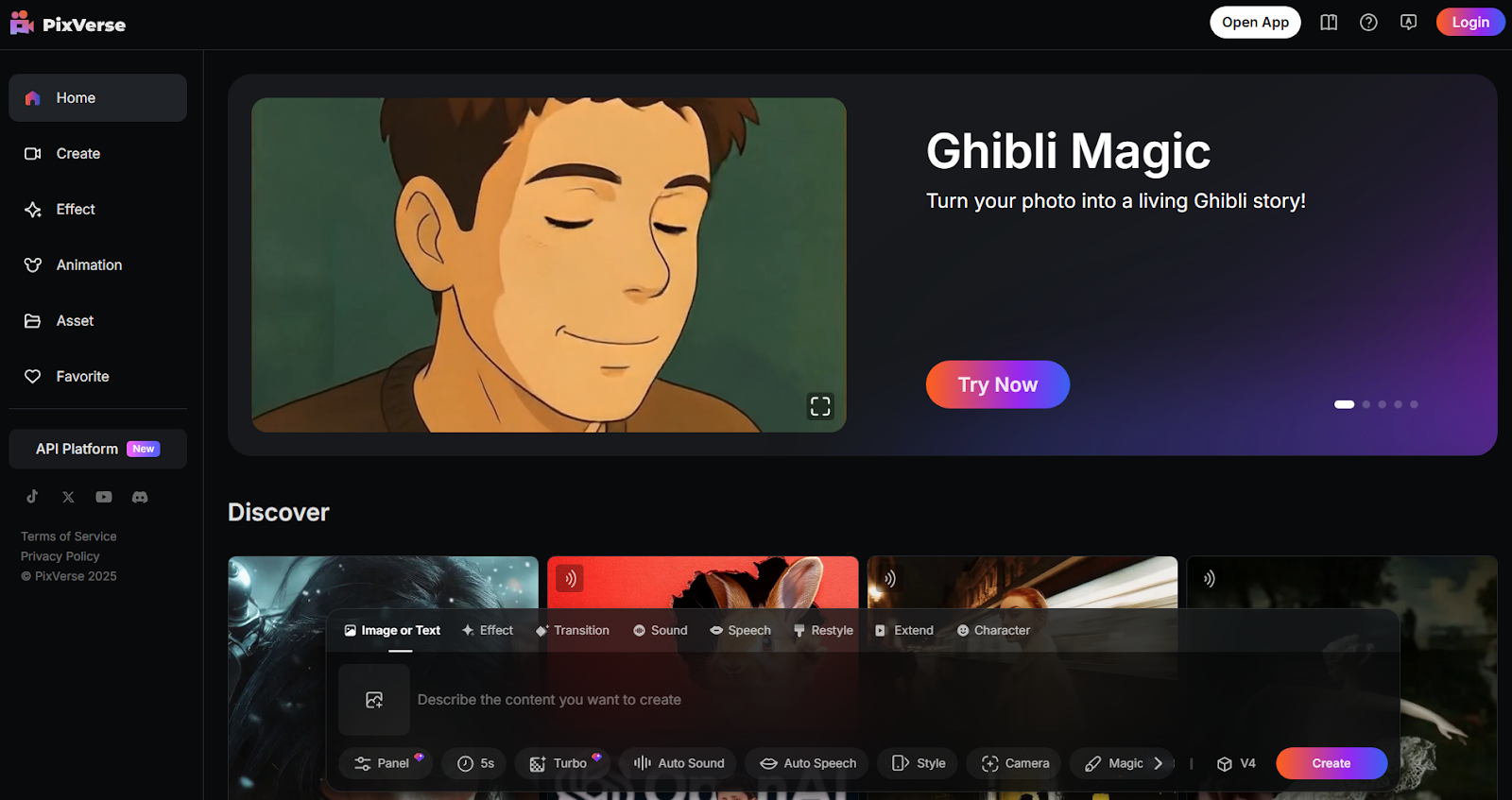
PixVerse currently offers two models, V3.5 and V4, with video duration options of 5 or 8 seconds and resolutions ranging from 360p to 1080p.I then clicked “Create” on the left to jump straight into the video generation page. Visiting PixVerse’s website, I found a display of video generation features and a range of special effect templates.
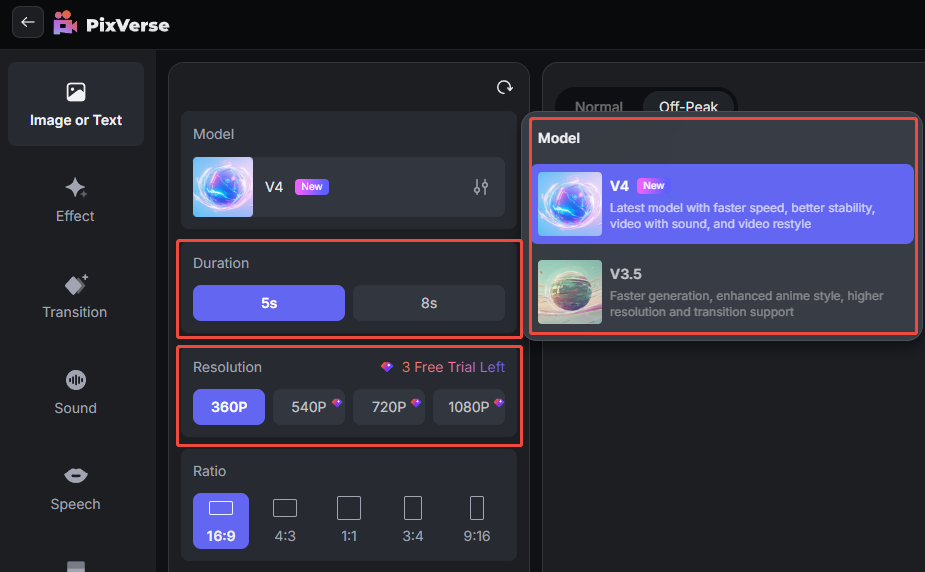
Meanwhile, the absence of the negative prompt word section. However, some users have pointed out that the generated results sometimes contain logical errors. Before diving in, I came across user feedback praising PixVerse for its impressive detail, lighting, and color in generated videos.reddit.com/r/pixverse/comments/1k1fefh/where_did_the_negative_prompts_section_go/?share_id=g-cqwsjRv8PzKXlroUa5V&utm_content=2&utm_medium=ios_app&utm_name=ioscss&utm_source=share&utm_term=1) after the update has also caused some inconvenience.
Next, I’ll put PixVerse to the test with both a simple and a complex prompt to see if its performance aligns with these discussions. Come along and explore the PixVerse experience with me!
My Experience of Using the PixVerse AI Video Generator
I chose PixVerse’s 3.5 model for this test, setting the resolution to 360p and duration to 5 seconds whereas keeping other options at default. Let’s see how it went under a simple prompt:
Prompt:
The sea water sparkled in the sunlight, gently lapping against the shore.
After around 30 seconds—pretty quick!—I got a solid result. Even at 360p, PixVerse delivered impressive lighting and wave effects, showcasing its strength in visual detail.
Then I put through its paces a additional complex prompt to test if PixVerse could maintain its detail-oriented strengths and whether it would face the longer wait times or illogical outputs some users mentioned. Besides that, I included abstract descriptions about the video’s atmosphere at the end.
Prompt:
A beautiful woman with black hair was wearing a Bohemian-style long dress. Beside her, a little boy was building a sandcastle. She was lying on a beach chair by the seaside in the evening. The wind blew and made her hair float slowly. The entire scene is really warm and cozy.
The video took just a minute to generate. The overall atmosphere was well-captured, and details like the black hair, Bohemian-style dress, and evening seaside chair were accurately recognized and presented by PixVerse.
However, there were some illogical elements: the boy was building a sandcastle on the woman’s dress, and the wind-blown hair looked somewhat unnatural.
Overall, PixVerse performed well on speed for both simple and complex prompts, with generation times between 30-90 seconds for additional longer prompts I evaluated. Its detail and visual beauty live up to the hype, but there’s room for improvement in scene coherence and logical consistency.
Key Features of PixVerse AI
As touched on above, there are a lot of features built into PixVerse AI, including:
- Text-to-Video: apply text-based prompts to describe a video scene and then let the AI bring it to life.
- Image-to-Video: Upload images that you can apply as the first or final frames of your videos, and let the AI animate them.
- Effects: PixVerse can create all kinds of unique special effects videos, such as turning a yet image into a Studio Ghibli-style animation or making hug clips of any people you want.
- Transition: Upload the first and last frames of your videos, and then describe what you want to happen between them. The AI will fill in the rest.
- Sound and Speech: The PixVerse AI video generator is also able to add either real or generated audio and voices to your creations.
- Restyle: shift an existing video into a completely different style, like switching from realistic visuals to animation.
- Extend: Extend an existing clip by several seconds, generating new frames and content that fit seamlessly with the rest.
Pros and Cons of the PixVerse AI Video Generator
There’s a lot that I love roughly the PixVerse AI video generator, such as:
- quick Generation Speed: Generates videos swiftly, with 360p videos in ~30 seconds and 720p in around a minute, even for complex prompts.
- High-Quality Visuals: Produces detailed visuals, lighting, and colors, especially for dynamic effects like waves, even at lower resolutions like 360p.
- Accurate Detail Rendering: Precisely captures prompt specifics, such as black hair, Bohemian-style dresses, and seaside settings.
- Excellent Abstract Prompt Handling: Excels at interpreting and expressing abstract prompts, consistently delivering the intended vibe and atmosphere (e.g., warm and cozy scenes) with impressive fidelity.
- Free Trial with Credits: Offers enough credits to attempt PixVerse for free, making it accessible for testing, though unlimited apply or premium settings require payment.
At the same time, I’ve also noticed a couple of issues with this tool:
- Limited Video Length Options: Offers only 5-second and 8-second video durations, restricting flexibility for longer content creation.
- No 4K Support: Cannot generate 4K videos, limiting its appeal for users seeking ultra-high-resolution outputs.
- Illogical Outputs: Complex prompts may result in illogical elements, such as a boy building a sandcastle on a dress or unnatural hair movement.
- Lack of Negative Prompt Section: The latest upgraded page doesn’t have a section for negative prompt, thus resulting in restrictions on user descriptions.
Tips and Tricks for Using the PixVerse AI Video Generator
In hands-on leverage with the PixVerse AI video generator, I’ve found these helpful tips tend to produce better results:
- seem free to add detail and descriptive elements to your prompts, but create sure they are obvious and well-written to avoid confusing the AI.
- If you want to upload and animate yet images, create sure to use high-quality ones where the subjects are in obvious view.
It’s an ideal choice for users who don’t require long videos and prioritize stunning visuals. Its comprehensive features also create it one of the best options for creating entertaining videos. Despite limitations like short video lengths, occasional logical inconsistencies, and premium features requiring payment, PixVerse remains a top-tier AI video generator.
Why Van Gogh Studio Is a Better Way to Run PixVerse AI
PixVerse’s official site is strong for detailed lighting, color, and dynamic effects. When I want PixVerse plus other top models in one place, I use Van Gogh Studio instead of staying inside a PixVerse-only account.
There I can run PixVerse alongside Kling AI, Runway, Pika AI, Hailuo AI, Luma AI, and more — then finish with effects, upscalers, or longer-form tools without switching tabs.
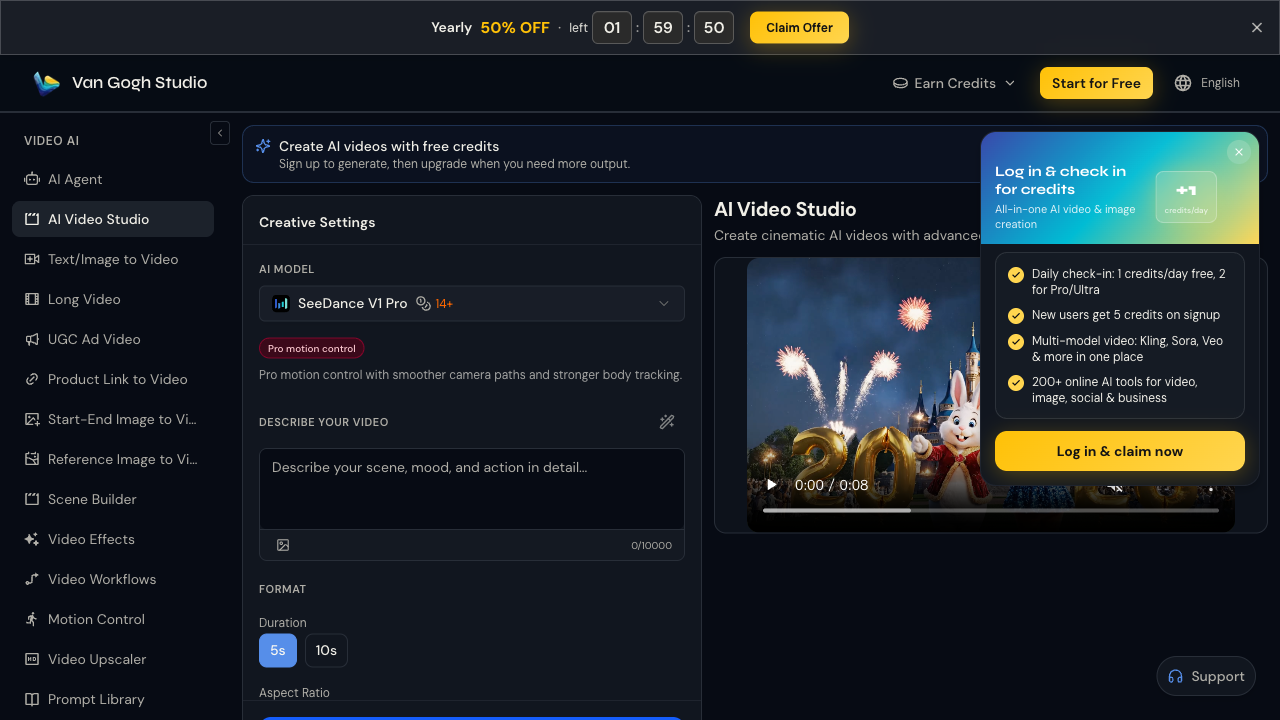
How I generate with PixVerse on Van Gogh Studio
- Open AI Video Studio, Image to Video, or Text to Video.
- In the model picker, choose a PixVerse option (for example V3.5 / V4 when available).
- Upload a reference still if you need composition lock, write a clear prompt (subject, action, lighting, mood), and set duration, aspect ratio, and resolution.
- Generate, then iterate — simplify crowded scenes if objects collide or hair/cloth motion looks unnatural.
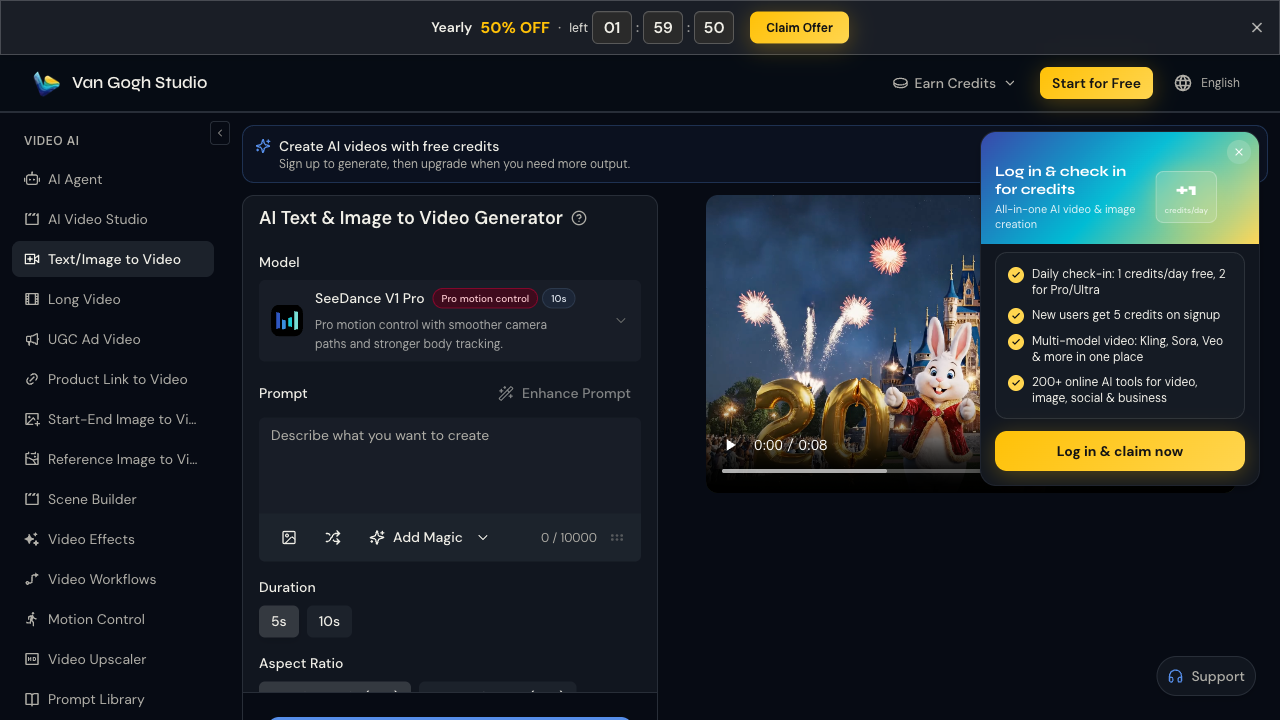
Why this beats a PixVerse-only workflow for me
- Multi-model comparison — A/B the same brief on PixVerse, Kling, or Runway without juggling logins
- Still → motion path — keep a product or character frame on-brand, then animate it in one workspace
- Broader toolkit — video effects, AI avatar, UGC Ad Video, and video upscaler when a 5–8s draft needs a second pass
- Free credits to start — sign up and test PixVerse-class generation without committing to a separate paid stack
| If you want… | Choose |
|---|---|
| Polished short clips with strong lighting and motion detail on a PixVerse-native site | PixVerse AI |
| PixVerse plus Kling, Runway, effects, and finishing tools in one UI | Van Gogh Studio |
Bottom line: Keep PixVerse when you mainly want its look for short, visually rich clips. Move to Van Gogh Studio when the same idea also needs model choice, effects, or a publish-ready pipeline.
Try PixVerse on Van Gogh Studio — free credits on signup, no credit card required.
Create AI videos free
Try Van Gogh Studio free — text-to-video, image-to-video, and 300+ models in one place. Free credits on signup, no credit card required.
Try Free Video Generator


