

I was eager to learn extra around it and see if it could live up to the hype. The Luma AI video generator is one of the many AI video generators available today. Upon researching this tool, I heard all around its “cinematic-level” visuals and versatile suitability for a vast array of creative projects, brand promos, and other uses.
So, I put it to the test, and in this guide, I’ll share with you all I’ve learned about the Luma Dream Machine. I’ll cover its origins, the people who made it, the key features I’ve tested, and my personal pros and cons, plus some how-to steps, as well.
Quick Verdict
Luma Dream Machine delivers cinematic short clips from text or images and keeps improving with editing features. Great for style and motion tests; less complete as a marketing production hub.
| Point | Take |
|---|---|
| Best for | Cinematic short clips, creative text/image-to-video experiments |
| Not best for | Full ad assembly, long campaigns, brand workflow packaging |
| Score | 7.5 / 10 |
| Better alternative | Van Gogh Studio |
Introducing Luma AI Video Generator
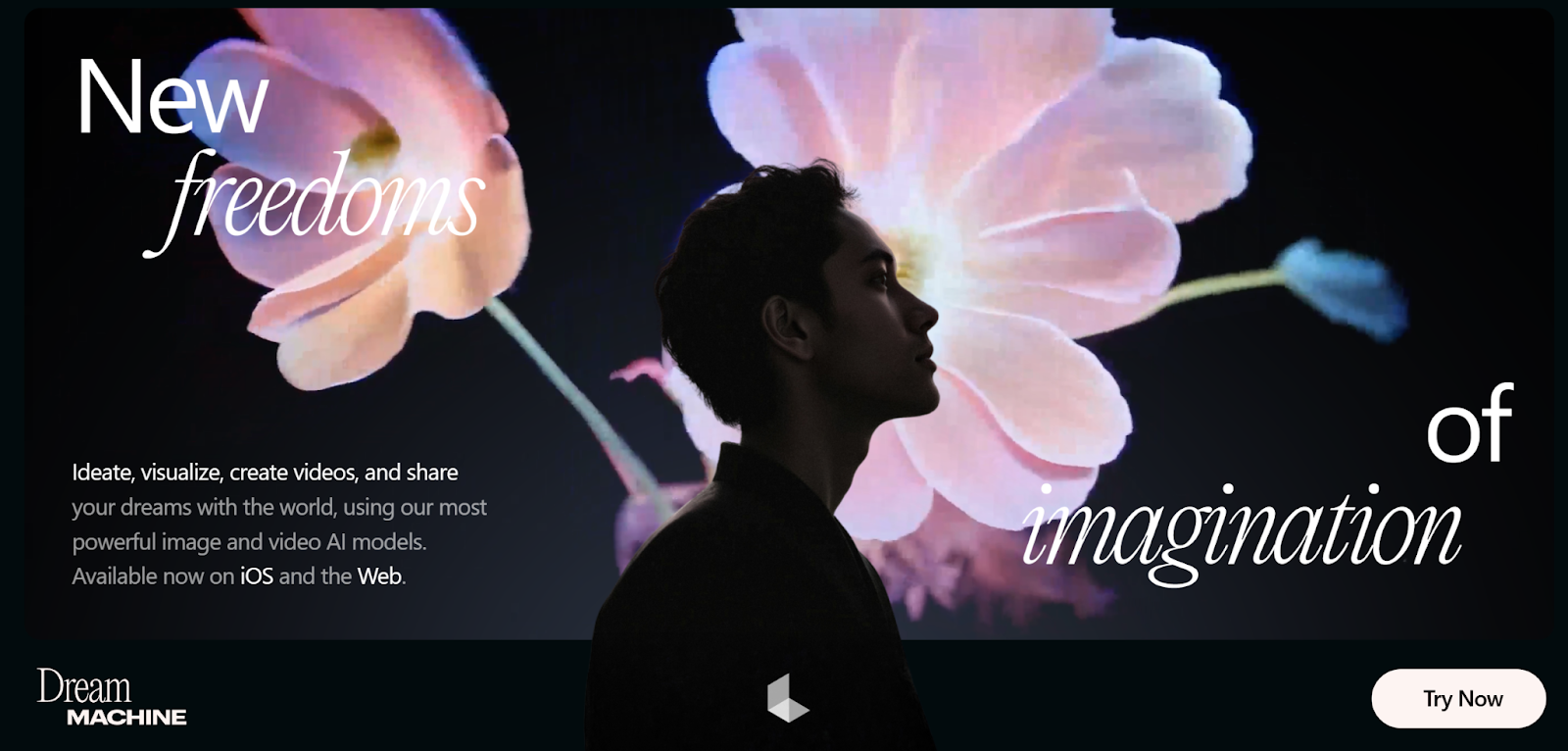
Luma AI was created by Luma Labs, based in San Francisco, and has a history in the AI space, having previously built the AI 3D model generator, Genie, before working on the Dream Machine.
Luma Dream Machine can create videos between four to six seconds in length and up to 1360 x 752 pixels in resolution. I’ve tried it with text prompts and images, and it works equally well either way.
It’s also been regularly updated over time, with new features, like in-video editing, to rival the big names of the space, such as OpenAI’s Sora and Kling AI.
My Personal Experience With Luma Dream Machine
Using the Luma AI video generator has truly been a breeze. I simply typed in a prompt detailing what I wanted the video to showcase, specifying various elements like subjects, scenarios, and movements.
I described the sunlight filtering through the leaves, a gentle breeze rustling the branches, and a deer grazing peacefully in a clearing. This level of detail allowed the AI to understand my vision clearly. For example, I crafted a prompt around a serene morning scene in a lush forest.
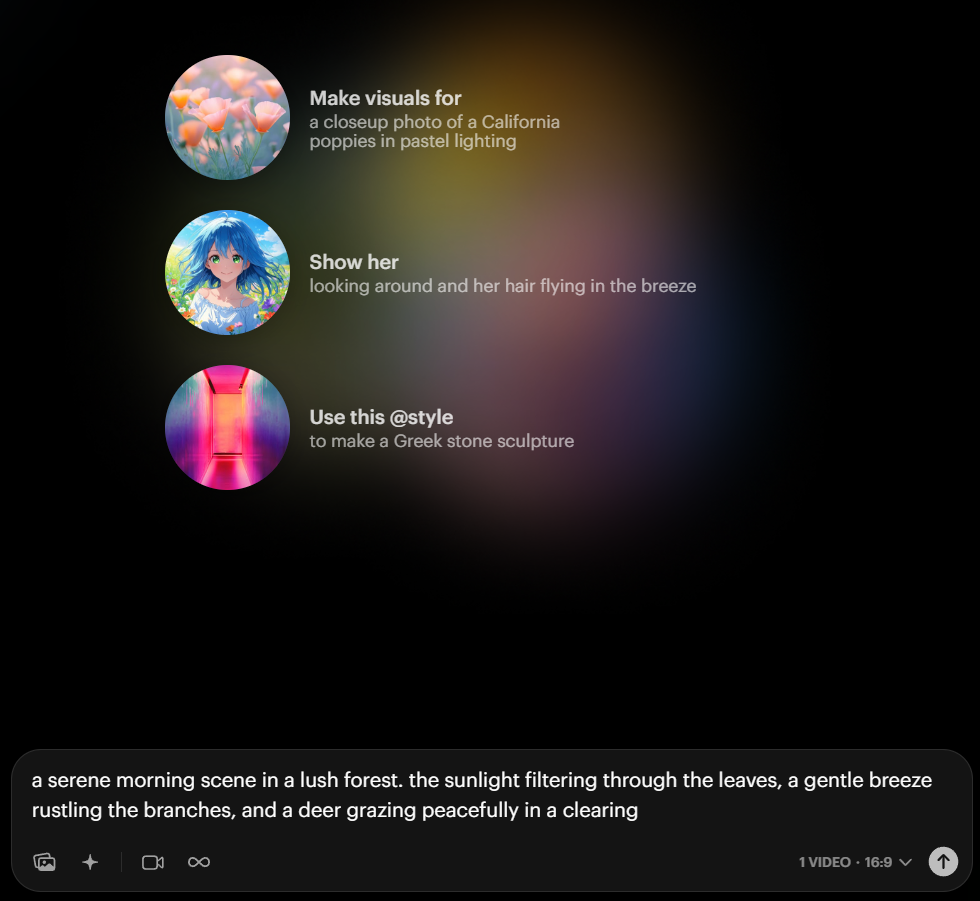
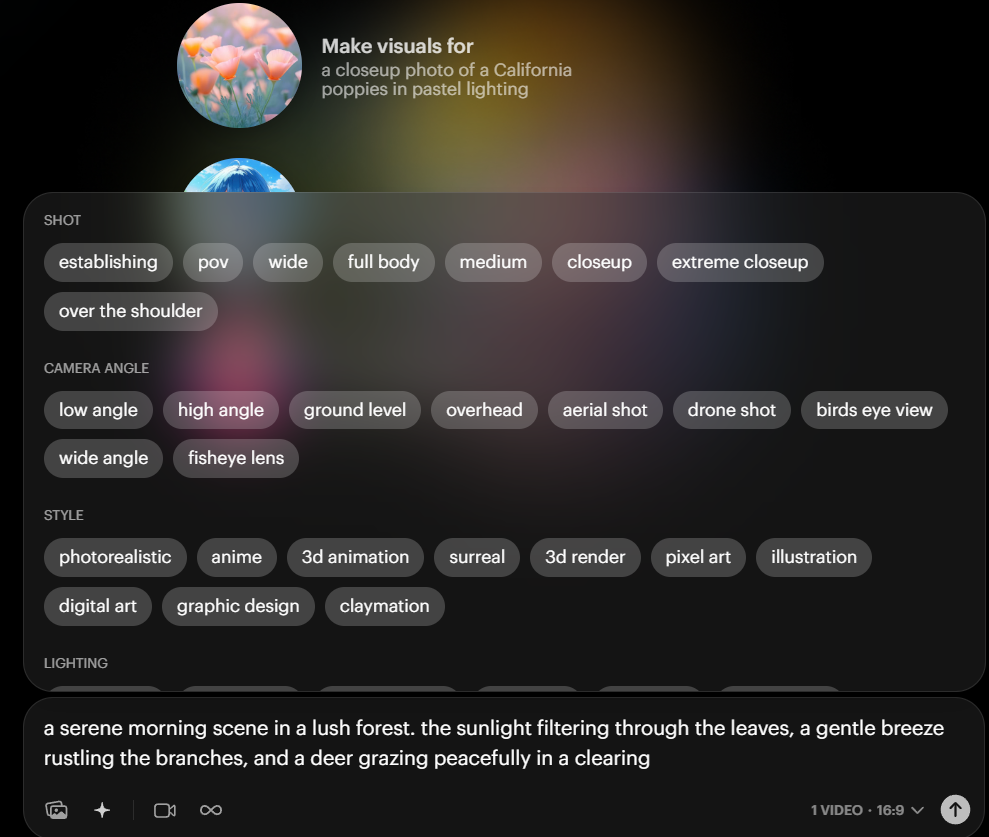
Then, I clicked the "Suggestions" option below the prompt bar, which allows me to adjust settings in all aspects of my video. I could choose different shots such as establishing, wide, medium, and even extreme close-up views. For example, for the forest scene, I selected a medium shot to capture the deer and the surrounding foliage in a balanced way.
I also had the option to specify the camera angle. I opted for a low angle to produce the trees appear towering and majestic.
Additionally, I played around with various styles, such as photorealistic and digital art, to see how they would transform the visuals.
The processing time was generally quick, taking about 3 minutes. After finalizing my prompt and settings, I hit “↑” to generate the video.result:
even as the video turned out well overall, I have to say that the deer's motion felt a bit unnatural and definitely gave away that it was AI-generated. The scene itself was visually appealing.
On my second attempt, I noticed some improvements; the animation quality was a bit better, and the deer's movement looked additional fluid compared to the first video.
However, from my own perspective, if I'm looking for something to use in a professional context, it may not fully meet those high standards. That said, for personal projects or casual employ, it's even so a decent option!
Key Features of Luma AI
Wondering what you can do with Luma AI video generator? Well, since I’ve tested this tool thoroughly, I can share with you all of its key features, which include:
- Text-to-Video: With this feature, I can just type in a prompt to describe a video and then let the AI build it for me.
- Image-to-Video: I also enjoyed uploading images to Luma and then using those as starting frames for my video creations.
- Extend: If I ever wanted a video to be a little longer, I can click the Extend button to generate several new seconds of content.
- Consistent Characters: I also used Luma AI video generator to create consistent characters that I could add to multiple AI videos.
- Remix: Once I’d made a video, clicking the Remix button let me adjust the background, add new elements, shift color palettes, and additional.
- Editing: I also experimented with Luma’s built-in editing options, letting me fine-tune the videos I made.
Pros and Cons of the Luma AI Video Generator
Having worked with this Luma AI video generator for a whereas now, here’s what I like top about it:
- Appealing Visuals: The videos I’ve created with this AI video generator look strong overall. Itt can produce some appealing scenes.
- Flexible Input: Unlike certain other AI video generators, which only operate with text prompts, Luma AI video generator supports both text and image input.
- Intuitive: There are lots of nifty features built into Luma that I’ve had fun playing around with, like “Remix”, which lets me build quick modifications to my clips.
- Versatility: From creators to aspiring videographers, brands to individuals like me, there are many potential employ cases for the Luma Dream Machine.
- Free to attempt: Many AI video generators are pay-to-employ only, but Luma’s AI video generator has a free plan, so I could attempt it without losing any cash.
At the same time, I’ve found that there are also a couple of flaws holding the Luma AI video generator back, like:
- Results May Vary: I didn’t always get the exact results I was hoping for when I used this tool, and it struggled with certain inputs.
- Struggles with Motion: The Luma AI video generator has some issues displaying motion and energetic, dynamic scenes, which can lead to its videos feeling a bit lifeless.
- Very Short Videos: Luma videos are just 4-6 seconds long. That’s not necessarily too short, but I found it didn’t always give me the time I needed to be creative.
Tips and Tricks to Get the Best from Luma AI Video Generator
To get stronger results from Luma’s Dream Machine, I stick to these habits:
- Keep prompts focused — short enough to stay clear, but detailed where motion, lighting, and camera matter.
- Avoid packing too many subjects into one scene; busy compositions often confuse the model.
- For image-to-video, start with a sharp, high-quality still so Luma has a clean frame to animate.
Why Van Gogh Studio Is a Better Way to Run Luma AI
Luma’s official Dream Machine is fine for quick cinematic drafts. When I want Luma plus other top models in one place, I use Van Gogh Studio instead of staying inside a Luma-only account.
There I can run Luma Dream Machine alongside Kling AI, Pixverse, Hailuo AI, Runway, and more — then finish with effects, upscalers, or longer-form tools without switching tabs.
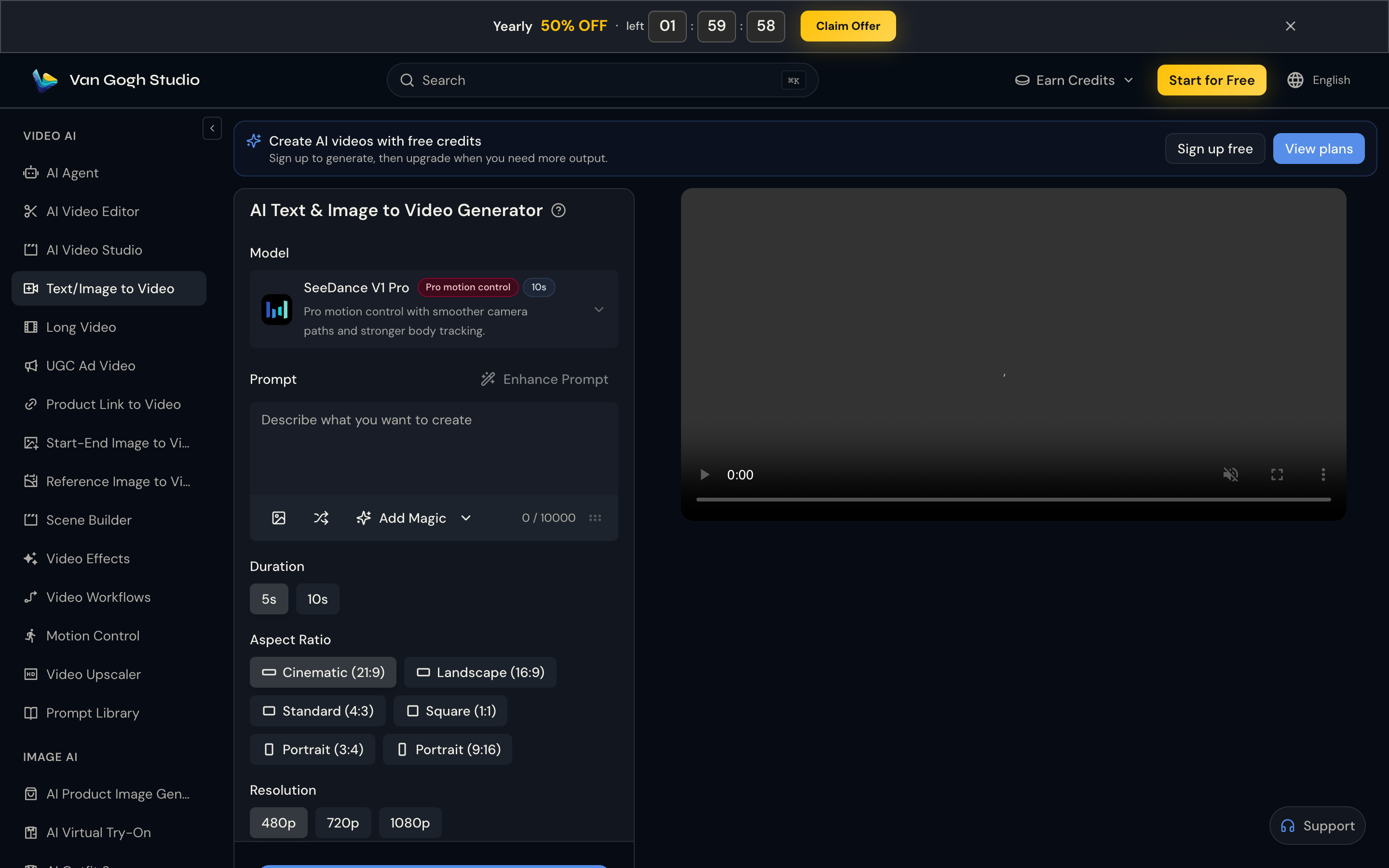
How I generate with Luma on Van Gogh Studio
- Open Image to Video or Text to Video.
- In the model picker, choose a Luma option (for example Luma Ray 2 or Luma Ray 1.6 when available).
- Upload a reference image (optional for text-to-video), write a clear motion prompt, and set duration, aspect ratio, and resolution.
- Click generate and wait for the clip. Iterate with a tighter prompt if motion feels flat.
Why this beats a Luma-only workflow for me
- Multi-model comparison — try the same prompt on Luma, Kling, or Runway without juggling logins
- Still → motion path — generate or upload a frame, then animate it in one workspace
- Broader toolkit — AI Video Studio, video effects, avatar tools, and editing helpers when a 5-second draft is not enough
- Free credits to start — sign up and test Luma-class generation without a separate Luma subscription
Luma remains a strong pick for fast cinematic shorts. Van Gogh Studio is what I use when I also need model choice, finishing tools, or a publish-ready pipeline.
Conclusion
Luma Dream Machine delivers cinematic looks quickly, and the free tier makes it easy to test. Short clip length and uneven motion are still the main limits I hit in daily use.
If you mainly want Luma’s Dream Machine look, start there. If you want Luma plus Kling, Runway, and finishing tools in one UI, try Van Gogh Studio — free credits on signup, no credit card required.
Create AI videos free
Try Van Gogh Studio free — text-to-video, image-to-video, and 300+ models in one place. Free credits on signup, no credit card required.
Try Free Video Generator


