

Flat, harsh, or poorly angled light can ruin an otherwise strong photo. Reshooting with a proper lighting setup is rarely practical—especially for product shots, portraits, and social stills already published.
Van Gogh Studio Relight changes lighting direction, intensity, and color on any still. Drag a virtual light source, pick soft or hard light, set brightness and tone, then generate. No studio gear or Photoshop layers required.
Quick Verdict
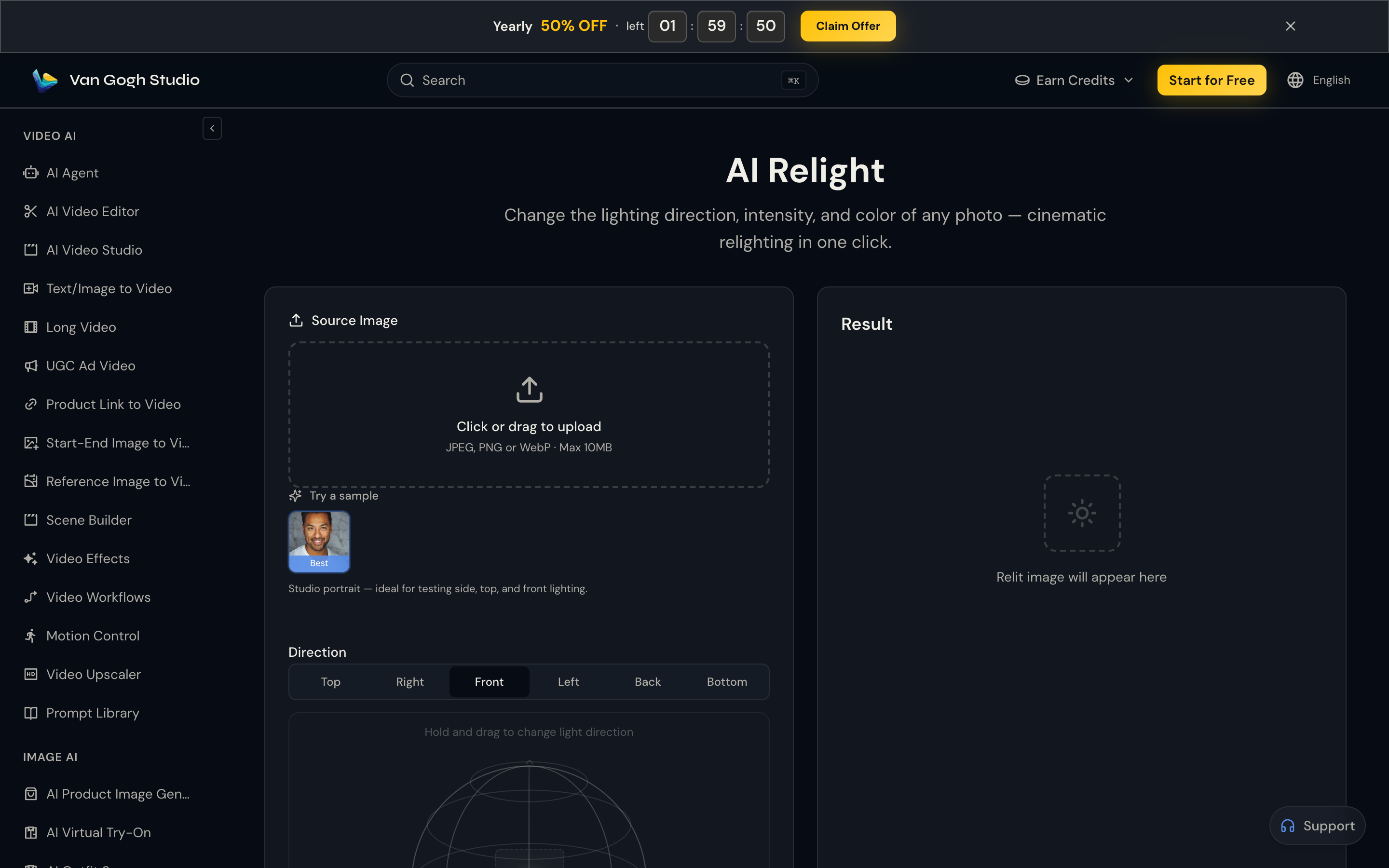
Open AI Relight, upload a JPEG/PNG/WebP (max 10MB) or try the sample portrait, set Direction (preset or drag), choose Soft/Hard, brightness, and color, pick Nano Banana 2 at 1K/2K/4K, then click Relight. Compare before/after and download.
What Is Van Gogh Studio Relight?
AI Relight simulates a new light source on an existing photo. The model keeps subjects and composition intact while shifting shadows, highlights, and mood—ideal when the shot is good but the light is not.
Common uses:
- Portraits — side, top, or front light for cleaner cheek/eye modeling
- E-commerce — more dimensional product lighting without a second shoot
- Social & marketing — warm golden-hour or cool studio looks from one still
- Rescue shots — recover flat phone photos before posting or printing
How to Use AI Relight (Step by Step)
Step 1: Open AI Relight
Go to AI Relight (sidebar IMAGE AI → AI Relight).
Step 2: Upload Your Photo (or Try a Sample)
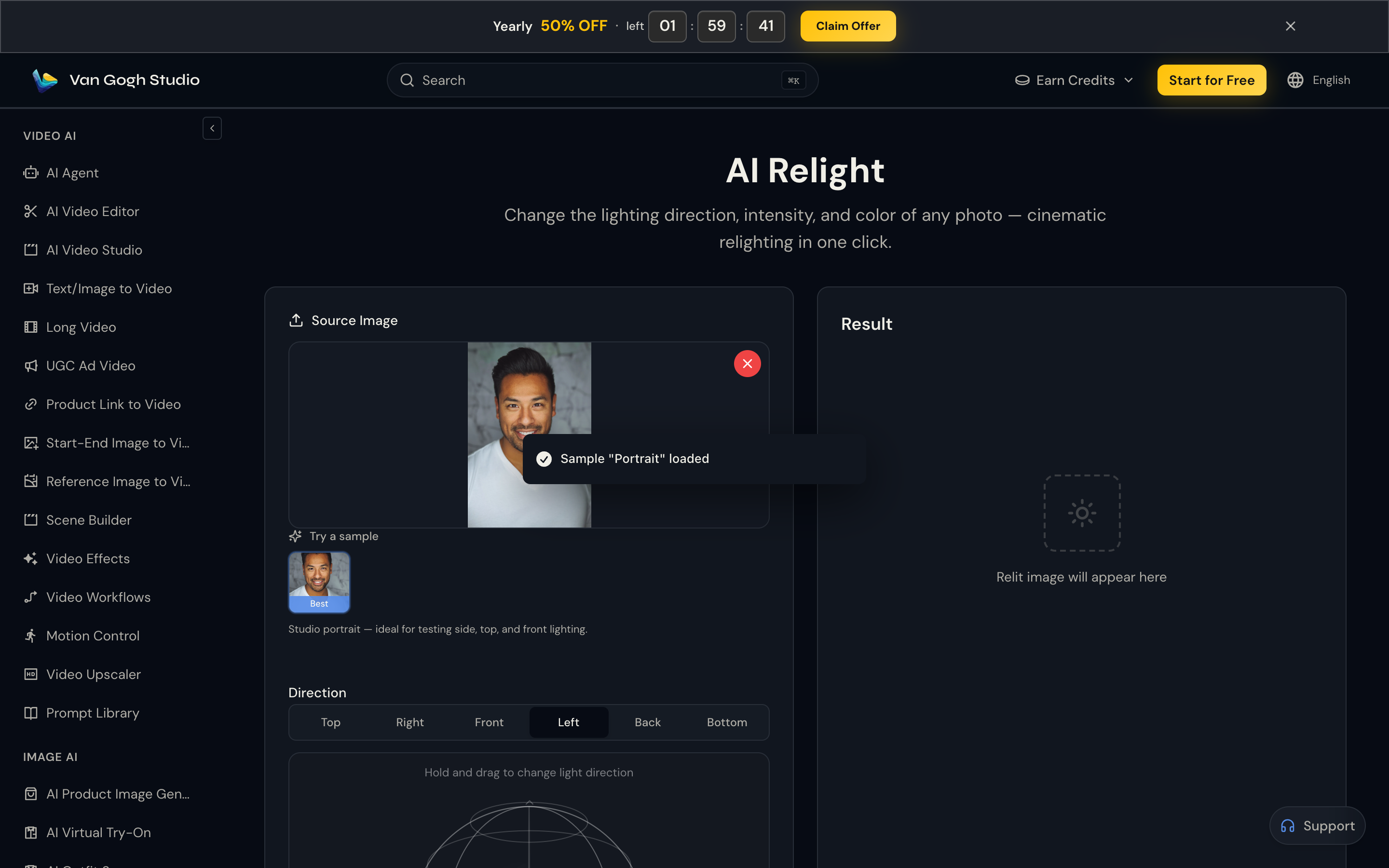
Drop a JPEG, PNG, or WebP (max 10MB), or click the Best sample portrait. Portraits show shadow and highlight changes most clearly; products and interiors also work.
Step 3: Set Light Direction
Use presets—Top, Right, Front, Left, Back, Bottom—or hold and drag on the 3D pad for a custom angle. The control moves the light, not the camera.
Step 4: Adjust Light Type, Brightness & Color
- Soft vs Hard — soft for gentle wrap; hard for sharper shadows
- Brightness — 0–100% intensity
- Color — white, warm gold, cool sky blue, and other presets
Tip from the tool: Nano Banana 2 at 2K with Hard light and 70%+ brightness often shows clearer shadow changes.
Step 5: Choose Model & Output, Then Relight
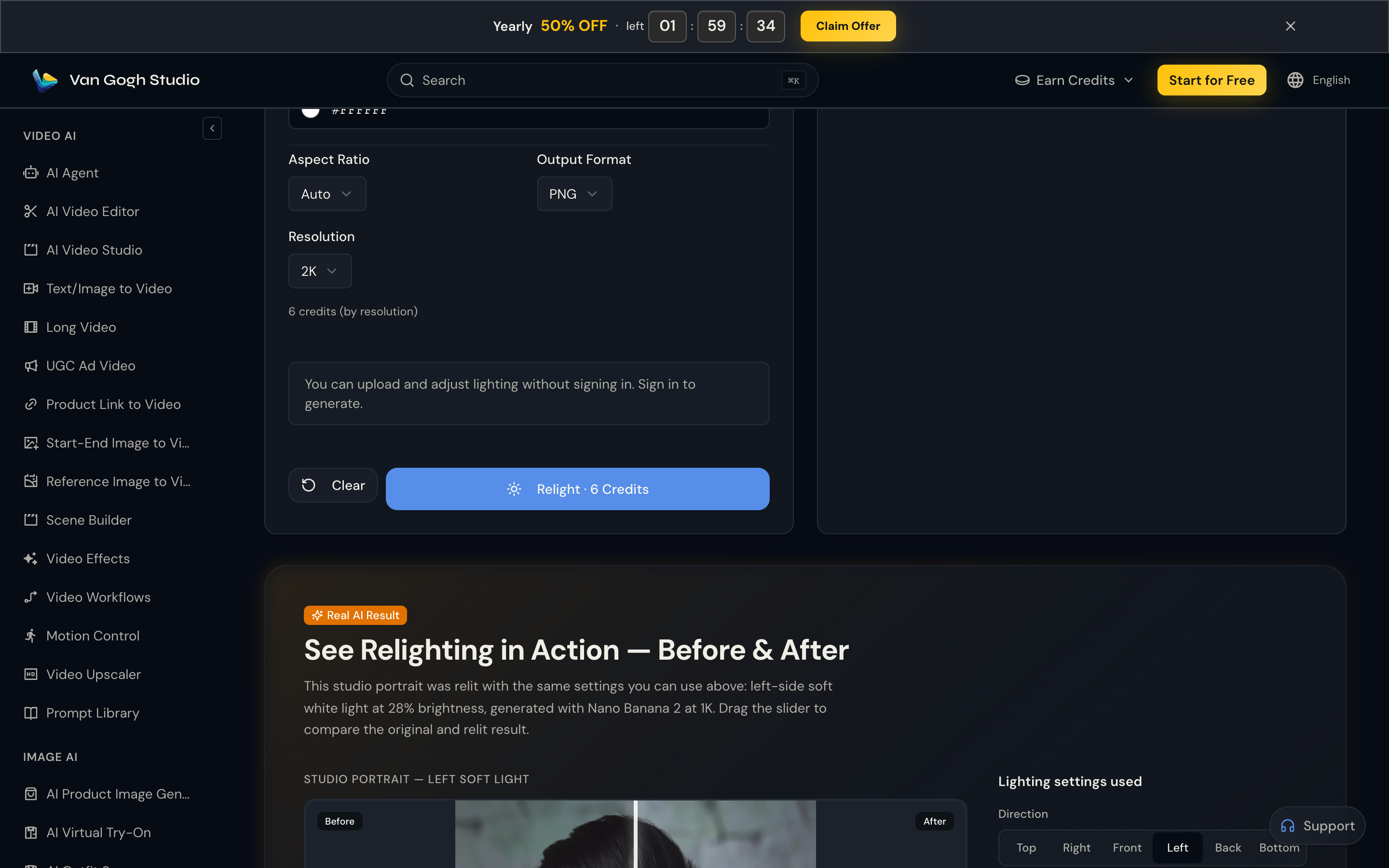
- Nano Banana 2 (default) — Gemini 3.1 Flash Image; 6 credits for 1K/2K, 12 credits for 4K
- Qwen Image Edit — batch variants, acceleration, credits by output size
Set aspect ratio (Auto is fine), format (e.g. PNG), and resolution. Sign in and click Relight.
Step 6: Compare and Download
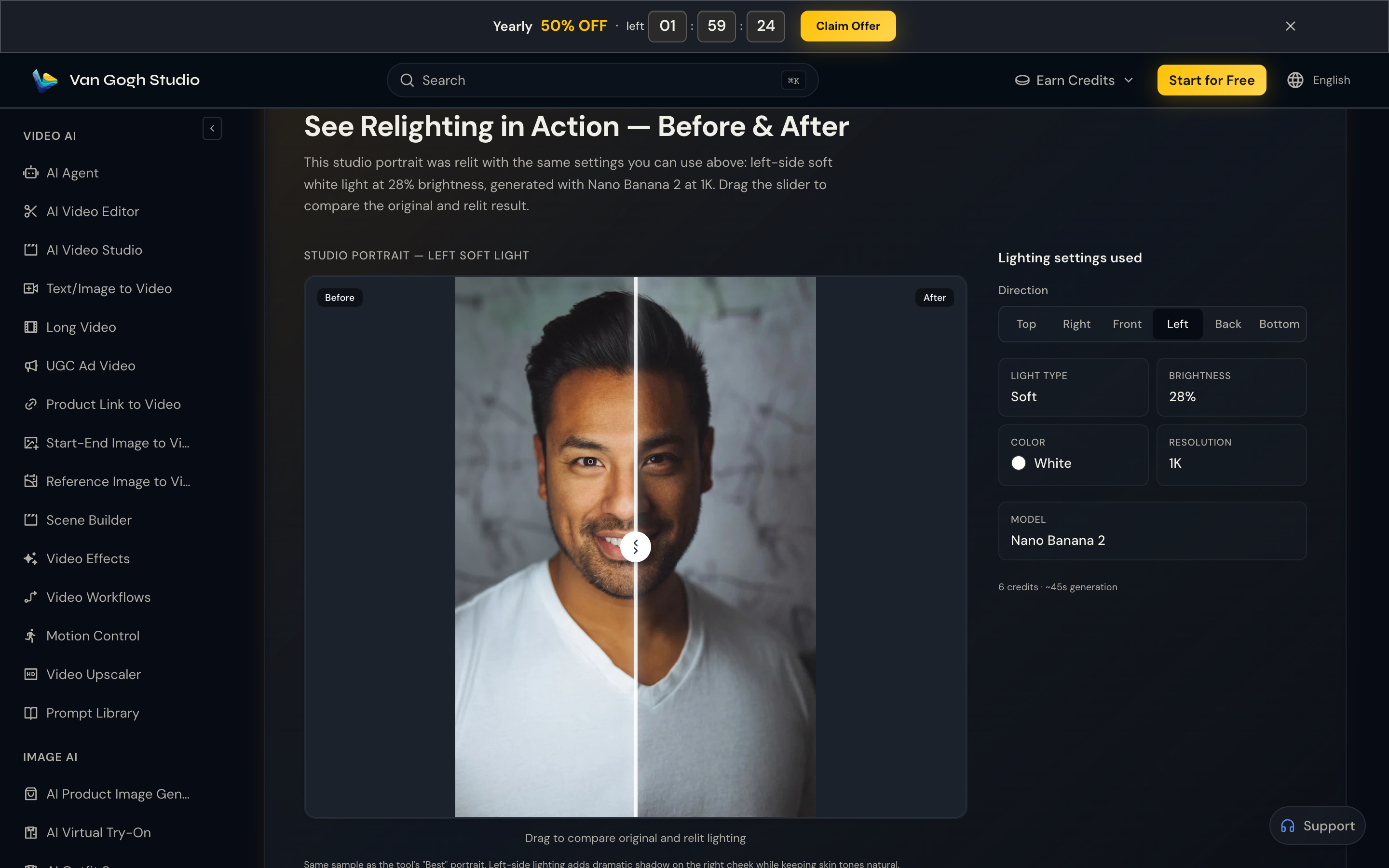
Use the before/after slider to check that only lighting changed, then Download.
Try AI Relight free
Key Features
| Feature | What you get |
|---|---|
| Interactive light control | Drag direction like a 3D light pad |
| Soft / hard light | Mood from gentle wrap to dramatic contrast |
| Brightness & color | Intensity plus warm/cool tones |
| Nano Banana 2 / Qwen | Fast 1K–4K or batch variants |
| Before/after compare | Slider on every result |
| Composition preserved | Subject and layout stay put |
Related Tools on Van Gogh Studio
- AI Angles — change camera perspective after lighting is locked
- AI Face Refine — clean facial detail on portraits
- AI Image Editor — prompt-based edits on the relit frame
- AI Image Generator — create a source still from scratch
- Text/Image to Video — animate the finished still
Conclusion
You do not need a reshoot or a lighting kit to fix mood and dimension. Upload one photo to Van Gogh Studio Relight, set direction and style, generate with Nano Banana 2, and download a cleaner, more cinematic still in minutes.
Start free on Van Gogh Studio and give your next photo the light it deserved.
Create AI videos free
Try Van Gogh Studio free — text-to-video, image-to-video, and 300+ models in one place. Free credits on signup, no credit card required.
Try Free Video Generator


