

Generating a clip is only half the job. Most AI videos still need a real cut—trim the dead air, stack B-roll, add captions, and export something publish-ready.
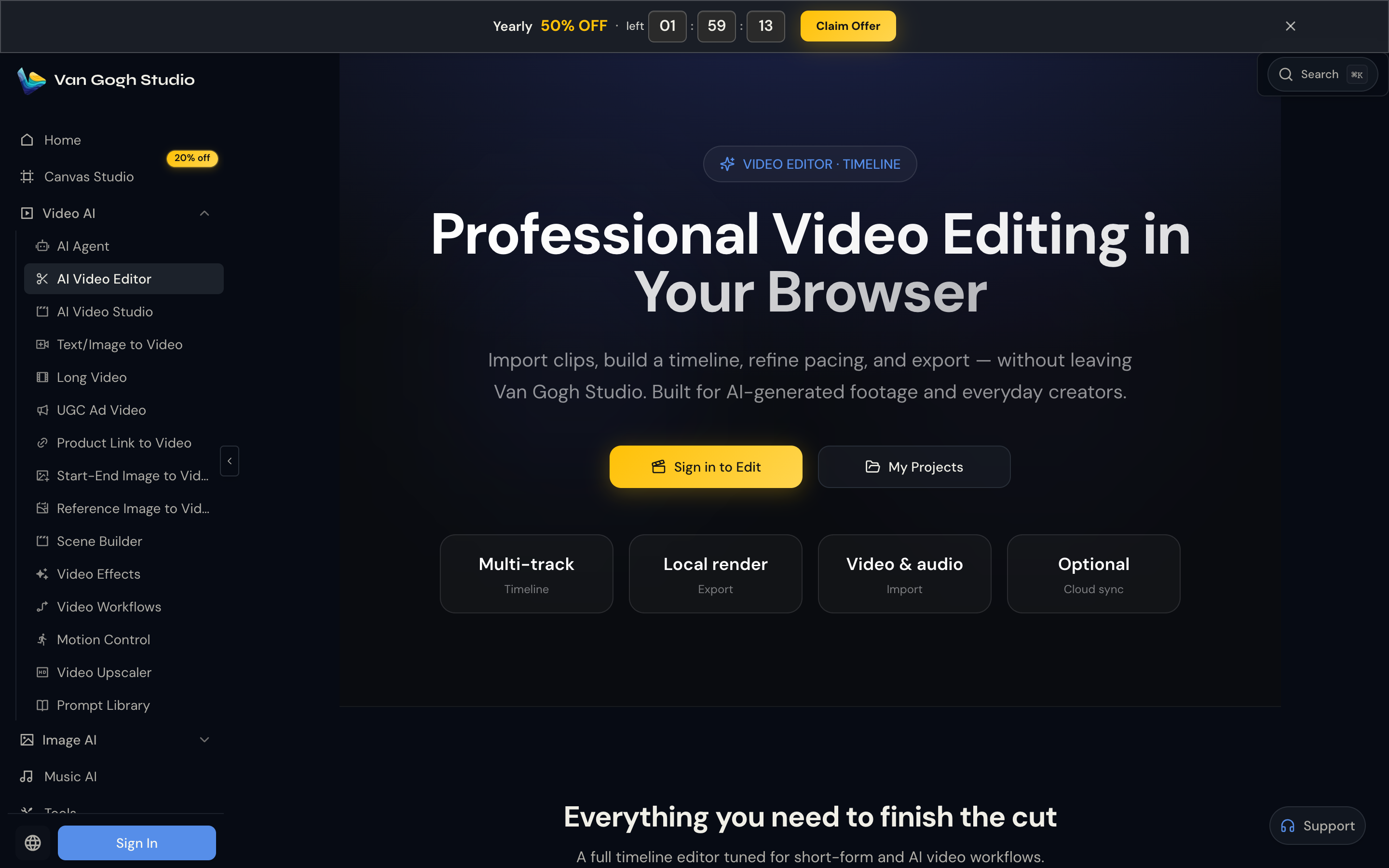
Van Gogh Studio Video Editor is a browser multi-track timeline for finishing that cut. Import local files or clips you generated on the platform, arrange tracks, refine pacing, and render locally—no desktop install.
Quick Verdict
Open AI Video Editor, sign in, create a project (resolution + FPS), import video/audio/images (or pull from your Van Gogh library), edit on the multi-track timeline, then export in the browser and download. Timeline editing is free with an account; optional AI generation inside the editor uses credits separately.
What Is Van Gogh Studio Video Editor?
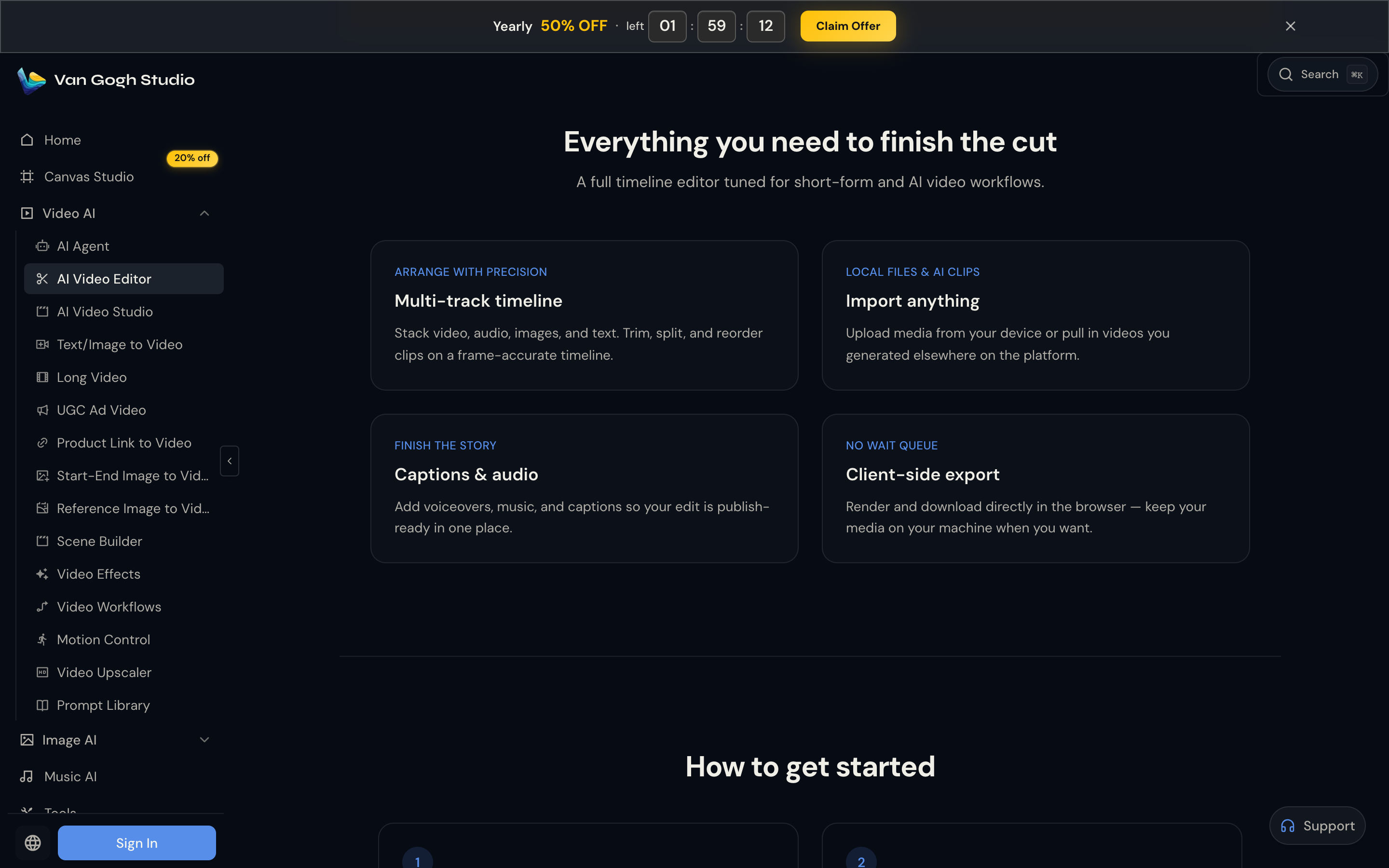
It is a timeline finish tool, not a one-prompt “rewrite my whole clip” toy. Stack video, audio, images, and text; trim, split, and reorder on a frame-accurate timeline; add captions and voiceover; export with a client-side (local) render so you are not stuck in a cloud queue.
Built for:
- Short-form creators finishing AI-generated footage
- Marketers assembling product demos and ads
- Anyone who wants CapCut-style pacing without leaving Van Gogh Studio
How it differs from Canvas Studio: Canvas is a node-based AI production workspace. The Video Editor is the dedicated timeline for the final cut—you can use either, or both.
How to Use the AI Video Editor (Step by Step)
Step 1: Open the Editor and Sign In
Go to AI Video Editor (sidebar VIDEO AI → AI Video Editor). Browse the landing page freely; creating and editing projects requires a free account. Click Sign in to Edit or My Projects.
Step 2: Create a Project
On My Projects, choose New Project (/video-editor/new). Set a name, canvas resolution (default often 1920×1080), and frame rate, then open the timeline workspace.
Shortcut: if you just generated a clip elsewhere on the site, links like /video-editor/new-from-video can drop that file straight onto a new timeline.
Step 3: Import Your Media
Drag in or browse:
- Video — MP4, WebM, MOV, MKV, AVI
- Audio — MP3, WAV, AAC, M4A, OGG/Opus
- Images — JPG, PNG, GIF, WebP, SVG
You can also pull clips from your platform library (My Videos / My Images) so AI generations and uploads live in one edit.
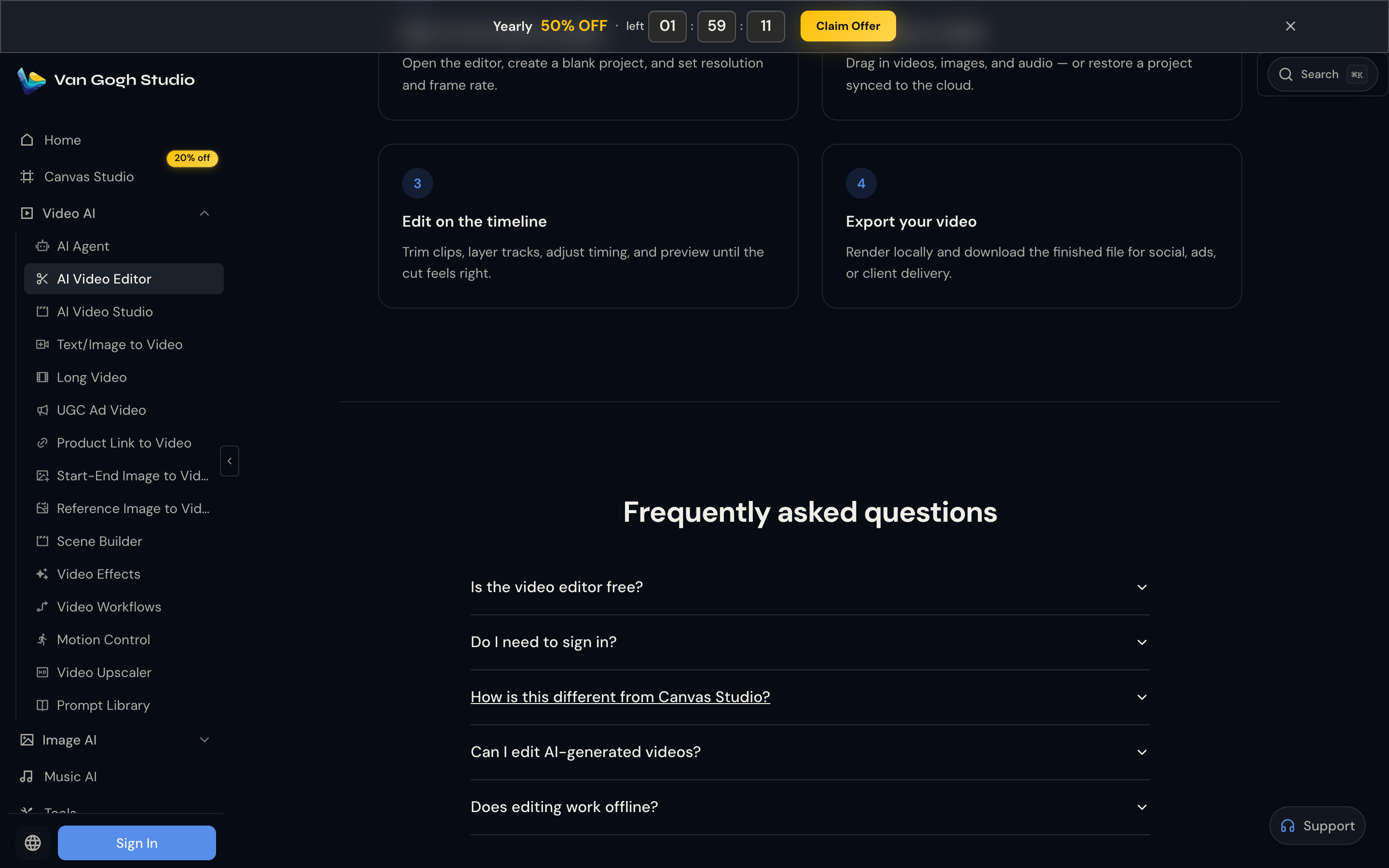
Step 4: Edit on the Timeline
Use the multi-track timeline to:
- Trim, split, and reorder clips (Select, Trim, Razor, and related tools)
- Layer video, audio, images, and text
- Add transitions, effects, and captions
- Optionally use the in-editor AI Agent to generate or attach new clips (generation uses credits)
Preview until pacing and audio feel right.
Step 5: Export and Download
Export in the browser (local render)—common targets include MP4/MOV/WebM and audio-only formats. Download for Shorts, ads, or client delivery. Projects can stay in local browser storage (IndexedDB/OPFS); cloud sync is optional when you are signed in.
Key Features
| Feature | What you get |
|---|---|
| Multi-track timeline | Video, audio, images, text on one cut |
| Import anything | Local files + AI clips from your library |
| Captions & audio | Voiceover, music, subtitles in one place |
| Client-side export | Render/download in the browser |
| Optional cloud sync | Keep work local, sync when you want |
| Free to edit | Account required; AI generation credits separate |
Who It’s For
- Creators — finish Kling / Sora / Veo clips for TikTok, Reels, and Shorts
- Marketers — assemble product demos and ad variants without a desktop NLE
- Teams — iterate AI footage and human B-roll in one browser timeline
Related Tools on Van Gogh Studio
- Text/Image to Video — generate source clips
- AI Agent — chat-driven production before the final cut
- UGC Ad Video — product-style ad clips to import
- Video Upscaler — sharpen exports when needed
- Long Video — multi-scene stories before timeline polish
Conclusion
Van Gogh Studio’s AI Video Editor is the finishing room for AI and everyday footage: a real multi-track timeline, local export, and a free account to start. Open AI Video Editor, create a project, import your clips, cut on the timeline, and download a publish-ready file.
Create AI videos free
Try Van Gogh Studio free — text-to-video, image-to-video, and 300+ models in one place. Free credits on signup, no credit card required.
Try Free Video Generator


