

Motion Tracking is one of the many smart features of the Runway AI video generation platform. As the name implies, it's a feature that lets you track the motion of elements within your video, like a person walking across the scene or an item being pushed from one side of an area to another. This straightforward guide shows you what this feature is and how to leverage it.
What is Runway Motion Tracking?
Namely, you can add layers or effects onto the tracked areas, like text that follows an object across a scene. Motion Tracking in Runway is a feature that lets you track the movement of objects or subjects in your video. It lets you add a key-frame on the desired point you wish to track, and there are various benefits and uses for this.
You can apply Motion Tracking to either your own videos or AI-generated videos by uploading them to Runway, and it opens up new pathways to video creation.
How to Use Motion Tracking in Runway
Next, let’s see exactly how to enable and apply Motion Tracking in Runway. We’ll provide easy steps you can follow along with to produce your own Motion Tracking creations, complete with screenshots that reveal you which buttons to press.
Step 1. Open the dashboard and Upload or Generate a Video You Want to Work With
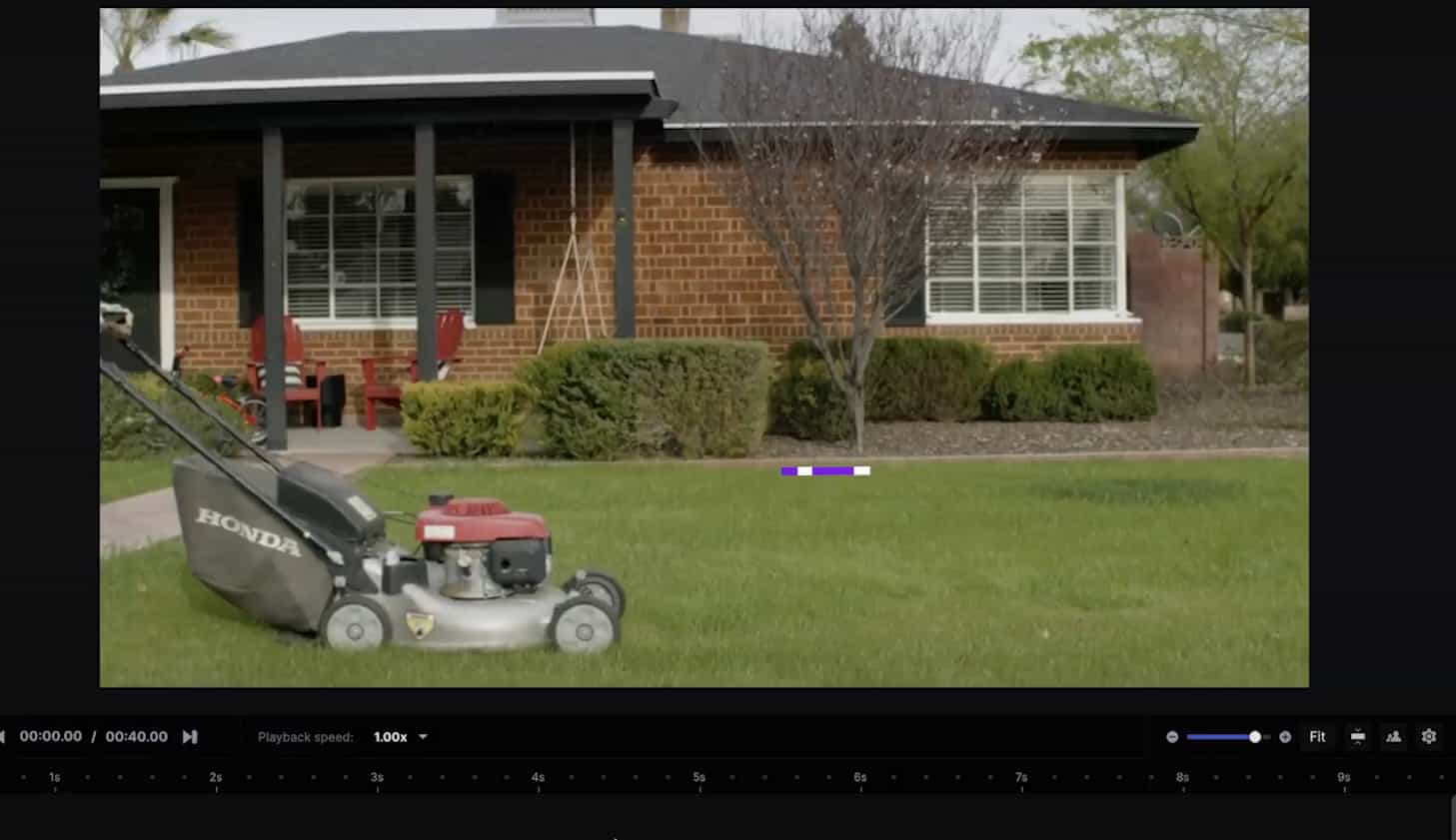
To apply Motion Tracking, you first require a video to apply it to. You can either begin a new generative session and create a video in Runway or upload one from the device that you made or recorded earlier.
Step 2. Select the Motion Tracking Tool
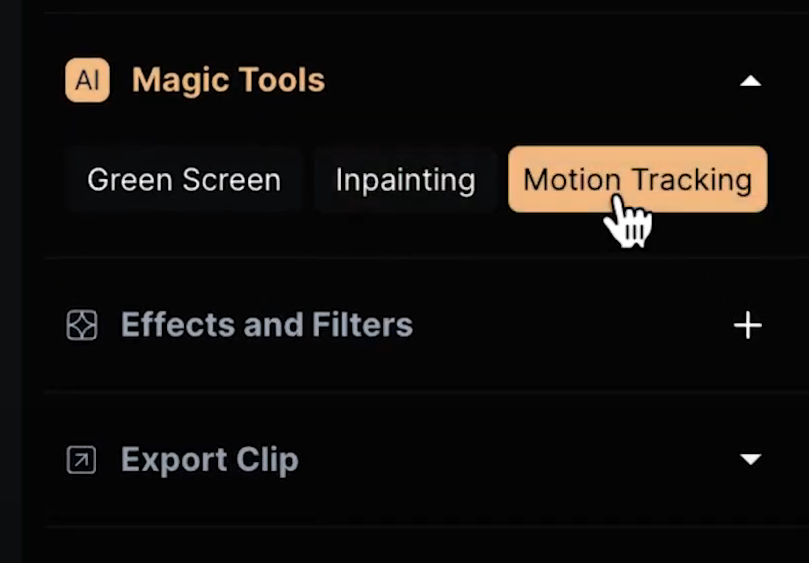
Then, click to choose the timeline located at the bottom of your video and search for the “Motion Tracking” button on the right side. It should show up in the “AI Magic Tools” section.
Step 3. Click on the Object You Wish to Track
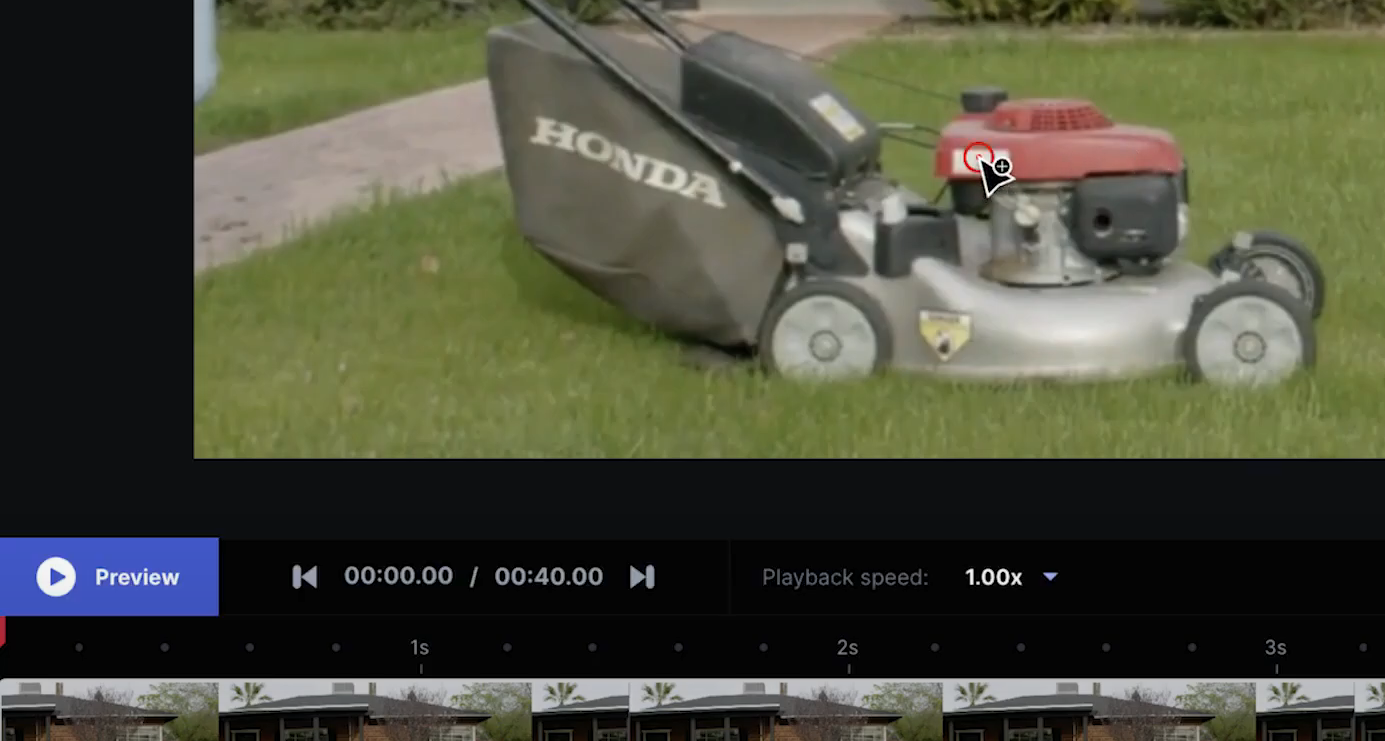
Next, with your cursor, hover over the item or part of your video that you wish to track and click it. You should see a red circle appear around that area.
Step 4. Play the Clip to Verify Tracking Works
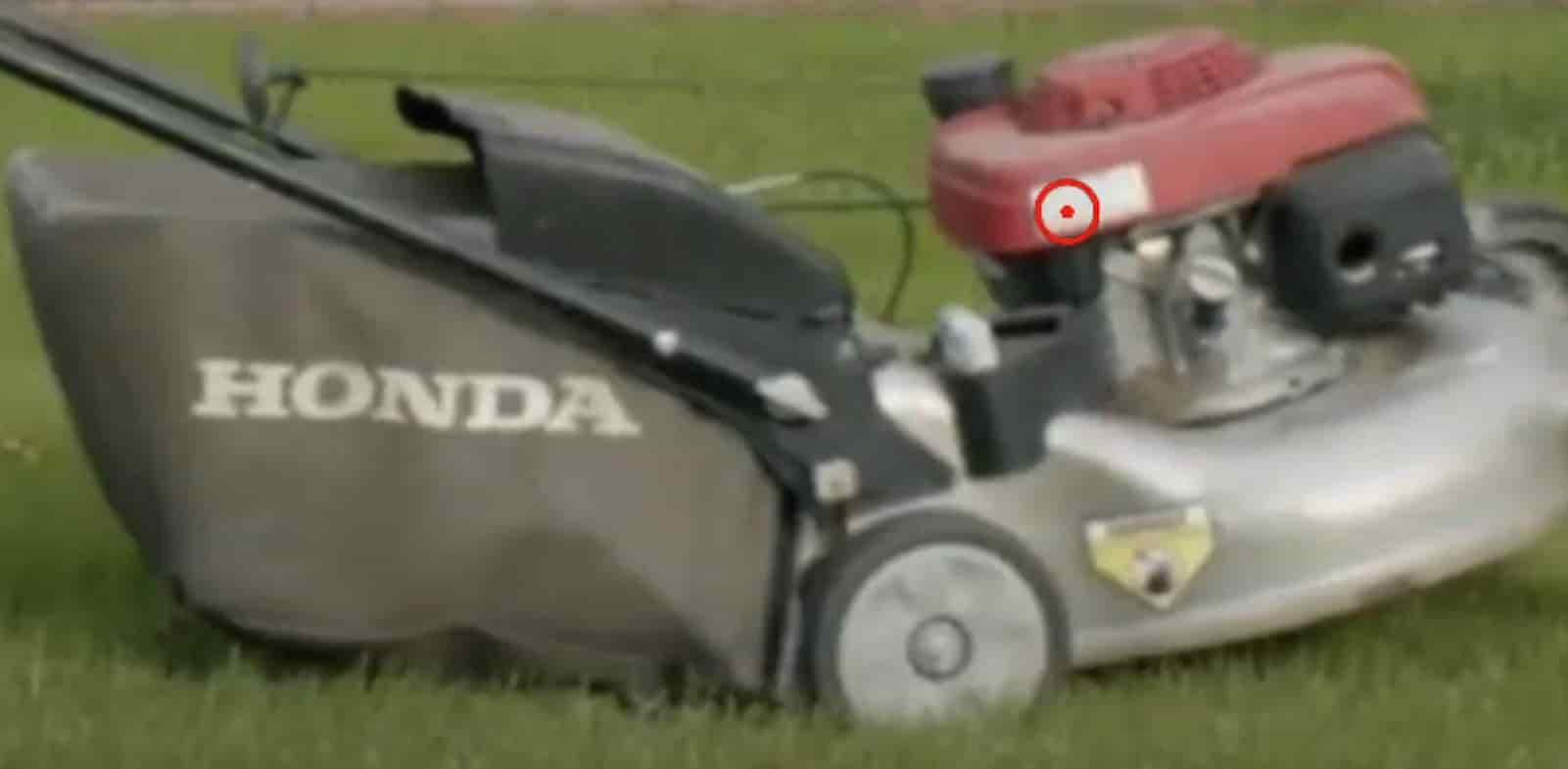
If it has any trouble, pause the video when the problems occur and select the Motion Tracking feature again, and re-apply it where needed. This will add bonus key-frames for greater accuracy. Next, preview the clip and watch the red circle to ensure that the tracking is working correctly. As the object you’re tracking moves, the red circle should follow it precisely.
Step 5. Add Layers to the Tracking
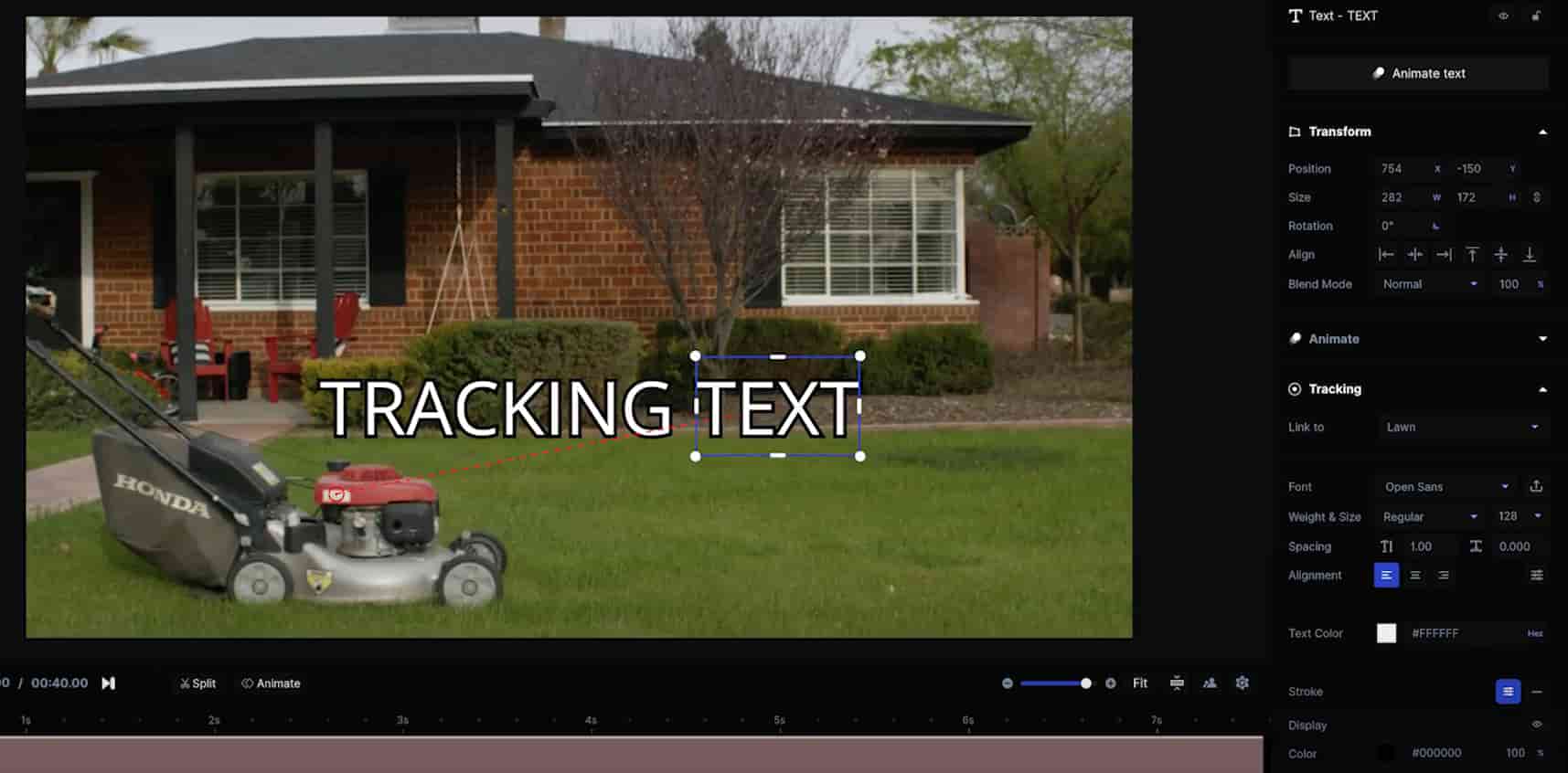
For example, you can add a text layer, type in some text, and then connect it to the Motion Tracker. And you can play around with other layers to produce effects or objects follow the tracker, too. The text will then follow the object it’s attached to as the video progresses. Once the tracking is all setup, you can go back to your timeline and add one or extra layers that you can then attach to the tracker.
What Are the Benefits of Motion Tracking in Runway?
Lots of users are keen to test out the Motion Tracking technology of Runway, and it’s not hard to see why, as this is an interesting and beneficial tool. Some of its advantages and employ cases are:
- simple to function With: As the guide above has shown, it only takes a few simple steps to enable Motion Tracking and set it up in your videos. So even beginners should be able to learn and master this Runway feature.
- Highly Precise: Motion Tracking is generally really precise in Runway. It typically does a decent job of detecting which item or object you’re trying to follow and sticking with that object as it moves around the frame. You can also add extra frames for extra accuracy.
- Opens New Creative Opportunities: Like many of Runway’s other core features, the Motion Tracking feature opens a lot of doors to new creative potential. You can create interesting cinematic videos with this tool or fun social media clips to share.
- Lots of Possible Layers to Add On: As touched on earlier, you can attach or link various layers on top of the Motion Tracking. This includes text boxes, images, shapes, and various other elements.
Try Runway AI in Van Gogh Studio
If you want to experiment with Runwa for yourself, Van Gogh Studio is a strong tool to leverage. Van Gogh Studio is a leading AI video generator that not only offers its own text to video, image to video, and video to video generation but also lets you access and leverage various other AI video makers.
That includes Runway's Gen 2, Gen 3 Alpha and Turbo, as well as Kling AI and Hailuo AI.You can access all these tools through Van Gogh Studio, absolutely free, and apply Van Gogh Studio’s excellent templates, tools, and special effects makers.Give it a experiment with today.
Watch these videos below to learn how to convert text into videos and create stunning AI kissing and hug videos:
FAQs
What is Motion Tracking in Runway?
Motion Tracking is a video editing tool available on Runway that allows you to follow the movement of subjects or components in your videos.
What’s the use of Motion Tracking?
Motion Tracking has various uses, and you can attach objects or bits of text to the items you want to track to create cool video effects. For example, you could apply it to create a video where a piece of text follows a person as they walk across the frame from one side to the other.
Is Motion Tracking free to use?
Yes, you can apply the Motion Tracking feature for free in Runway, but everything you do in Runway uses up credits, and you may run out of them eventually, so might have to sign up for a premium plan that gives you greater of them.
Create AI videos free
Try Van Gogh Studio free — text-to-video, image-to-video, and 300+ models in one place. Free credits on signup, no credit card required.
Try Free Video Generator


