

Van Gogh Studio is a multi-model AI video workspace. The flagship in-house model family—documented as Van Gogh Studio 2.5—focuses on viral-ready clips with strong prompt following, style control, and character consistency. This guide shows how to generate with it (and sibling Van Gogh Free options) inside today’s product UI.
What Van Gogh Studio 2.5 Brings
Compared with older single-scene generators, the Van Gogh Studio model line emphasizes:
- Native audio — matching BGM / SFX when the selected model supports audio
- Flexible duration & resolution — short social clips with 480p / 720p / 1080p options (model-dependent)
- Stronger prompt understanding — complex scene + camera language
- Style control — anime, cinematic, commercial looks via prompt or references
- Character consistency — pair with Reference Image to Video
- Multi-shot stories — continue in Long Video when one clip is not enough
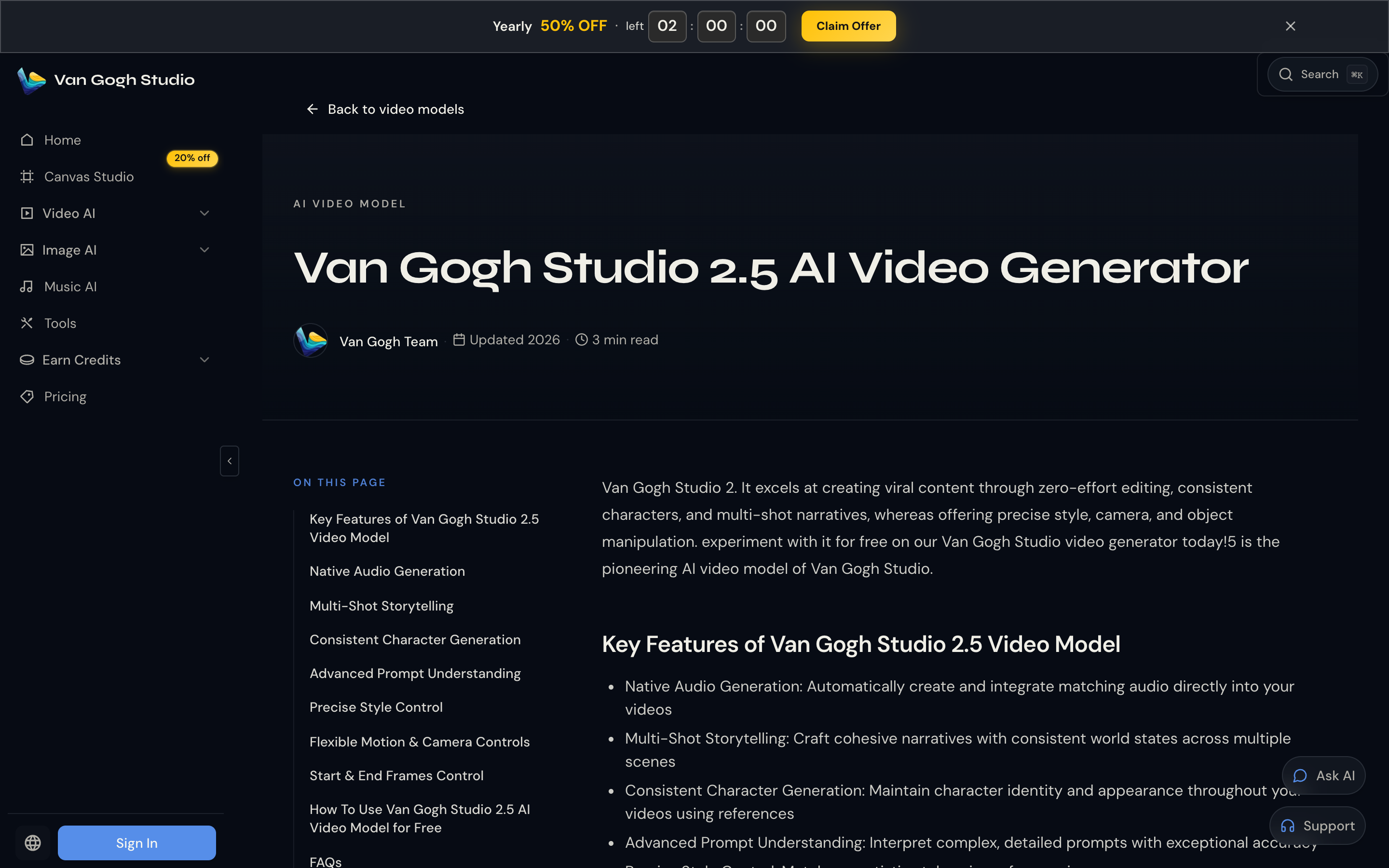
On Pro / Ultra, Van Gogh Free models also support unlimited generation on a shared queue—use them for volume testing; use fast credits when you need priority speed. See pricing.
Step-by-Step: Generate with Text / Image to Video
1. Open Text/Image to Video and Select the Model
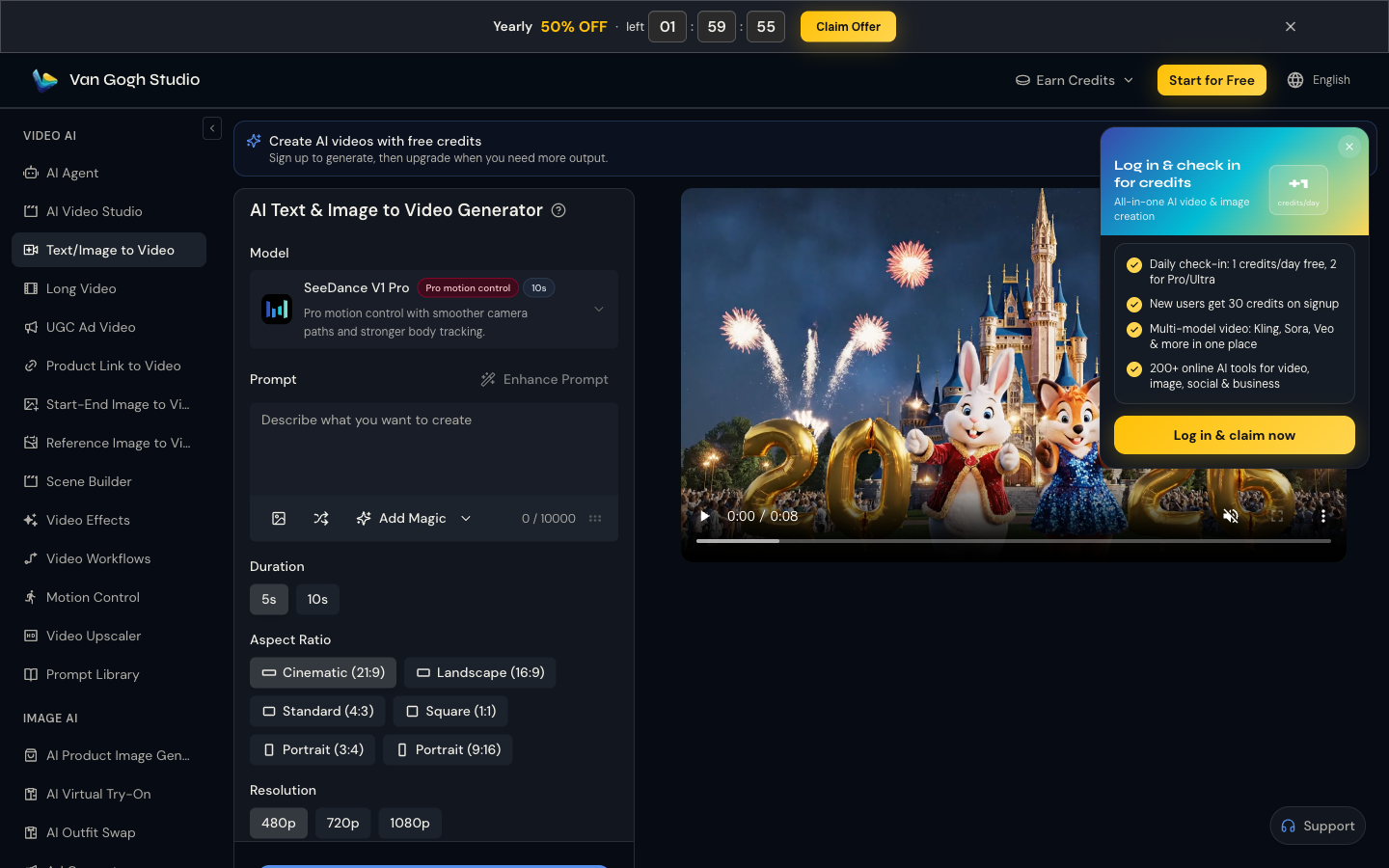
Go to Text/Image to Video (or Image to Video). Open the model picker and choose a Van Gogh / Van Gogh Free option when available (or another model if you need a specific look).
New accounts get starter credits. Upgrade on pricing anytime.
2. Upload an Image (Optional) and Write a Prompt
Upload a reference still (JPG / PNG / WebP) and describe motion: subject, action, camera, lighting, style. No image? Stay in text-only mode on the same page or use AI Video Studio.
Example: Cinematic tracking shot of a cyclist racing through neon Tokyo rain, wet asphalt reflections, shallow depth of field, realistic motion, 9:16.
3. Set Duration, Aspect Ratio, and Resolution
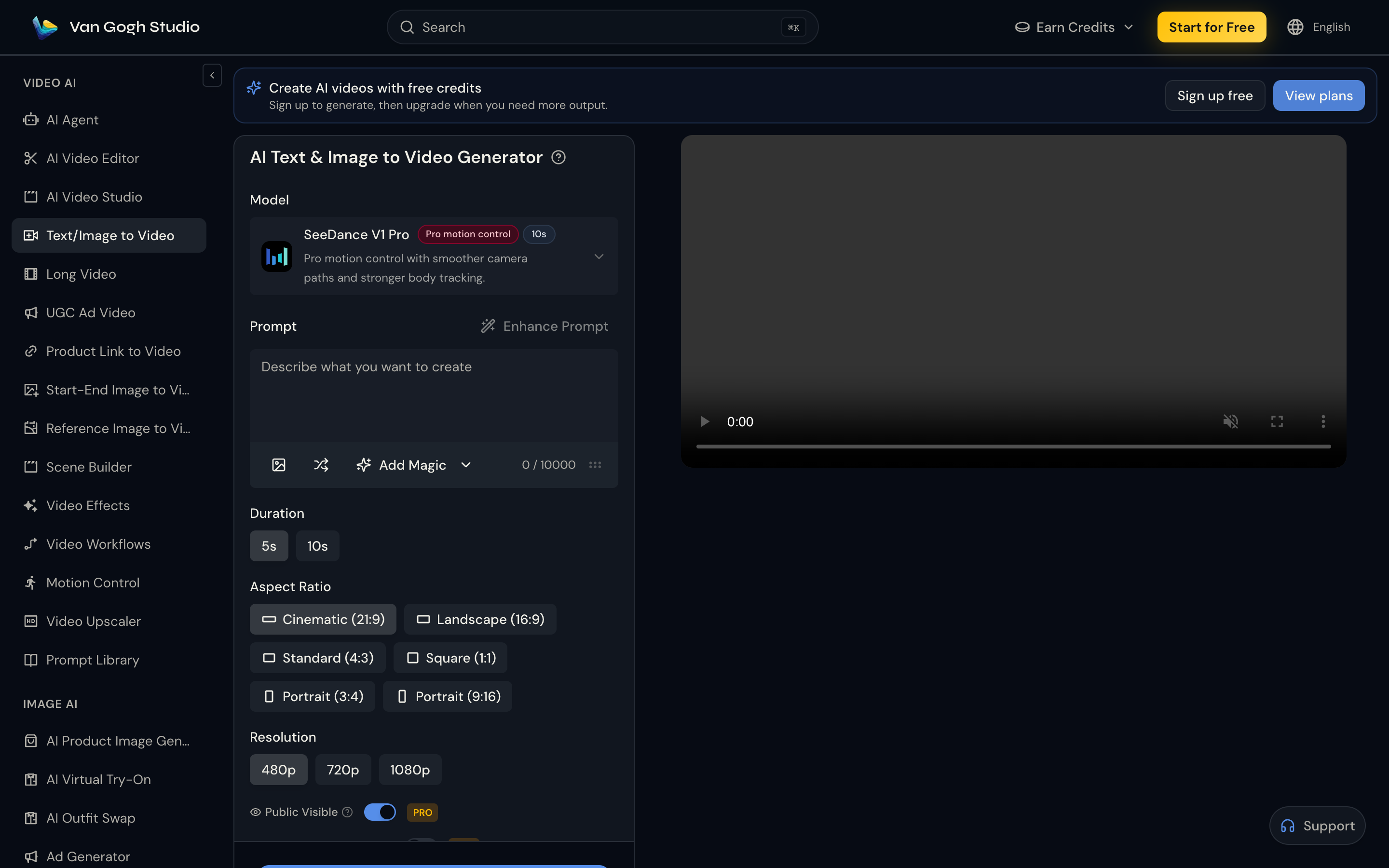
Typical controls (exact options depend on the model):
- Duration — e.g. 5s / 10s
- Aspect ratio — 9:16 for Shorts / Reels / TikTok; 16:9 for YouTube
- Resolution — 480p / 720p / 1080p
- Public Visible — privacy toggle when shown (plan-dependent)
4. Generate and Preview
Click Generate, wait for the queue, preview on the right, then download. Iterate by changing one variable (camera word, crop, or duration).
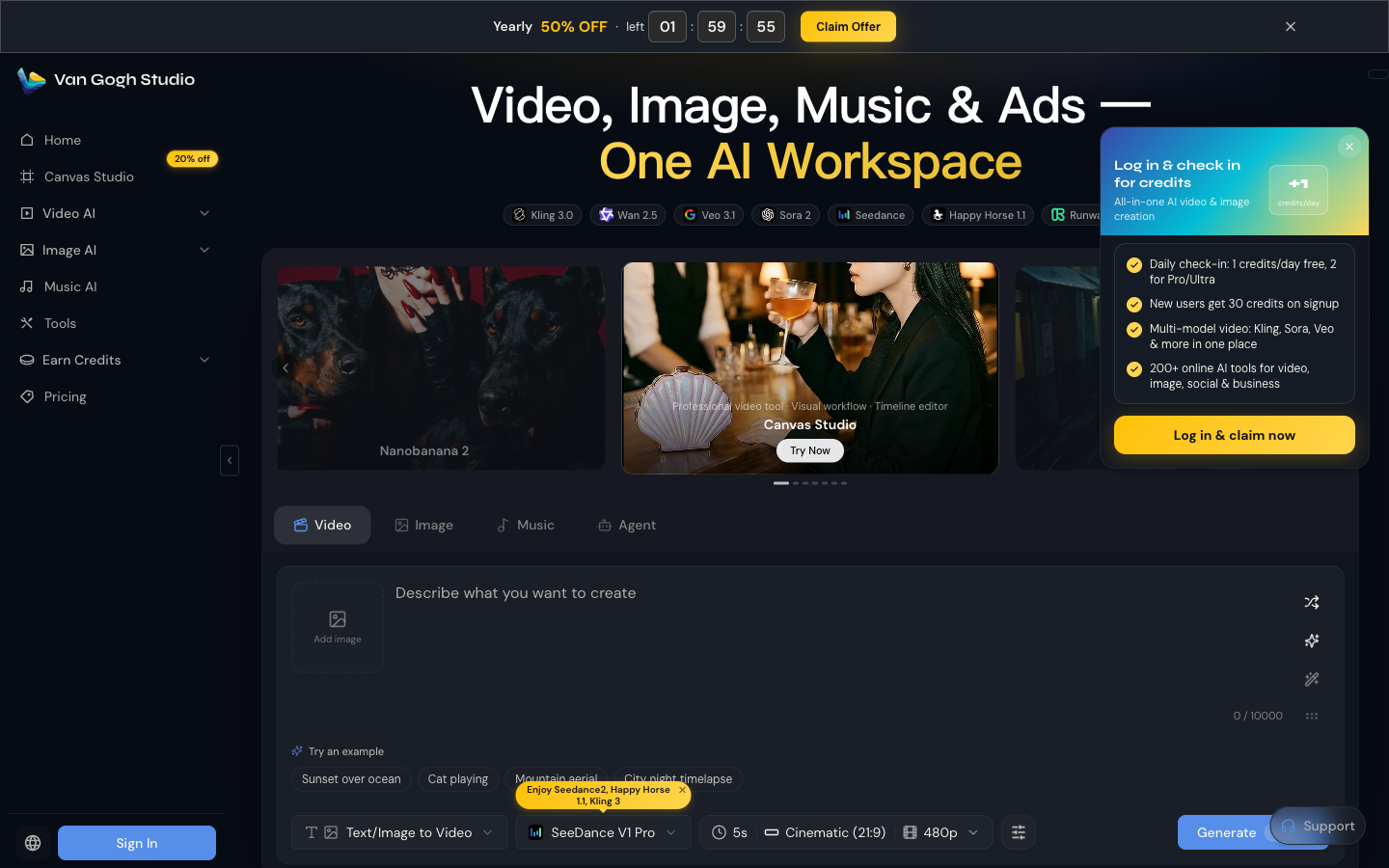
You can also start from the home Video tab with mode Text/Image to Video.
Keep Characters Consistent: Reference Image to Video
1. Open Reference Image to Video
Go to Reference Image to Video.
2. Upload Reference Images
Add one required reference (and optional extras) for the character, product, or scene you want locked—JPG / PNG / WebP, max 10MB each.
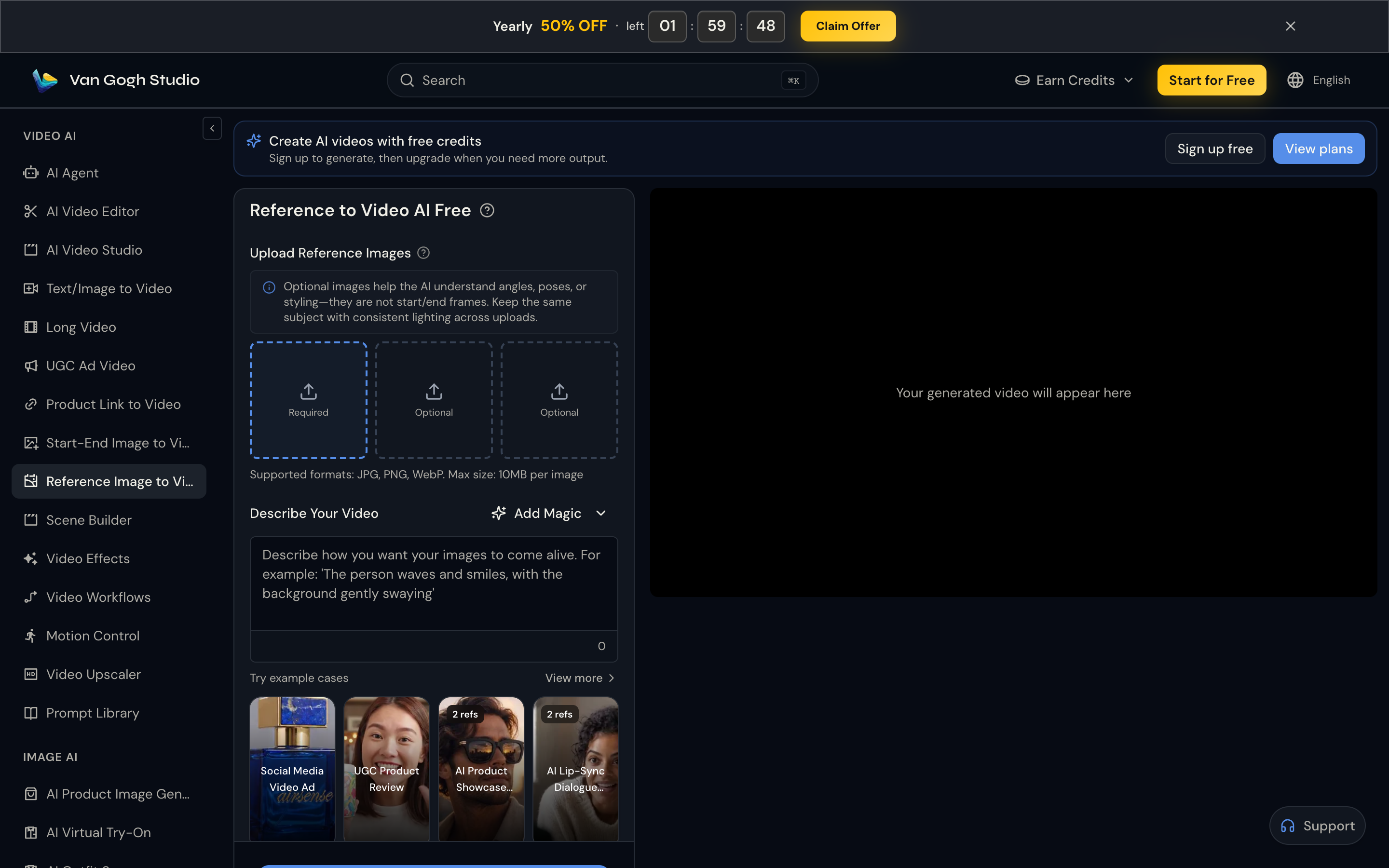
3. Describe Motion and Generate
Prompt how the subject should move (waves and smiles, background gently swaying), then generate and download. Use this path for brand mascots, recurring hosts, and product identity across clips.
Longer Clips and Studio Workflows
- Long Video — multi-scene narratives with style + scene count controls
- AI Video Studio — cinematic generation with advanced motion / style controls
- Video Extend — continue an existing clip when your model supports extension
- Video Upscaler — sharpen finished exports up to 4×
- AI Agent — chat-driven idea → publish-ready video
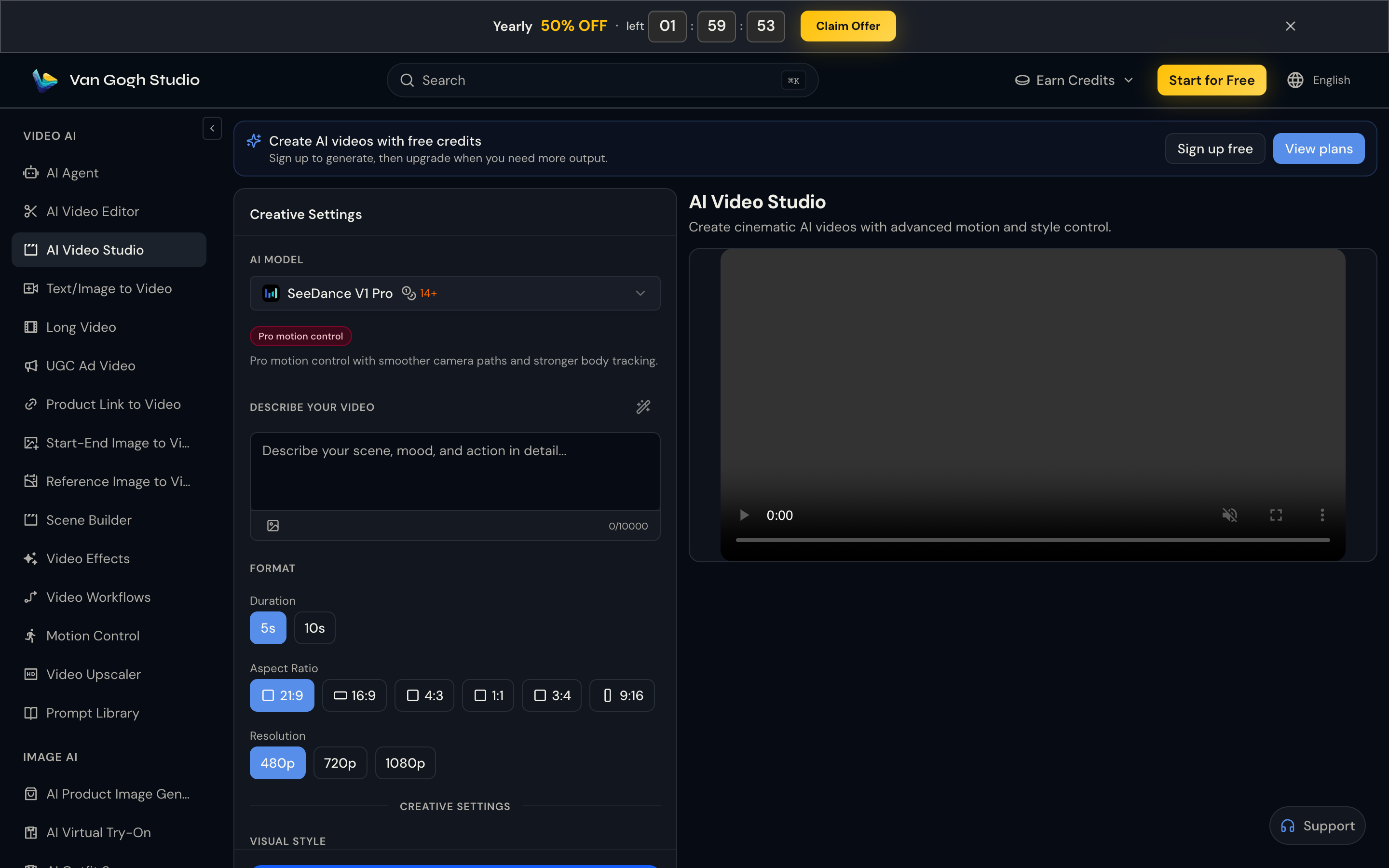
Why Create on Van Gogh Studio?
Multi-model access
Run Van Gogh Studio models alongside Veo, Kling, Seedance, Wan, and more in one account.
One-click effects
Browse Video Effects for viral templates (kiss, hug, explode, melt, dance, and more).
Full creative suite
- Text to Video / Image to Video
- UGC Ad Video / Product Link to Video
- AI Avatar
- AI Video Editor
- Tools for upscale, cleanup, and image workflows
Conclusion
Open Text/Image to Video, pick a Van Gogh Studio model, add a still + prompt, and generate. Lock identity with Reference Image to Video, extend stories in Long Video, and polish with Video Upscaler. Start free on Van Gogh Studio—credits on signup, no card required.
Model overview: Van Gogh Studio 2.5.
Create AI videos free
Try Van Gogh Studio free — text-to-video, image-to-video, and 300+ models in one place. Free credits on signup, no credit card required.
Try Free Video Generator


