

Whether you’re a marketer, content creator, or someone who wants to produce videos, Kling AI Image to Video tool is a new way to bring your images to life. In the world of AI video creation, Kling AI has been like a game changer in the last few years. It can convert text to video but it also converts images to video.
In this tutorial, we’ll demonstrate you how to use it with step-by-step instructions. We’ll walk you through uploading your image, customizing animations, and exporting your video.
By the end of this post, we’ll also introduce a brand new AI tool that includes a collection of the latest AI models including Kling AI. Let’s get creative and produce it visual!
What Can Kling AI Image to Video Do?
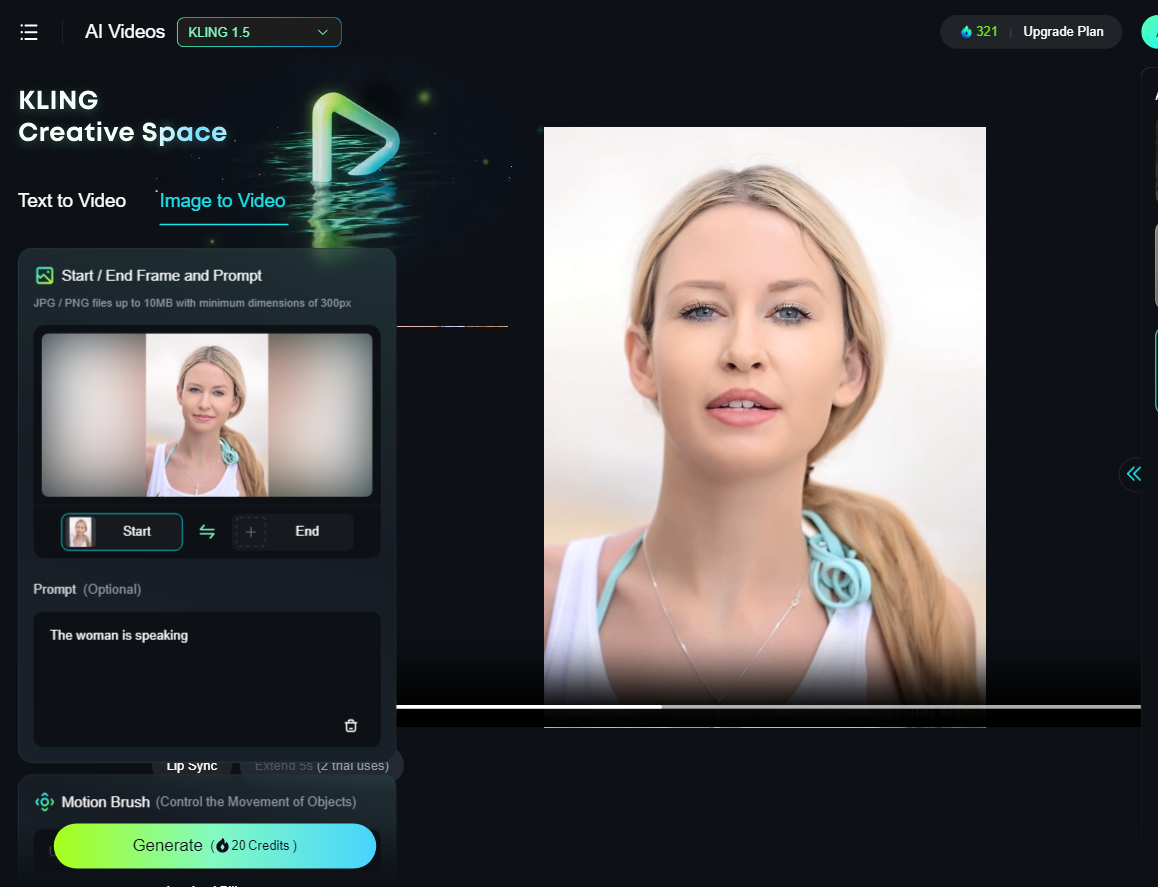
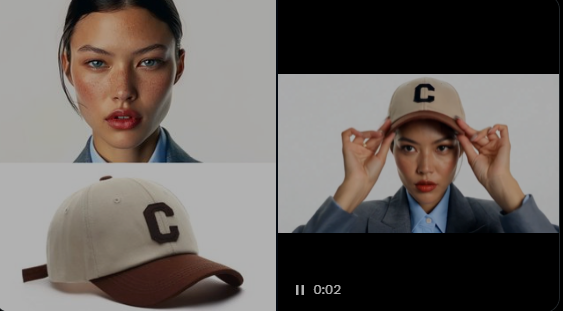
Kling AI Image to Video is one of Kling AI’s video generation modes. It lets you turn static images into dynamic and high-quality videos by adding movement and animation, which may involve flowing water, swaying trees, or animated characters.
The technology uses deep learning to understand the context of the image and produce seamless transitions and effects. Over the years, it’s become perfect for creative projects, marketing, social media content, and storytelling.
How to Use Kling AI Image to Video: Step by Step
Basically, you can generate videos from images in 3 simple steps: Upload a high-resolution image, input your prompts, and click to generate the video.
Here is a detailed demonstration of how to apply Kling AI Image to Video:
Step 1. Navigate to the Kling AI website and choose the AI Videos mode.
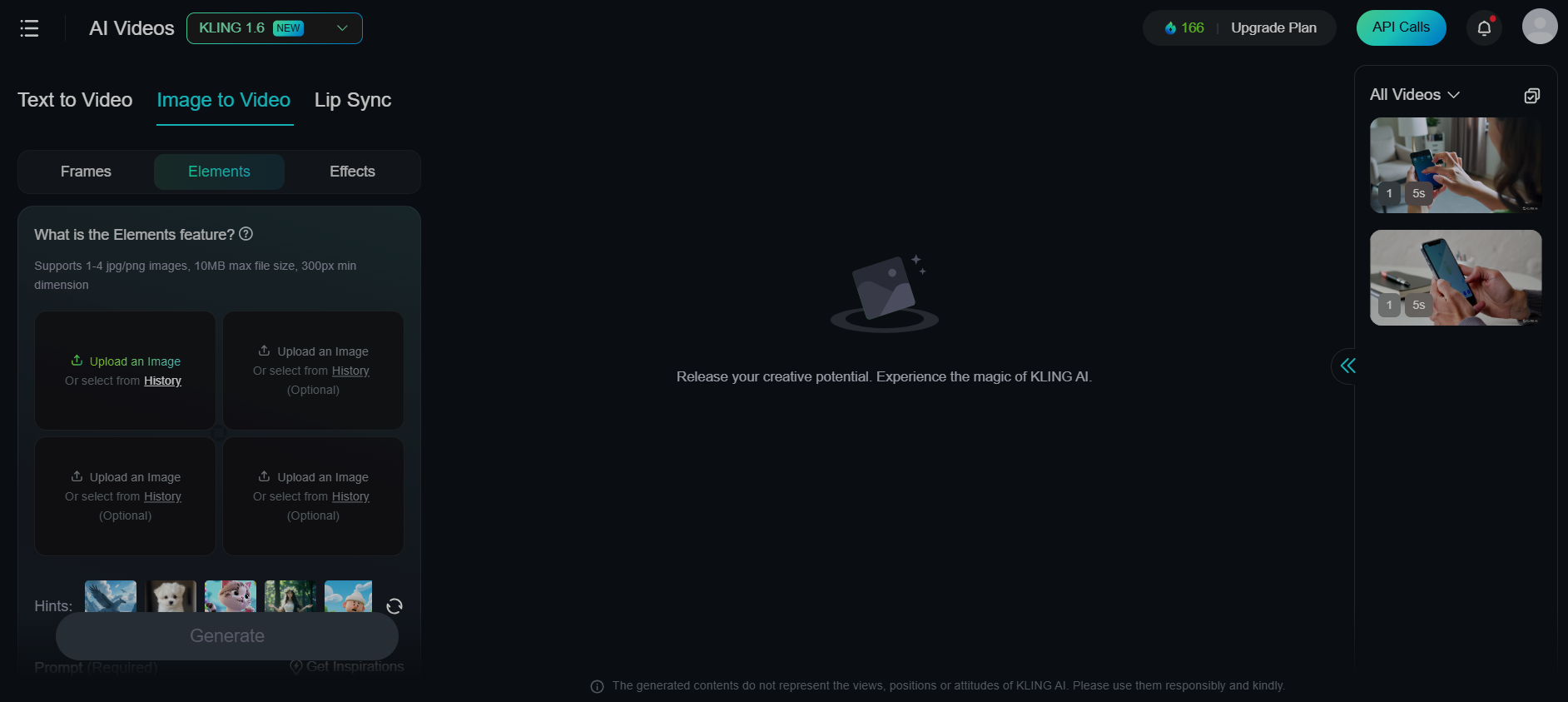
Step 2. On the left panel, click on the Image to Video mode. Here, you’ll see three tabs - Frames, Elements, and Effects.
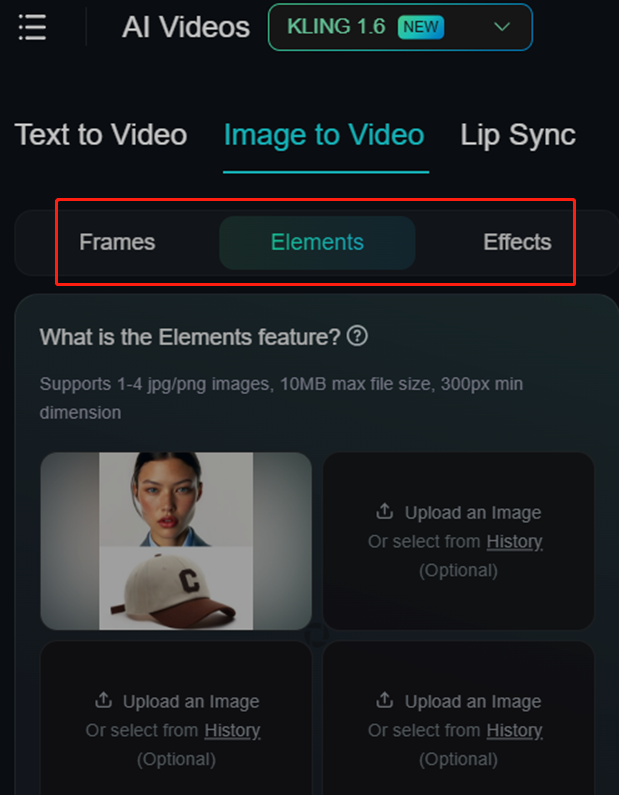
You can choose to leverage different tabs according to your needs. Here, you can click “Frames” to add open and end frames. The “Elements” is used for character consistency.
You can select the subjects in the images as the elements and describe their actions or interactions.
Additionally, you can utilize the “Effects” tab to apply an effect to your image. Simply click on the tab(s) and upload image(s) from your computer or your history.
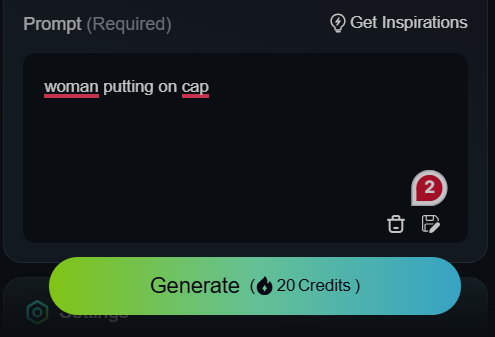
Step 3. In the prompt box, enter the instructions for animating the image.
Step 4. In the Settings box, choose the video mode, duration, and the aspect ratio.
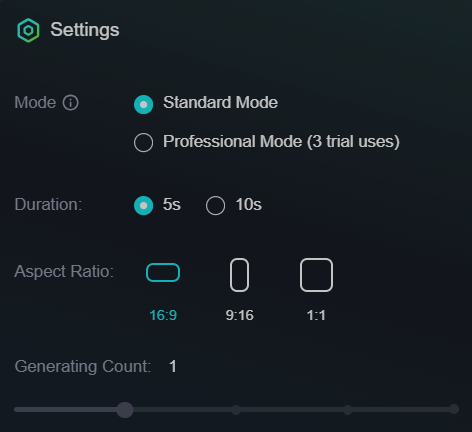
Step 5. Click the Generate button to initiate the process.
How to Use Kling AI for Free in Van Gogh Studio
With Van Gogh Studio, an all-in-one AI image and video generator, you can access all Kling AI models, such as Kling AI 1.0, 1.5, and 1.6 at no costs. You can take advantage of more different AI models in the same place, ranging from Runway AI, Hailuo AI, Vidu AI, Luma AI, to Flux AI and Stable Diffusion.
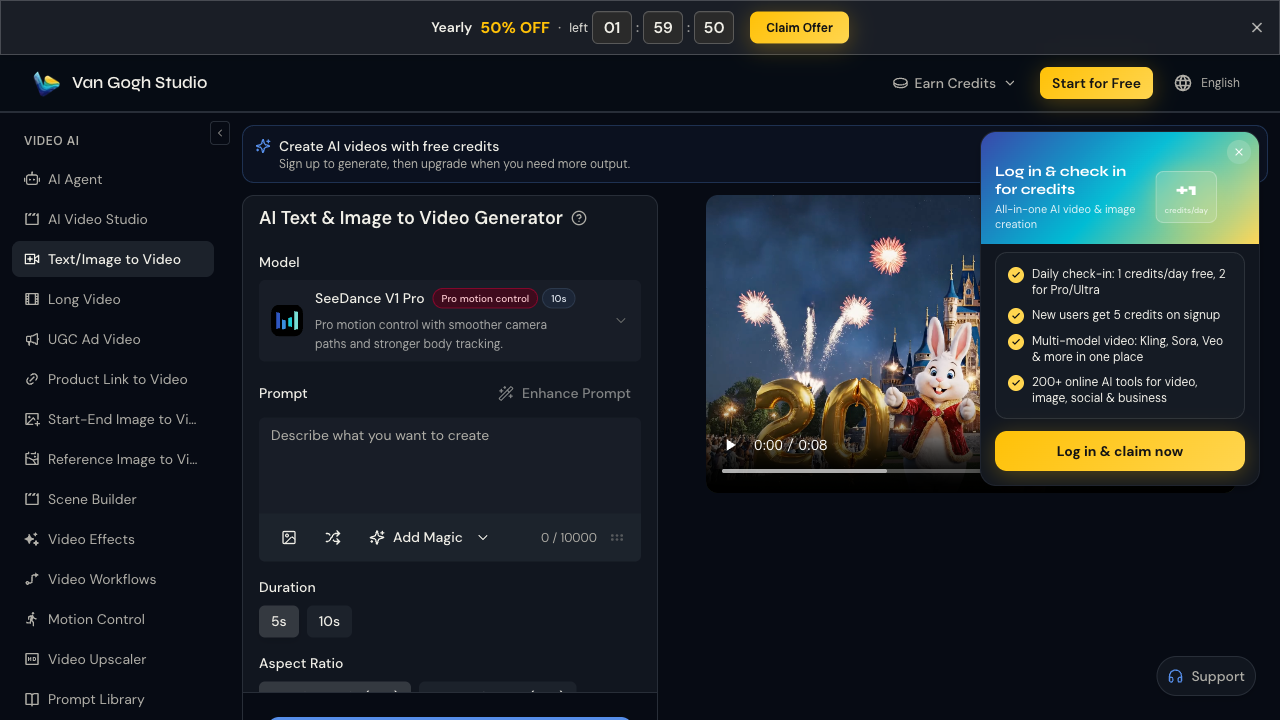
Here’s how to utilize Kling AI 1.6 to create a video from an image.
Step 1. Navigate to Van Gogh Studio’s Image to Video mode. On the left panel, click to upload an image.
Step 2. Enter the prompt to describe what you want to create with the image.
Step 3. Select the Standard Mode or the Professional Mode. You can enjoy a faster video generation speed with the Standard one while enjoying a higher video quality with the Professional mode.
Step 4. If needed, you can also input elements such as characters, colors, or distortion that you don’t want to appear in your video output.
Kling AI Image to Video Not Working?
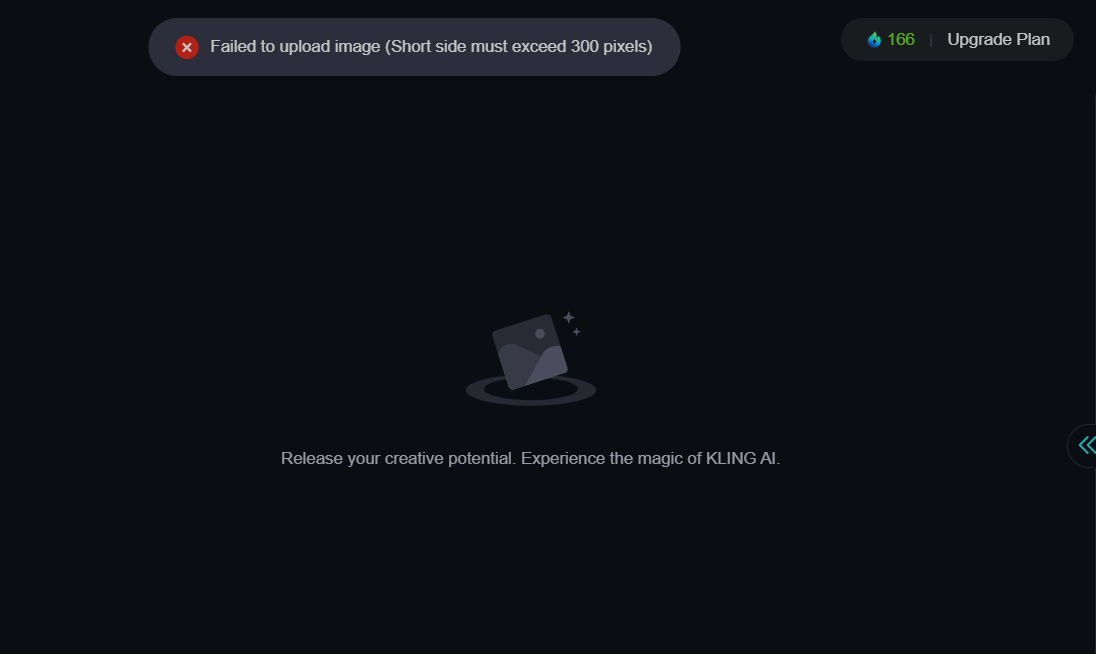
Some Kling AI users have been experiencing the “Kling AI Image to Video not working” issue. Frequently, many users may encounter problems when uploading the images. This may result from a bad internet connection, an unsupported file format, or a wrong image size.
To address this problem, you should upload JPG or PNG images up to 10MB, with a minimum short side of 300 pixels.
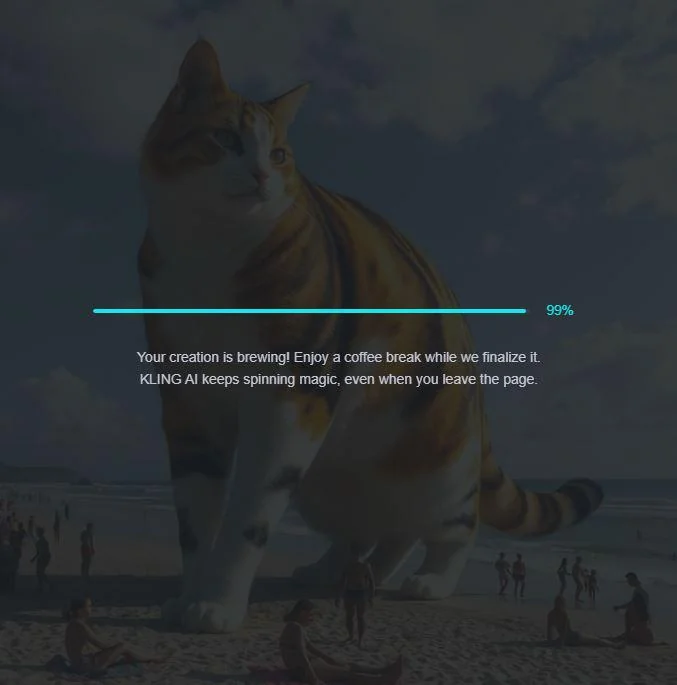
Kling AI Image to Video Stuck at 99%?
It takes a really long time to generate videos. Check your internet connection first. A slow or unstable network may interrupt your processing stage. This issue is commonly caused by Internet and the app itself. Another top common problem is “Kling AI image to video stuck at 99%”.
If your connection is fine, the problem might be due to server overload, especially during peak usage times. In this case, you can fix the issue by waiting for a few minutes or trying again later.
Additionally, build sure your browser or app is up to date as old software can cause glitches. Moreover, you can also evident your browser cache or restart the app.
Conclusion
Kling AI and Van Gogh Studio have made it super straightforward for you to generate videos. Follow the tricks and steps in this guide and then you can create amazing visual content from an image. In summary, Kling AI Image to Video opens up a new way to create videos. Get ready to level up your content creation with these AI Video Generators and turn an image into a video in one click. You can leverage these tools in marketing, social media, and personal projects.
Create AI videos free
Try Van Gogh Studio free — text-to-video, image-to-video, and 300+ models in one place. Free credits on signup, no credit card required.
Try Free Video Generator


