

This advanced function makes videos extra natural, professional, and visually cohesive, creating a truly engaging experience. Kling AI Camera Movement is one of the top exciting features in AI video generation. It effectively addresses issues such as the lack of dynamic motion, the artificial feel, and the failure to capture viewers.
In this post, we will introduce the Kling AI Camera Movement feature and provide a step-by-step guide. Keep reading to explore extra possibilities!
What Is Kling AI Camera Movement?
Camera gracefully pans left whereas simultaneously zooming in on the adorable cat
Kling AI Camera Movement is one of the advanced functions integrated into the Kling AI video generation model, KLING 1.0 (Text to Video) and KLING 1.5 Professional Mode (Image to Video). This cinematic technology empowers users with better control of the camera movement and the ability to create dynamic, consistent, and natural videos.
Kling AI Camera Movement offers 6 basic camera movements and 4 master shots for users’ diverse video creation needs.
The 6 basic camera movements are:
- Horizontal: Moving the camera left or right.
- Vertical: Moving the camera up and down.
- Zoom: Changing the focal length to get closer or farther away.
- Tilt: Moving the camera vertically, either up or down.
- Roll: Rotating the camera around its lens axis.
The 4 master shots are:
- Move left and zoom in
- Move right and zoom in
- Move forward and zoom up
- Move down and zoom out
These camera movements and shots enable creators to produce visually stunning videos that capture their vision with precision from different angles.
How to Use Kling AI Camera Movement
After figuring out what Kling AI Camera Movement is, it’s time to put it into practice. Please note that the Camera Movement function is only available in KLING 1.0’s Text to Video tool and the Professional Mode of the Image to Video tool in KLING 1.5. Follow the steps below to generate your creative video with Kling AI Camera Movement.
Step 1. Click “AI Videos” in the dashboard.
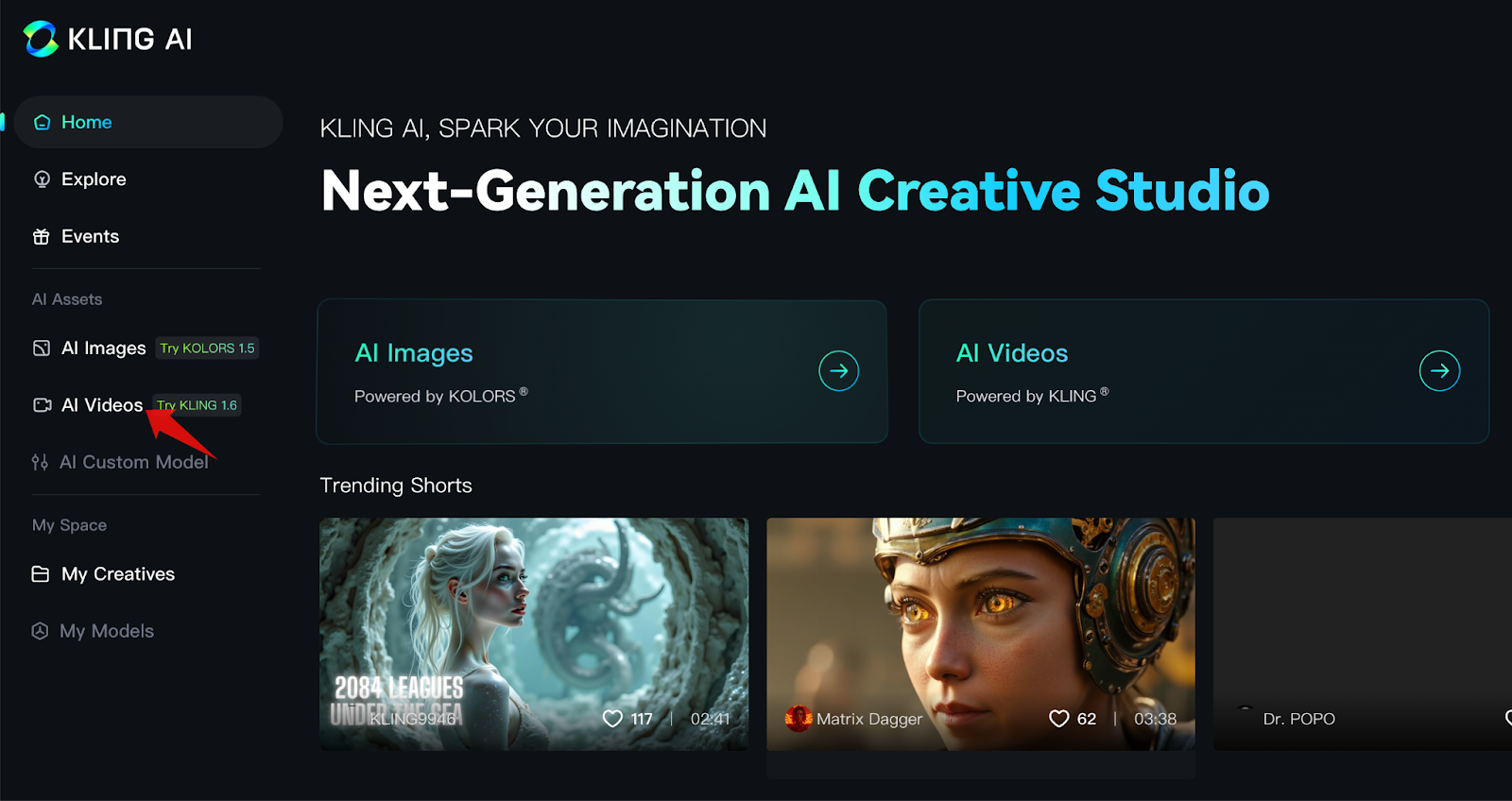
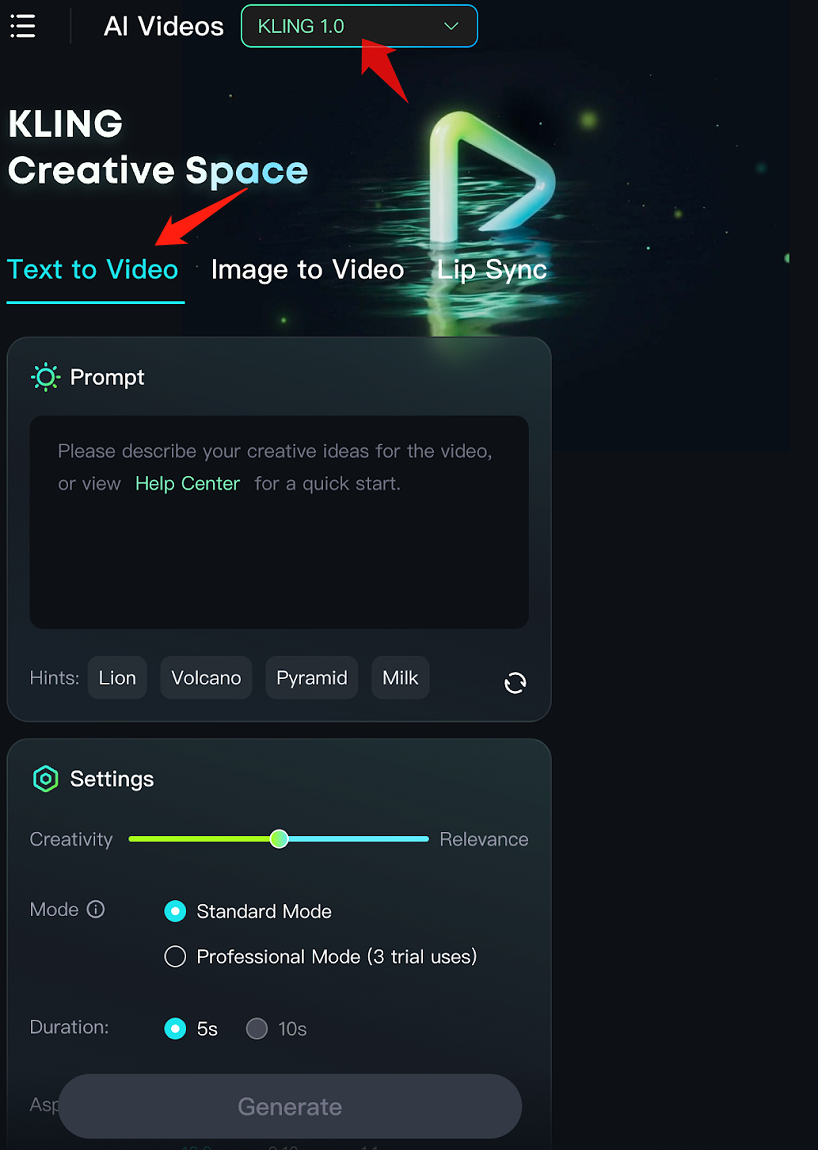
Step 2. Create videos using the Text to Video/Image to Video tool.
- Kling AI Text to Video: Select the Kling AI 1.0 Model, then click the Text to Video tab. You'll want to write a descriptive prompt and proceed.
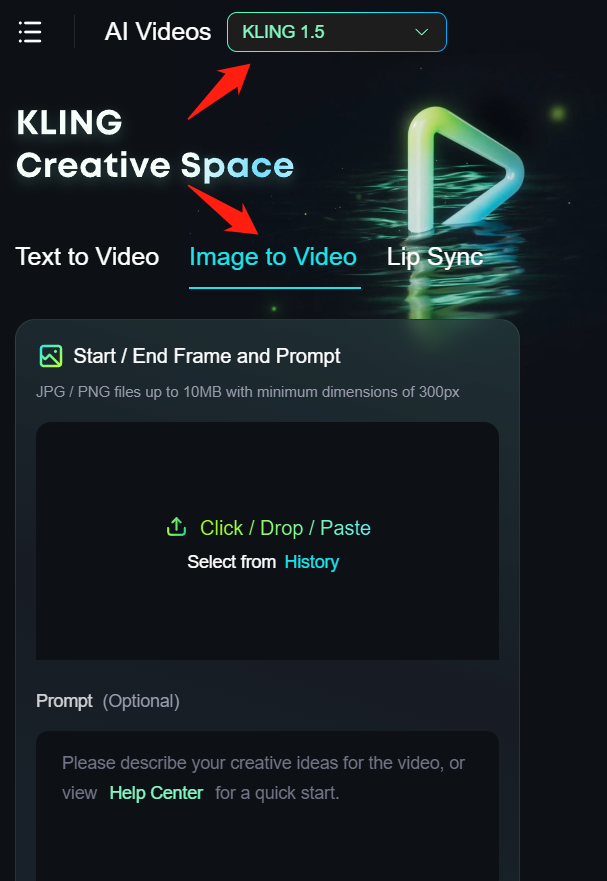
- Kling AI Image to Video: Switch to the Kling AI 1.5 Model, then click the Image to Video tab if you want to generate a video with an image. Here you'll want to upload your prepared image.
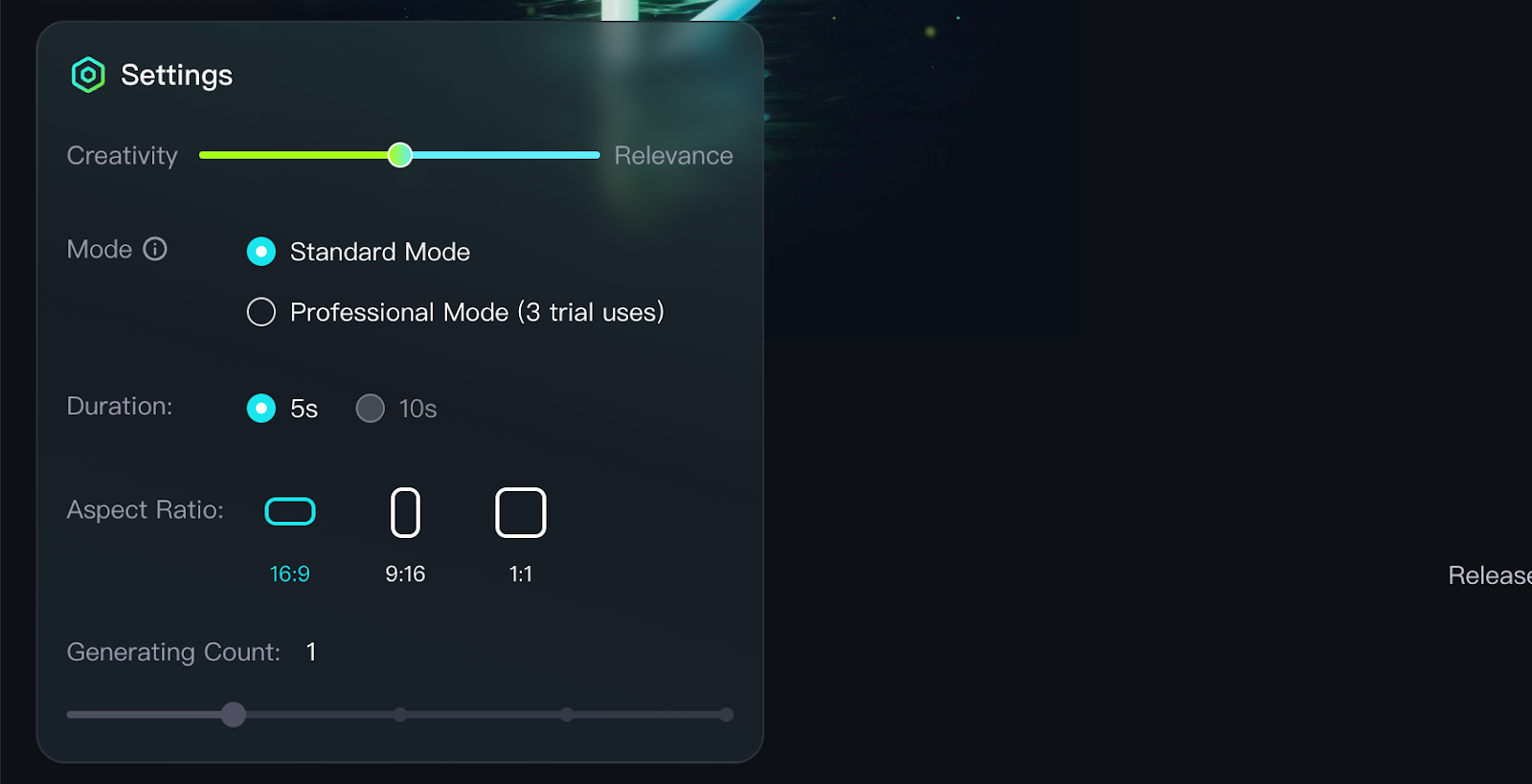
Step 3. Complete other settings like creativity levels, duration, aspect ratios, and more.
Step 4. Select the desired camera movement from the Camera Movement drop-down menu according to the above introduction of the 6 basic movements and 4 master shots and your creative needs.
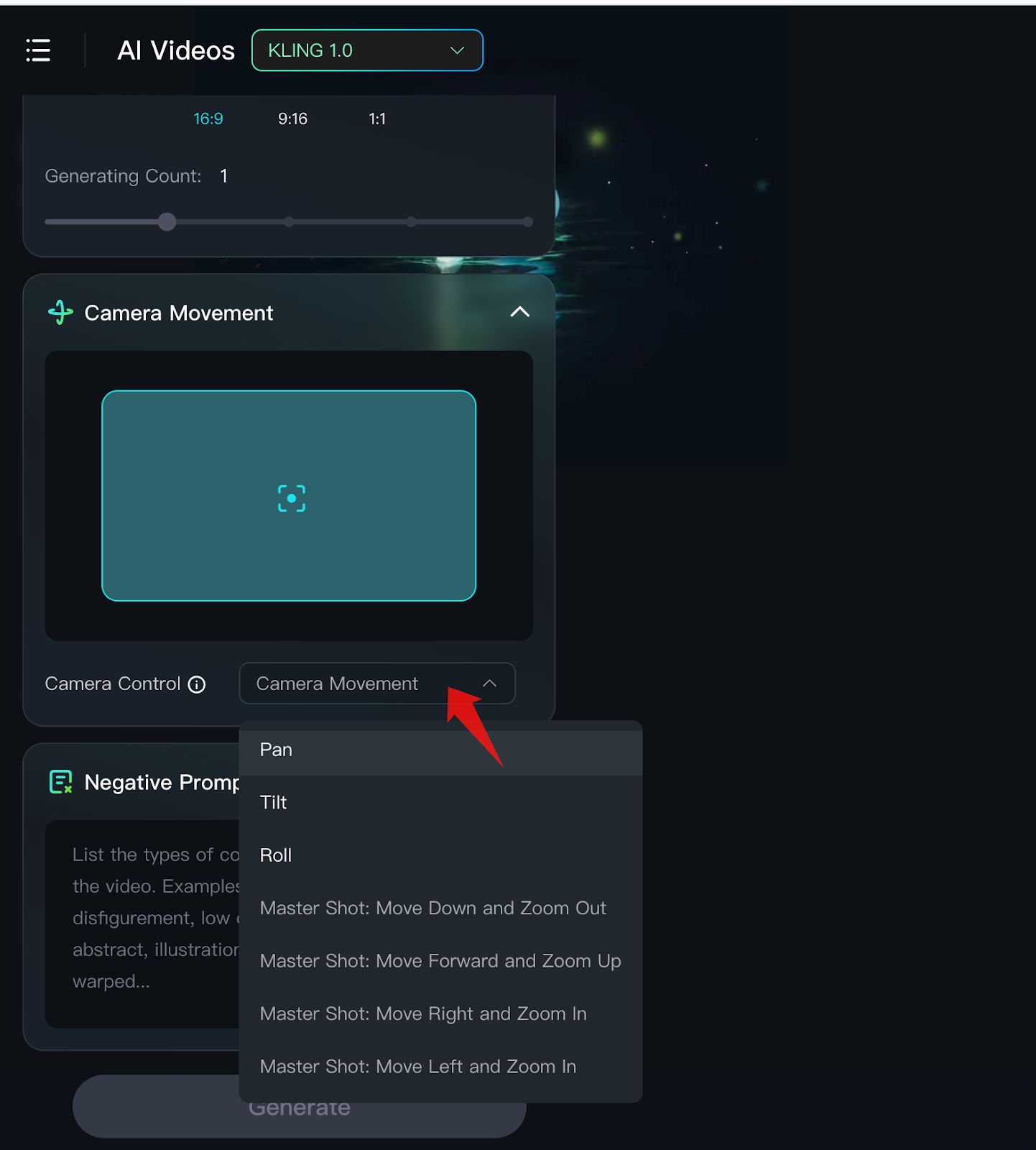
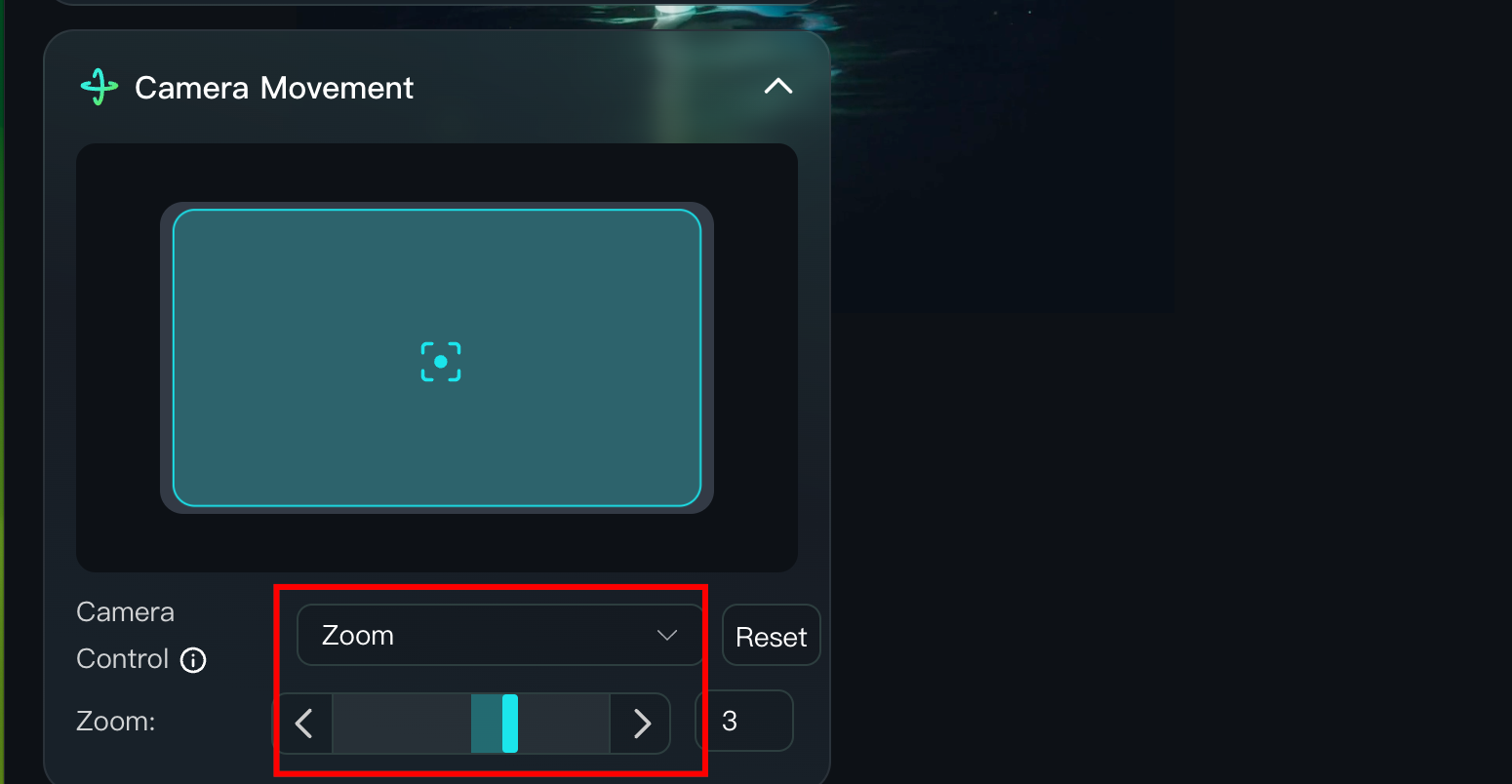
Step 5. Adjust the displacement parameters of the Camera Movement you selected. (Click the Reset button to reset all displacement parameters to 0 quickly.)
Step 6. Input the negative prompt if required.
Step 7. Hit the “Generate” button and wait patiently for your artistic video.
Troubleshooting: Kling AI Camera Movement Disabled or Unavailable
Some users have reported two main issues when using Kling AI Camera Movement: Camera Movement is either disabled or unavailable. This section will explain the causes of these issues and provide solutions.
Problem 1: Kling AI Camera Movement Disabled (KLING 1.5)
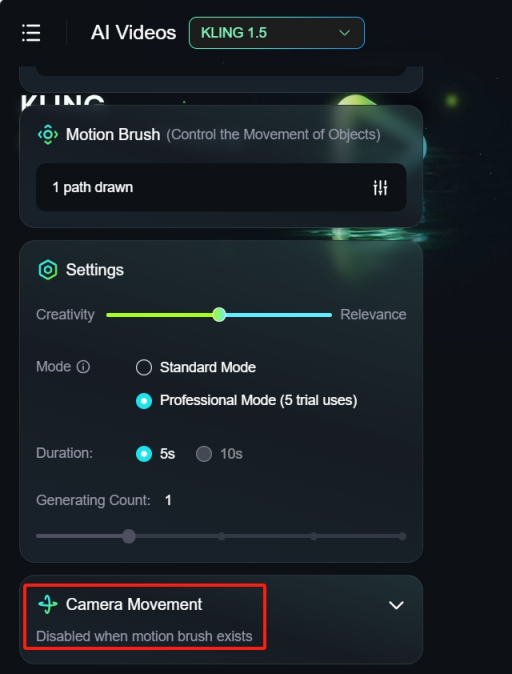
Reason: Functional Conflict - Camera Movement will be disabled when Motion Brush Exists or with an End Frame.
Solution: Avoid using Motion Brush or End Frame with this feature.
Problem 2: Kling AI Camera Movement Unavailable
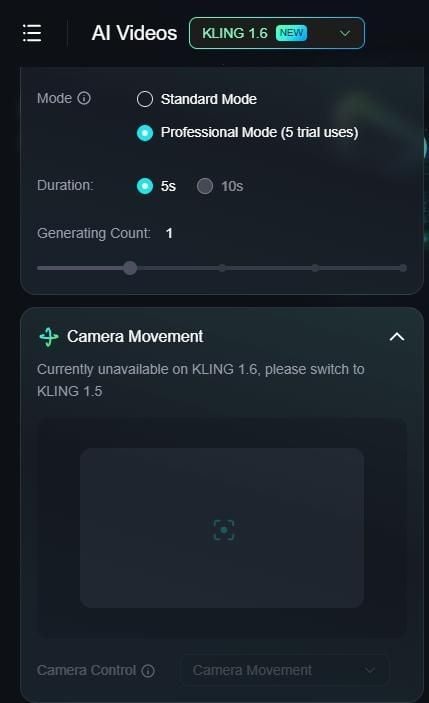
Reason: Camera Movement feature is only supported in Text to Video (KLING 1.0) and Image to Video’s Professional Mode (KLING 1.5 ).
Solution: Switch to the correct Kling AI Mode and follow the correct steps mentioned above.
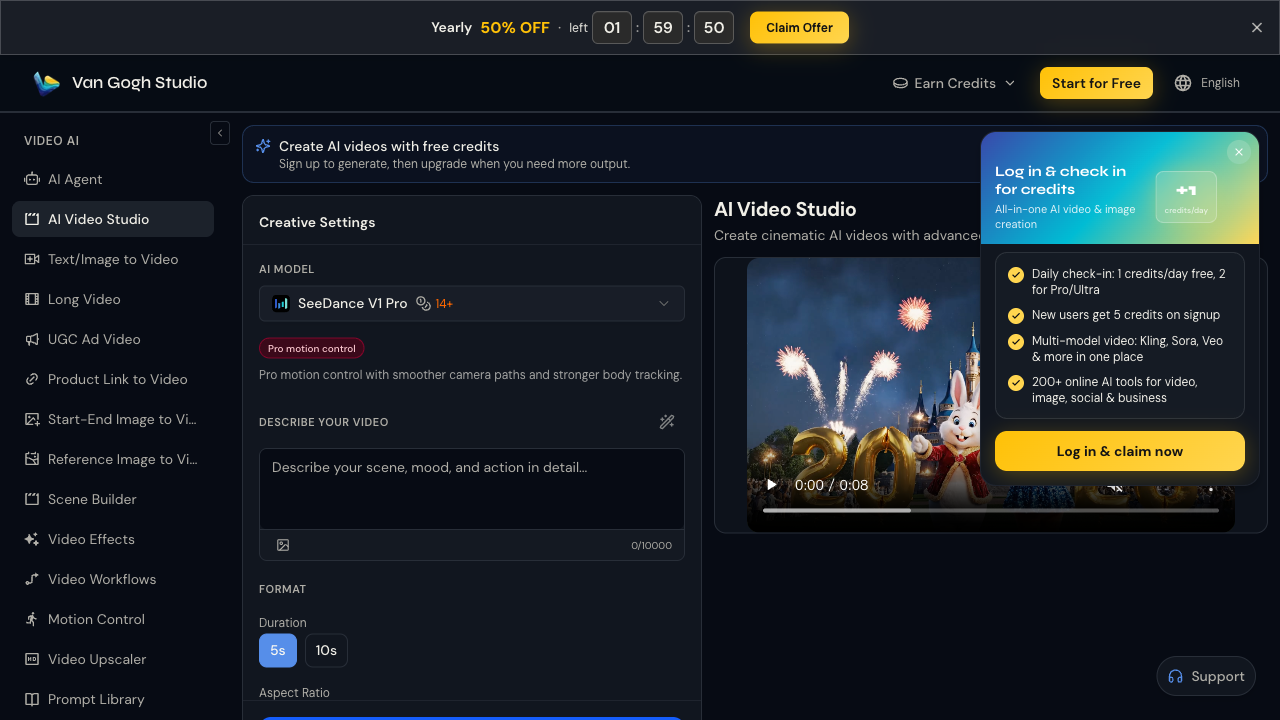
All-in-One AI Video Generator - Van Gogh Studio
For those seeking cost-effective, easy-to-use, multi-function, professional, attractive video generators, Van Gogh Studio is a fantastic choice.
This ultimate all-in-one AI video generator makes using more than one AI video model on one platform possible, including Kling AI (1.0, 1.5, 1.6), Runway, Hailuo AI, Luma AI, etc.
If you want more flexibility than a single Kling workflow, try Van Gogh Studio. You can experiment with Camera Movement-style control across multiple models, then finish clips with templates, upscalers, and Agent workflows.
Conclusion
The Kling AI Camera Movement is an innovative and eye-catching feature for AI video generation, providing creators with extra freedom to explore their creativity and produce high-quality videos with ease.
Go and create your unique videos with the Kling AI Camera Movement feature now!
For a multi-model alternative with Kling access, try Van Gogh Studio.
Create AI videos free
Try Van Gogh Studio free — text-to-video, image-to-video, and 300+ models in one place. Free credits on signup, no credit card required.
Try Free Video Generator


