

With Van Gogh Studio’s Explode it effect, you can turn any clear photo into a safe, scroll-stopping “blow up” clip—people, props, or objects bursting into particles for social pranks, meme edits, and viral Shorts. No timeline editor, no VFX suite: upload, set quality, and generate.
This guide walks through the full Van Gogh Studio workflow, what inputs work best, common mistakes to avoid, and how to pair Explode it with other Video Effects for a content series.
What Is the AI Explode Effect?
Explode it is a Video Effects template powered by image-to-video. Upload a JPG/PNG/WebP of the subject you want to “detonate,” and the effect animates a particle explosion while keeping the subject recognizable in the first frames.
Use it when you want a punchy 5-second payoff: product “destruction” comedy, birthday pranks, holiday ornaments “going nuclear,” or before/after style transitions into another effect (for example melt or inflate).

How to Use Explode it on Van Gogh Studio
Step 1: Open the Explode it Effect Page
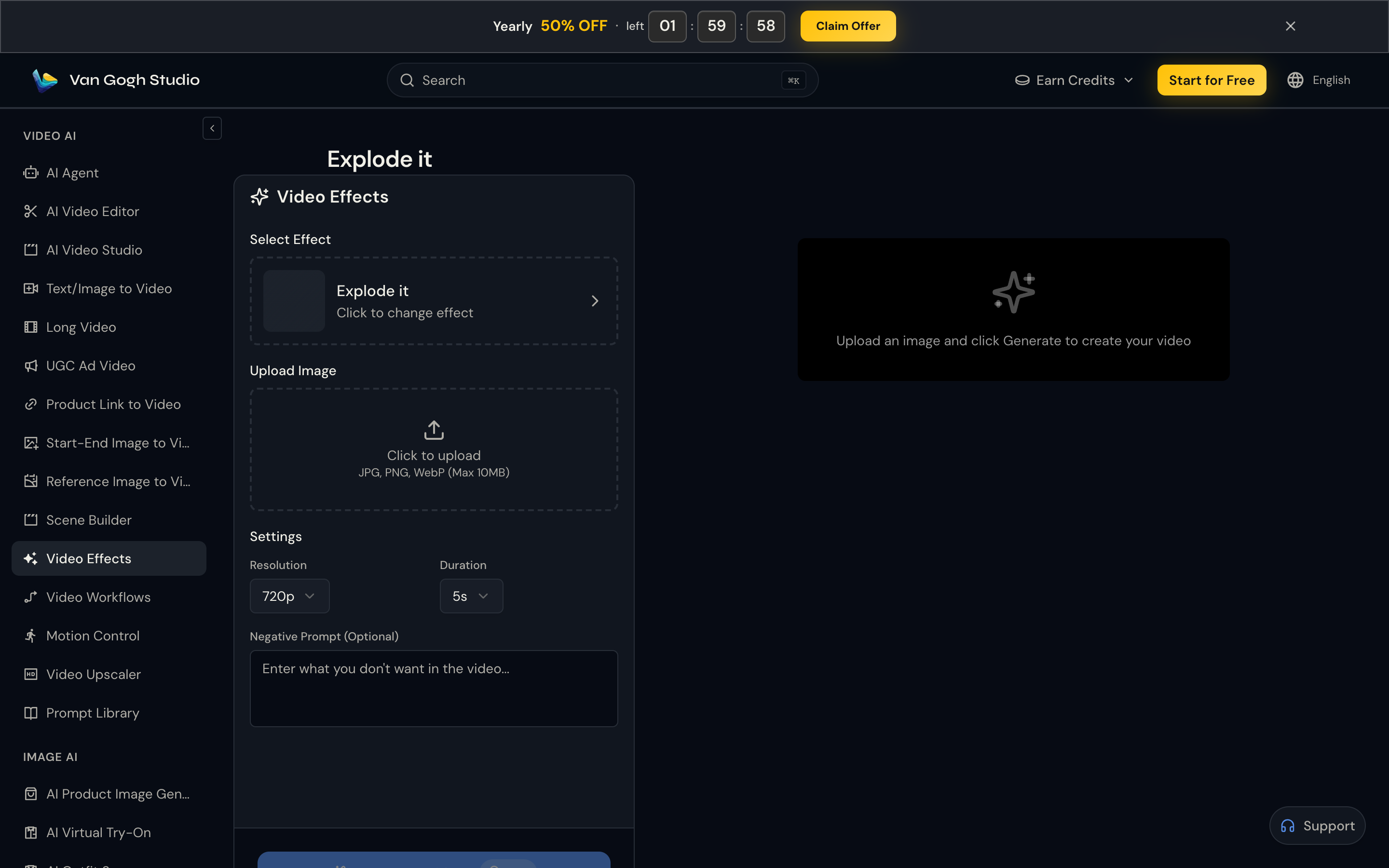
Go to Explode it (or open Video Effects, search Explode, and select it). Confirm the effect is selected—use Click to change effect if you need another template.
Step 2: Upload Your Photo
Click Upload Image (or drag and drop). Accepted: JPG, PNG, WebP · max 10MB. Use a high-quality shot with the subject clearly visible and centered.
Best inputs:
- Sharp subject filling most of the frame (portrait, product, or object)
- Clean or simple background so particles read clearly
- Even lighting—avoid heavy motion blur or extreme crop of tiny subjects
Step 3: Set Resolution, Duration, and Optional Negative Prompt
The motion is built into the template—you mainly control output quality:
| Setting | Recommended starting point | When to change it |
|---|---|---|
| Resolution | 720p | Bump for YouTube embeds or sharper product shots |
| Duration | 5s | Keep short for Reels/TikTok hooks; longer only if you need a slower build |
| Negative prompt | blurry, low quality, extra limbs, watermark | Add style blockers if the clip looks muddy or cartoonish |
Step 4: Generate and Download
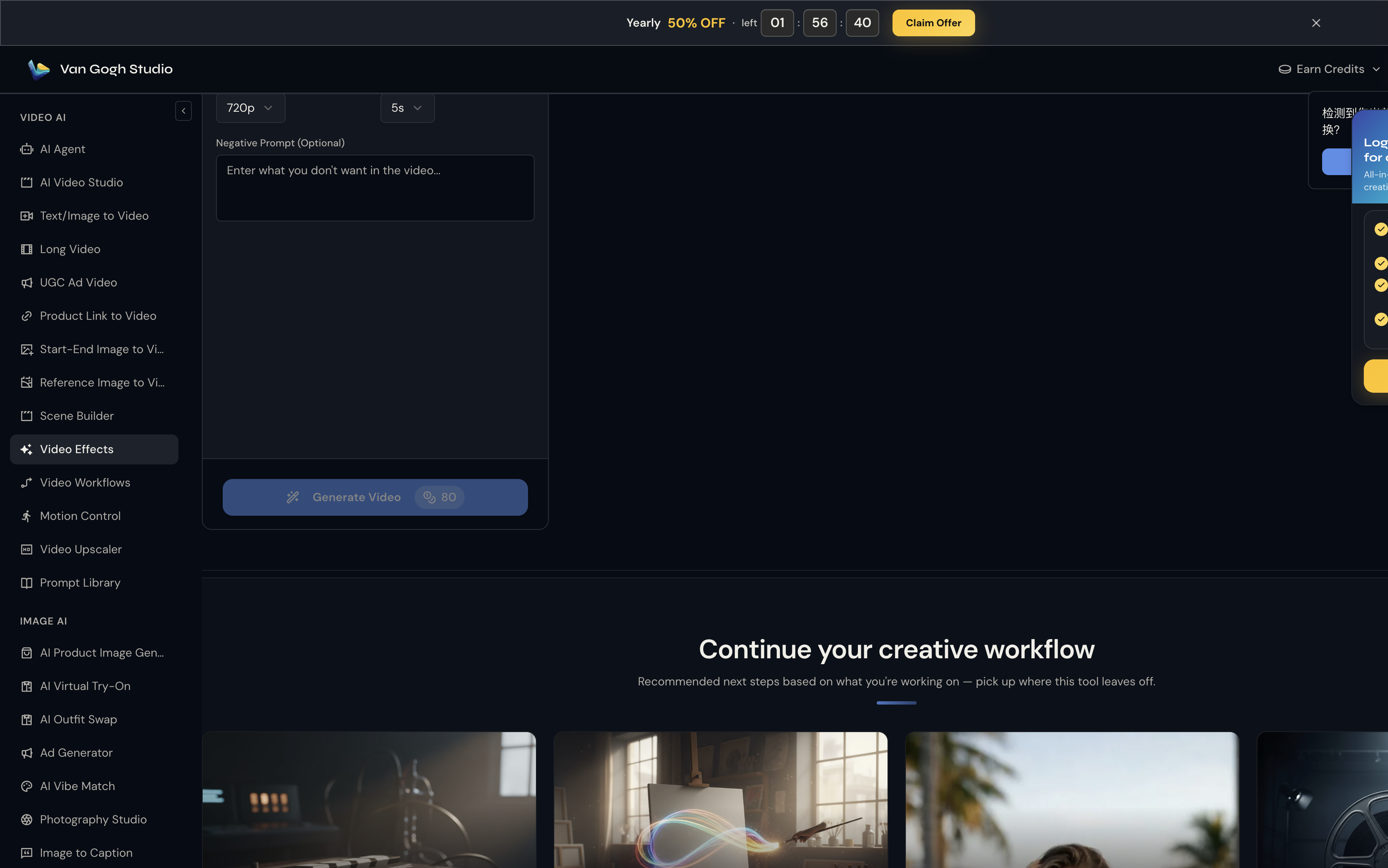
Click Generate Video, preview on the right, then download the MP4. Iterate with a different photo or negative prompt if you want another take.
Tips for Stronger Explode Clips
- Lead with recognition. Viewers should identify the subject before the burst—choose photos where the face or product logo is obvious in the first second.
- One subject per shot. Busy group photos confuse the model; isolate the hero object.
- Match platform ratio later. Generate a clean master, then crop or reframe in your editor if needed—or generate again after adjusting any aspect options available on the page.
- Series thinking. Shoot a “explode → melt → inflate” trilogy with the same photo for higher watch-through on Shorts.
- Sound sells it. Pair the download with a crisp boom or glass shatter SFX in CapCut/Premiere for higher completion.
Common Mistakes
- Uploading tiny subjects lost in busy backgrounds
- Using heavily compressed screenshots instead of original photos
- Over-writing negative prompts that fight the template look
- Expecting custom choreography—Explode it is a fixed physics template; for freeform blasts use Text/Image to Video
Related Effects and Tools
- Melt it — melt-away physics
- Video Effects — full template library
- Text/Image to Video — custom explosion scenes from a freeform prompt
- AI Video Studio — broader generation workspace
- AI Agent — idea-to-structured video when you need more than a single effect clip
Final Word
Open Explode it, upload a clear photo, generate, and share. Free credits on signup at Van Gogh Studio.
FAQs
Do I need video editing experience to use Explode it?
No. Explode it is a one-click Video Effects template: upload an image, set resolution/duration, and generate.
What file types work for Explode it?
JPG, PNG, and WebP up to 10MB. Clear, centered subjects produce the cleanest particle bursts.
Can I control how the explosion looks?
The core motion is template-driven. Use resolution, duration, and an optional negative prompt to steer quality; for fully custom blasts, switch to Text/Image to Video.
Is Explode it free to try?
Van Gogh Studio offers free credits on signup so you can test Explode it and other Video Effects before upgrading.
Create AI videos free
Try Van Gogh Studio free — text-to-video, image-to-video, and 300+ models in one place. Free credits on signup, no credit card required.
Try Free Video Generator


