

Studio shoots, long edit cycles, and delayed launches make it hard to keep product demos fresh. Audiences decide in seconds—waiting weeks for one clip is rarely worth it.
On Van Gogh Studio you can ship a publish-ready product demo in minutes: upload a product still into UGC Ad Video, paste a product URL into Product Link to Video, or describe the full brief in AI Agent.
Quick Verdict
For winning product demos, start with UGC Ad Video: upload a clear product image, pick a model, and prompt a creator-style demo scene. Prefer ads pulled from a live product page? Use Product Link to Video to scrape, script, pick an avatar, and generate. Need iterative direction without a timeline editor? Use AI Agent.
Tips on How To Make a Winning Product Demo that Sells
High-converting demos nail value and delivery. Keep these in mind before you generate:
- Focus on value — show how the product solves a pain, not a feature laundry list
- Know the audience — tailor the hook and language to the buyer’s top problems
- Tell a short story — put the customer at the center; the product is the solution
- Hook in the first seconds — lead with the most compelling benefit before anything else
Making Product Demos with Van Gogh Studio: A Step-by-Step Guide
Step 1: Open UGC Ad Video and Upload Your Product Image
Go to UGC Ad Video (sidebar VIDEO AI → UGC Ad Video). Under Upload image to start, drop a product packshot or in-hand photo (or paste an image URL). Clear product framing works best for demo-style clips.
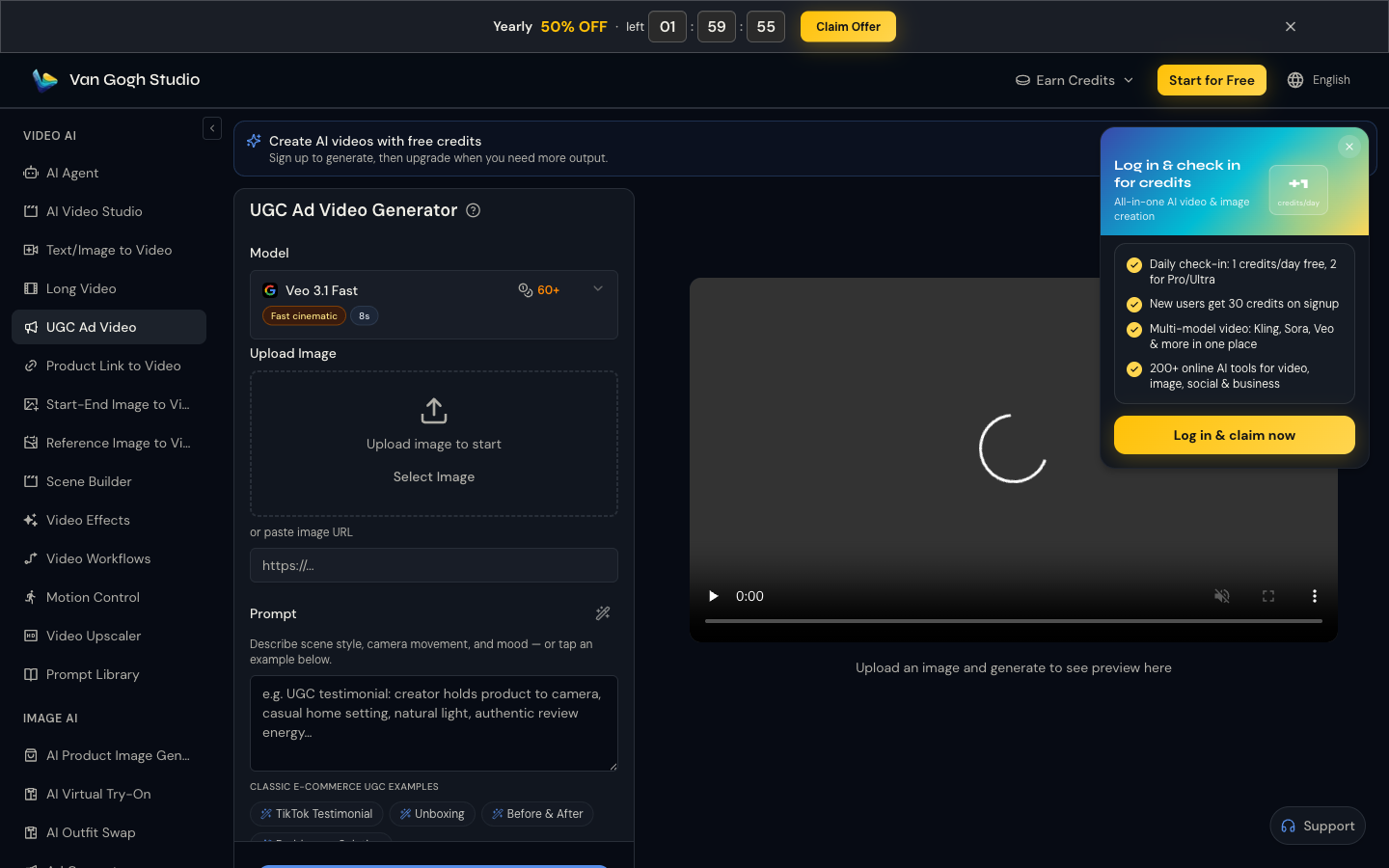
Step 2: Choose a Model and Write a Detailed Demo Prompt
Select a model (for example Veo 3.1 Fast for quick cinematic clips). In the prompt box, describe visual style, presenter energy, setting, actions, and the value message—treat it like a short script.
Example: UGC product demo: creator holds a compact blender to camera in a bright kitchen, pours fruit, blends, tastes the smoothie, natural light, authentic review energy, vertical 9:16.
Use quick tags such as TikTok Testimonial, Unboxing, or Before & After when they match your angle.
Step 3: Prefer a Product URL? Use Product Link to Video
If you already have a product or landing page live, open Product Link to Video. Paste the URL, click Scrape & Review Content, then follow URL → Review → Settings → Scripts → Avatar → Generation → Result. AI drafts short-form scripts and renders a vertical demo with an avatar.
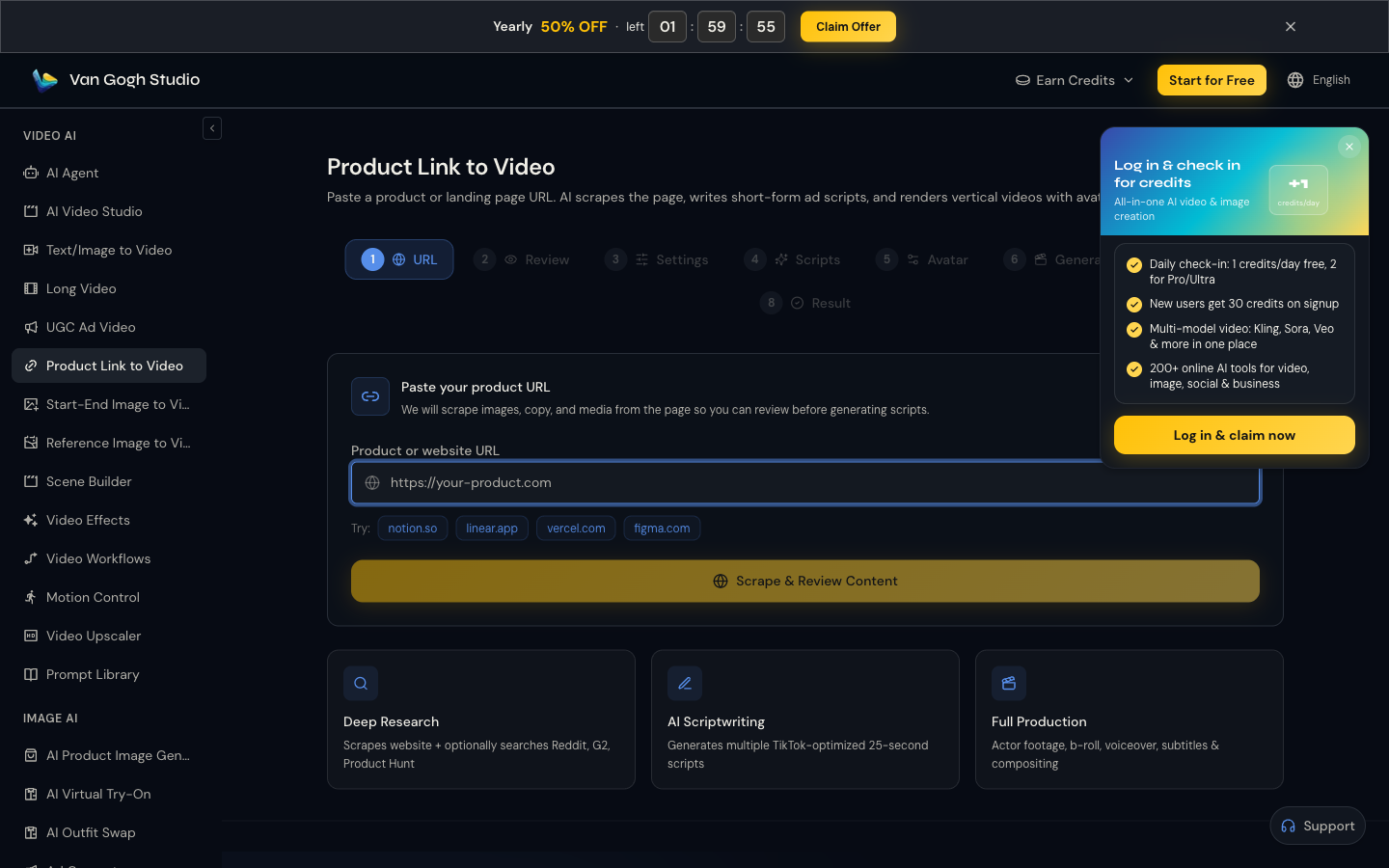
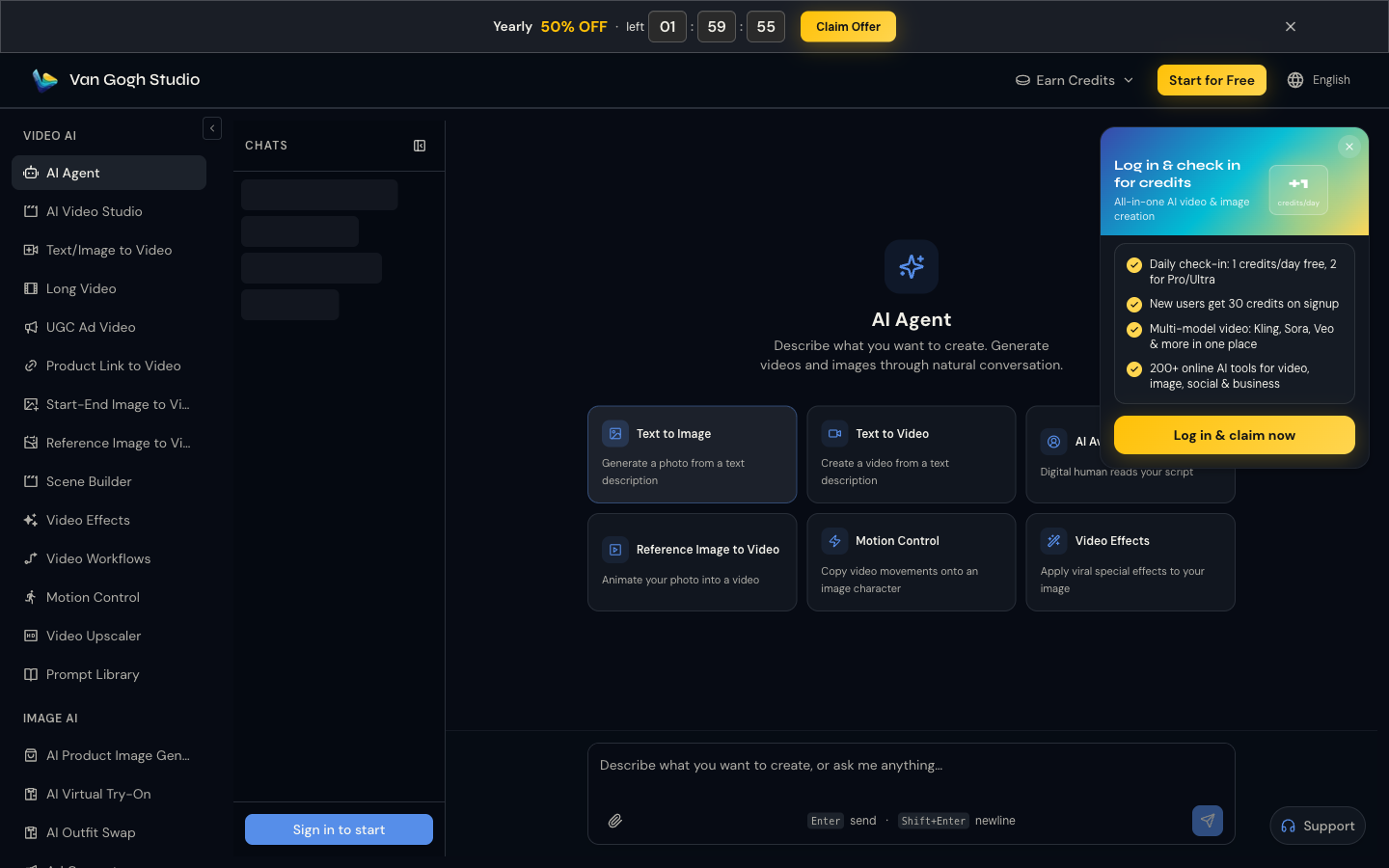
Step 4: Refine with AI Agent (Optional) and Download
For chat-driven direction—extra references, stronger hooks, or a different CTA—open AI Agent, describe the demo you want, and iterate without manual editing. When the clip looks right, preview and download for ads or organic posts.
Popular Use Cases for AI Product Demos
- Multi-language localization — regenerate demos with native-language scripts and voiceovers for new markets
- Personalized walkthroughs — tailor messaging to a segment without a new shoot
- Training & onboarding — short visual guides for how a product works
- E-commerce showcases — pair listings on Shopify or landing pages with benefit-led video
Related Van Gogh Studio Tools
- UGC Ad Video — image + prompt creator-style demos
- Product Link to Video — URL → scrape → script → avatar ad
- AI Agent — conversational, publish-ready workflows
- AI Avatar — talking-head presenters with lip-sync
- Text/Image to Video — custom short scenes beyond UGC templates
- Long Video — multi-scene narratives when one clip is not enough
Conclusion
You do not need a full production team for product demos. Open UGC Ad Video with a product still, or paste a URL into Product Link to Video, then download a campaign-ready clip. Start free on Van Gogh Studio and ship the next demo in minutes—not weeks.
Create AI videos free
Try Van Gogh Studio free — text-to-video, image-to-video, and 300+ models in one place. Free credits on signup, no credit card required.
Try Free Video Generator


