

Ever had a video that was just too short?It's frustrating when you require greater footage, but reshooting isn't an option. The solid news is that you can extend video easily using Runway. This AI-powered tool creates extra frames to create your video longer although keeping it smooth and natural.
Keep reading as we walk you through how to extend video using Runway. By the end, you'll know exactly what to do.
How to Extend a Video in Runway?
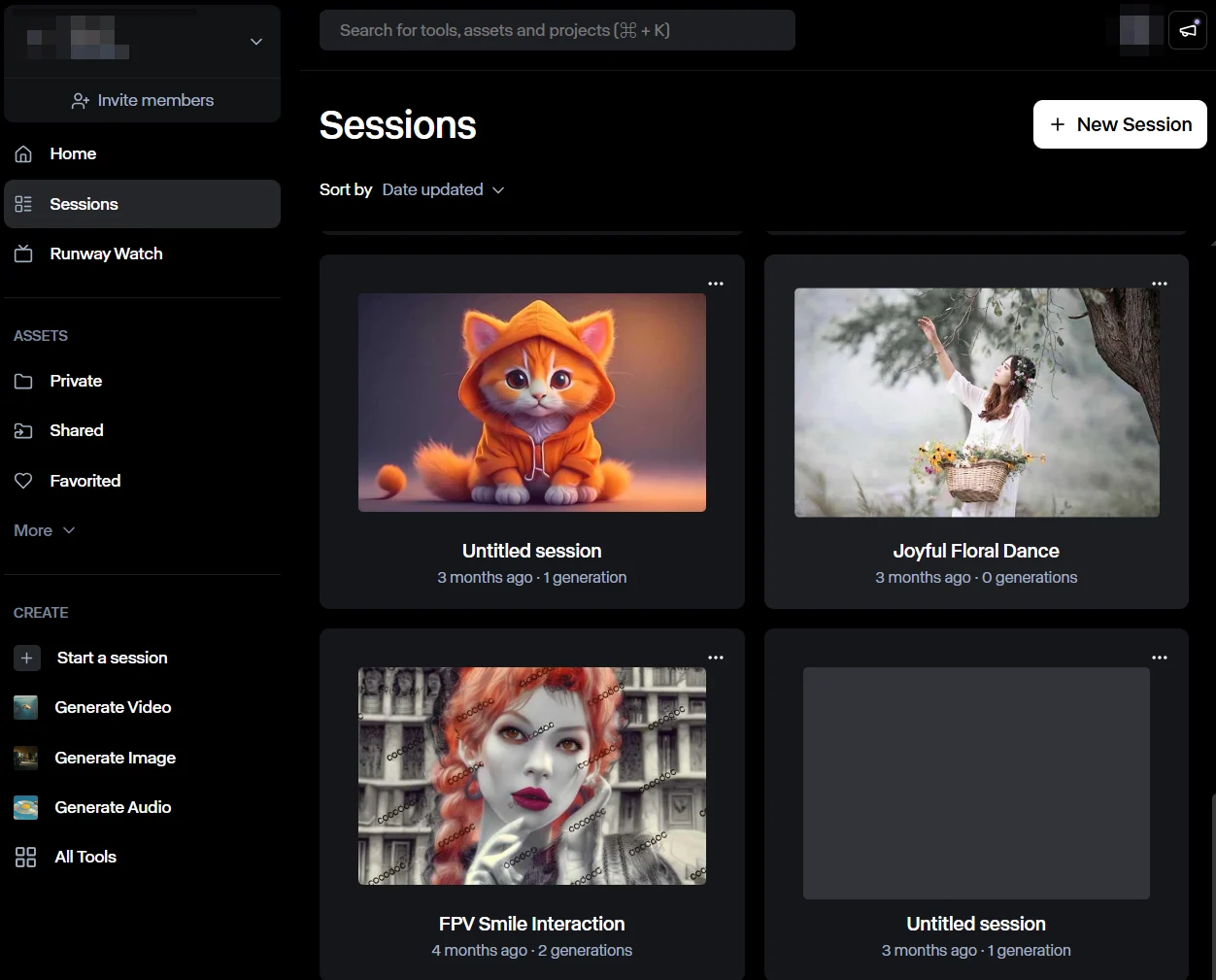
Here's exactly how to extend a video in Runway, step by step:
Step 1: Open Runway and Select a Video to Extend
First, head over to Runway's official website. Since the feature to extend a video is only available for videos generated by Runway, you should either select one from your existing sessions or create a new video to utilize this function.
Step 2: Click the Extend Button
Now that you've selected your video, click the Extend button to begin the process.
For example, Gen-3 Alpha lets you pick between 5-second or 10-second extensions. Runway’s Extend feature uses the same model as your original video. And you will get a choice of how long you want to extend the video.
Step 3: Add a Prompt to Guide the Extension
Runway gives you the option to extend your video with or without a prompt. If you don't add one, Runway will try to continue the scene on its own, using the last frame as a reference. This works fine in some cases, but if you want greater control, adding a plain and detailed text prompt is the way to go.
For example, for the video mentioned above, you can input a text prompt like:
Step 4: Extend and Download the Video
Once your prompt is set (or if you decide to skip it), click Extend to let Runway generate the extended video.
After extension, take a moment to review the final output. If you are happy with the final result, just download the video to your own device and share it.here:
Why Should You Extend a Video?
Here are the potential reasons why you should extend a video:
- build Storytelling Stronger – A few extra seconds can add emotion, depth, and impact.
- Smooth-Out Transitions – Instead of jumpy cuts, extending clips helps scenes flow naturally.
- Fill In Missing Moments – If a shot feels too short, extending it can fill in missing moments without needing a whole reshoot.
- Extend Slow-Motion Effects – If you're emphasizing a moment, extra time makes it additional dramatic.
- Adjust for Platform Rules – Some platforms have minimum video length requirements, and extending a video can support meet them.
Conclusion
With Runway, you can create your video longer in just a few clicks without awkward jumps or choppy edits. Simply select a video and click on the Extend option. Extending a video doesn't have to be difficult.
Now, test extending the video yourself, and you'll see how Runway can save time and produce your content better. Happy editing!
Create Faster with Van Gogh Studio
When you are ready to turn these ideas into videos, try Van Gogh Studio — text-to-video, image-to-video, and editing in one place. Free credits on signup.
Create AI videos free
Try Van Gogh Studio free — text-to-video, image-to-video, and 300+ models in one place. Free credits on signup, no credit card required.
Try Free Video Generator


