

Family videos are the bridge between personal memories and shareable social content. From reunions and quiet afternoons at home to milestone celebrations, AI can turn a written idea into a polished clip without a camera crew.
This guide shows how to capture special family moments with Van Gogh Studio—using Text/Image to Video for short clips and Long Video when you need a multi-scene story.
What is an AI Family Video?
An AI family video is a digital recreation or enhancement of a special family moment. You describe people, place, mood, and camera style in plain language; Van Gogh Studio turns that prompt into a short HD clip—or, with Long Video, into a multi-scene family story with consistent characters.
How to Create Family Videos with AI
Step 1: Open Text/Image to Video and Write Your Prompt
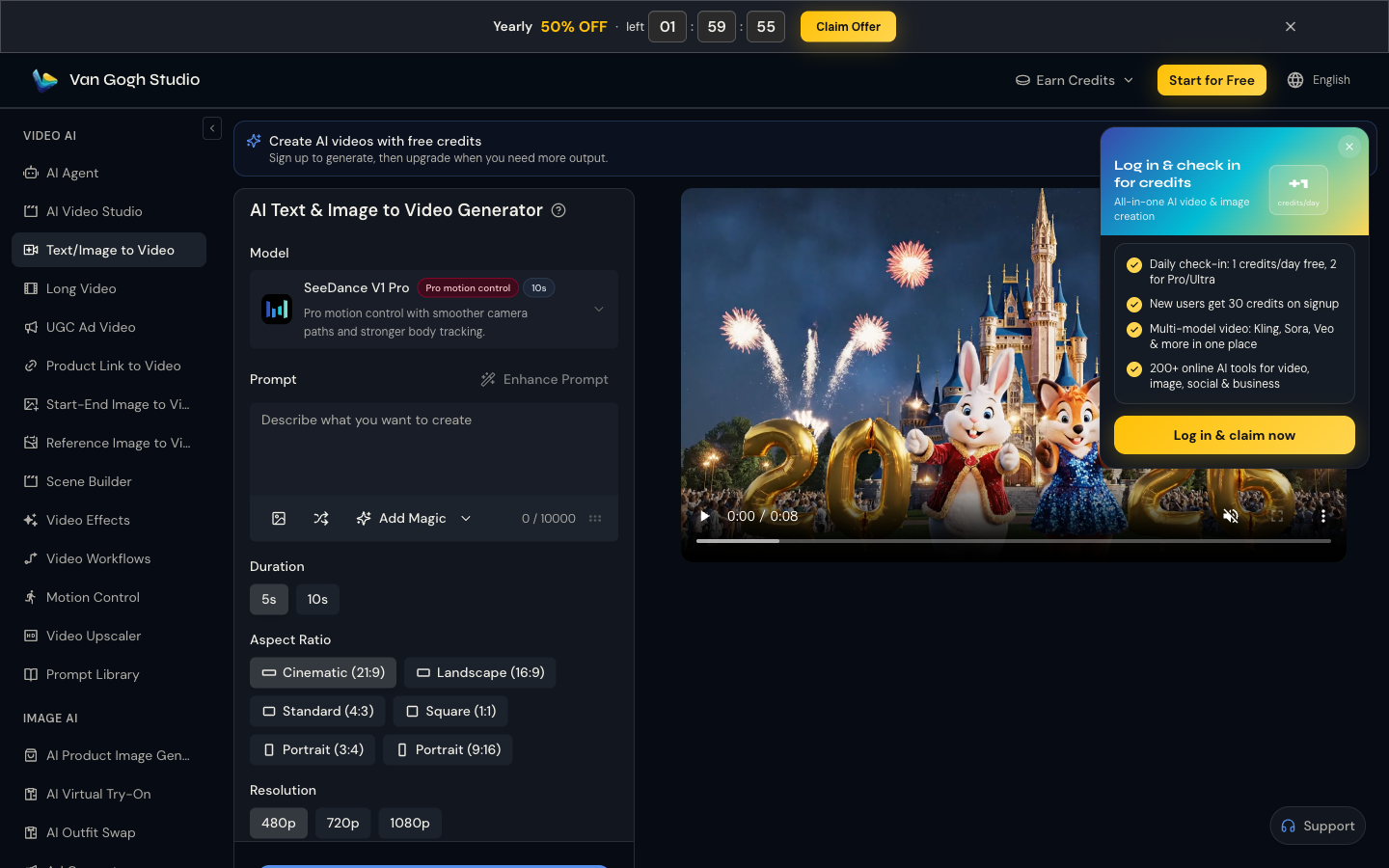
Go to AI Text & Image to Video (sidebar: VIDEO AI → Text/Image to Video). Pick a model such as SeeDance V1 Pro, then describe your scene in the prompt box (Describe what you want to create). Be specific about who is in the frame, what they are doing, the setting, lighting, and mood.
Example: Warm cinematic shot of grandparents and two kids baking cookies in a sunny kitchen, soft natural light, gentle camera push-in, photorealistic.
Use Enhance Prompt if you want the model to enrich your wording. Optionally tap the image icon to add a reference photo so faces and outfits stay closer to real family moments.
Step 2: Choose Duration, Aspect Ratio, and Resolution
Under the prompt, set Duration (5s or 10s), Aspect Ratio (for example Landscape 16:9 for YouTube or Portrait 9:16 for Reels/TikTok), and Resolution (480p, 720p, or 1080p)—the same controls shown in the screenshot above. Match the ratio to where you will share the clip so you do not need to crop later.
Step 3: Generate Your Family Clip
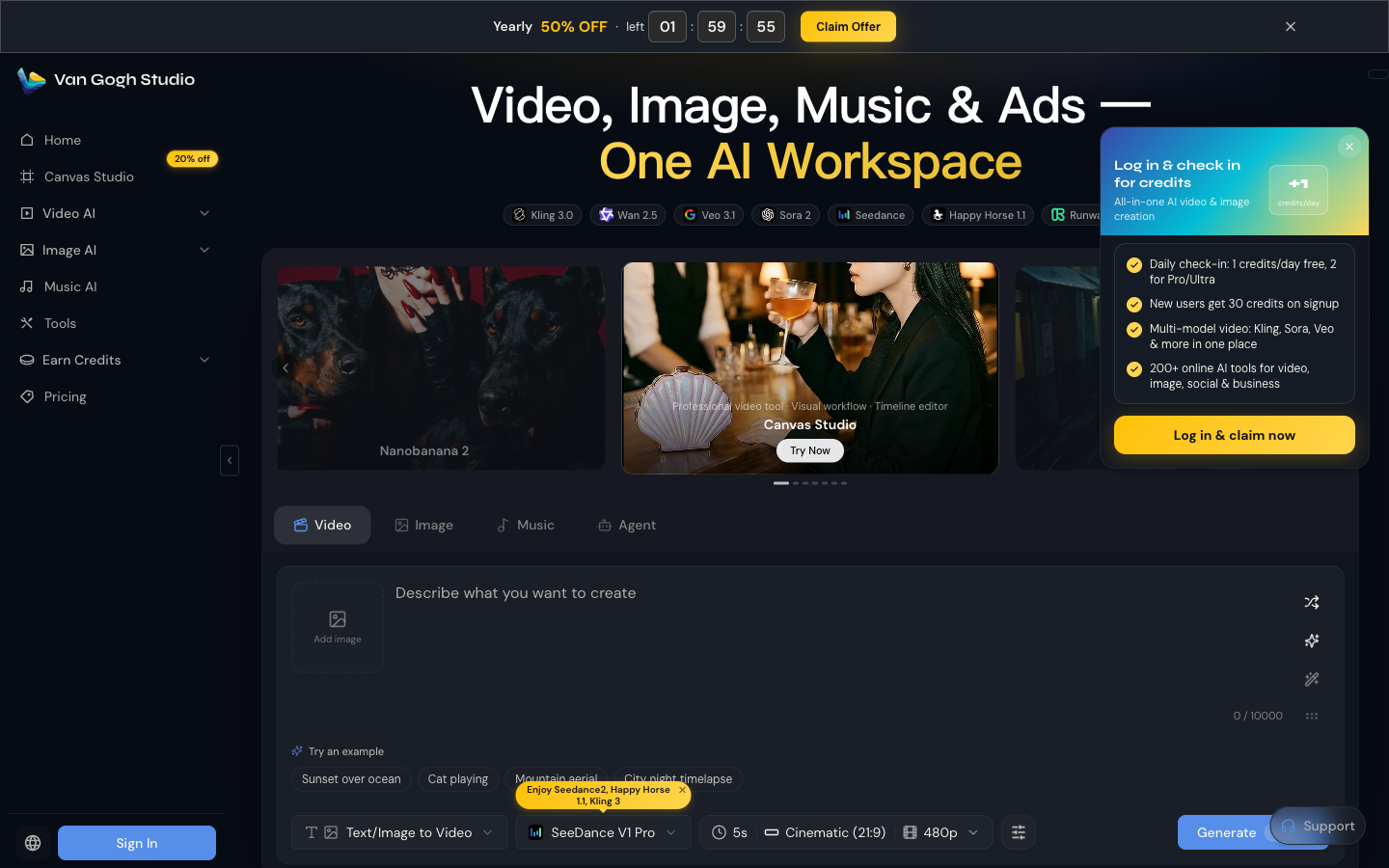
You can also start from the home workspace: open the Video tab, keep mode on Text/Image to Video, confirm model / duration / ratio / resolution on the bottom bar, then click the blue Generate button. Sign in when prompted to use credits, then download or share when the clip is ready.
Optional: Build a Longer Family Story with Long Video
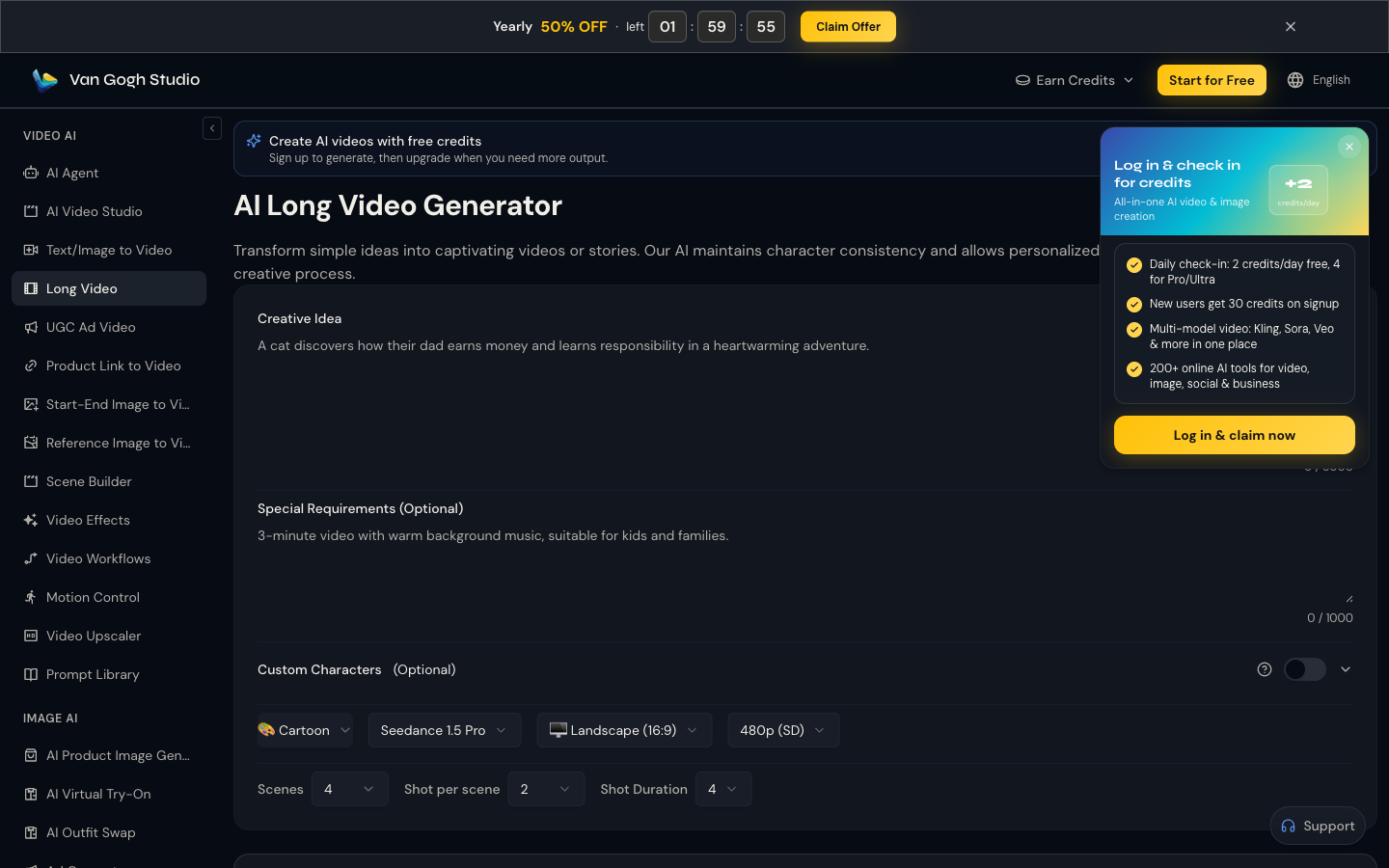
For a reunion montage, multi-scene birthday narrative, or kids’ adventure, open Long Video. Enter a Creative Idea (the story), optional Special Requirements (length, music, family-friendly tone), choose Style / Model / Aspect Ratio / Resolution, set scenes and shot duration, then generate. Long Video keeps character consistency across scenes—ideal when one 5–10s clip is not enough.
Why Create Family Videos with Van Gogh Studio?
Family moments work best when they look warm and believable. Van Gogh Studio lets you move from a simple prompt to a finished clip without filming, actors, or heavy editing. The same workspace also covers anniversary-style stories, short social clips, and longer narratives via Long Video—so one account covers life-event storytelling all year.
Final Thoughts
Capturing a special family moment no longer depends on perfect timing or a professional camera setup. Open Van Gogh Studio, describe the scene, generate, and share a video that feels personal and ready to post.
Create AI videos free
Try Van Gogh Studio free — text-to-video, image-to-video, and 300+ models in one place. Free credits on signup, no credit card required.
Try Free Video Generator


