

Kling AI is one of the strongest models for smooth motion and cinematic short clips. On Van Gogh Studio you can run Kling alongside other top video models in one workspace—no need to jump between separate Kling-only sites for everyday 3D animation work.
This guide shows how to create 3D animations with Kling AI on Van Gogh Studio using text-to-video and image-to-video.
Access Kling AI on Van Gogh Studio
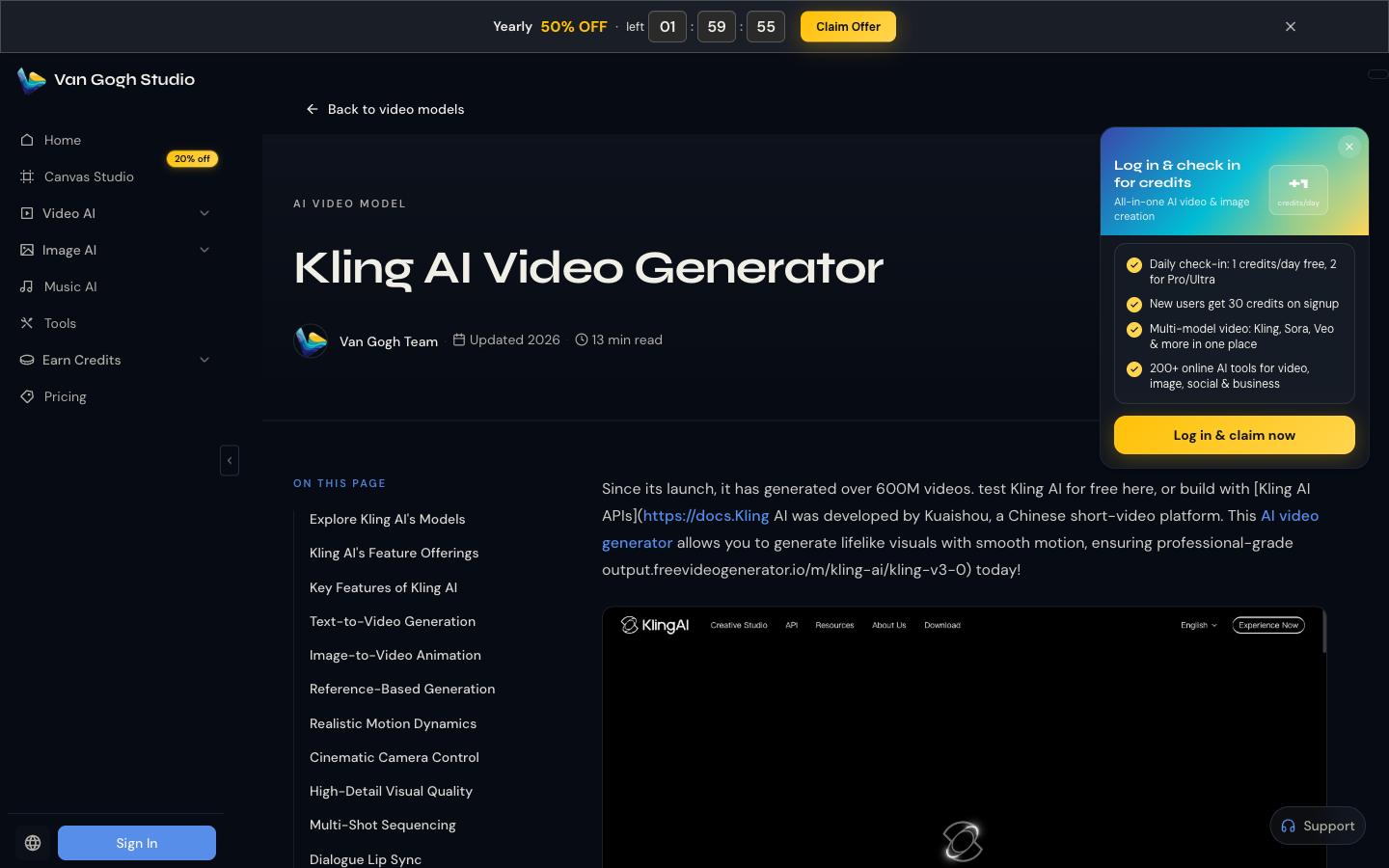
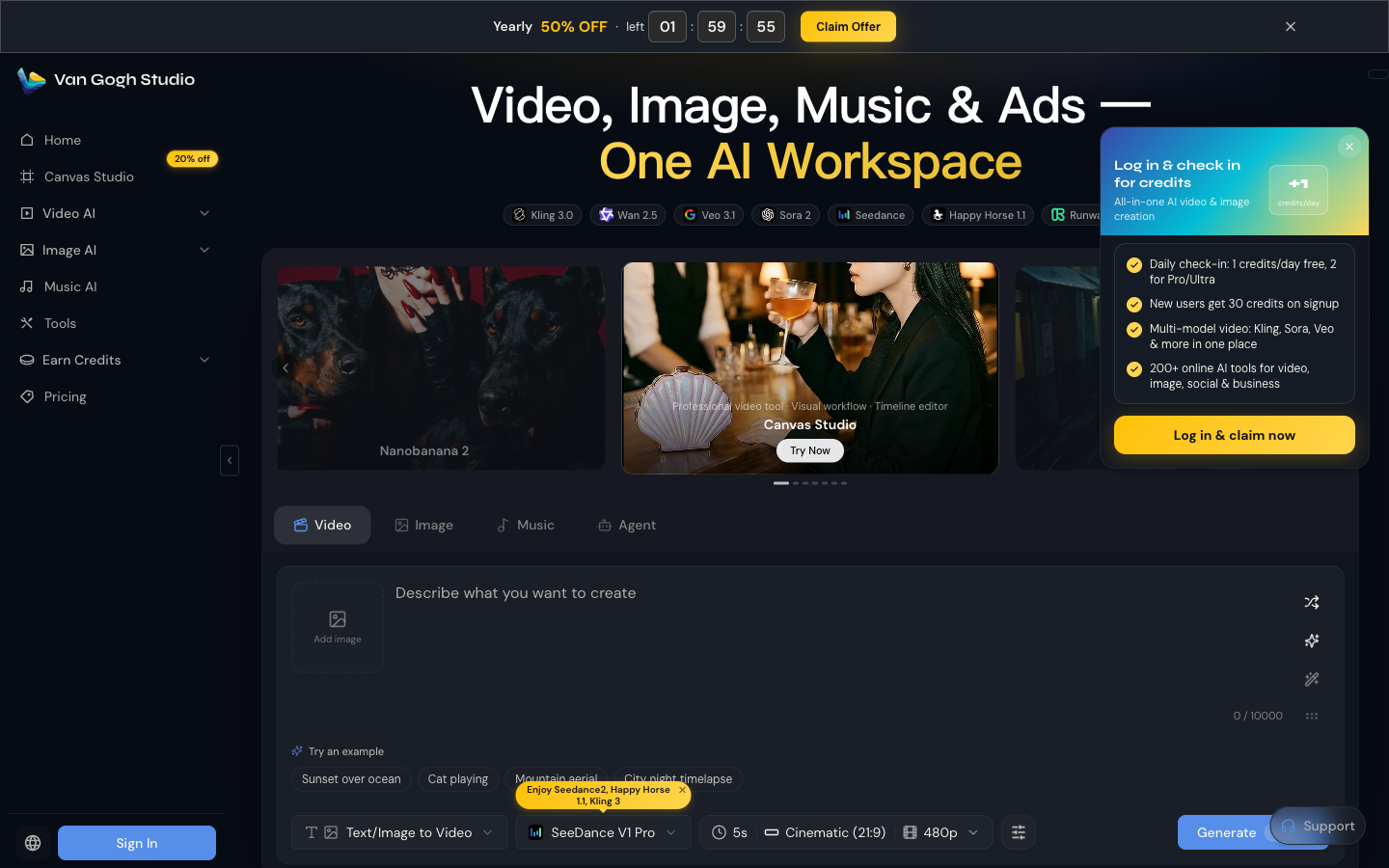
Open Van Gogh Studio. The home hero lists supported models including Kling 3.0. You can also read the model overview at Kling AI Video Generator, then create from the workspace rather than a separate third-party dashboard.
On the home Video tab (or Text/Image to Video), open the model picker and select a Kling option when available. The bottom bar also shows duration, aspect ratio, and resolution before you generate.
Create 3D Animations with Text-to-Video
Step 1: Open the Text/Image to Video workspace
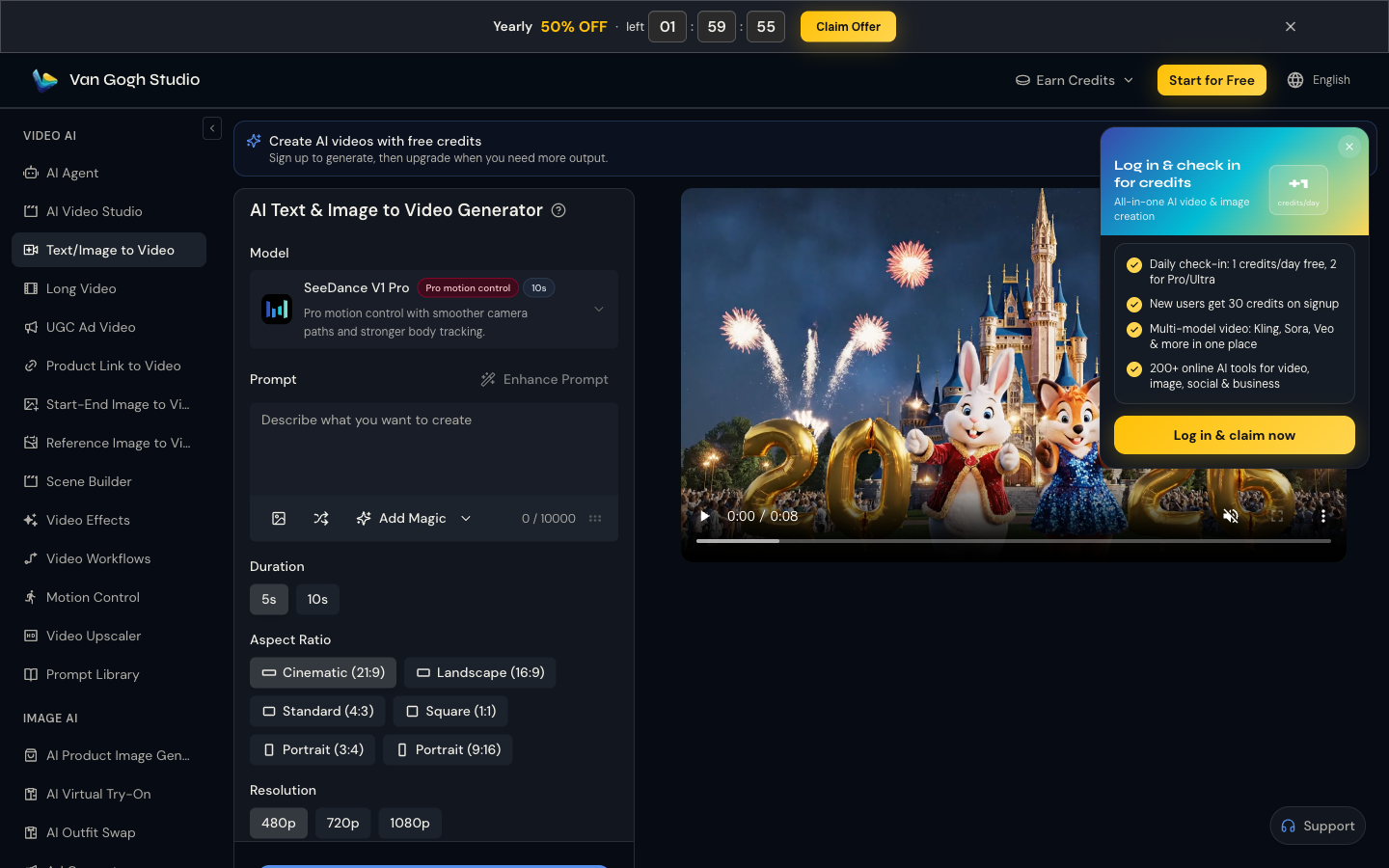
Go to AI Text & Image to Video (sidebar VIDEO AI → Text/Image to Video). This is the main prompt + settings panel with a live preview on the right.
Step 2: Select Kling and write a 3D-focused prompt
Choose a Kling model in the model dropdown. In the prompt box, clearly ask for a 3D / Pixar-style look and describe subject, motion, scene, camera, and lighting.
Prompt formula: [Subject] + [Motion] + [Scene] + [Camera] + [Lighting] + [3D / animation style]
Example: Pixar-style 3D animation of a cat sleeping under a coconut tree on a sunny beach, wide angle, gentle time-lapse shadows, soft key light, vibrant colors.
Step 3: Adjust duration, aspect ratio, and resolution
Set Duration (5s / 10s depending on model limits), Aspect Ratio (16:9, 9:16, 1:1, and more), and Resolution. Keep settings matched to your platform (YouTube vs TikTok) before you spend credits.
Step 4: Generate the video
Click Generate (on the dedicated page or the home bottom bar). Wait for the job to finish, preview the 3D clip, then download or iterate with a tighter prompt.
Create 3D Animations with Image-to-Video
Step 1: Upload a 3D still (or generate one first)
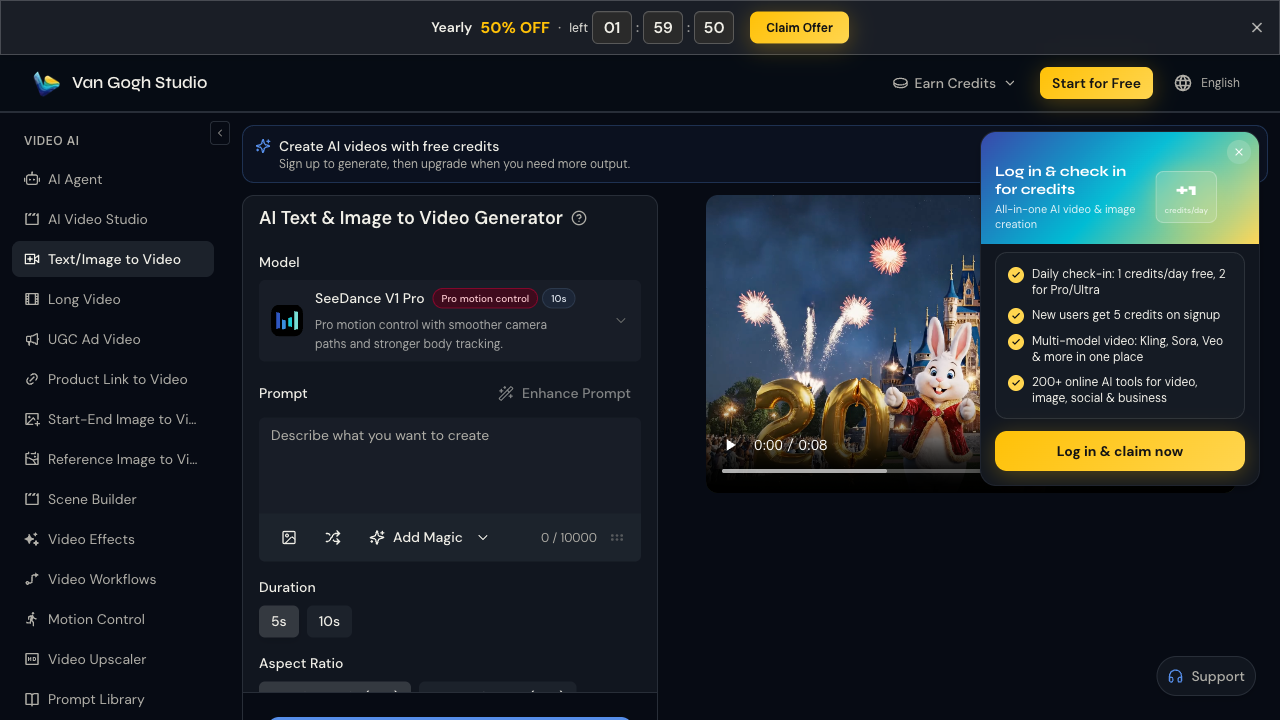
Open Image to Video or use Add image inside Text/Image to Video. Upload a clear 3D character or scene still. If you need a still first, generate it with Van Gogh’s AI image tools, then animate it.
Step 2: Add a motion prompt (optional but recommended)
Describe how the subject and background should move. Format: [Subject + Movement], [Background + Movement], [Camera].
Example: The character turns and waves slowly; background leaves sway; subtle dolly-in; keep 3D render style.
Step 3: Confirm Kling + settings, then generate
Select Kling when available, set duration / ratio / resolution, and click Generate. Review the result; regenerate with a clearer motion prompt if needed.
Best Tips for Quality 3D Animations
- Say “3D / Pixar / CGI” in the prompt so the model locks onto the look you want
- Be specific about camera and lighting — wide angle, orbit, soft key light, etc.
- Use high-resolution stills for image-to-video; soft or cropped inputs hurt motion quality
- Iterate — small prompt tweaks often beat starting over from scratch
- Stay in one workspace — Van Gogh Studio also offers Long Video and Agent if you later need multi-scene stories around the same character
Conclusion
You do not need a separate Kling-only workflow for everyday 3D animation clips. Open Van Gogh Studio, pick Kling, write a clear 3D prompt (or upload a still), set duration and ratio, and generate. For model details, see Kling AI on Van Gogh Studio; for creation, start at Text/Image to Video.
Create AI videos free
Try Van Gogh Studio free — text-to-video, image-to-video, and 300+ models in one place. Free credits on signup, no credit card required.
Try Free Video Generator


