

Are you dealing with the “Kling AI Failed to submit task, please try later" error? You're not alone. It's a common issue that happens due to a number of reasons.
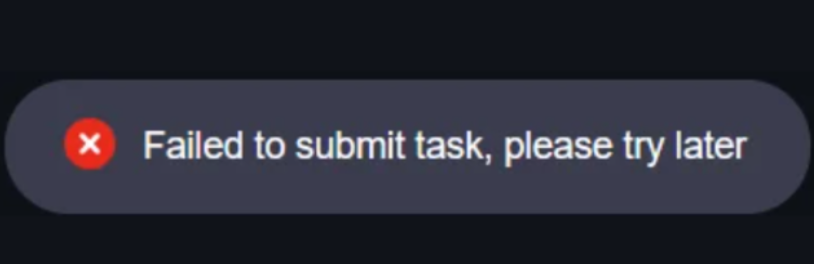
The good news is that fixing it isn’t as complicated as it seems. Keep reading to find out what’s causing it and how to solve it.
How to Fix This Issue?
If you encounter the "Failed to submit task, please try later" error in Kling AI, stay calm. Try these effective solutions:
Restart the Video Generation Process
When Kling AI shows a "Failed to submit task" error, start by restarting the video generation process to fix potential temporary glitches. Cancel the current task, re-upload your file (ensuring it meets specs: JPG/PNG, <10 MB, ≥300x300 pixels), and tweak settings like prompt or mode that might have triggered the issue.
Try During Off-Peak Hours
Kling AI can get bogged down during peak use hours, typically business hours when users flood the platform with tasks, causing slowdowns or failed submissions. For a smoother experience, try generating videos during off-peak times like early mornings, late nights, or weekends when fewer people are active.
Check Internet Connection
Restart your router to refresh the internet connection or switch from Wi-Fi to a wired connection for better stability. Run a speed test online to check your online upload speed; if it’s low, Kling AI may struggle. A shaky internet connection often causes Kling AI’s “Failed to submit task” error.
Change Your Password
Changing your password can restore access and resolve the issue. If Kling AI flags your account for security issues, like unusual login activity or multiple failed attempts, it may block task submissions. Update it via your account settings to ensure smooth video generation.
Try a Different Browser
If Kling AI’s “Failed to submit task” error persists, try switching browsers. For instance, if Safari isn’t working, use Google Chrome or Mozilla Firefox to bypass potential browser-specific glitches and resume your video generation tasks.
Verify Payment Details
For Kling AI’s upgrade plans, outdated payment details—like an expired credit card or insufficient funds—can block task submissions. Verify your payment information in your account settings and check for any billing-related notifications from Kling AI to resolve the issue.
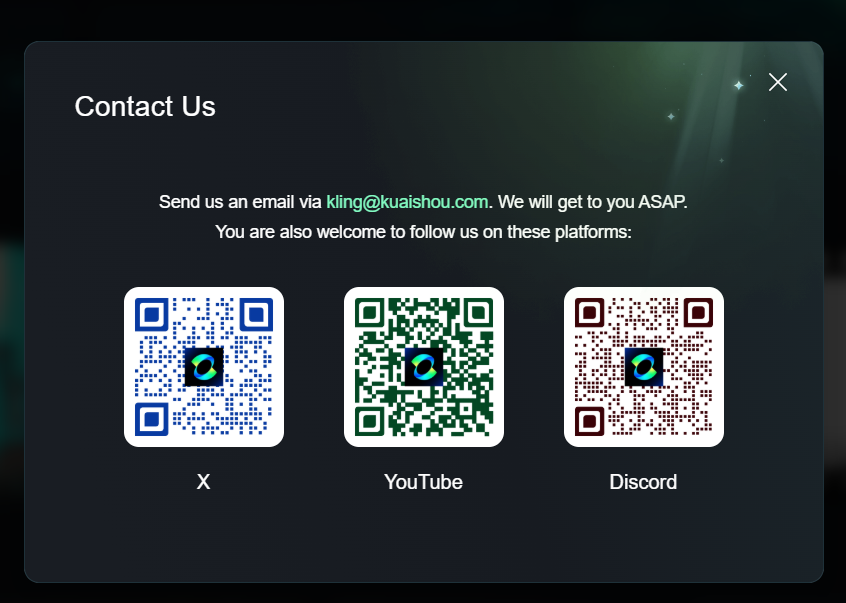
Contact Support
If all else fails, contact Kling AI’s support team for help. Send them an email and share specific details about the “Failed to submit task” error to ensure a quick resolution.
Van Gogh Studio: A Better Alternative for a Seamless Experience
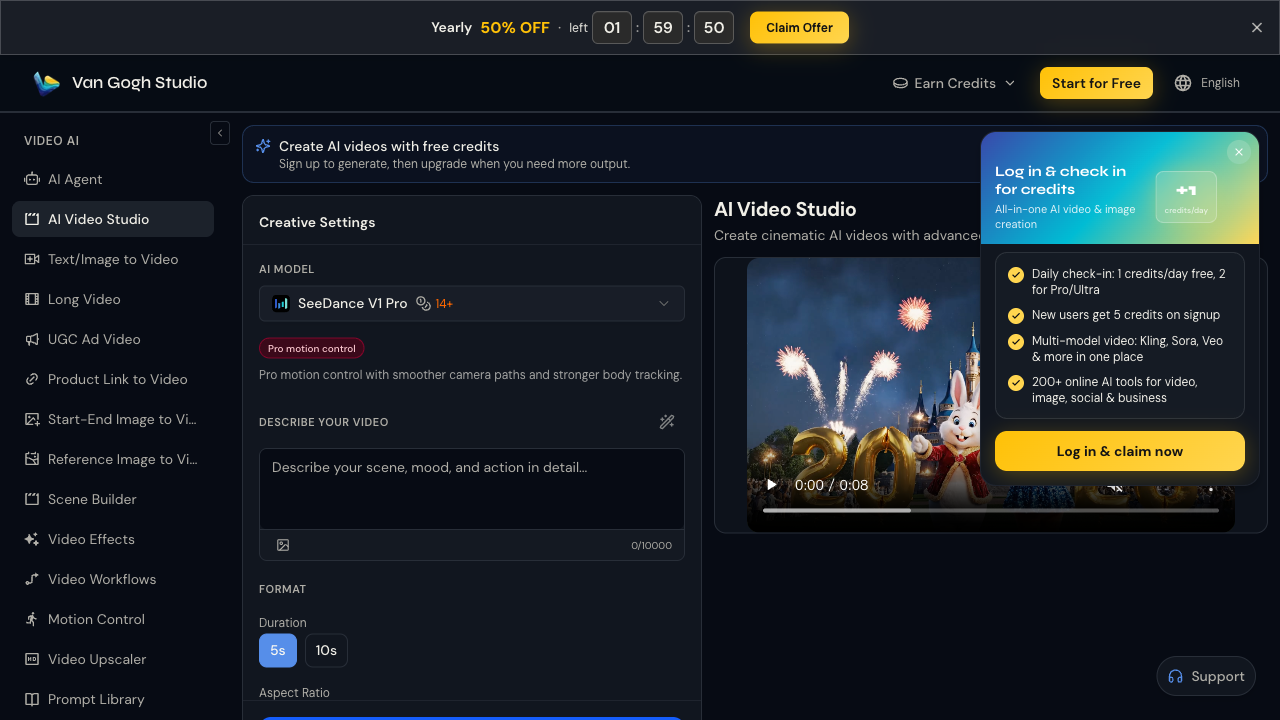
Frustrated with Kling AI’s unstable “Failed to submit task” errors? You should switch to Van Gogh Studio.
Van Gogh Studio supports different Kling AI generation models, and with its regular updates and solid maintenance, users encounter minimal submission issues using these models in Van Gogh Studio, ensuring a smooth video creation experience.
It also integrates other top models like Runway, Hailuo AI, PixVerse AI, and Vidu AI, plus Van Gogh Studio’s own model, giving users tons of creative options right in one place.
On top of that, Van Gogh Studio packs fun and interesting video effects for specific kinds of videos. This platform is indeed a perfect tool for those who are interested in AI video creation. And, there are still more great generation features such as image to video, consistent character video for you to try out.
Conclusion
Kling AI fails to submit tasks for several reasons, but by resorting to solutions discussed above, you can effectively solve them.
But if you want a hassle-free AI video generator that works seamlessly, Van Gogh Studio is the way to go, with rare submission issues due to its solid maintenance base.
Create AI videos free
Try Van Gogh Studio free — text-to-video, image-to-video, and 300+ models in one place. Free credits on signup, no credit card required.
Try Free Video Generator


