

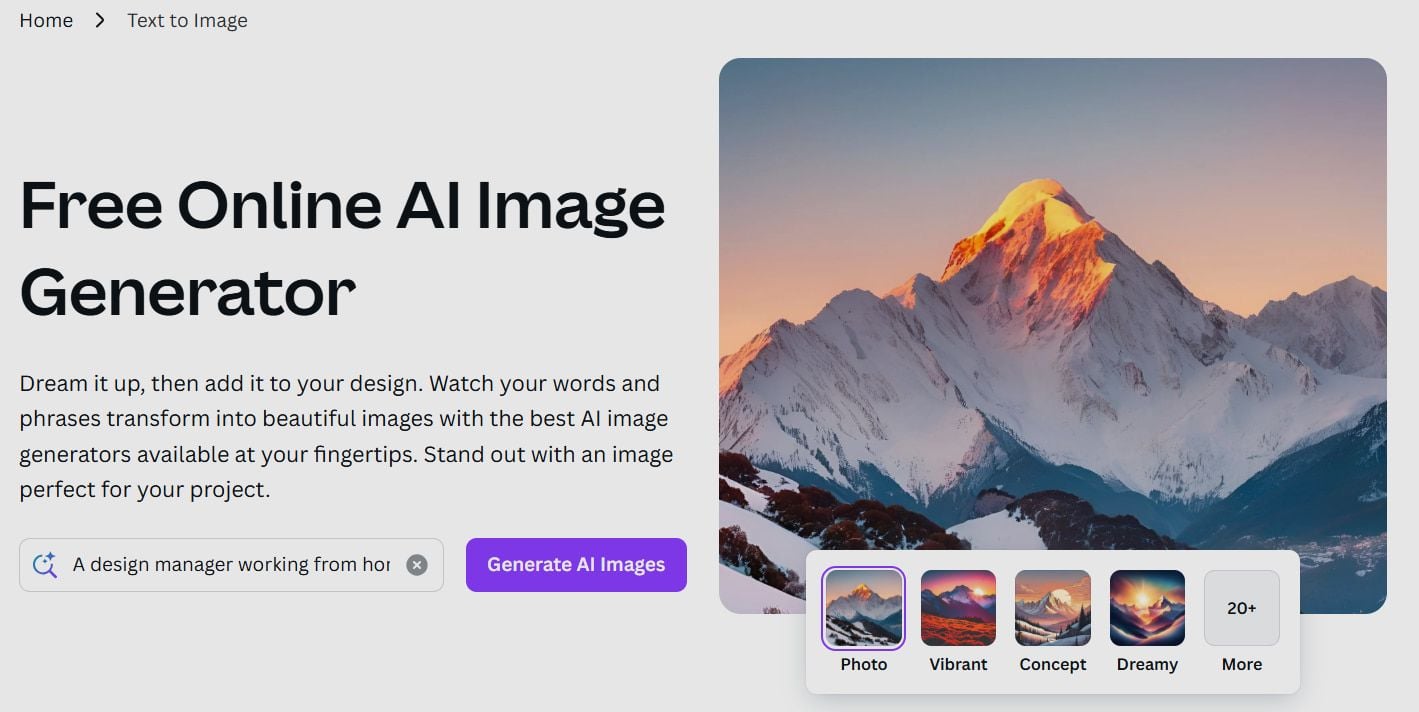
Honestly, when I first tried Canva’s AI Image Generator - Canva Magic Media, I wasn’t really sure what to expect.
After playing around with it for a few days, I have to say—it did make creating images easier, but not by a huge margin.
strongest of the images it spits out typically match what I told it and fit the vibe I was going for. Plus, it’s pretty quick and gives you four different styles to pick from, which is nice.
But here’s the catch: you don’t get much freedom to customize anything, so it feels kind of limited.
Also, the built-in editing tools don’t really play well with the AI-generated images. Sure, you can do basic stuff like add text, crop, or flip, but when it comes to extra advanced edits—like changing background elements—it regularly just doesn’t function.
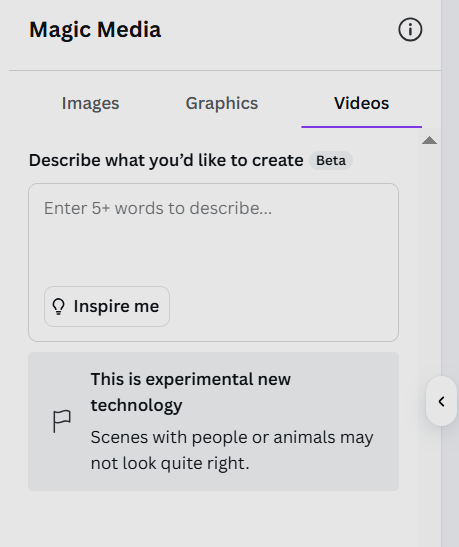
At the end of the day, Canva feels like a pretty basic AI image generator. It mainly just turns text into images, and the text-to-video feature? Yeah, that’s yet in the “experimental” phase and not really usable yet.
Compared to other AI tools, Canva’s AI image generator feels kind of behind the times and not quite up to speed with what’s possible nowadays.
Quick Verdict
Canva Magic Media is convenient if you already live in Canva. It is fine for quick graphics, but customization and AI-aware editing feel limited compared with dedicated image and video tools.
| Point | Take |
|---|---|
| Best for | Fast Canva-native graphics, simple social visuals, template-led design |
| Not best for | Deep prompt control, advanced AI editing, finished AI video workflows |
| Score | 6.4 / 10 |
| Better alternative | Van Gogh Studio |
Pros and Cons
Pros
- Easy if you already use Canva
- Fast generation with multiple style options
- Good enough for simple marketing graphics
Cons
- Limited customization and control
- Editing tools do not always pair well with AI outputs
- Weak path to finished AI video or campaign assets
How Canva Magic Media Changed My Workflow?
As a regular user of Canva, it’s straightforward for me to get started with the AI image generator, Canva Magic Media. I started with a few keywords, describing the theme of the campaign.
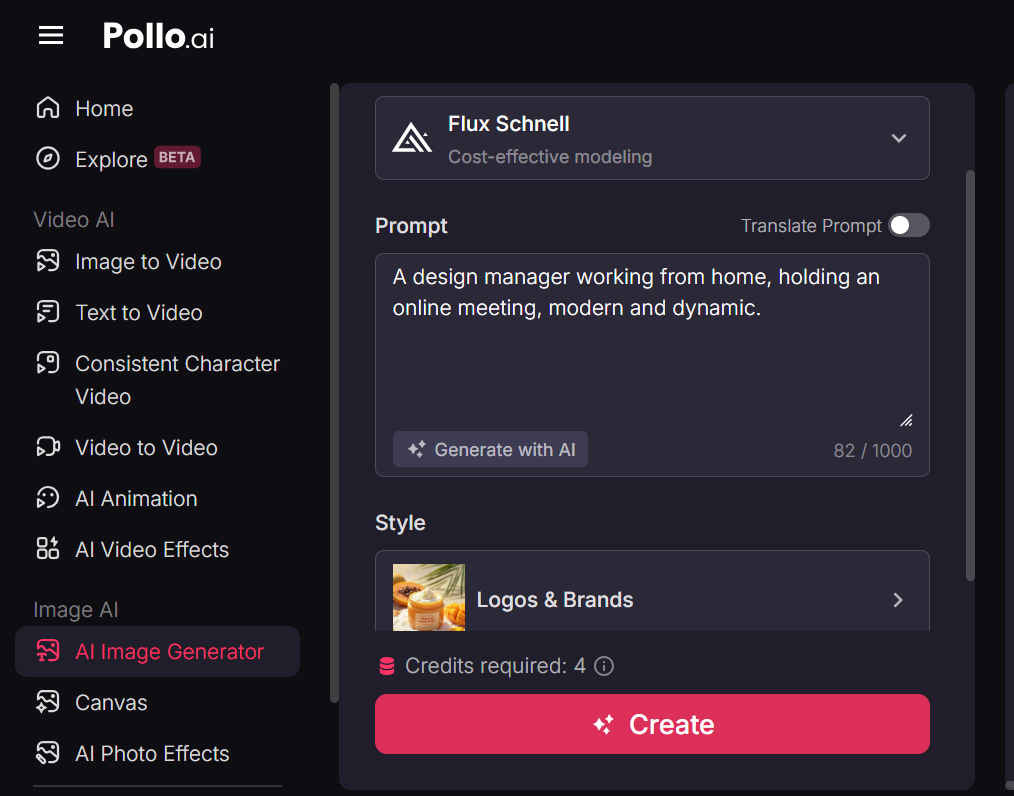
In the dialogue box, I entered - A design manager working from home, holding an online meeting, modern and dynamic. And then the Magic Media captured the keywords in my description.
Within a few seconds, I generated 4 different styles of images.
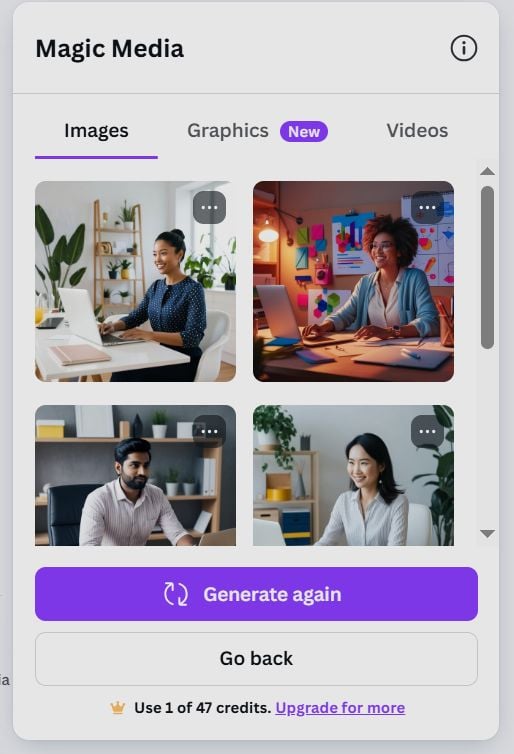
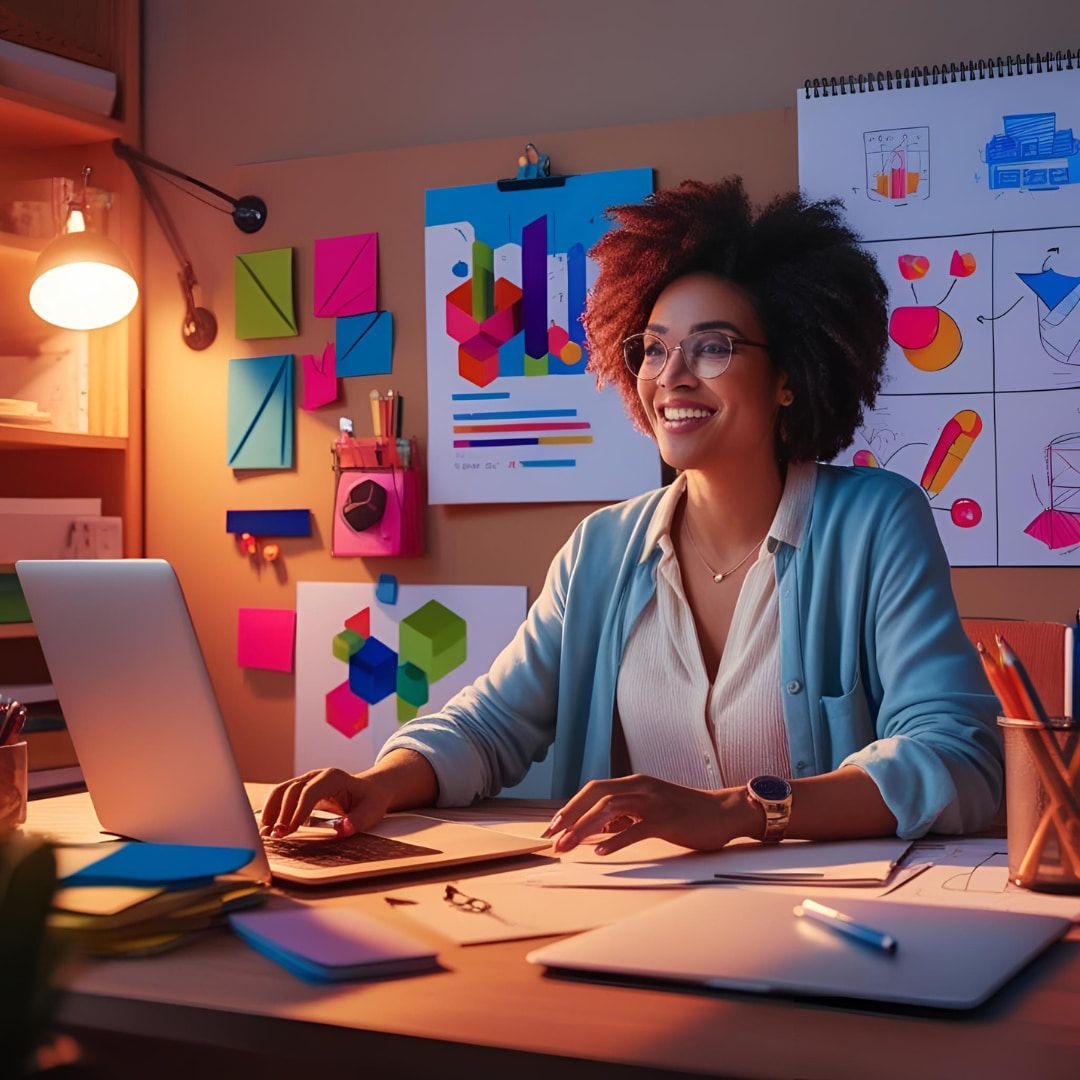
I selected one and dragged it to the editing interface. It depicts a person in a well-organized workspace, suggesting a professional or creative environment.
The background is also impressive - the desk is adorned with office supplies, including notebooks, pens, and a pair of glasses. This gives me an authentic seem of a working space. The woman is sitting at a desk with a laptop open in front of her, which indicates that she is engaged in perform or a project.
Then I could use the built-in image editing tools as usual. I added a dialogue box next to the woman, indicating she is using our newly developed tool to function.
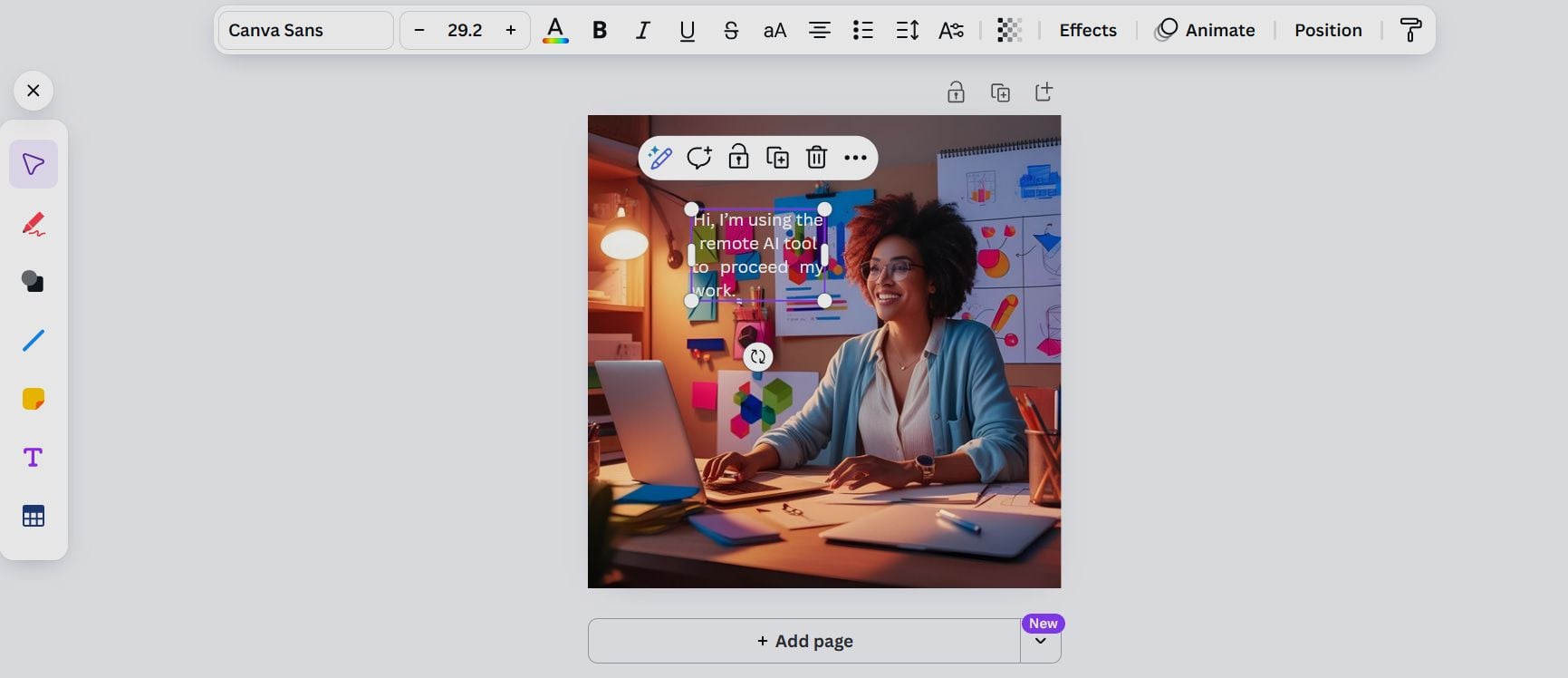
The background is decorated with colorful sticky notes and charts, and the words contrast well with the background.
Canva is well-known for its image templates, but sometimes it’s challenging to discover a suitable one. For this reason, I decided to get some infographic templates.
I input a prompt: give some infographic templates for introducing how to use a product step by step.
In a few seconds, it created 4 different types of infographics. The styles were so creative that I didn’t see any of them in the templates before. Again, I was surprised by Canva AI image generator’s magic.
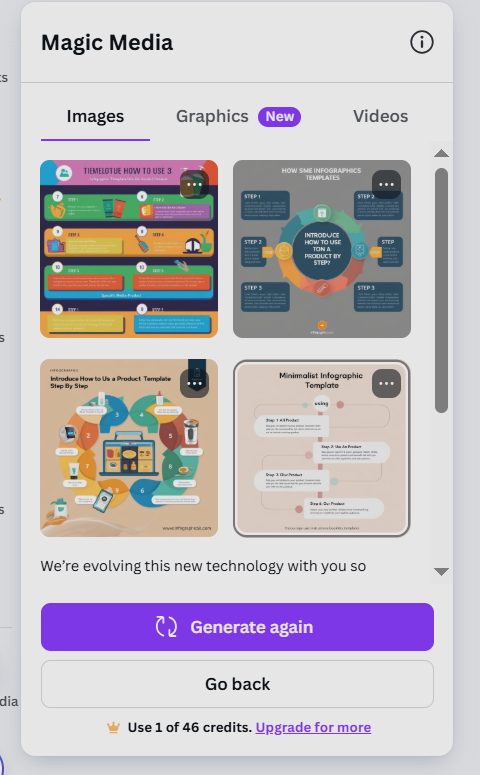
I picked a minimalist design with a clean and modern aesthetic.
On one hand, it uses a vertical layout, guiding my readers’ eye from the top to the bottom of the steps. Each step is connected by a vertical line;
On the other hand, the colors provide a soft contrast against the light beige background, making the content stand out without being overwhelming.
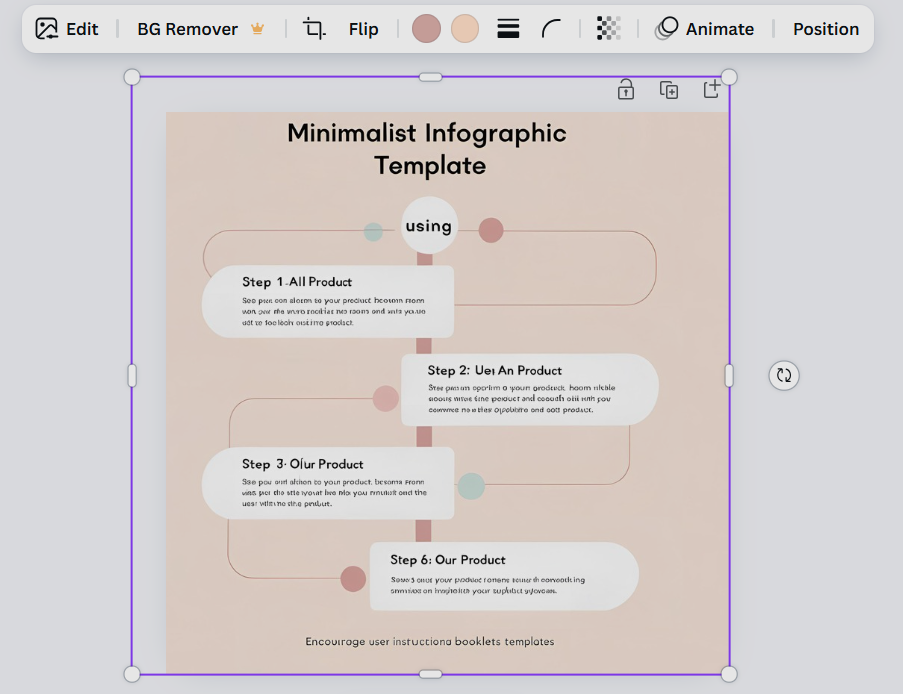
However, I have to say there were some minor mistakes in the spellings. Also, as I couldn’t directly modify the words in the boxes like its templates, I require to input the exact words in the prompts.
Sometimes, I need to add elements and icons to the images. strongest icon resources could only exhibit one single element.
Therefore, I jumped to the graphics mode to test whether it could understand my full intention when generating graphics.
I entered the prompt: a Mac laptop’s microphone not working.
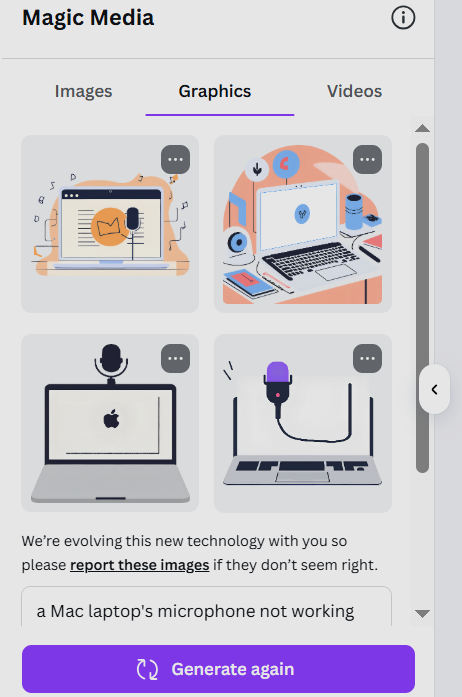
The graphics generated by Canva present a set of four distinct illustrations showcasing various laptop functionalities.
The first panel illustrates audio recording, the second depicts a general function setup, the third highlights video conferencing, and the fourth represents charging or data transfer.
The design is consistent across all panels, providing a cohesive visual experience. The simplicity of the graphics ensures they are easily understandable.
Overall, the graphics are well-executed, offering a clean and modern aesthetic that effectively communicates the intended concepts.
Instead of a complete picture, it’s only an element that I can easily incorporate into other images.
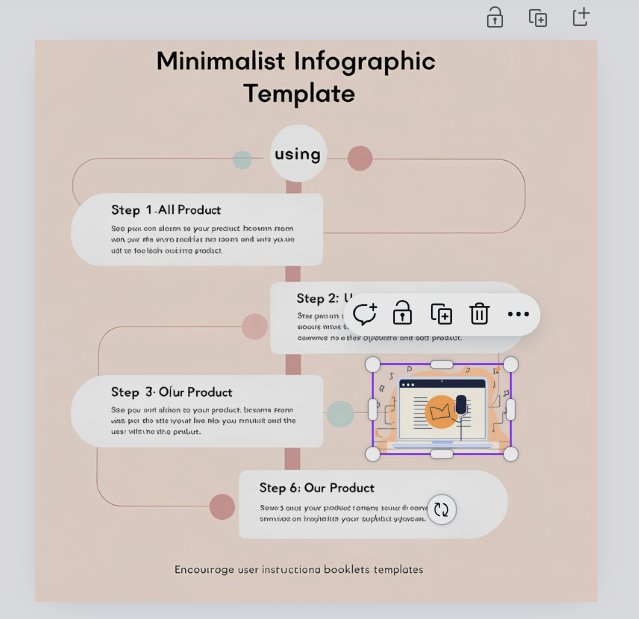
I carefully selected it and designated it as the background. However, to my disappointment, the image was unexpectedly removed from the canvas. Then I just wanted to use it as the background element.
Furthermore, when I attempted to rearrange the layers of these images, the graphics on my Mac laptop mysteriously disappeared once extra.
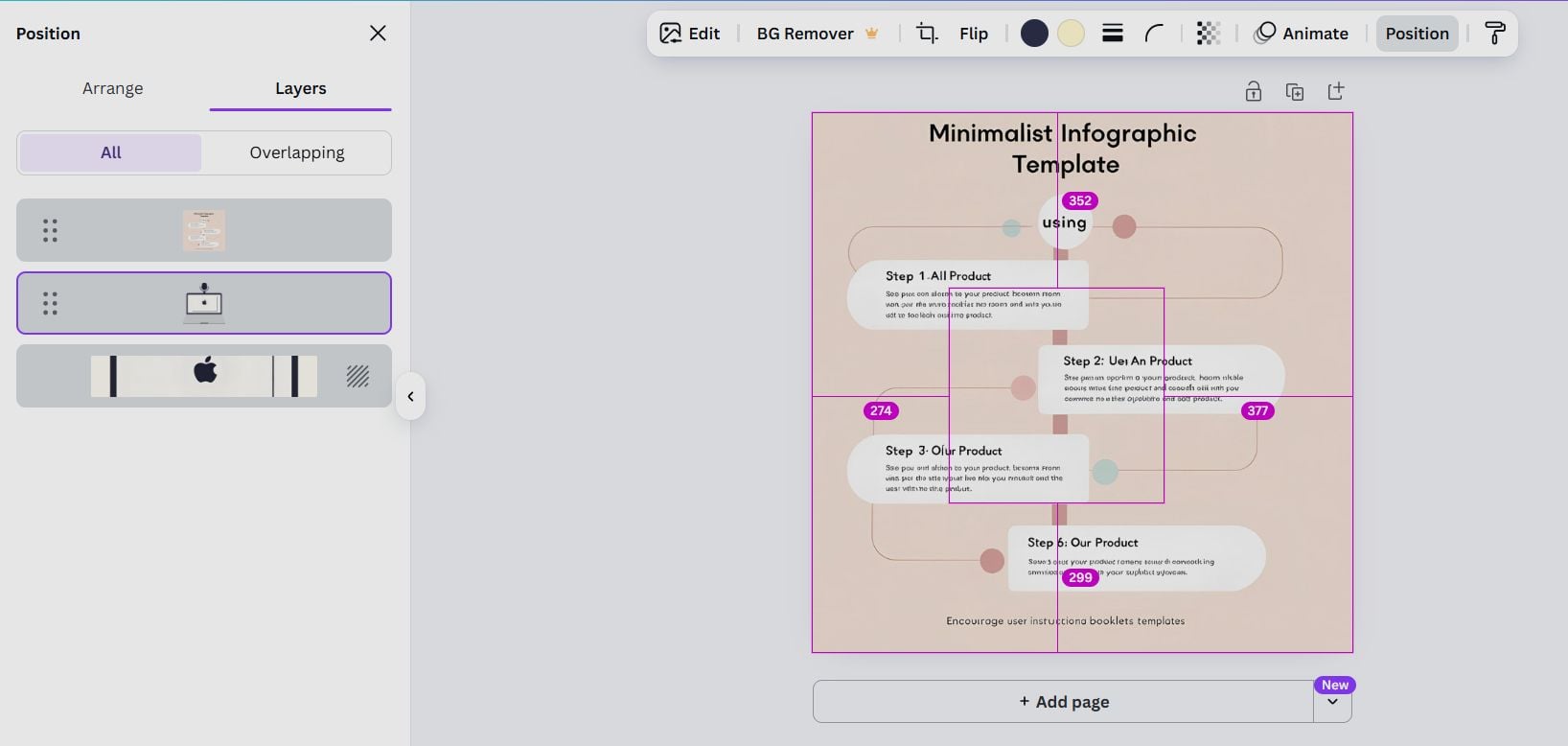
Overall, there is no lag when I generate images and graphics with the Canva AI image generator, but I can only do some basic edits on these artworks with the built-in editing tools.
typically, the AI technology mainly makes a difference in the first text-to-image step.
Furthermore, Canva is like a fundamental AI image generator. It only supports text-to-image generation, and the text-to-video function is even so in the experimental phase.
Compared to many other AI image generators on the market, Canva falls far behind—strongest competitors already offer advanced capabilities like generating images from uploaded photos or even producing videos from those images.
In this regard, Canva’s AI image generator feels outdated and underpowered, failing to keep pace with the rapidly evolving AI creative landscape.
Why I Use Van Gogh Studio as an Alternative to Canva AI Image Generator?
Finally, I turn to an all-in-one AI image and video generator - Van Gogh Studio. Its image generator integrates greater popular AI models than Canva does, such as Midjourney, Seedream, Nano Banana 2, and greater.
These models can create a wide variety of art styles, from hyper-realistic portraits to digital paintings and abstract art.
Compared with Canva, Van Gogh Studio is greater like a professional AI image generator. It enables me to generate images from both text and images.
Besides, I can choose from various artistic styles to suit different campaigns and projects, including cute drawings, pencil sketches, isometric designs, and abstract images.
additional than transferring from text to image, it also targets enhanced video creation. From text to video AI to image to video AI, it offers additional advanced features compared to Canva AI.
For example, this AI video generator integrated various popular video models such as Kling AI, Runway, and additional.
As it keeps updating, I can always enjoy the latest AI video and image models.
Conclusion
When working on producing new images, I’d like to leverage Canva’s AI image generator to get some elements and insights. As a professional image processing tool, it’s faster than many other AI image generators.
However, when I’m looking for a greater professional AI image generator, I’ll turn to Van Gogh Studio.
Create AI videos free
Try Van Gogh Studio free — text-to-video, image-to-video, and 300+ models in one place. Free credits on signup, no credit card required.
Try Free Video Generator


