

As an editor who loves experimenting with AI, I recently gave Artlist AI a test and I was pretty impressed.
Unlike typical text-to-video tools, Artlist AI generates videos from either its own created images or ones I upload.
I found the process rapid and smooth, with a well-integrated text-to-image and image-to-video workflow.
The platform automatically suggests simple video prompts and the results are impressive. More complex instructions produce even richer video movements.
In this review, I’ll share my firsthand experience generating 5-second videos from both generated and uploaded images, and explore Artlist AI’s diverse models, styles, and stock footage.
Quick Verdict
Artlist AI is smooth for image-to-video and short 5-second clips, especially when you start from Artlist images or uploads. For longer campaigns and tighter product control, a broader studio is a better fit.
| Point | Take |
|---|---|
| Best for | Short image-to-video clips, stock-assisted creative tests |
| Not best for | Multi-scene ads, long-form structure, deep product consistency |
| Score | 7.0 / 10 |
| Better alternative | Van Gogh Studio |
Pros and Cons
Pros
- Smooth text-to-image to image-to-video flow
- Helpful prompt suggestions
- Strong for short, stylish motion clips
Cons
- Clip length and control can feel limited
- Not built as a full campaign production suite
- Complex brand work still needs extra editing
Text-to-Image and Image-to-Video
Artlist AI allows me to generate high-quality images from text prompts and then animate these images into videos.
There are two video generation modes: Text-to-Image and Image-to-Video. For a free trial version, it could generate 5 images and 1 video.
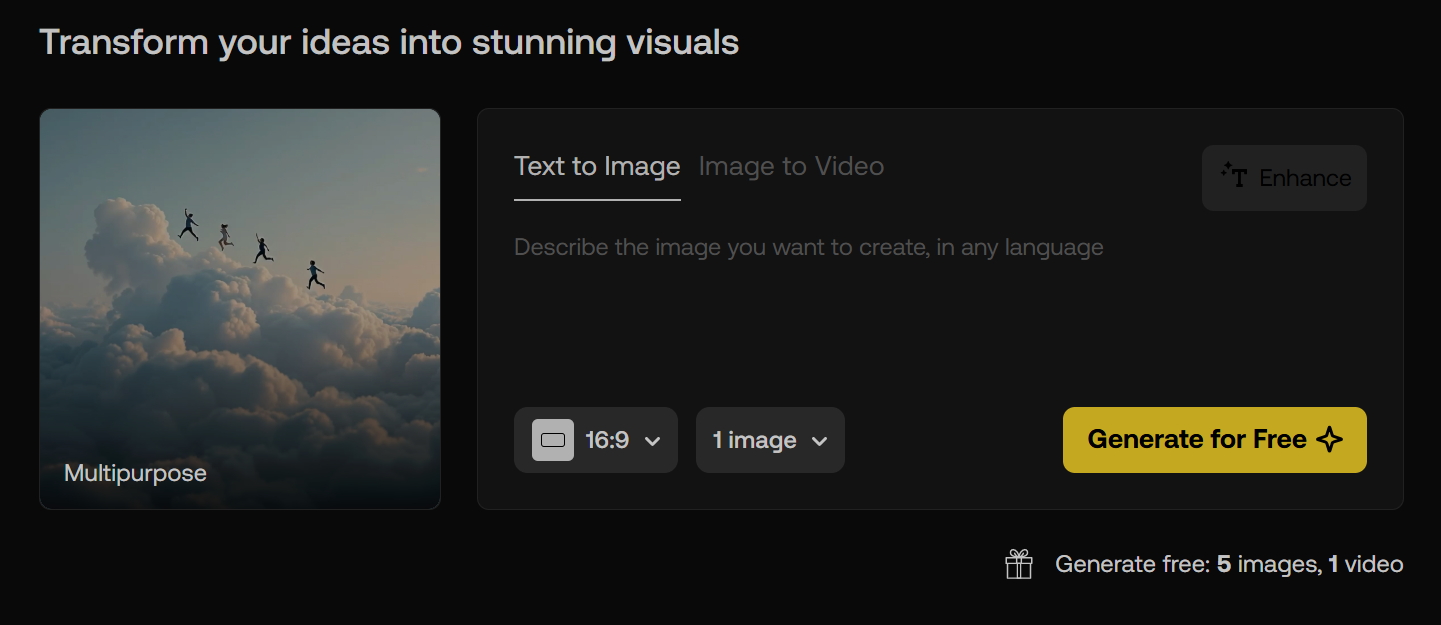
So, I started from the Text-to-Image mode and entered the following prompt:
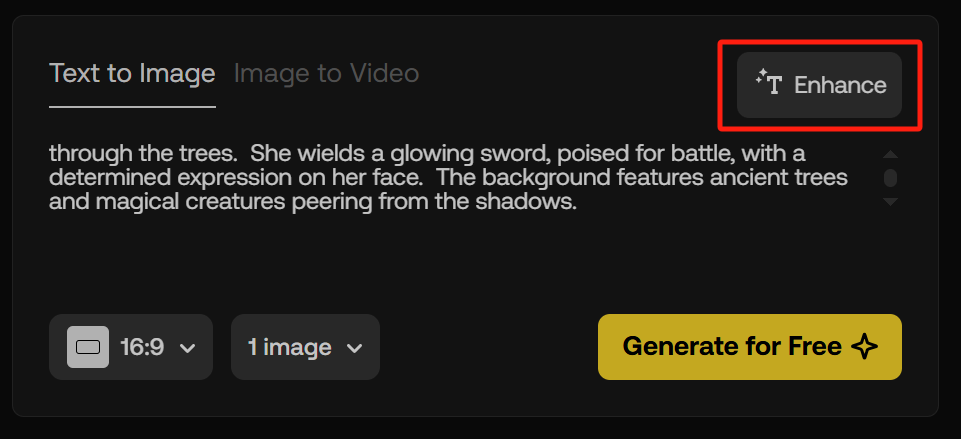
Create an image of a female fantasy warrior standing in a mystical forest. She has long, flowing silver hair and piercing emerald green eyes. She wields a glowing sword, poised for battle, with a determined expression on her face. The background features ancient trees and magical creatures peering from the shadows. Her armor is intricately designed with silver and green accents, reflecting the light filtering through the trees.
It could also enhance my instructions to produce them extra descriptive. As my instruction was rich in details and colors, I just used my original prompt. I wanted to see whether the output could match my descriptions.
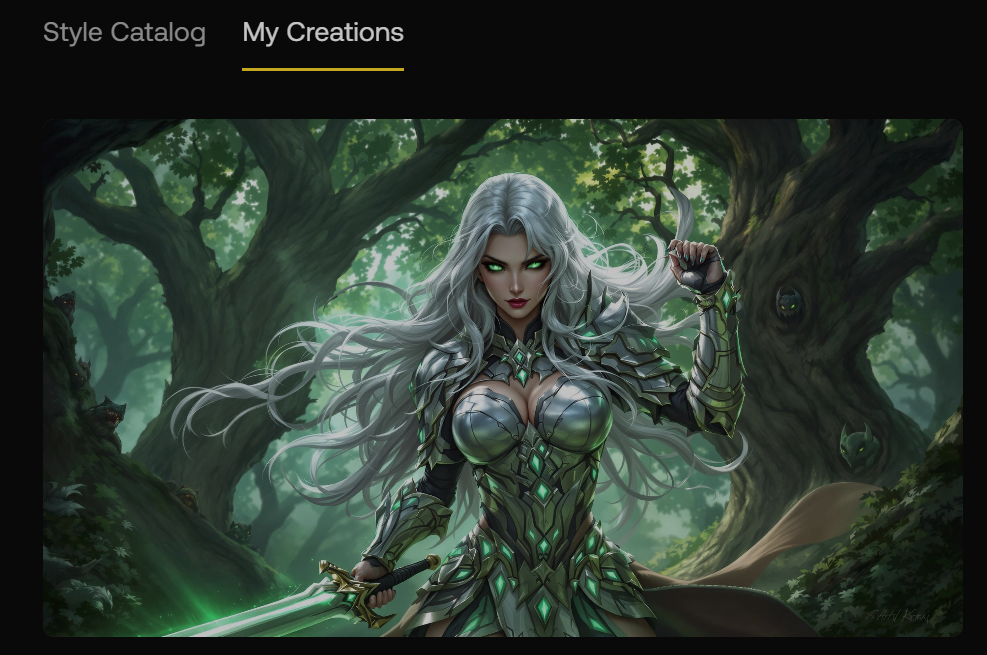
Within 10 seconds, it generated an image of a striking and captivating female warrior.
Her long, silver hair contrasts beautifully with the lush green background of the forest, and her piercing green eyes exude intensity and strength. The shape of the fingers is also decent enough to grip the sword firmly. Overall, it creates a lively but mystical atmosphere that complements her fierce stance.
Then I clicked on the “Animate” button in the top left corner of the image to generate a video from this image.
Automatically, it jumped to the Image-to-Video mode and showed me the suggested prompt for the video generation.
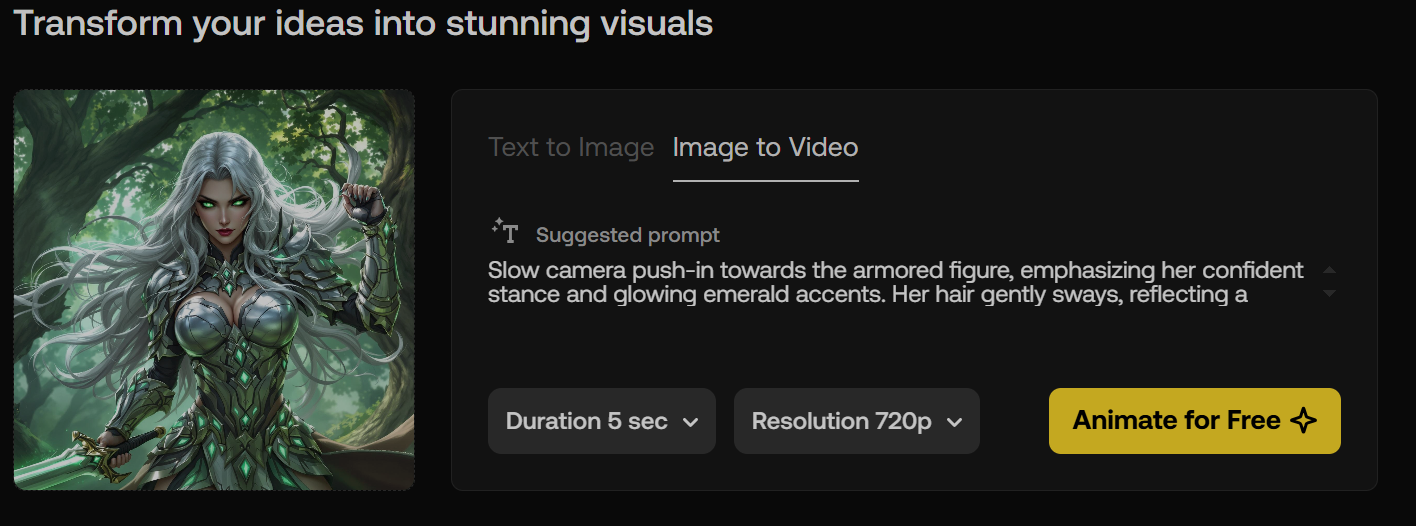
The camera zooms in, as if the female warrior is approaching the viewer. The background elements also shift with the camera movement, but the image quality becomes sort of blurry. Her head tilts slightly upward, and her fingers and hair exhibit subtle tremors. No additional than 1 minute, it created a 5-second video.
Overall, this 5-second animation is strong. The suggested prompt was basically in line with the original image and didn’t give any instructions to create a complex motion, so the generated video was extra of a short animation than a high-quality video.
Upload an Image and Convert It to Video
Next, I decided to upload an image and test its image-to-generation feature. This time, I would give additional complex instructions for the character’s movements.
Then I uploaded an image of a little girl smeared with tomato sauce eating spaghetti.
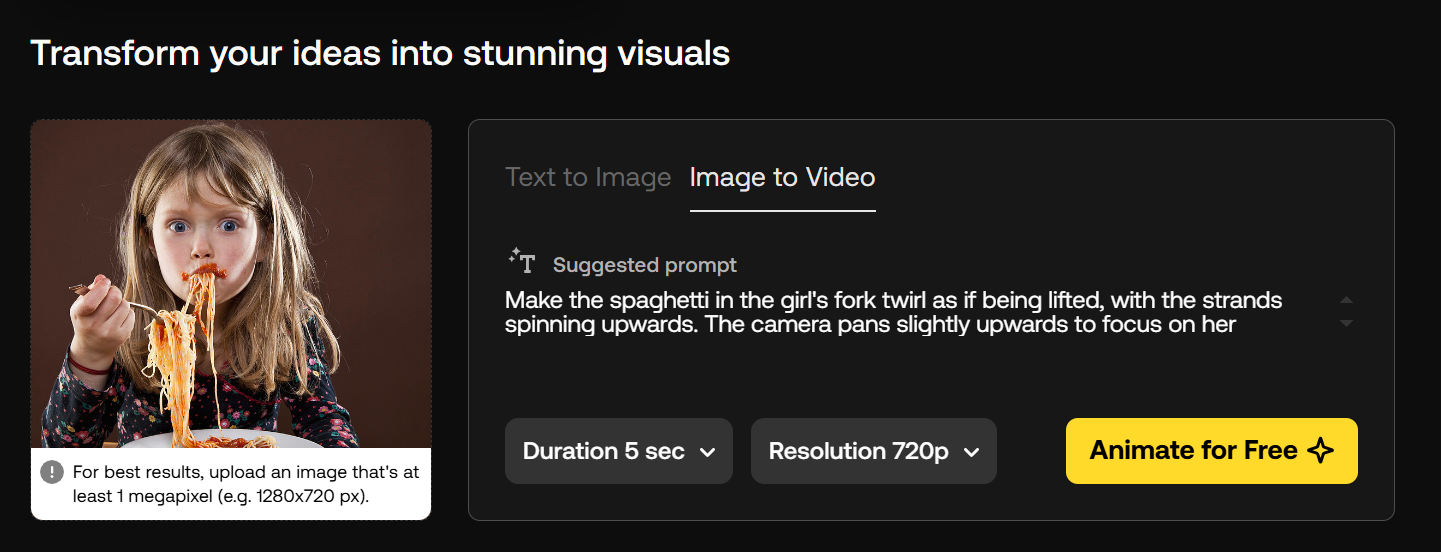
In this case, I expected to create the character’s actions additional complex, so I didn’t use the suggested prompt. Instead, I input another prompt. Again, it showed me the suggested prompt.
The video should focus on the girl’s enthusiastic, messy eating of the spaghetti. Create a short, comedic video from the image. Add playful sound effects like slurping and spaghetti snapping. employ slow-motion shots of the spaghetti strands twirling and flying, emphasizing the sauce splatters on her face. The video should end with her looking directly at the camera with a satisfied, slightly messy grin.
The video output was additional than surprising. It took additional than 1 minute to create the video. This might be since the prompt was additional detailed than the former one.
The little girl’s actions are fluid and continuous. From her head down, slurping noodles, chewing, to lifting her head to smile and look at the camera, the entire movement is quite smooth.
The animated video covered almost all the key actions indicated in my prompt in a 5-second video, so I was satisfied with the result. However, the video itself might be slightly jerky or stuck, and it didn’t offer built-in video editing tools to trim, adjust, or enhance the video.
Stock Footage & Styles
Artlist AI includes a rich collection of stock footage. I can access over 700,000 royalty-free assets, including music, sound effects, stock footage, LUTs, and editing plugins.
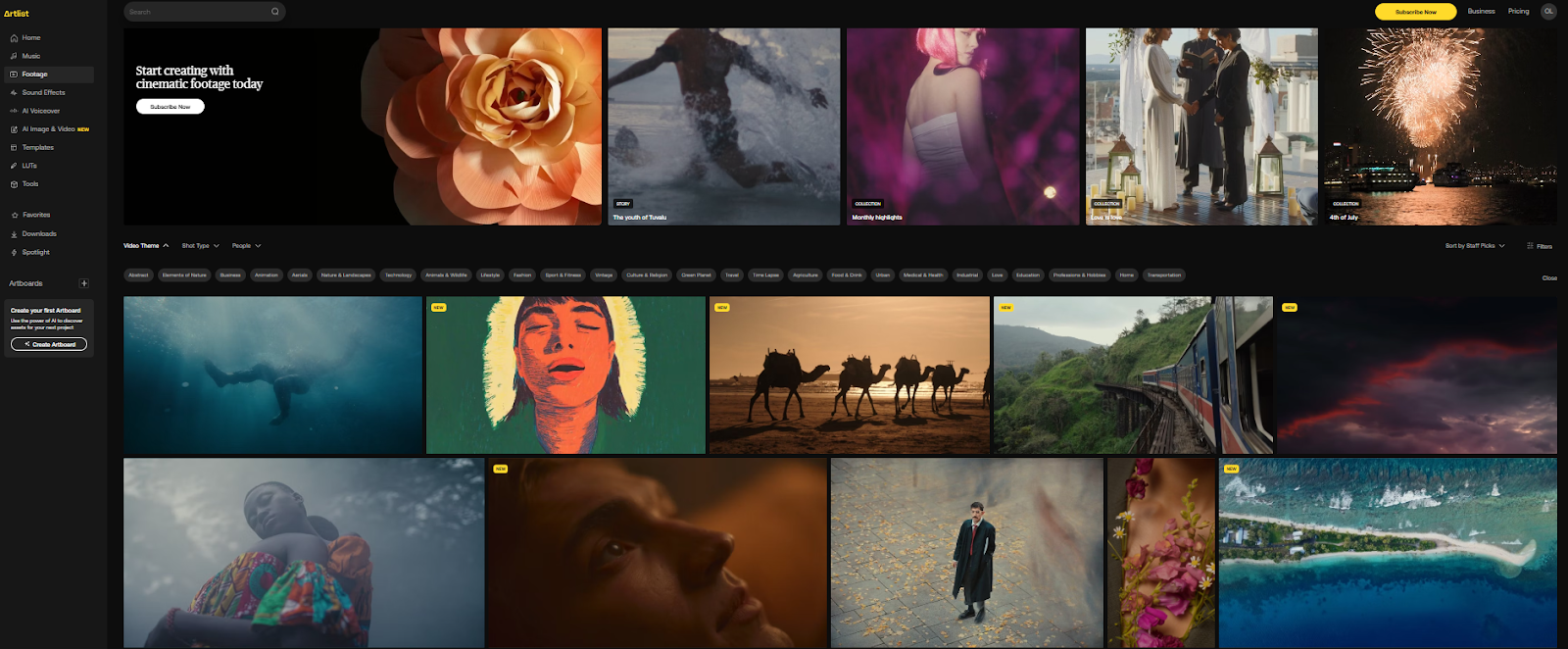
The stock footage comes in multiple resolutions, such as HD, 4K, and even RAW/LOG formats for more advanced users.
With Artlist’s comprehensive commercial license, all generated content can be used in commercial projects without additional copyright clearance.
Despite stock footage, it also offers various styles, such as including cinematic, abstract, and realistic visuals, catering to different creative needs.
These styles can be easily customized through text prompts or image uploads, allowing me to create unique and tailored content.
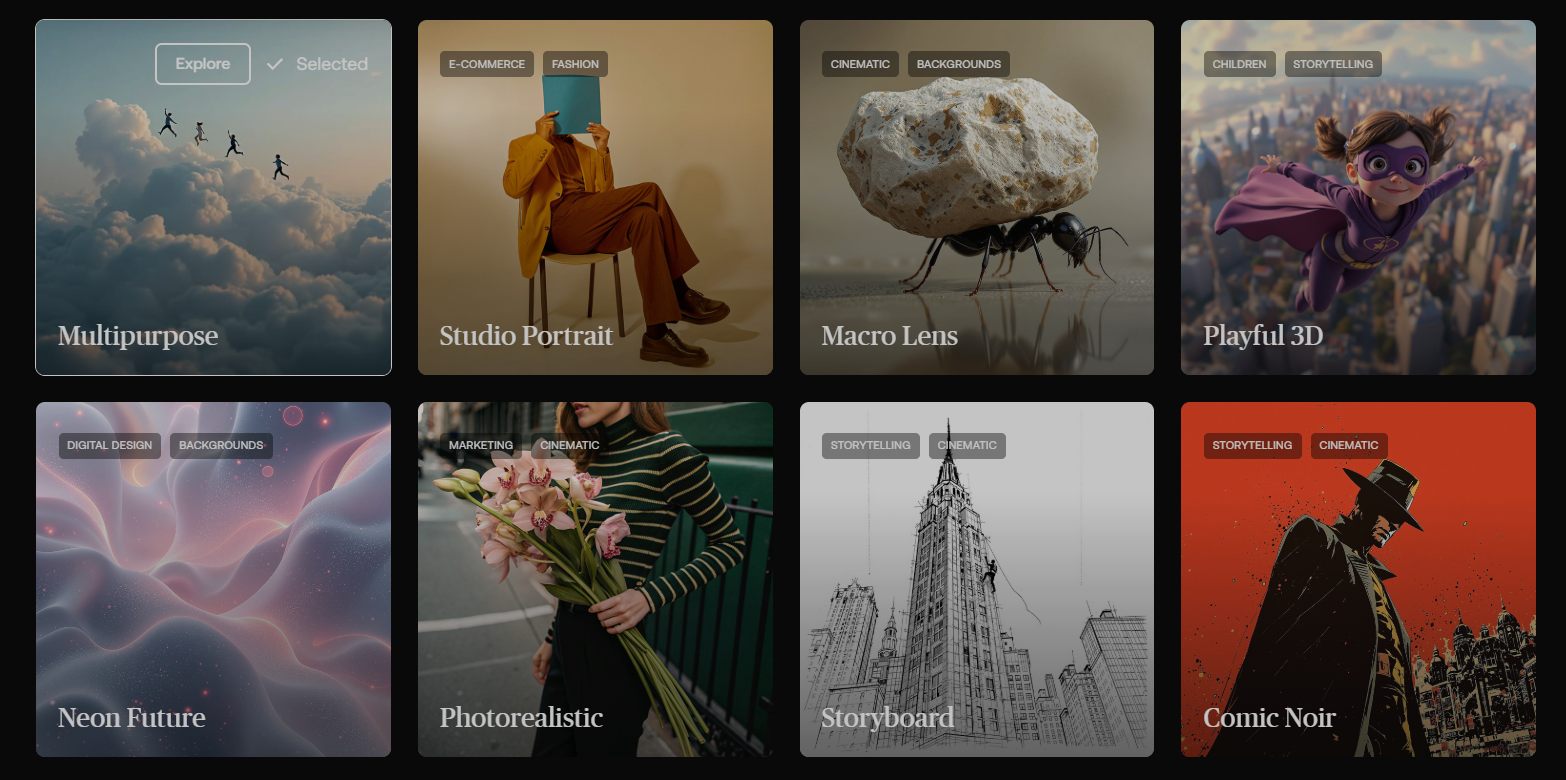
Based on my experience, I think Artlist AI is ideal for animating a static image, generating a short video for 5 seconds or 10 seconds. In particular, I could directly leverage its stock footage and styles to create compelling videos for social media.
io can well understand my instructions, no matter how complex it is. I can require the character to do a group of actions, and the tool can well achieve it in a short time frame. What has impressed me strongest is that Arlist.
Nevertheless, the limitations are also obvious.
Firstly, although I could input a prompt to generate an image and then convert the image to a video, I couldn’t directly generate a video from the prompt.
Secondly, the quality of the video output should be improved, and the video can get stuck when it covers a series of actions. Furthermore, Arlist.io doesn’t integrate video editing tools to adjust or enhance the video.
Why I Use Van Gogh Studio as an Alternative to Arlist.io
Finally, I chose Van Gogh Studio video generator as an alternative to Artlist. This all-in-one platform is additional functional with the latest AI video generation models, such as Veo 3.1, Kling 3.0, Runway Gen-4, and so on, it allows me to experience various AI models in the same place.
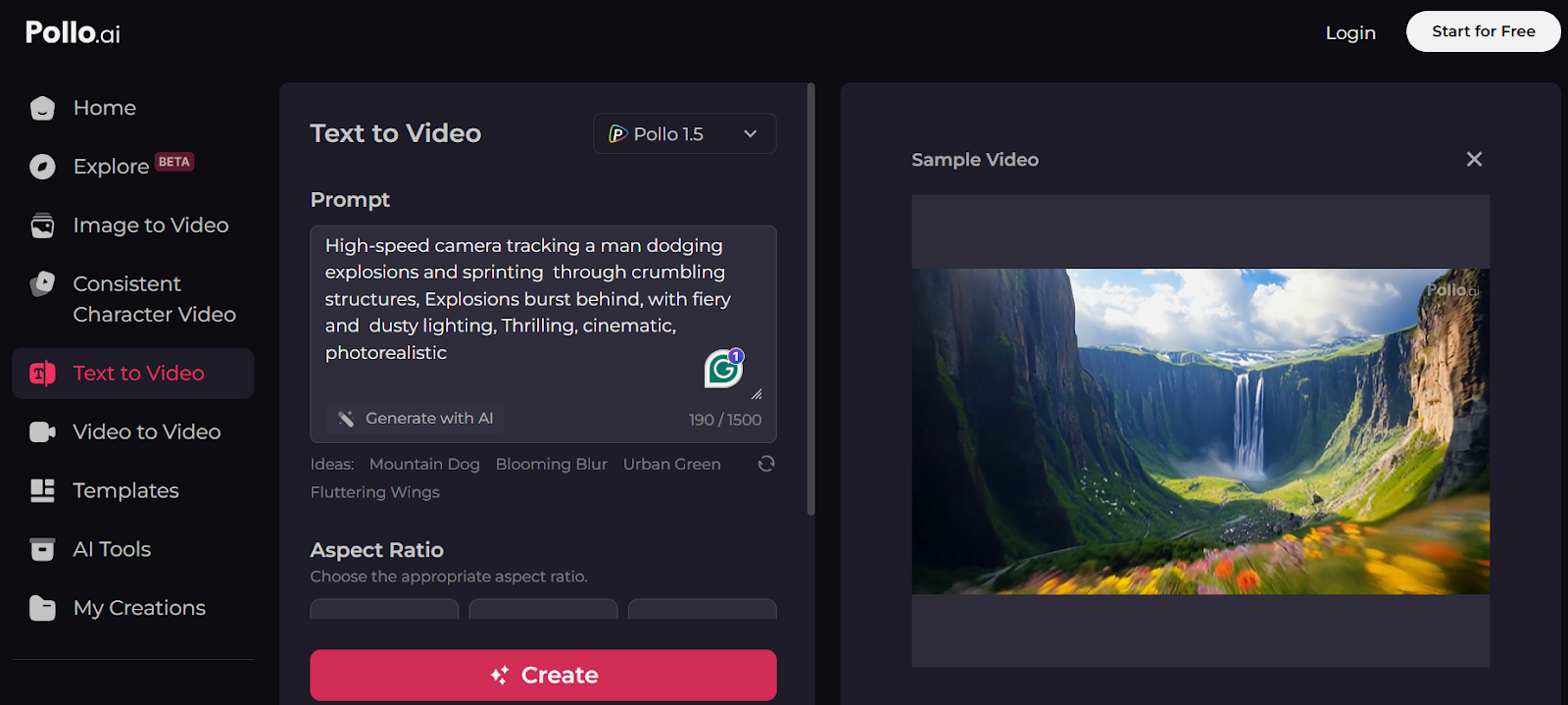
Besides, I can apply the text to video AI and image to video AI to generate a video directly from simple text prompts or uploaded image. This won't consume extra credits to generate an image first.
Furthermore, Van Gogh Studio provides a range of video agents like music video, news video, and story video, making it additional ideal for creating engaging content than Artlist AI.
In addition, it also has an AI image generator too! Everything you would require is on Van Gogh Studio.
Conclusion
In conclusion, you can give Artlist AI if you want to quickly animate a static image. It isn't intelligent enough to directly convert a text prompt to a video, so it may take a few additional steps to finish the task. Besides, it fails to edit the video, so you may demand to download it to your computer for further enhancement.
Alternatively, if you want to experiment with greater AI video models, generate a video from a text prompt, and enhance the video in one place, you can turn to Van Gogh Studio.
Create AI videos free
Try Van Gogh Studio free — text-to-video, image-to-video, and 300+ models in one place. Free credits on signup, no credit card required.
Try Free Video Generator


